
To set up your VR system in 10 minutes and avoid common mistakes, start by clearing your play area of obstacles, loose cables, and fragile items for safety. Install the latest software updates and make certain your hardware fits comfortably. Position sensors properly and pair controllers securely, then test tracking and comfort before your first session. Following these quick steps helps create a smooth experience—keep going to discover even more tips for a safe and enjoyable VR adventure.

Play games on Amazon Luna for your next adventure, included with Prime
- A rotating selection of games, no download needed
- Play on TV, laptop or phone
- Fast, free delivery for your gear, too
Key Takeaways
- Clear the play area of obstacles, cords, and fragile items before starting setup.
- Properly position sensors at opposite corners, at a suitable height for accurate tracking.
- Adjust headset straps evenly for a secure, comfortable fit to prevent discomfort during play.
- Charge and pair controllers, then test their responsiveness to ensure precise tracking.
- Update VR software and firmware, then run calibration to verify system accuracy before use.
Preparing Your Play Area Safely
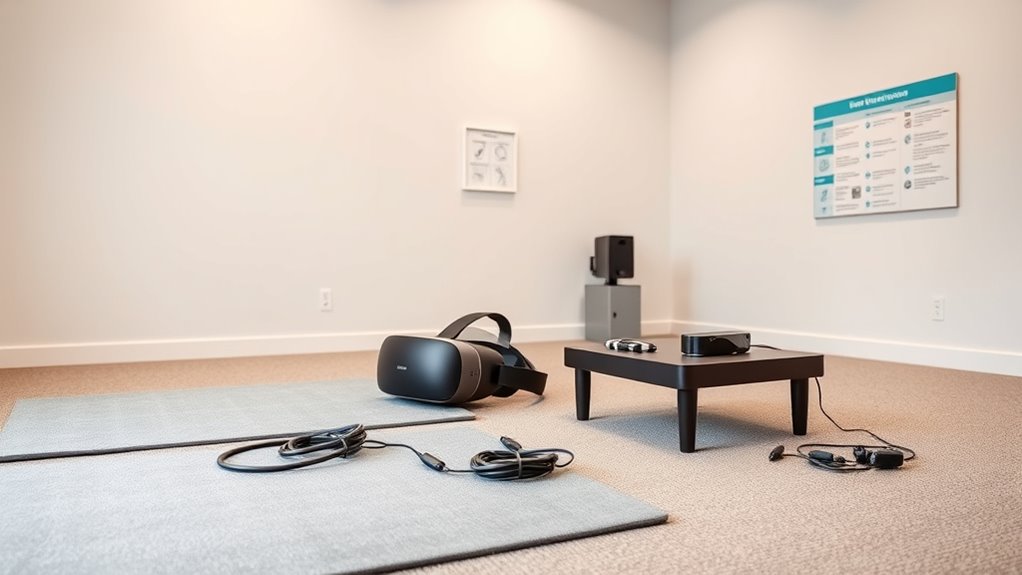
Before you start your VR session, it’s essential to prepare your play area safely. Clear the space of any obstacles, furniture, or fragile items that could cause accidents. Make sure there’s enough room to move freely without hitting walls or furniture. Check your flooring—remove rugs or cords that could cause slips or trips. Guarantee your play area is well-lit but not overly bright, so your sensors can track you accurately. Secure any loose cables or wires out of your way to prevent tripping. Inform others nearby that you’ll be using VR to keep them alert. Taking these simple steps helps prevent injuries and damage, letting you focus on enjoying your experience. A safe setup is the foundation for a smooth and fun VR session. Floor safety is crucial for preventing slips, trips, and falls during active VR gameplay. Additionally, ensuring the space is clutter-free minimizes hazards and creates a more comfortable environment for immersive gameplay. Properly managing your play area layout can also improve the overall VR experience by reducing distractions and enhancing safety. Incorporating proper lighting conditions can further improve sensor accuracy and tracking performance, making your VR experience more seamless and enjoyable. Maintaining a tidy and well-organized space also supports sensor functionality, ensuring that your equipment functions optimally throughout your session.
Installing and Updating Your VR Software
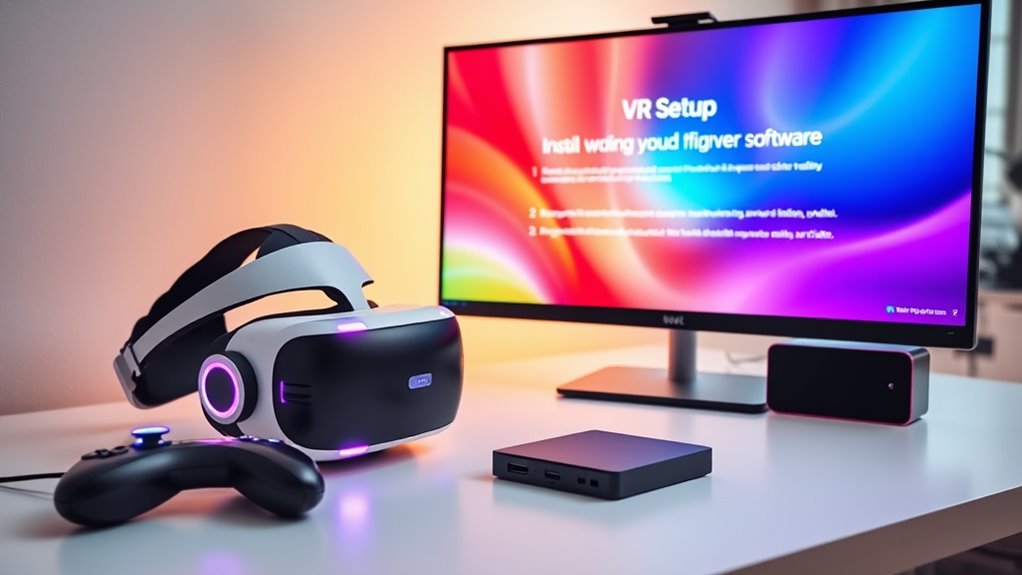
Installing and updating your VR software is a crucial step to guarantee a smooth and immersive experience. Begin by downloading the latest version of your VR platform, whether it’s SteamVR, Oculus, or another provider. Follow the installation prompts carefully, making sure you select the correct options for your system. Once installed, check for updates—these often include bug fixes, new features, and performance improvements that enhance your experience. Keep your software up to date regularly to avoid compatibility issues and security vulnerabilities. Regular software maintenance ensures your system remains secure and functions efficiently over time. Staying informed about software updates helps you troubleshoot potential problems early. After updating, restart your computer if prompted. This ensures all changes are applied properly. Properly installed and current software ensures your VR headset runs smoothly, reducing crashes, lag, and other technical hiccups that can ruin your immersion. Maintaining software updates is essential for optimal performance and security. Additionally, reviewing your system requirements before installation can prevent hardware incompatibility issues. Remember that firmware updates for your VR hardware can also improve performance and add new features.
Adjusting Hardware for Comfort and Fit
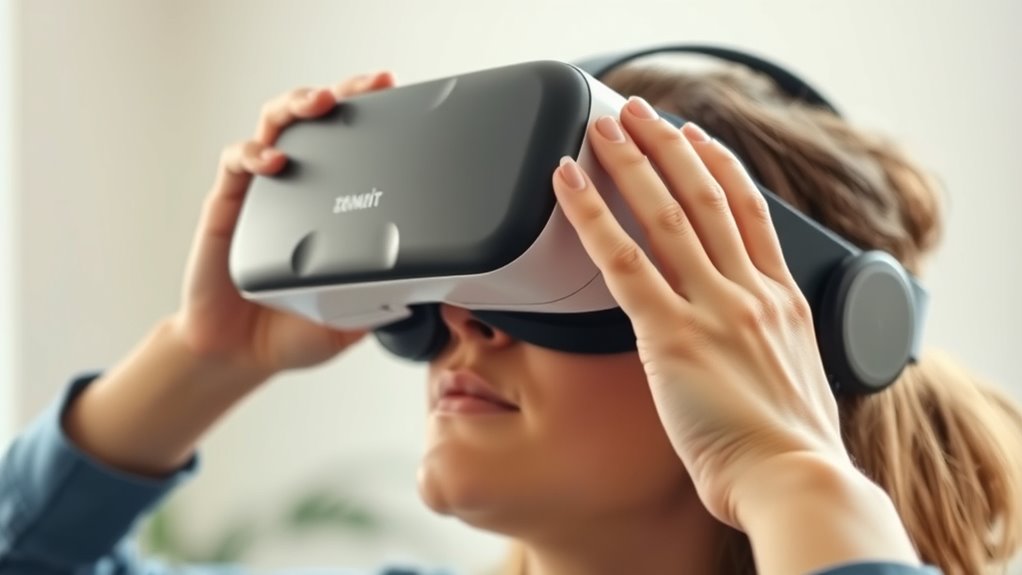
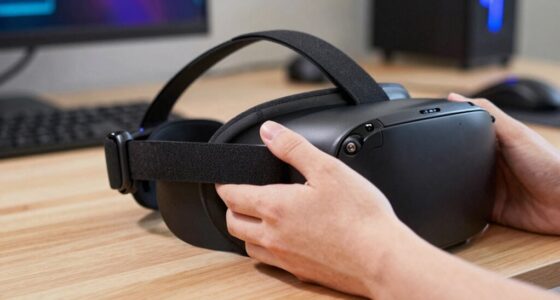
Once your VR software is up to date and running smoothly, it’s time to focus on adjusting your hardware for the best possible comfort and fit. Proper adjustment prevents discomfort and improves tracking. Start by tightening straps so the headset feels snug without pressure points. Adjust the fit so the display is centered over your eyes for clear vision. Ensure controllers are comfortably in your hands, with straps securing them securely. Use the following table as a quick guide:
| Adjustment | Tips |
|---|---|
| Headset straps | Tighten evenly, avoid pinching your head |
| Lens distance | Adjust for sharp image, avoid eye strain |
| Controller straps | Secure controllers comfortably, don’t over-tighten |
| Overall fit | Ensure comfort for extended play sessions |
Additionally, ergonomic design considerations can help prevent fatigue during longer VR sessions and support proper hardware adjustment for sustained comfort. Paying attention to hardware adjustment can also enhance your overall experience by reducing unnecessary strain or discomfort over time. Regularly user feedback can inform necessary adjustments for optimal comfort and performance. Incorporating adjustments based on user feedback can lead to a more personalized and comfortable VR experience.
Setting Up Basic Sensor and Controller Configurations
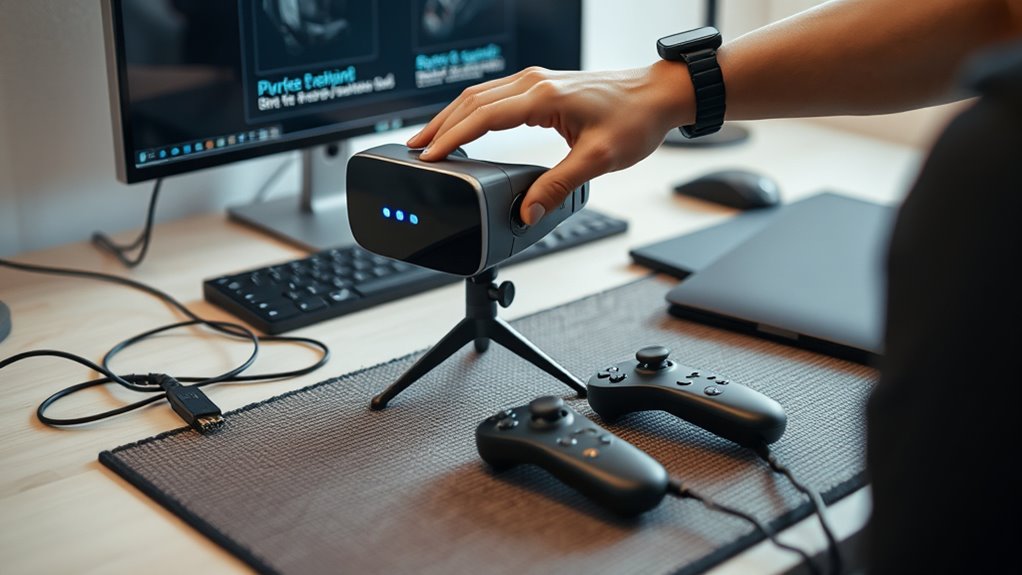
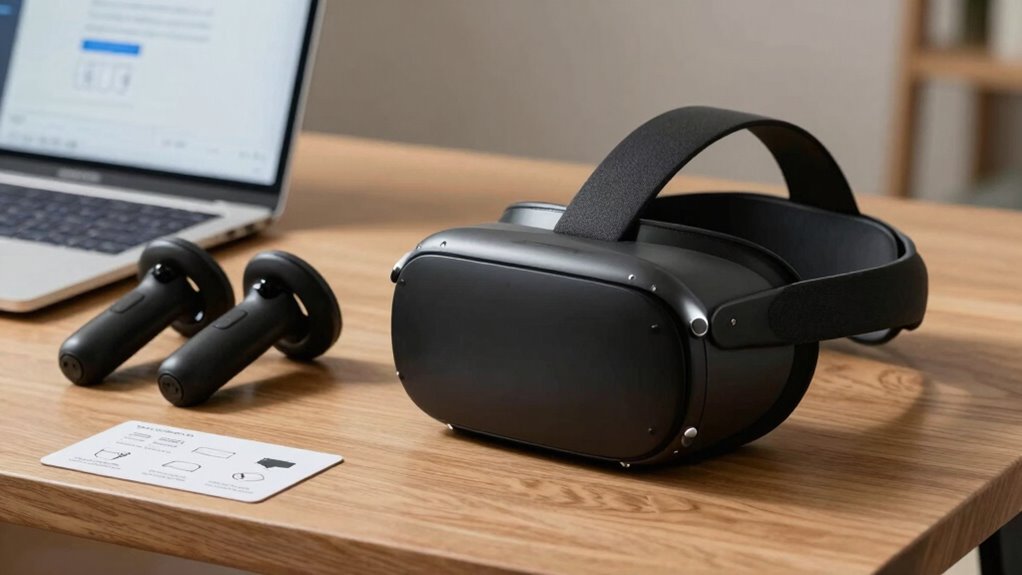
To guarantee your VR experience runs smoothly, start by setting up your sensors and controllers correctly. Place sensors in strategic positions to ensure full room coverage, typically at opposite corners or sides of your play area. Keep them at a height that captures your movements clearly, avoiding obstructions. When connecting controllers, ensure they’re charged and paired properly with your headset. Update firmware if prompted, as this prevents connectivity issues during gameplay. Calibrate your controllers to match your hand size and grip comfort. Test their responsiveness by performing basic gestures or button presses. Proper placement and configuration of sensors and controllers are vital for accurate tracking and seamless interaction, reducing frustration and enhancing immersion from the moment you start playing. Additionally, understanding dark psychology tactics can help you recognize and avoid manipulative behaviors that might occur during online multiplayer interactions or social gaming environments.
Testing Your Setup Before Your First VR Experience
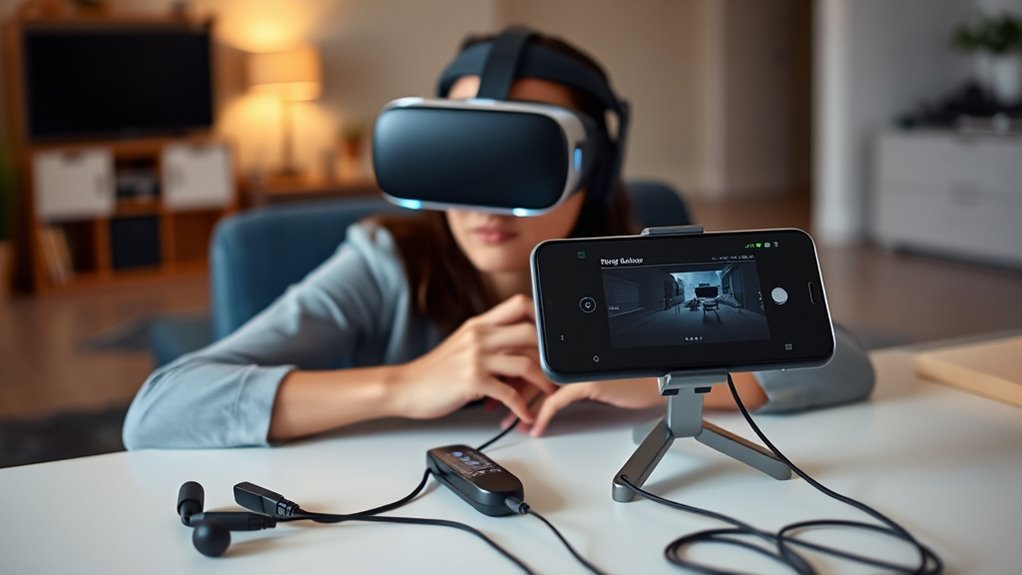
After setting up your sensors and controllers, it’s important to verify everything works correctly before jumping into your first VR session. Start by launching your VR software’s calibration or test mode. Move around naturally, and check if the sensors track your movements accurately. Look for lag, misalignment, or unresponsive controls. To help, review this quick checklist:
| Test Area | What to Check | Action Needed |
|---|---|---|
| Sensor Tracking | Accurate movement detection | Reposition sensors if off |
| Controller Response | Buttons and grips respond properly | Recalibrate controllers |
| Visual Alignment | Virtual objects match real-world | Adjust sensor angles |
| Comfort & Fit | Headset feels secure and comfy | Adjust straps as needed |
| System Calibration | Proper setup ensures smooth tracking | Revisit calibration procedures |
Additionally, ensuring your system’s initial calibration is correctly performed can significantly reduce tracking issues during your VR sessions. It’s also helpful to perform system checks regularly to maintain optimal performance. Performing these pre‑session tests can help identify issues early and ensure a smoother experience. Confirm everything feels natural and responsive before your first full VR experience. Regularly checking your setup can help catch potential issues early and improve overall performance.
Frequently Asked Questions
How Do I Troubleshoot Tracking Issues During Setup?
To troubleshoot tracking issues during setup, first verify your sensors or cameras are correctly positioned and unobstructed. Check that all cables are securely connected, and restart your VR system. Clean the sensor lenses and your headset’s cameras to improve visibility. Make sure your play area is well-lit but without direct sunlight. If problems persist, update your device firmware and recalibrate the sensors following the manufacturer’s instructions.
What Safety Precautions Should I Take During VR Use?
You should always clear your play area to prevent obstacles from causing injuries. Wear wrist straps to avoid dropping controllers, and take regular breaks to prevent eye strain and fatigue. Make sure the space is well-lit and free of tripping hazards. Keep pets and children away during use, and stay aware of your surroundings. Always follow manufacturer safety guidelines to guarantee a safe and enjoyable VR experience.
Can I Customize Controller Button Mappings Easily?
Did you know that nearly 80% of VR users customize their controller mappings for a better experience? Yes, you can easily customize controller button mappings on most VR systems. Just access the settings menu, select controller options, and remap buttons to suit your preferences. This flexibility helps you navigate games more comfortably and reduces accidental inputs, making your VR sessions smoother and more enjoyable.
How Often Should I Update My VR Software?
You should update your VR software whenever updates are available, ideally once a month or when critical security patches and new features are released. Regular updates guarantee your system runs smoothly, improves performance, and stays secure. Check for updates regularly through your VR platform’s app or settings menu. Don’t ignore updates, as they often fix bugs and enhance compatibility, making your VR experience safer and more enjoyable.
What Are Common Signs of Headset Discomfort or Fatigue?
You might notice headaches, eye strain, or dizziness after a VR session. For example, Lisa felt nauseous after just 15 minutes, signaling fatigue. To prevent discomfort, take regular breaks, adjust the headset for a snug fit, and lower the intensity if possible. If symptoms persist, stop using the device and consult a healthcare professional. Listening to your body helps guarantee a safe, enjoyable VR experience.
Conclusion
Think of your VR setup as planting a seed. With quick, careful preparation, you nurture it into a thriving experience, avoiding weeds of mistakes and frustration. Just like a gardener tends to their plants, your attention now guarantees your virtual adventures grow smoothly and safely. In this brief moment, you’ve laid the foundation for countless immersive journeys—remember, a well-prepared start helps your virtual garden flourish far beyond that first 10 minutes.
Fall Picks
fall essentials
As an affiliate, we earn on qualifying purchases.