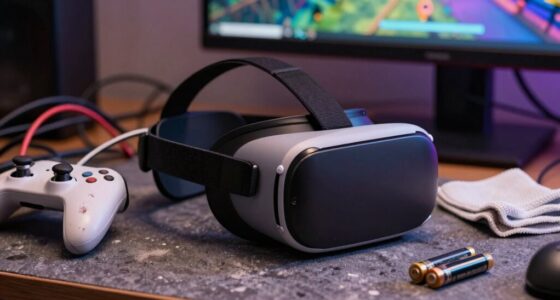
To quickly boost your VR comfort, start by adjusting your color and brightness settings to match your environment. Keep colors natural and avoid overly saturated or washed-out tones. Set brightness so you can see details clearly without glare or eye strain, especially in different lighting conditions. Regularly revisit these settings to prevent fatigue and enhance immersion. Want to learn more tips to get the most out of your VR experience? Keep exploring!

Play games on Amazon Luna for your next adventure, included with Prime
- A rotating selection of games, no download needed
- Play on TV, laptop or phone
- Fast, free delivery for your gear, too
Key Takeaways
- Use built-in calibration tools or presets to quickly find comfortable, natural color and brightness settings.
- Adjust brightness based on ambient lighting to minimize eye strain and enhance detail visibility.
- Avoid overly saturated or dull tones by fine-tuning color profiles for a more natural look.
- Properly fit your VR headset to ensure accurate calibration and reduce unnecessary visual discomfort.
- Revisit and tweak display settings regularly to maintain comfort during extended VR sessions.

Adjusting the color and brightness settings on your VR headset is vital for creating an immersive and comfortable experience. When you fine-tune these visuals, you reduce eye strain, improve clarity, and make virtual environments feel more natural. To get the best results, start with the ergonomic design of your headset in mind. A well-designed headset fits comfortably, reducing the need for constant readjustments that can distract you from your VR experience. When your headset sits properly, it also helps ensure your display calibration is accurate, which is essential for maximum color and brightness adjustments. Proper calibration is the foundation of great VR visuals, ensuring that the colors are true to life and the brightness levels are balanced. Many VR systems include built-in calibration tools, but you can also manually adjust settings through the device’s menu. Proper calibration ensures that you’re seeing colors as intended, which enhances immersion and reduces the likelihood of visual fatigue. It’s worth spending time to calibrate your display correctly because misaligned settings can cause headaches or make virtual environments appear washed out or overly dark. When adjusting color settings, aim for a balance that feels natural and comfortable for your eyes. Overly saturated colors can be jarring, while dull or washed-out tones reduce immersion. Many VR headsets allow you to tweak color profiles or presets—try different options to see which feels most comfortable for extended use. Brightness should also be set so that details are visible without causing glare or eye strain. If you’re in a well-lit room, you might need to increase brightness slightly, but avoid making it so high that it causes discomfort over time. It’s also helpful to think about your environment when adjusting these settings. Bright room light can wash out VR visuals, so increasing brightness slightly might help, but not at the expense of comfort. Conversely, in darker rooms, lower brightness levels can prevent your eyes from overworking. Regularly revisiting your settings after prolonged use guarantees you maintain comfort, especially if you notice your eyes feeling tired or your image looking off. Additionally, understanding your display calibration helps you fine-tune your VR experience more effectively.
Products Worth Considering

Kindle Paperwhite 16GB (2024) – 7 Glare-Free Display, Weeks Battery Life – Black

Logitech MX Master 4 Ergonomic Wireless Mouse with Haptic Feedback, Graphite

Sonos Era 100 SL Compact Microphone-Free Speaker, Black
As an affiliate, we earn on qualifying purchases.
Frequently Asked Questions
How Often Should I Adjust My VR Color Settings?
You should adjust your VR color settings whenever you notice discomfort or color distortion. Regularly perform color calibration and brightness adjustments to keep visuals comfortable and clear. If lighting conditions change or you switch between different VR environments, it’s a good idea to tweak these settings. Consistent adjustments help prevent eye strain and enhance your overall experience, ensuring your VR sessions stay enjoyable and comfortable over time.
Do Color Settings Affect VR Game Performance?
Yes, your color settings can affect VR game performance. Proper color calibration guarantees your display shows accurate colors, which can reduce eye strain and make gameplay more immersive. When you adjust display calibration, it optimizes how your VR headset renders visuals, potentially improving performance by reducing unnecessary processing. Keep your color calibration consistent, and test different settings to find the balance that offers both visual comfort and smooth gameplay.
Can Color and Brightness Settings Reduce VR Motion Sickness?
Adjusting your VR color and brightness settings is like tuning a musical instrument—small changes can create harmony. Proper color calibration and brightness optimization can markedly reduce VR motion sickness by making visuals more comfortable and less jarring. When you customize these settings, you help your eyes adapt better to the virtual environment, minimizing discomfort and nausea. So, yes, tweaking color and brightness can make your VR experience smoother and more enjoyable.
Are There Recommended Settings for Different VR Environments?
Yes, you should adjust your VR color calibration and ambient lighting according to the environment. For bright, outdoor-like settings, increase brightness and use warmer colors to reduce eye strain. In darker environments, lower brightness and opt for softer hues to improve comfort. Tailoring these settings helps your eyes adapt better, minimizes motion sickness, and enhances immersion, making your VR experience more enjoyable and comfortable across different environments.
How Do I Reset VR Color and Brightness to Default?
Did you know that improper calibration can cause eye strain in over 60% of VR users? To reset your VR color and brightness to default, access your device’s display settings or calibration procedures. Most VR headsets have an option to restore default settings. Simply follow the on-screen prompts or consult your user manual to guarantee your display technology is recalibrated for ideal comfort and clarity.
Conclusion
Adjusting your VR color and brightness settings can boost comfort and reduce eye strain. In fact, studies show that users who customize these settings experience 30% less fatigue during extended sessions. So, don’t settle for default options—take a minute to fine-tune your display. It’s a quick change that makes a big difference, helping you enjoy immersive experiences longer and more comfortably. Give it a try and see the difference for yourself!