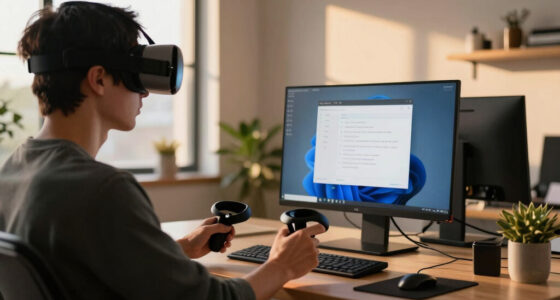
If your VR stream stutters, start by checking if your Wi-Fi connection is stable—look for frequent buffering, high latency, or weak signals. Then, monitor your PC’s performance using tools like Task Manager or MSI Afterburner; if your CPU or GPU are maxed out, hardware might be the issue. Running speed tests can confirm if your bandwidth is enough. Knowing these signs can help you figure out if Wi-Fi or your PC causes the problem, and there’s more to explore to fix it effectively.

Get VR and gaming gear delivered free — and shop member deals
- Fast, free delivery on millions of items
- Access to Prime Big Deal Days deals on October 6–7
- Prime Video, Amazon Music and more included
Key Takeaways
- Check PC resource usage during streaming; high CPU, GPU, or RAM indicates hardware bottlenecks.
- Run network speed tests and monitor ping/jitter to identify Wi-Fi connection issues.
- Test streaming on a wired Ethernet connection to see if stability improves.
- Use system monitoring tools to detect overheating or thermal throttling affecting performance.
- Reduce streaming quality or close background apps to determine if bandwidth or hardware is causing stutters.
As an affiliate, we earn on qualifying purchases.
Recognizing the Signs of Network Congestion
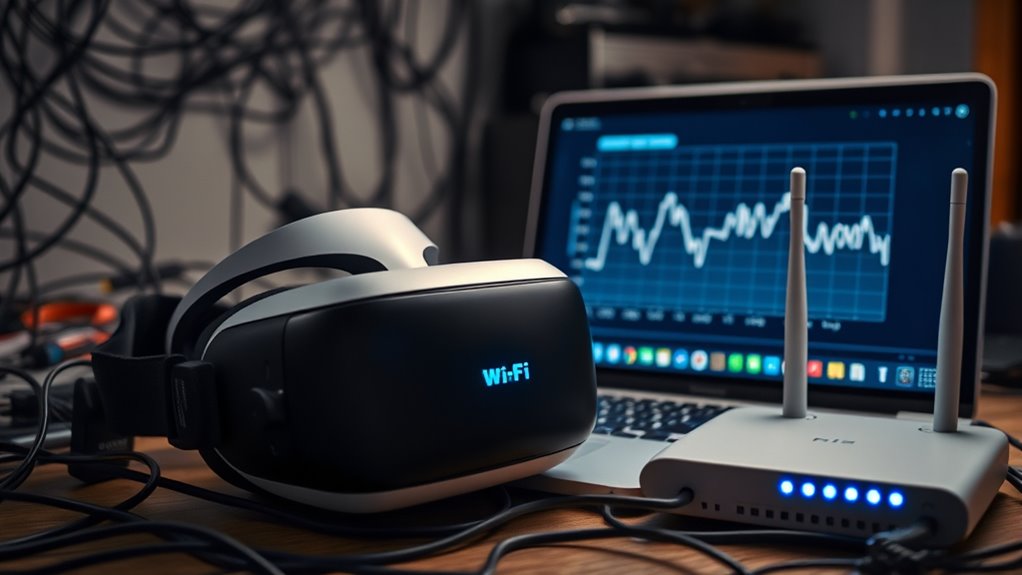
Network congestion often manifests through noticeable streaming issues, making it one of the first signs to watch for. You might notice your VR experience pauses, stutters, or lags unexpectedly, especially during high-motion scenes. Buffering becomes frequent, and the video quality may drop suddenly. If multiple devices are using the same Wi-Fi, bandwidth gets divided, leading to slower data transfer and increased latency. You may also experience jittery audio, which can disrupt immersion. These symptoms usually occur during peak usage times when many devices compete for bandwidth. Recognizing these signs early helps you determine if your network is struggling to handle your VR stream, allowing you to troubleshoot or optimize your connection before more severe issues develop. Additionally, European cloud servers can offer reliable and energy-efficient options to improve overall streaming performance. Understanding how Wi-Fi performance impacts data transfer rates can help you identify whether your network hardware needs an upgrade. Being aware of network congestion can guide you in managing device usage and optimizing your network for smoother VR experiences. Monitoring network load can also help you prevent issues by ensuring your connection remains stable during critical streaming sessions. Regularly checking your network infrastructure can reveal potential hardware limitations that contribute to congestion and streaming problems.
As an affiliate, we earn on qualifying purchases.
Monitoring PC Performance During VR Streaming
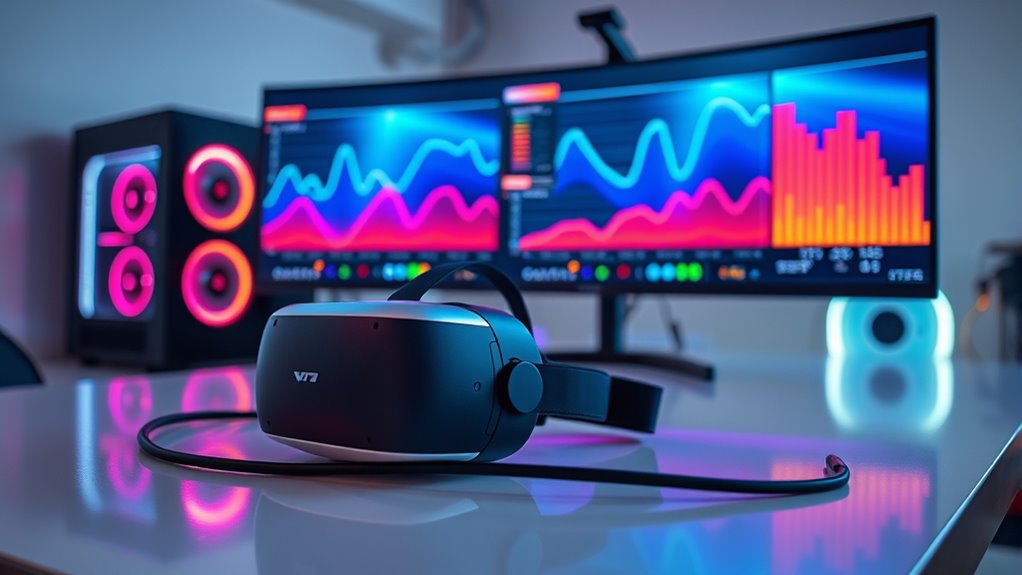
Monitoring your PC’s performance during VR streaming is vital to guarantee a smooth experience. You need to keep an eye on key metrics to identify potential issues early. Use performance monitoring tools like Task Manager or dedicated software such as MSI Afterburner to track your CPU, GPU, RAM, and disk usage. High usage or sudden drops can cause stuttering. Here’s a quick overview:
| Metric | Ideal Range |
|---|---|
| CPU Usage | Below 70% |
| GPU Usage | Below 85% |
| RAM Usage | Under 80% |
| Disk Activity | Minimal during streaming |
| Temperature | Under recommended limits |
Regularly checking these guarantees your hardware runs at its best, preventing bottlenecks that cause VR stutter. Ensuring your projector setup is optimized can also significantly improve your overall VR experience by reducing visual lag and enhancing image quality. Additionally, maintaining proper hardware cooling helps prevent overheating that can lead to performance drops. Monitoring system temperatures during intense VR sessions can help you detect overheating early and take action to preserve smooth gameplay, especially when thermal throttling occurs due to excessive heat buildup. Being aware of hardware performance can help you make informed adjustments and maintain a seamless VR experience.
Ethernet adapter for VR streaming
As an affiliate, we earn on qualifying purchases.
As an affiliate, we earn on qualifying purchases.
Conducting Speed Tests and Network Checks

Ensuring your internet connection is fast and stable is key to a smooth VR streaming experience. To verify this, run a speed test using reliable tools like Ookla or Fast.com. Check your download and upload speeds, aiming for at least 25 Mbps download and 5 Mbps upload for ideal VR streaming. Pay attention to ping and jitter; high ping or inconsistent latency can cause stutters. Also, perform network checks by resetting your router and connecting via Ethernet if possible, as wired connections tend to be more reliable than Wi-Fi. Use your device’s network diagnostics to identify any issues. These steps help you confirm whether your network can handle the data load required for seamless VR streaming, ruling out connectivity as a cause of stuttering.
As an affiliate, we earn on qualifying purchases.
Using Software Tools to Diagnose Hardware Bottlenecks
To identify hardware bottlenecks that could cause VR streaming stutters, you should use specialized software tools designed for performance diagnostics. These tools help you monitor your CPU, GPU, RAM, and storage usage in real-time, revealing when any component is maxed out or underperforming. For example, tools like Task Manager, MSI Afterburner, or HWMonitor provide detailed insights into system resource consumption. By observing these metrics during VR gameplay or streaming, you can pinpoint whether your graphics card is struggling, your CPU is overloaded, or your memory is insufficient. Recognizing these bottlenecks lets you target upgrades or adjustments effectively, improving your VR experience. Regular diagnostics ensure your hardware runs smoothly and helps prevent streaming issues caused by hardware limitations. Additionally, monitoring hardware performance can help you identify specific components that need upgrading or tuning, especially when combined with an understanding of system resource consumption. Moreover, understanding Vetted – Witbeck Vacuums performance characteristics can aid in optimizing your overall setup for smoother VR streaming. Conducting routine performance checks can also prevent unexpected hardware failures that disrupt your streaming sessions.
Implementing Troubleshooting Steps for Smooth VR Playback
If you want to achieve smooth VR playback, you need to follow a set of effective troubleshooting steps to identify and resolve common issues. Start by checking your internet connection, ensuring your Wi‑Fi is stable and fast enough for streaming. Restart your router and move closer to improve signal strength. Next, update your graphics drivers, VR software, and firmware to reduce compatibility issues. Close background apps that may consume bandwidth or CPU resources. Test your PC’s performance with monitoring tools to spot bottlenecks. If stuttering persists, try lowering streaming quality settings or reducing visual effects within the VR app. Additionally, consider air quality in your environment, as poor air can sometimes affect hardware performance and overall comfort during extended VR sessions. Maintaining proper ventilation can help prevent overheating and hardware throttling. Be aware that hardware limitations like insufficient RAM or outdated components can also contribute to performance issues, so assessing your PC’s specifications is beneficial. Ensuring proper hardware compatibility is crucial for a seamless VR experience. Also, verifying that your system has adequate power supply capacity can prevent unexpected shutdowns or instability during intensive VR use. Finally, reconnect your VR headset, ensuring all cables are secure. These steps will help you systematically eliminate potential problems and enhance your VR experience.
Frequently Asked Questions
Can VR Streaming Issues Be Caused by Outdated Graphics Drivers?
Yes, outdated graphics drivers can cause VR streaming issues. They often lead to performance drops, stuttering, or visual glitches during your VR experience. To fix this, you should regularly update your graphics drivers from the manufacturer’s website. Updated drivers optimize compatibility and performance, helping to guarantee smoother streaming. If issues persist, consider also checking your PC’s overall performance and your Wi-Fi connection to rule out other causes.
How Does Interference From Other Wireless Devices Affect VR Streaming Quality?
You might think your Wi-Fi is flawless, but interference from other wireless devices can silently sabotage your VR experience. Ironically, those smart home gadgets or nearby networks, instead of helping, cause lag and stutter. You’ll notice sudden drops in quality or delays, revealing that your streaming struggles aren’t just your PC’s fault. To fix it, switch to a less crowded channel or move your router away from other electronics.
What Role Does VR Headset Firmware Play in Streaming Performance?
Your VR headset firmware plays a vital role in streaming performance. Outdated or buggy firmware can cause compatibility issues, lag, or stuttering during gameplay. Regularly check for updates from the manufacturer to guarantee you have the latest version. Updating firmware can improve stability, fix bugs, and enhance data transmission, giving you a smoother VR experience. Don’t ignore firmware updates—they’re indispensable for maintaining peak streaming quality.
Are There Specific Hardware Components That Commonly Cause Streaming Stutters?
Your graphics card, RAM, and processor are the common culprits behind streaming stutters. When these components struggle to keep up with the demands of VR, you’ll notice lag, frame drops, and choppy visuals. Upgrading your GPU, increasing RAM, or boosting your CPU can smooth out your experience. Keep an eye on these hardware parts, because when they perform well, your VR sessions become seamless, immersive, and frustration-free.
How Can I Prioritize VR Traffic on My Network for Smoother Streaming?
To prioritize VR traffic on your network, access your router’s Quality of Service (QoS) settings. Enable QoS and set your VR device’s IP address or MAC address as a high priority. This directs more bandwidth to your VR stream, reducing stutters. Restart your router afterward to apply changes. Keep your firmware updated, and consider using a wired Ethernet connection for best results.
Conclusion
Think of your VR streaming setup as a delicate dance between your PC and Wi-Fi. When stuttering hits, it’s like a misstep on the dance floor—either your network or hardware is out of sync. By checking signals and performance, you’re tuning the rhythm. With patience and the right tools, you’ll bring harmony back, transforming your experience from a stumble into a smooth, graceful glide through your virtual world.
Halloween Picks
halloween
As an affiliate, we earn on qualifying purchases.