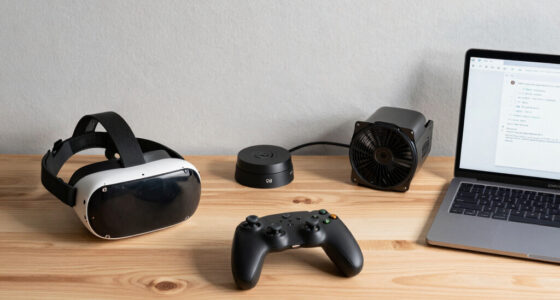
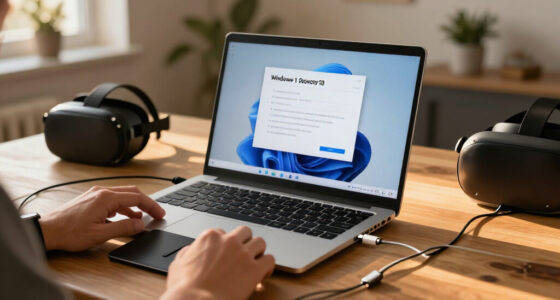
To reset your VR headset correctly, start by deciding if a soft or hard reset is needed. Use a soft reset for minor glitches—simply turn off the device, wait a few moments, then turn it back on. If you’re experiencing ongoing issues, a hard reset to factory settings may be required, which deletes data and resets everything. Knowing which to choose helps keep your device running smoothly—you’ll find more helpful details coming up.

Play games on Amazon Luna for your next adventure, included with Prime
- A rotating selection of games, no download needed
- Play on TV, laptop or phone
- Fast, free delivery for your gear, too
Key Takeaways
- Use a soft reset for minor glitches like lag or freezing by turning the headset off and on again.
- Perform a hard reset to restore factory settings when facing persistent issues or before resale.
- Soft resets preserve your data and settings, while hard resets delete all stored information.
- Access the reset options through the device’s settings menu, following on-screen instructions for each method.
- Regular calibration and firmware updates help maintain optimal performance and reduce the need for resets.

Sometimes, resetting your VR headset is the quickest way to fix glitches, improve performance, or troubleshoot issues. Before diving into a full reset, it’s worth checking if your device needs a firmware update or a quick calibration. Firmware updates are vital because they often include bug fixes, security patches, and performance enhancements that can resolve small issues without needing a complete reset. To do this, connect your headset to Wi-Fi and navigate to the device’s settings menu, where you’ll find the option to check for updates. Installing the latest firmware can often smooth out performance hiccups and improve overall stability.
Perform firmware updates to fix issues and enhance performance without resetting your VR headset.
Device calibration is another essential step that can resolve tracking issues or misaligned visuals. Proper calibration ensures your headset accurately detects your movements and displays images correctly in your play space. Many headsets have a built-in calibration process accessible through the settings menu. Follow the on-screen instructions, which usually involve positioning controllers or sensors and confirming that the tracking feels smooth and accurate. Performing calibration regularly can prevent some problems that might otherwise require a reset. Regular calibration can help maintain optimal performance and reduce the need for resets.
When you’re ready to reset your VR headset, you first need to determine whether a soft or hard reset is appropriate. A soft reset is a simple restart that refreshes the device’s system without deleting any data. It’s ideal when your headset is lagging, freezing, or experiencing minor glitches. To do this, turn off the headset, wait a few seconds, and then power it back on. This quick reboot can clear temporary glitches and often restore smooth operation.
A hard reset, on the other hand, involves restoring the device to its factory settings. Use this option if your headset continues to malfunction after a soft reset or if you’re preparing to sell or give it away. Be aware that a hard reset usually deletes saved data, app settings, and downloaded content. To perform a hard reset, access the device’s settings menu and look for the factory reset option. You may need to confirm your choice and enter your account credentials. The process may take several minutes, and once complete, your headset will be restored to its original state.
As an affiliate, we earn on qualifying purchases.
Frequently Asked Questions
Can Resetting Fix Tracking Issues Permanently?
Resetting your VR headset can fix tracking issues temporarily, but it isn’t a permanent solution. If firmware updates or hardware repairs are needed, these are more effective for long-term fixes. Regular resets help clear minor glitches, but persistent problems often require updating firmware or fixing hardware components. So, while resets can improve tracking temporarily, ongoing issues usually demand deeper troubleshooting or professional repairs for a lasting fix.
Will Resetting Erase Saved Game Data or Settings?
You’ll be relieved to know that a factory reset doesn’t automatically wipe your saved game data or settings—unless you choose to do so. While some resets can lead to data loss, most only restore factory defaults, leaving your personal files intact. So, if you’re worried about losing everything, just double-check the reset options. Otherwise, enjoy the reset without the fear of losing your hard-earned progress or custom settings.
How Long Does a Soft Reset Typically Take?
A soft reset usually takes just a few minutes, often around 2-5 minutes, depending on your VR headset model. It’s a quick troubleshooting tip to refresh your device without deleting data. You can perform this reset if you’re experiencing minor glitches. Factory resets, on the other hand, take longer and erase all data. Use soft resets for simple troubleshooting before considering a factory reset for more serious issues.
Is a Hard Reset Necessary for Software Updates?
A hard reset isn’t usually necessary for software updates, but it can help improve software stability if you encounter issues. You might need a hard reset to resolve hardware compatibility problems or persistent bugs after an update. If you notice glitches or performance drops, performing a hard reset can clear out temporary files and settings, ensuring your headset runs smoothly and stays compatible with the latest software versions.
Can Resetting Improve VR Headset Battery Life?
Imagine your VR headset’s battery as a delicate garden needing careful tending. Resetting can help with battery optimization by clearing minor glitches and background processes that drain power. However, frequent resets aren’t a magic fix; they might disrupt your device’s rhythm. Use resets sparingly, only when performance dips, to maintain smooth operation and extend battery life. Proper reset frequency keeps your VR experience vibrant and lasting longer.
As an affiliate, we earn on qualifying purchases.
Conclusion
Whether you choose a soft or hard reset, remember it’s about giving your headset a fresh start. A soft reset is gentle—like a quick breath—while a hard reset is a bold step, wiping everything clean. Both can revive your experience, yet only one might feel like a last resort. In these moments, you’re balancing frustration with hope, knowing that sometimes, a simple reset is all it takes to reconnect you with your virtual world.
As an affiliate, we earn on qualifying purchases.
As an affiliate, we earn on qualifying purchases.
Halloween Picks
halloween
As an affiliate, we earn on qualifying purchases.