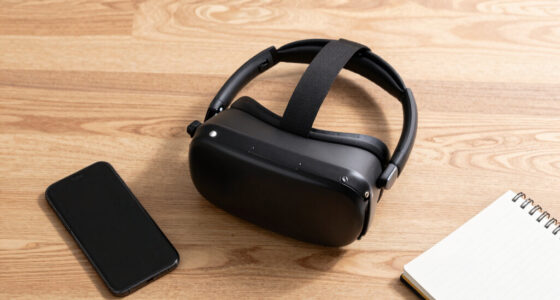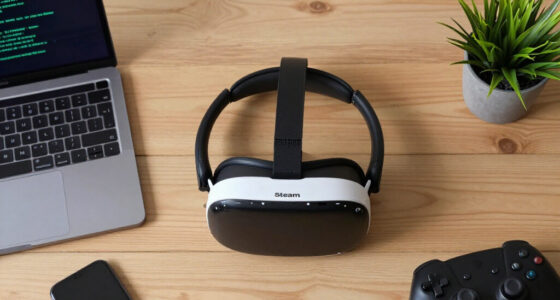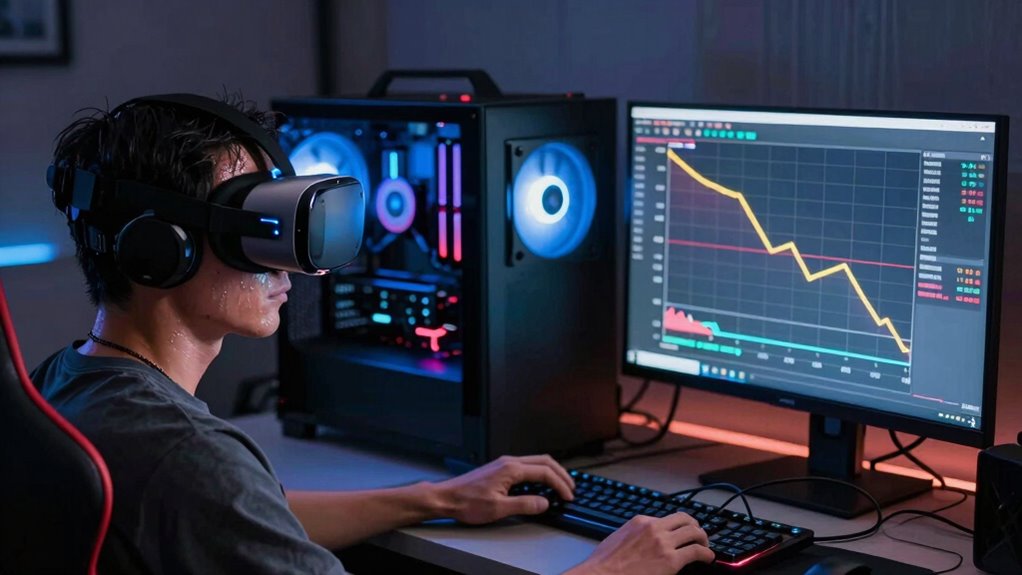

When you use VR for extended periods, your hardware, like the GPU or CPU, can overheat, causing thermal throttling. This safety feature reduces component speeds to prevent damage, often kicking in after about 20 minutes of intensive use. As a result, your performance drops, leading to lag or image stutters. Understanding how cooling impacts this process can help you maintain smoother experiences—if you want to explore ways to improve your setup, keep going.

Get VR and gaming gear delivered free — and shop member deals
- Fast, free delivery on millions of items
- Access to Prime Big Deal Days deals on October 6–7
- Prime Video, Amazon Music and more included
Key Takeaways
- VR hardware generates significant heat during intensive use, triggering thermal sensors to prevent damage.
- Temperature sensors detect rising heat levels, activating thermal management and performance throttling after about 20 minutes.
- Throttling reduces CPU/GPU speeds, causing performance drops and visual stutters in VR experiences.
- Inadequate cooling systems lead to quicker overheating, increasing the likelihood of throttling during extended VR sessions.
- Improving cooling solutions can delay overheating, maintaining optimal performance beyond the typical 20-minute threshold.
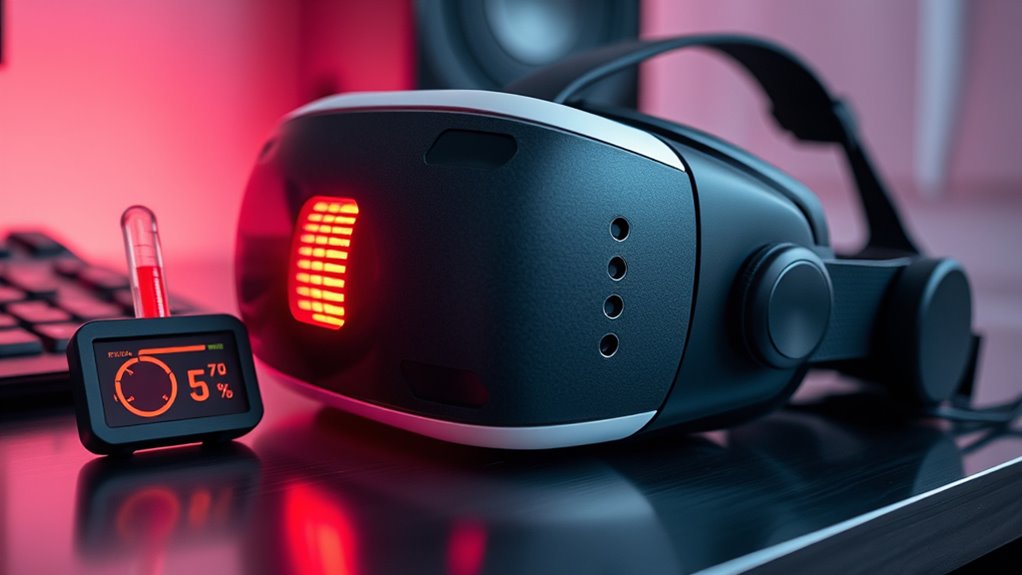
When you’re immersed in virtual reality, thermal throttling can unexpectedly disrupt your experience. It’s frustrating to be deep into a game or simulation, only to notice a sudden drop in performance or visual stutters. This usually happens because your PC or VR headset’s hardware reaches a critical temperature, triggering automatic measures to prevent damage. To understand why this occurs, you need to look at how your system manages heat. Hardware cooling plays an essential role here, helping to dissipate the heat generated by high-performance components like the GPU and CPU. When these parts operate intensively for extended periods, they produce considerable heat, and if your cooling system isn’t sufficient, temperatures rise rapidly. That’s where temperature sensors come into play—they constantly monitor the hardware’s temperature levels and send data to the system’s thermal management algorithms. These sensors provide real-time feedback, allowing your device to adjust performance dynamically.
As your hardware heats up during long VR sessions, the system detects rising temperature readings via these sensors. When temperatures hit a certain threshold—often around 80 to 90 degrees Celsius for GPUs and CPUs—thermal throttling kicks in. This is a safety mechanism designed to protect delicate internal components from overheating and potential damage. Once initiated, the system reduces clock speeds, which in turn lowers performance temporarily. This reduction is what causes the noticeable performance drops after about 20 minutes of continuous use in VR. The throttling isn’t random; it’s a direct response to the temperature data collected by your sensors, indicating the hardware needs to cool down before it can sustain full performance again. Proper hardware cooling can help manage these temperatures more effectively, allowing longer VR sessions without performance dips.
Your VR setup’s cooling solution directly influences how quickly and effectively these temperature sensors can keep your hardware in check. Better hardware cooling—like high-quality air coolers, liquid cooling systems, or improved airflow—can substantially extend the time before thermal throttling occurs. When your system maintains lower operating temperatures, the sensors report manageable heat levels, and throttling becomes less frequent or even unnecessary during your session. Conversely, inadequate cooling causes temperatures to spike faster, triggering performance drops sooner. That’s why paying attention to your cooling setup and ensuring your temperature sensors are functioning correctly can make a big difference in your VR experience. Proper cooling not only prevents sudden drops in performance but also prolongs the lifespan of your components, ensuring smoother, more immersive VR sessions without unexpected interruptions.
As an affiliate, we earn on qualifying purchases.
Frequently Asked Questions
Can Software Updates Prevent Thermal Throttling in VR Headsets?
Yes, software updates can help prevent thermal throttling in VR headsets. They often include firmware optimization that improves thermal management, making the device run cooler and more efficiently. By addressing heat dissipation issues and refining performance algorithms, these updates help maintain smooth gameplay and reduce performance drops after extended use. Keep your headset updated to benefit from the latest thermal management improvements and guarantee a better VR experience.
How Do Ambient Room Temperatures Affect VR Thermal Performance?
Higher ambient temperatures reduce your VR headset’s cooling efficiency, causing it to heat up faster. When room temperature rises, the device struggles to dissipate heat effectively, increasing the risk of thermal throttling. To maintain peak performance, keep your environment cool and well-ventilated. Lower ambient temperatures help your headset stay cooler longer, ensuring consistent performance and reducing the chances of performance drops during extended VR sessions.
Are There Specific VR Headsets More Prone to Thermal Throttling?
You’ll find that some VR headsets are more prone to thermal throttling due to their hardware design and manufacturing quality. For instance, devices with compact, tightly packed internals tend to heat up faster, increasing throttling risk. About 30% of lower-cost headsets exhibit more frequent performance drops, emphasizing that higher-quality manufacturing often includes better heat dissipation methods. So, investing in well-designed hardware can markedly reduce performance issues during extended play sessions.
What Are the Long-Term Effects of Thermal Throttling on Hardware Lifespan?
Thermal throttling can accelerate hardware degradation, reducing your VR headset’s component longevity over time. When components repeatedly overheat, they may experience wear and tear, leading to potential failures or decreased performance. To protect your device, avoid prolonged high-temperature use, ensure proper cooling, and regularly clean vents. This proactive approach helps maintain ideal hardware condition, extending its lifespan and ensuring consistent VR experiences without premature hardware degradation.
Can External Cooling Solutions Improve VR Performance During Extended Use?
Think of external cooling solutions as a breath of fresh air for your VR setup. Adding external fans or cooling mats can considerably improve performance during extended use, preventing overheating and thermal throttling. These devices act like a cooling shield, helping your hardware stay at ideal temperatures. By keeping your system cool, you’ll enjoy smoother VR sessions without sudden drops in performance, making your experience more immersive and comfortable.
As an affiliate, we earn on qualifying purchases.
Conclusion
So, next time your VR headset feels like it’s hitting a wall after about 20 minutes, remember it’s not giving up on you—it’s just overheating, like a dragon cooling off its fiery breath. Thermal throttling quietly steps in, cloaking your immersive world in a fog of reduced performance. To keep the adventure blazing, guarantee proper cooling and ventilation. That way, your virtual journey stays smooth, and your headset stays cool, ready to dive back into the virtual universe without missing a beat.
As an affiliate, we earn on qualifying purchases.
As an affiliate, we earn on qualifying purchases.
Fall Picks
fall essentials
As an affiliate, we earn on qualifying purchases.