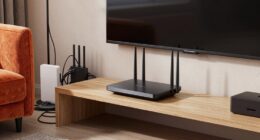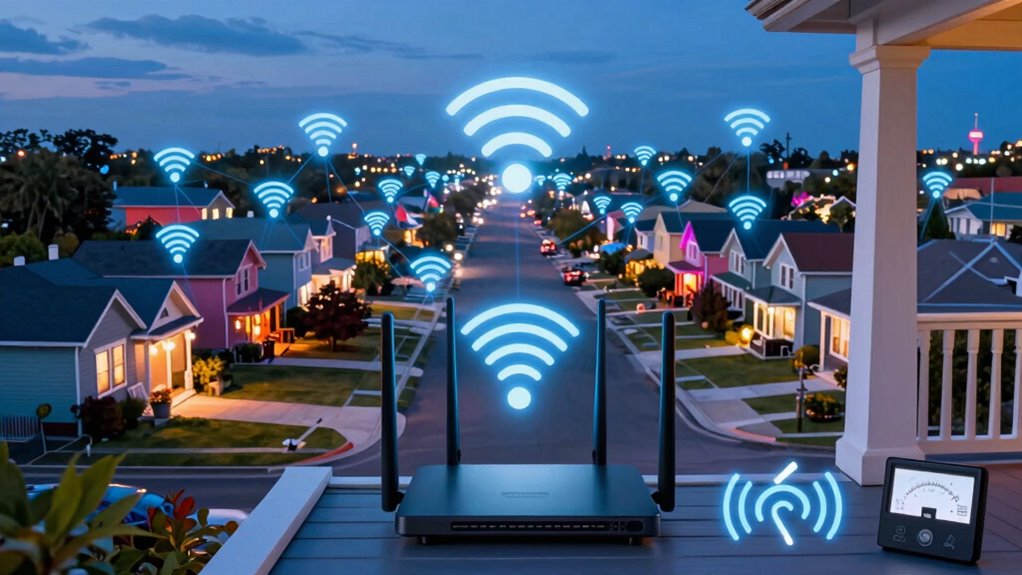

To reduce Wi-Fi congestion for VR in busy neighborhoods, start by placing your router centrally and elevated away from obstructions. Switch to less crowded channels using Wi-Fi analyzers or enable auto-channel selection. Upgrade to a dual- or tri-band router and connect your VR device via Ethernet for a stable connection. Limit other device usage during VR and prioritize traffic with QoS settings. If you want to learn more, you’ll find simple steps to optimize your network for smoother VR experiences.
Key Takeaways
- Use Wi-Fi analyzers to identify crowded channels and switch your router to a less congested frequency.
- Upgrade to dual- or tri-band routers that can separate VR traffic from other devices.
- Place your router centrally, elevated, and away from interference sources like thick walls or electronic devices.
- Enable QoS settings to prioritize VR device traffic and ensure a dedicated, stable connection.
- Connect VR devices directly via Ethernet cables to eliminate wireless interference and improve reliability.
Have you ever experienced lag or disconnections while immersed in a virtual reality session? If you live in a busy neighborhood, Wi-Fi interference might be the culprit. High traffic from multiple devices, neighboring networks, and electronic gadgets can all cause your Wi-Fi signal to weaken or become unreliable. This congestion can lead to frustrating VR experiences, with sudden lag, disconnections, or choppy visuals. To improve your VR experience, you need to focus on signal optimization, ensuring your network is as clear and strong as possible.
Experiencing lag in VR? Wi-Fi interference from nearby devices may be the cause—optimize your signal for smoother immersion.
One of the first steps is to identify sources of Wi-Fi interference. Other routers nearby, cordless phones, microwave ovens, and Bluetooth devices all operate on similar frequencies, which can disrupt your signal. Switching your Wi-Fi to a less congested channel can make a notable difference. Many modern routers have auto-channel selection features, but you can also manually choose a less crowded channel through your router’s settings. Using Wi-Fi analyzers helps you see which channels are least congested, allowing you to select the best one for your setup.
Next, consider upgrading your Wi-Fi hardware. If you’re still using an older router, it might struggle to handle multiple devices or deliver the speed needed for smooth VR experiences. Investing in a dual-band or tri-band router can help isolate your VR traffic on a dedicated frequency, reducing interference from other household devices. Additionally, placing your router in a central location, away from obstructions and electronic interference, can substantially enhance signal strength. Keep it elevated and free from physical barriers like thick walls or metal objects that can weaken your connection.
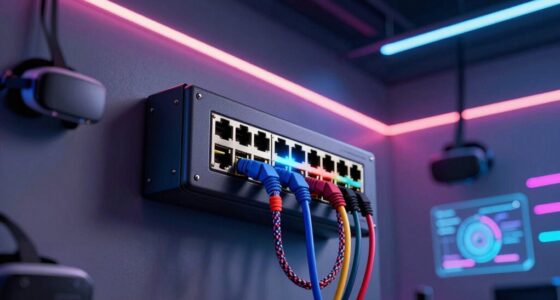
You should also optimize your Wi-Fi network by limiting the number of devices connected simultaneously. During your VR sessions, pause other high-bandwidth activities like streaming videos or large downloads. Prioritize your VR device by ensuring it has a strong, dedicated connection. If possible, connect your VR headset or PC directly to the router using an Ethernet cable. Wired connections eliminate wireless interference altogether, providing the most stable and fastest link for immersive VR experiences.
Finally, consider enabling Quality of Service (QoS) settings on your router. QoS allows you to prioritize traffic for your VR device, ensuring it gets the necessary bandwidth even when the network is busy. This prevents other devices from hogging all the bandwidth and causing lag. Regularly updating your router’s firmware can also fix bugs and improve performance, helping maintain a resilient connection in a congested environment. Additionally, choosing a high-quality projector designed for low latency can enhance your overall VR setup, making the experience even smoother.

TP-Link BE6500 Dual-Band WiFi 7 Router (BE400)
- Wi-Fi 7 Technology: Supports Multi-Link Operation and 4K-QAM
- High-Speed Dual-Band: Up to 6.5 Gbps total bandwidth
- Wide Coverage: Covers up to 2,400 sq. ft.
As an affiliate, we earn on qualifying purchases.
As an affiliate, we earn on qualifying purchases.
Frequently Asked Questions
Can Mesh Wi-Fi Systems Improve VR Connection Quality?
Yes, mesh Wi-Fi systems can improve your VR connection quality. They optimize your network by providing mesh optimization, which guarantees even signal distribution across your space. Additionally, they offer signal redundancy, meaning if one node experiences interference, others seamlessly take over, reducing lag and disconnections. This results in a more stable, reliable VR experience, especially in busy neighborhoods where Wi-Fi congestion often causes interference and performance issues.
How Does Neighboring Wi-Fi Traffic Affect VR Latency?
Imagine your VR headset as a tightrope walker balancing above a bustling city. Neighboring Wi-Fi traffic creates interference, causing delays and latency that disrupt your experience. To reduce this, you need interference mitigation techniques and signal optimization strategies. These help your device avoid congestion, stabilizing your connection and ensuring smooth, immersive VR sessions despite the busy neighborhood’s digital noise.
Are There Legal Restrictions on Changing Wi-Fi Channels?
Legal restrictions on channel selection vary depending on your location and your Wi-Fi device. Generally, you can change channels freely within the 2.4 GHz and 5 GHz bands, but some countries have regulations limiting certain frequencies. Check your local laws before adjusting your Wi-Fi channels. To avoid issues, use your router’s settings to select the most suitable channel, ensuring better VR performance without risking legal complications.
What Equipment Best Reduces Interference in Dense Neighborhoods?
You should invest in dual-band routers with advanced interference mitigation features, like MU-MIMO and beamforming, to reduce interference effectively. Using equipment compatible with the latest Wi-Fi standards (such as Wi-Fi 6) guarantees better performance even in dense neighborhoods. Don’t worry about compatibility issues; most modern devices support these standards. This equipment helps minimize congestion, providing a smoother VR experience by optimizing signal strength and reducing interference from neighboring networks.
How Often Should I Update My Wi-Fi Firmware for Optimal Performance?
You should update your Wi-Fi firmware regularly, ideally every few months or when updates are available. Firmware updates often include security patches that protect your network from vulnerabilities, and they can improve performance, stability, and compatibility. Keeping your firmware current ensures the best VR experience, especially in busy neighborhoods with potential interference. Don’t skip updates—staying up-to-date helps maintain a secure, fast, and reliable Wi-Fi connection.

Wi-Fi Analyzer
- Snapshot of Nearby Wi-Fi Signals: Displays real-time Wi-Fi signal snapshot
- Multiple Signal Views: Offers 5 different signal analysis modes
- Customizable Settings: Includes various adjustable options
As an affiliate, we earn on qualifying purchases.
As an affiliate, we earn on qualifying purchases.
Conclusion
To enjoy smooth VR experiences in busy neighborhoods, prioritize your Wi-Fi setup by switching to less crowded channels and upgrading your router. Did you know that over 60% of households experience Wi-Fi congestion during peak hours? By taking these simple steps, you can markedly reduce lag and buffering, making your virtual reality sessions much more enjoyable. Stay proactive with your network, and you’ll enjoy seamless VR adventures even in the busiest areas.
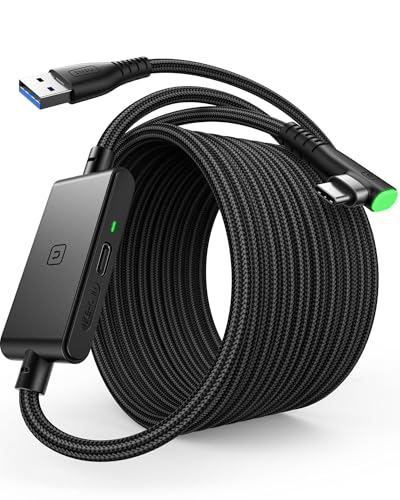
INIU 16ft VR Link Cable with Separate Charging Port, USB 3.0 to USB C Cable
- Designed for Oculus VR Headsets: Includes separate USB-C charging port for fast charging
- Fast Charging Support: Enables 3A power delivery with fast adapters
- Safe Charging Technology: Built-in SmartProtect2.0 for safe power and data sync
As an affiliate, we earn on qualifying purchases.
As an affiliate, we earn on qualifying purchases.

Linksys WRT Gaming WiFi Router Optimized for Xbox, Killer Prioritization Engine to Reduce Peak Ping and Latency, Dual Band, 4 Gigabit Ports, AC3200 (WRT32XB)
- Optimized for Xbox Gaming: Prioritizes gaming traffic for better performance
- Powerful Dual-Core Processor: 1.8GHz for fast data processing
- Reduces Xbox Peak Ping: Up to 65% faster response times
As an affiliate, we earn on qualifying purchases.
As an affiliate, we earn on qualifying purchases.