
For a smooth VR experience, your CPU handles game logic, physics, and tracking, while the GPU manages rendering visuals and maintaining high frame rates. VRAM stores textures and detailed assets, ensuring smooth visuals without lag or stutter. Balancing these components is key—an upgrade in one can bottleneck performance of others. Understanding how they work together helps improve your VR setup, and if you keep exploring, you’ll find ways to optimize your system further.
Key Takeaways
- CPU handles game logic, physics, and AI, impacting responsiveness and smoothness in VR experiences.
- GPU determines rendering resolution and visual fidelity, directly affecting frame rates and image quality.
- VRAM stores textures and detailed visuals; insufficient VRAM causes stuttering, artifacts, and lower visual quality.
- Bottlenecks in any component (CPU, GPU, VRAM) can cause lag, stuttering, or reduced immersion.
- Upgrading the GPU offers the most significant boost, followed by CPU and VRAM, for balanced VR performance.
Understanding the Role of the CPU in VR Performance
The CPU plays a crucial role in VR performance because it handles many of the core calculations and processes that keep the experience smooth and responsive. It manages the game logic, physics, AI, and input processing, ensuring everything runs seamlessly. When you move your head or interact with objects, the CPU processes these inputs quickly to update the environment in real-time. If the CPU is underpowered, you might experience lag, stuttering, or delays that break immersion. VR requires high-performance CPUs to handle multiple tasks simultaneously without bottlenecks. The CPU also coordinates with other components, like the GPU, to deliver a consistent experience. Upgrading your CPU can considerably improve overall VR performance, especially in complex or demanding applications. Additionally, the performance of your CPU directly influences how well your VR setup can handle demanding scenarios without compromising visual fidelity or responsiveness. A balanced system that ensures all components work together is essential for optimal VR performance, preventing potential bottlenecks that can hinder the experience. Ensuring the compatibility between components is also vital for maintaining smooth VR gameplay.
How the GPU Drives Visual Quality and Frame Rates
Your GPU is the key to how good your VR visuals look and how smoothly they run. Higher rendering resolution makes images sharper but demands more from your GPU, which can lower frame rates. Optimizing frame rates involves balancing resolution and settings to guarantee a comfortable and immersive experience. Additionally, understanding visual quality factors helps you make informed choices to enhance your VR experience. Recognizing the role of performance cookies can also guide you in selecting the best hardware settings for optimal performance. Paying attention to hardware capabilities ensures you get the most out of your system’s potential. Being aware of system bottlenecks can further help in diagnosing and improving overall VR performance, especially when considering the impact of GPU performance.
Rendering Resolution Impact
Ever wondered how changing the rendering resolution affects your VR experience? Higher resolutions improve visual clarity, making details sharper and more immersive. However, increasing resolution demands more from your GPU because it has to process more pixels every frame. This increased load can lead to lower frame rates if your GPU isn’t powerful enough, causing choppiness or discomfort. Conversely, lowering the resolution reduces GPU workload, boosting frame rates but with a noticeable drop in visual quality. Finding the right balance is essential for smooth, immersive gameplay. Keep in mind that some VR headsets automatically adjust resolution dynamically to optimize performance without sacrificing too much visual fidelity. Understanding resolution scaling helps you fine-tune your settings for an ideal VR experience. Additionally, optimizing GPU workload can enhance overall VR performance and comfort, especially when considering rendering resolution impacts.
Frame Rate Optimization
Since the GPU directly influences both visual quality and frame rates in VR, optimizing its performance is essential for a smooth experience, especially during fast-paced or demanding scenes. To improve frame rate stability, adjust settings like render resolution, anti-aliasing, and detail levels. Lowering these reduces GPU load and prevents drops. Use tools like V-Sync or Frame Rate Caps to limit frame rates, avoiding tearing or stutter. Additionally, understanding simple systems and how they can be implemented helps in maintaining a calm and organized approach to performance tuning.
The Importance of VRAM for Smooth Virtual Environments

VRAM plays a vital role in maintaining smooth VR experiences by handling high-quality textures and detailed visuals. When your VRAM is insufficient, you may notice lag or reduced visual fidelity, as the system struggles to store and process all the necessary data. Ensuring ample VRAM helps support larger textures and a better frame buffer, resulting in sharper images and more stable performance. Additionally, optimized VRAM management ensures that your system efficiently allocates resources, further enhancing virtual environment stability. Proper system configuration can also help prevent bottlenecks related to VRAM limitations, leading to a more immersive experience. Moreover, selecting graphics hardware with adequate VRAM capacity is essential for high-quality VR rendering. Being aware of your VRAM capacity allows you to choose components that are well-suited to your desired VR performance levels.
VRAM and Texture Quality
Have you ever wondered why your VR experience feels choppy or blurry at times? It’s often due to VRAM limitations affecting texture quality. VRAM stores the textures and detailed images your headset displays, so when it runs out, textures get compressed or downgraded, reducing sharpness and realism. High-quality textures demand more VRAM, especially in detailed environments or complex scenes. If your VRAM isn’t sufficient, the system struggles to load detailed textures smoothly, causing visual artifacts or blurriness. Upgrading VRAM allows you to display richer, more detailed textures without sacrificing performance. This results in a more immersive and visually appealing experience. Remember, VRAM acts as the buffer that holds the textures, directly impacting the clarity and smoothness of your virtual environment. Additionally, texture management can inspire creative ways to personalize your accessories, just as customizing textures enhances VR performance. Proper hardware specifications play a vital role in ensuring optimal VR experiences, especially when handling demanding textures and environments. Understanding the VRAM capacity of your system can help you better optimize settings for improved visual fidelity and avoid performance bottlenecks.
Frame Buffer Capacity
A sufficient frame buffer capacity is essential for maintaining smooth and responsive VR experiences. It temporarily stores the images your GPU generates, ensuring seamless rendering without lag or stutter. When VRAM is limited, your system struggles to hold all necessary visual data, causing delays and reduced image quality. This can lead to motion sickness or frustration during immersive gameplay. Imagine a full tank of fuel powering your journey—without enough VRAM, your VR environment stalls, disrupting immersion. Additionally, understanding hardware specifications can help you better evaluate what VRAM capacity is suitable for your setup. Proper system configuration and compatibility checks are also key to optimizing performance and avoiding bottlenecks.
Impact on Visual Details
When your system allocates enough VRAM, it can store the detailed textures and complex visual data needed for immersive environments. This means your VR experience appears sharper, with richer textures and more intricate details. Without sufficient VRAM, your system struggles to load high-quality assets, leading to lower resolution textures, pop-in effects, or visual stuttering. VRAM acts as a dedicated buffer, ensuring that detailed models and textures are readily available for rendering without delay. As a result, your virtual environment looks more realistic and consistent, enhancing immersion. If VRAM is limited, you’ll notice a significant drop in visual fidelity, which can break immersion and cause frustration. Hence, having enough VRAM is essential to achieve smooth, detailed visuals in your VR experiences.
Balancing CPU, GPU, and VRAM for Optimal VR Experience
Achieving the best VR experience requires carefully balancing your CPU, GPU, and VRAM, as each component plays a crucial role in rendering smooth visuals and responsive gameplay. If your CPU struggles to keep up, you might experience stuttering or input lag, even if your GPU is powerful enough. Conversely, a weak GPU can cause frame drops, making the VR environment feel choppy. VRAM capacity also matters; insufficient VRAM leads to texture pop-ins and reduced visual quality. To optimize performance, ensure your CPU can handle game logic and data processing, your GPU can render high-quality visuals at your desired frame rate, and your VRAM has enough space for detailed textures. Regularly monitor these components and upgrade where bottlenecks appear for a seamless VR experience.
Common Bottlenecks in PCVR Systems
Identifying common bottlenecks in your PCVR system is essential for smooth and immersive gameplay. Typically, the most frequent issue is GPU limitations, causing stuttering or low frame rates during intensive scenes. If your GPU struggles to render detailed environments quickly enough, you’ll notice visual lag and discomfort. CPU bottlenecks happen when your processor can’t keep up with the demands of tracking, physics, or background tasks, leading to latency or jitter. VRAM shortages can also cause problems, especially with high-resolution textures or complex scenes, resulting in stuttering or crashes. Sometimes, a combination of these factors slows performance. Recognizing which component is holding you back helps you troubleshoot effectively and guarantees your setup delivers consistent, high-quality VR experiences.
Upgrading Components: What to Prioritize for VR
To enhance your PCVR experience, you need to focus on upgrading the components that most impact performance. Prioritize your GPU first, as it handles rendering and directly affects frame rates and visual fidelity. Next, consider your CPU; it manages game logic and VR tracking, preventing bottlenecks. VRAM is also vital for loading textures and large assets smoothly. Here’s a quick guide:
| Component | Priority | Impact on VR |
|---|---|---|
| GPU | High | Essential for smooth visuals and high frame rates |
| CPU | Medium | Ensures responsive tracking and game logic |
| VRAM | Low to Medium | Keeps textures and assets loading efficiently |
Focusing on these upgrades ensures a balanced setup, reducing lag and enhancing immersion.
Tips for Monitoring and Improving VR Performance
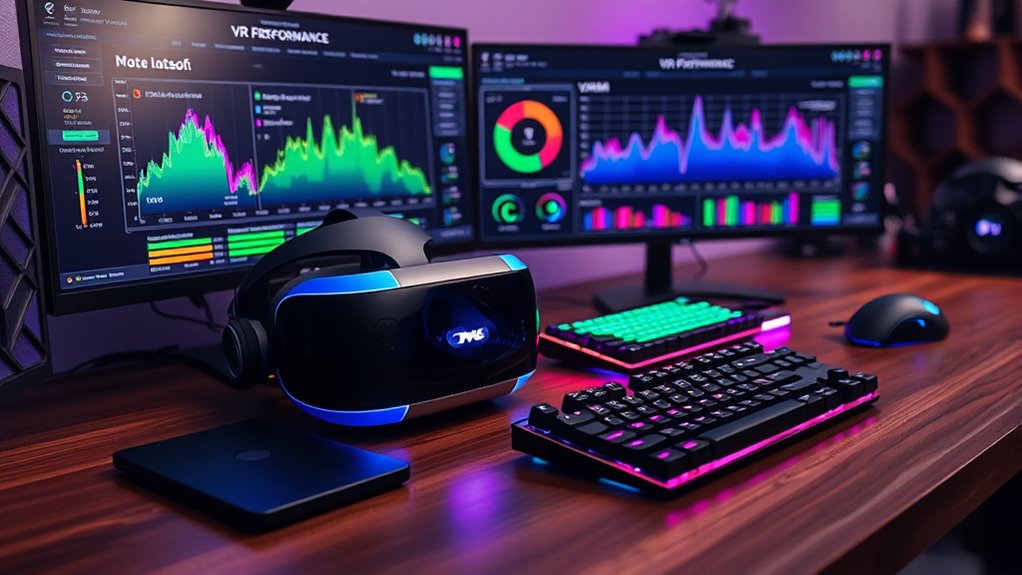
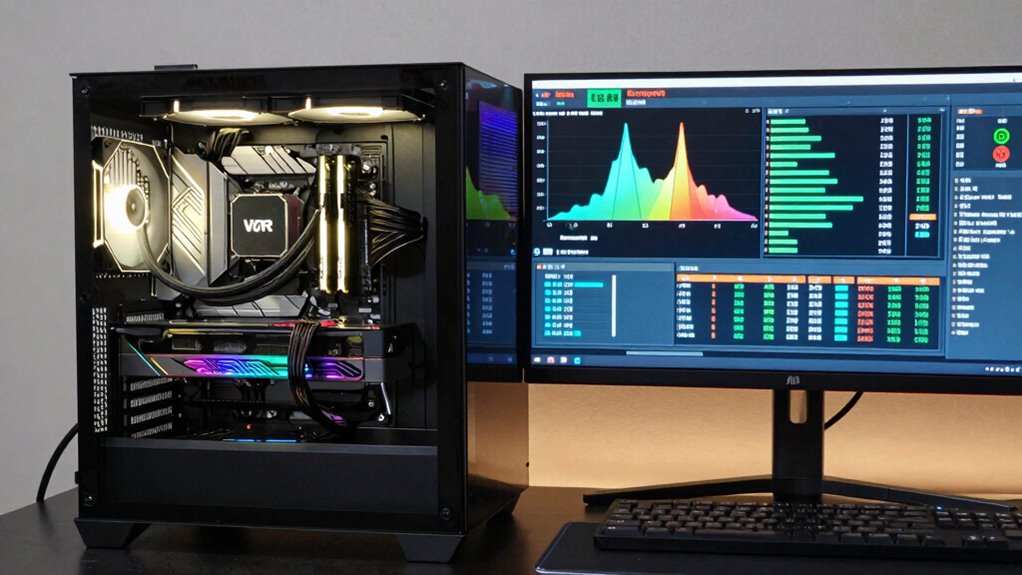
Monitoring your VR performance is vital to guarantee smooth gameplay and immersive experiences. Use built-in tools like Oculus Debug Tool or SteamVR’s performance HUD to track frame rates, latency, and dropped frames in real-time. If you notice lag or stuttering, start by lowering graphics settings or reducing resolution to ease the load on your GPU. Keep your drivers and VR software updated to ensure compatibility and peak performance. You can also close background apps that may consume CPU or RAM resources. Regularly check temperature levels of your hardware to prevent overheating, which can cause throttling. Consider upgrading your GPU or adding more VRAM if performance issues persist. Consistent monitoring helps you identify bottlenecks and adjust settings for a smoother, more immersive VR experience.
Frequently Asked Questions
How Does Internet Bandwidth Affect PCVR Performance?
Your internet bandwidth affects PCVR performance mainly if you’re streaming content or playing multiplayer games. Insufficient bandwidth causes lag, latency, and buffering, disrupting the immersive experience. When your connection is slow, your headset might struggle to update visuals smoothly or sync with online servers, leading to less responsive gameplay. To enhance performance, guarantee you have a stable, high-speed internet connection, especially for multiplayer or cloud-based VR experiences.
Can Overclocking Improve VR Performance Without Stability Issues?
Yes, overclocking can improve your VR performance, but it depends on your hardware stability and cooling. When you carefully increase your CPU or GPU speeds, you’ll see better frame rates and smoother experiences. However, pushing too hard risks overheating, crashes, or hardware damage. Always test stability after overclocking and make certain your system stays cool. Properly done, overclocking can give your VR experience a noticeable boost without major issues.
What Role Does Storage Speed Play in VR Experience?
Storage speed impacts your VR experience by affecting load times, scene changes, and game responsiveness. Faster SSDs allow you to launch titles quickly, reduce stuttering, and guarantee smoother gameplay. Slow storage can cause lag, long load screens, and inconsistent performance, pulling you out of immersion. Upgrading to an NVMe SSD can considerably enhance your VR experience by providing rapid data access, keeping your virtual worlds flowing seamlessly without interruption.
How Do Different VR Headsets Impact System Requirements?
Different VR headsets impact your system requirements based on their resolution, refresh rate, and tracking capabilities. Higher-resolution headsets demand a more powerful GPU and CPU to deliver smooth visuals, while advanced tracking or wireless features might require additional USB ports or better processing power. You need to verify your PC meets or exceeds the recommended specs for your specific headset to enjoy a seamless, immersive experience without lag or stuttering.
Are There Specific Software Settings to Optimize Performance?
You’re missing out on mind-blowing VR experiences without optimizing your settings! To boost performance, start by lowering the resolution and disabling unnecessary visual effects in the software options. Enable asynchronous reprojection and reduce the frame rate limit to minimize lag. Updating your graphics drivers and closing background apps also make a huge difference. These tweaks can turn your sluggish VR into a silky-smooth adventure, making every moment unforgettable.
Conclusion
Don’t worry if upgrading feels overwhelming—focusing on your CPU, GPU, and VRAM can considerably boost your VR experience without breaking the bank. Remember, balancing these components matters more than having the latest tech. If you hit a bottleneck, start with the one that’s holding you back most. With a little patience and some smart upgrades, you’ll enjoy smoother, more immersive virtual worlds that make every session better—trust me, it’s worth it!