
TL;DR
A VR headset for gaming uses motion tracking and interactive controls to place you inside a three-dimensional game world. A standalone model needs no computer, while PC VR can use a gaming PC for more demanding graphics; the right choice depends on your games, comfort, play space, and total budget. Check specific game compatibility before buying, and start with short sessions if you are new to VR.
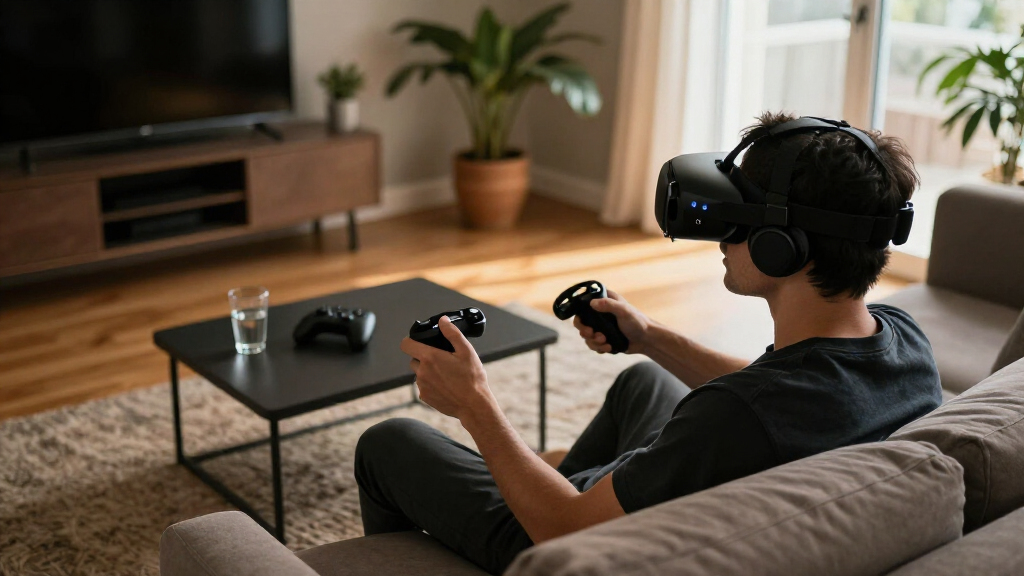
Your first VR game might put you in a quiet cabin, with rain ticking on the roof and a virtual hand reaching for a mug. Then you turn your head, and the whole room seems to move with you. That sense of presence is what makes VR gaming feel different from playing on a television.

Play games on Amazon Luna for your next adventure, included with Prime
- A rotating selection of games, no download needed
- Play on TV, laptop or phone
- Fast, free delivery for your gear, too
A VR headset for gaming is not one standard device. Some headsets run games on their own; others connect to a gaming computer, and some do both. Each option brings different costs, game libraries, setup steps, and comfort tradeoffs.
This guide explains what to compare before you buy, from tracking and image quality to glasses, wireless play, and the space beside your sofa. You’ll also get a practical way to narrow your choices without paying for features you may never use.
Check the platform support for the games you want before choosing a headset.
Standalone headsets run games without a computer; PC VR needs a compatible gaming PC.
Fit, lens clarity, balance, and glasses clearance affect comfort alongside weight and resolution.
Seated play needs less room than room-scale play, but every setup needs a clear, safe area.
Budget for games and any necessary PC or accessories, then add optional extras only if they solve a real problem.
Choose standalone or PC VR based on how you want to play
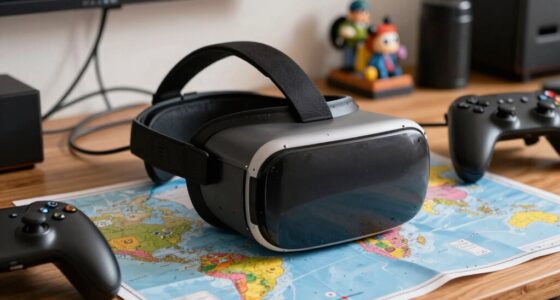
A VR headset for gaming either runs games on its own, connects to a computer, or supports both modes. Standalone headsets put the processor and battery in the headset, so you can start without owning a gaming PC. PC VR uses a computer to render games and send the images to the headset. [1]
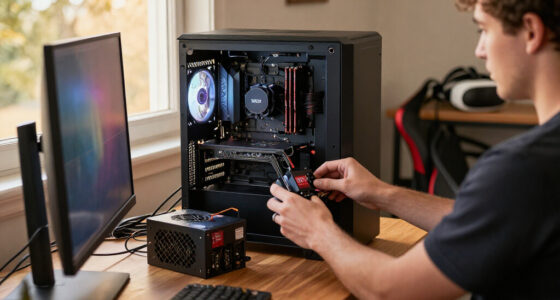
That difference changes the whole routine. With standalone play, you might pick up a headset after dinner, clear a patch of floor, and launch a game without booting a tower or connecting a cable. With PC VR, you may get richer graphics in supported games, but your PC must meet the headset and game’s requirements. The computer adds a substantial cost if you do not already own one.
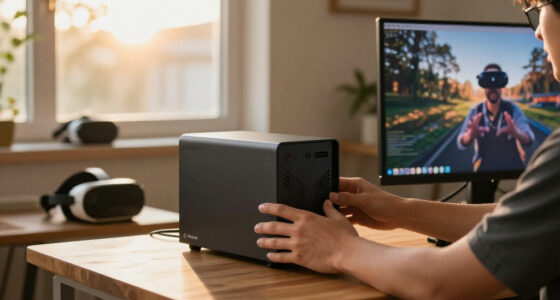
Some standalone devices also connect to a PC, by cable or wirelessly. That flexibility can make sense if you want easy access to self-contained games and plan to try PC VR later. Wireless PC streaming depends on compatible hardware, software, and a suitable network; a weak connection can add lag or make setup fiddly. A cable avoids some network issues but limits how freely you can turn.
For example, imagine you mainly want to play a rhythm game in the living room and occasionally try a PC simulation. A headset that supports standalone games and PC connection could suit that mix. If you only want PC VR and already have a capable computer, paying extra for features you will rarely use may not help. Start with your games and current equipment, then compare the headset options.
Your PC can improve PC VR graphics, but it is not a requirement for standalone gaming. Check each game’s platform support before you count on playing it.
Products Worth Considering

Jackery Solar Generator 1000 V2 with 100W Solar Panel, 1024Wh

DJI Mini 4 Pro Drone Fly More Combo with RC 2 Controller and 128GB Memory Card

Samsung Galaxy Tab S10 Lite, 10.9-Inch LCD Tablet, 6GB RAM, 128GB Storage, Expandable up to 2TB, Gray
As an affiliate, we earn on qualifying purchases.
Check the games you want before comparing specs
A VR headset for gaming is a good match only if it can run the games you want to play. Game libraries depend on the headset’s platform and PC compatibility, so a big advertised catalog may include few titles that interest you. Make a list of specific games first, then check their supported platforms and requirements. [1]
Suppose you want a particular story game and a multiplayer sports title. If both run directly on the same standalone platform, you may not need a gaming computer. If the story game requires PC VR, you will need to check whether your chosen headset connects to a compatible PC and whether your computer can run that game well.
It helps to think of compatibility like choosing the right key for a lock. The headset is the key, and each platform’s games are locks; a large key ring does little for you if it does not open the doors you actually want to walk through. Some headsets bridge two libraries, but support varies by product and can change as software and games develop.
Check more than the title’s store page. Confirm whether a game runs on the headset itself or needs a PC, whether it supports your preferred controls, and whether online features suit how you play. If you plan to play with friends, their platform matters too. A cross-platform label does not always mean every mode or feature works the same way on every device. Verify the exact game and version before buying, especially when a particular title is the main reason for your purchase.
- Write down three to five games you expect to play first.
- Confirm each one supports the headset platform or PC connection you plan to use.
- Check control, multiplayer, and computer requirements for those specific games.
This short check can narrow a crowded market quickly. It also makes accessory decisions easier: you can decide whether a PC link, extra battery, or special controller helps with your actual games instead of paying for a feature because it sounds impressive.
Find a headset that feels comfortable after the first match
A gaming headset needs a good fit, clear lenses, and a balanced feel to stay comfortable during a session. Weight is only one part of comfort: how the headset distributes that weight, the facial padding, ventilation, fit adjustments, and glasses clearance all matter. A sharp display can still feel unpleasant if the headset presses on your nose or traps heat. [1]
Picture a 20-minute session that turns into an hour because you are exploring a detailed game world. If the strap slips each time you turn, you will keep pausing to adjust it. If the padding feels hot, sweat can gather around your face. Small fit problems become more noticeable as you play, so comfort often matters more than a headline display number.
Try to test the fit if you can. Adjust the strap so the headset feels steady without digging into your face, and check whether the image stays sharp when you look around. People who wear glasses should check the maker’s guidance on frame size and clearance. Prescription lens inserts are an option on some headsets, though they add cost and may need to be bought for the specific device.
Display quality also comes from several pieces working together. Resolution, lens clarity, field of view, refresh rate, and how the headset handles motion can all affect what you see. Higher resolution alone does not promise a clearer or more comfortable image. For instance, a crisp-looking center may not help much if your eyes need constant effort to find a comfortable fit. Check the whole viewing experience, not one number on a spec sheet.
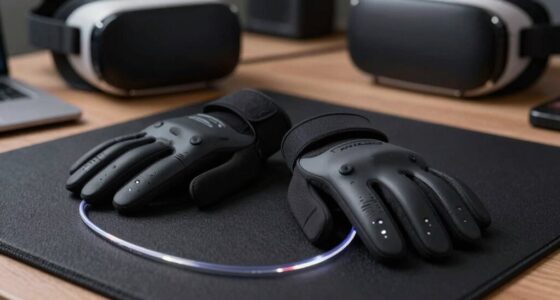
Headsets track head movement, and many also track hand controllers; some offer hand tracking. This is why looking over your shoulder can turn your view in a game while a controller reaches for a virtual object. Inside-out tracking uses cameras on the headset, which can make setup simpler, though tracking performance varies by product, lighting, and play conditions. Try to compare how a headset feels and responds, not just how its specs read.
Match your play area to the games you’ll actually play
The space you need depends on whether your games let you sit, stand still, or move around. Seated games can work in a small area, while room-scale games need a clear space around you to reach, turn, and step safely. Define the headset’s play boundary as directed by its maker, and remove objects that could get in your way. [1]
Imagine playing from a chair in a compact apartment: a seated exploration game may fit neatly into your evening without moving furniture. A room-scale action game may ask you to stretch your arms or take a step, so the coffee table and floor lamp can become hazards. You do not need a dedicated games room for every VR title, but you should match the game mode to the space you have.
Many systems use headset cameras to track your surroundings and show boundaries when you approach them. Those warnings help, but they do not replace a clear play area. Watch for pets, children, trailing cables, and other people who may walk into the space while you play. If you use wireless play, you still need room to turn without bumping into a wall or furniture.
Starting with a calm, stationary experience can also help you find your comfort level. Some people feel queasy in games that move them smoothly through a virtual world, while others play those games without trouble. Teleport movement or stationary play may feel easier for some beginners, but responses differ from person to person. If you feel dizzy, strained, or unwell, stop and take a break rather than pushing through it.
Keep sessions short while you learn how a headset feels and how its controls work. A headset can support a long play session on paper, but your own comfort decides when it is time to pause. Younger players should follow the specific maker’s age guidance, and an adult should supervise use as appropriate. Let the available space and your comfort set the pace.
A boundary warning is useful, but it cannot move a coffee table out of your way. Clear the floor before you start a game that asks you to reach or step.
Compare the full cost, not just the headset price
The real cost of VR includes the headset, the games you plan to buy, and any computer or accessories your setup needs. A standalone headset can skip the PC purchase, while PC VR may require a compatible gaming computer if you do not already own one. Add optional items such as prescription inserts, a different head strap, or a battery pack only when they solve a problem you expect to have. [1]
Consider two buyers. One already owns a capable gaming PC and wants to play demanding PC VR games; their main expense may be the headset and a few titles. Another has no gaming PC and wants to play short sessions in the living room. For that person, a standalone model may cost less overall, even if the PC headset appears tempting on a feature list.
Wireless play can make it easier to turn and move without a cable crossing the floor. Many standalone headsets offer wireless gaming, and some support wireless PC streaming. The tradeoff is that streaming depends on the headset, software, and network, while a standalone game uses the headset’s own hardware. A cable can provide a direct connection, but it can tug when you rotate. [1]
New features also arrive at different times across devices and regions. Manufacturers keep improving lenses, passthrough video, hand tracking, and mixed-reality experiences that place digital objects into a view of your physical room. Those features may be exciting, but availability and performance vary. Check current product details and game compatibility for your region before you buy; a claim from an older review may no longer match the current software or model.
Build a simple budget before comparing models: include the headset, the games you want first, any required computer upgrades, and accessories you truly need. A small extra cost for a better fit may be worthwhile if it helps you play comfortably. A larger purchase for a feature you will not use is harder to justify. Compare total cost against your actual routine, not the longest spec list.
Use this five-step plan to choose your first headset
You can narrow down a VR headset for gaming by checking your games, computer, play space, comfort needs, and total budget in that order. This keeps the decision tied to how you will use the headset. Use the steps below as a practical shortlist, then compare current models that fit your answers.
- Name the games. Write down a few titles you genuinely want, then confirm which platform supports each one.
- Choose standalone, PC, or both. If you have a compatible gaming computer, include PC VR options. If not, check standalone choices before pricing out a whole computer.
- Measure the play area. Decide whether you will mostly sit, stand in place, or move around, and check that your floor plan suits those games.
- Check fit and comfort. Look at adjustability, balance, glasses guidance, ventilation, and whether you can test the headset in person.
- Add up the cost. Include the headset, first games, any required PC upgrade, and accessories that meet a real need.
For example, a new player in a small apartment might shortlist a standalone headset after choosing two games that run on its platform. They may prioritize a comfortable fit and a seated or stationary game mode over room-scale tracking. A PC owner who wants a flight simulation might shortlist PC-compatible models, then check the game’s computer requirements and whether they prefer a cable or wireless streaming.
This order also helps when two headsets look similar. If one has a higher refresh rate but fits poorly, while the other supports your chosen games and feels secure, the second may be the better everyday choice. If you are sensitive to motion, favoring a game with teleport movement may help more than choosing a display upgrade. Buy for your first months of play, with room to explore later.
Frequently Asked Questions
Do I need a gaming PC to use a VR headset?
No. Standalone headsets run games on the headset without a computer. PC VR requires a compatible gaming PC, and some standalone models can also connect to one. Check the requirements for the specific games you want.
Can I play VR games wirelessly?
Many standalone headsets let you play wirelessly. Some can stream PC VR games over a wireless network, depending on the headset, software, and network quality. Streaming can add setup steps or lag, so check support for your chosen games.
Does VR cause motion sickness?
Some players feel dizzy or uncomfortable in VR, and sensitivity varies by person and game. Smooth movement may bother some beginners more than stationary play or teleport movement. Start with short sessions and stop if you feel unwell.
How much space do I need for a gaming headset?
It depends on the game. Seated experiences need little room, while room-scale games need clear space for turning, reaching, and stepping. Set the play boundary as the headset maker directs, and move furniture and other obstacles out of the way.
Can I wear glasses in a VR headset?
Many headsets can accommodate some glasses, but frame size and fit vary. Check the manufacturer’s guidance before buying, and look into prescription lens inserts if glasses press against your face or lenses. Inserts add cost and are designed for particular headset models.
Are VR headsets suitable for children?
Age guidance differs by manufacturer and headset, so check the recommendations for the specific model. Parents should supervise use as appropriate and make sure the play area is clear. Stop play if a child feels uncomfortable or unwell.
Conclusion
Choose your games first, then choose the headset that supports them and fits your room, face, and budget. A powerful computer and high resolution can improve some experiences, but they cannot rescue an uncomfortable fit or a game library you do not want.
Start with a clear patch of floor and a short session. If the fit feels right and the world makes you forget the screen for a moment, you have found the kind of VR that can make a game night feel like stepping through a door.