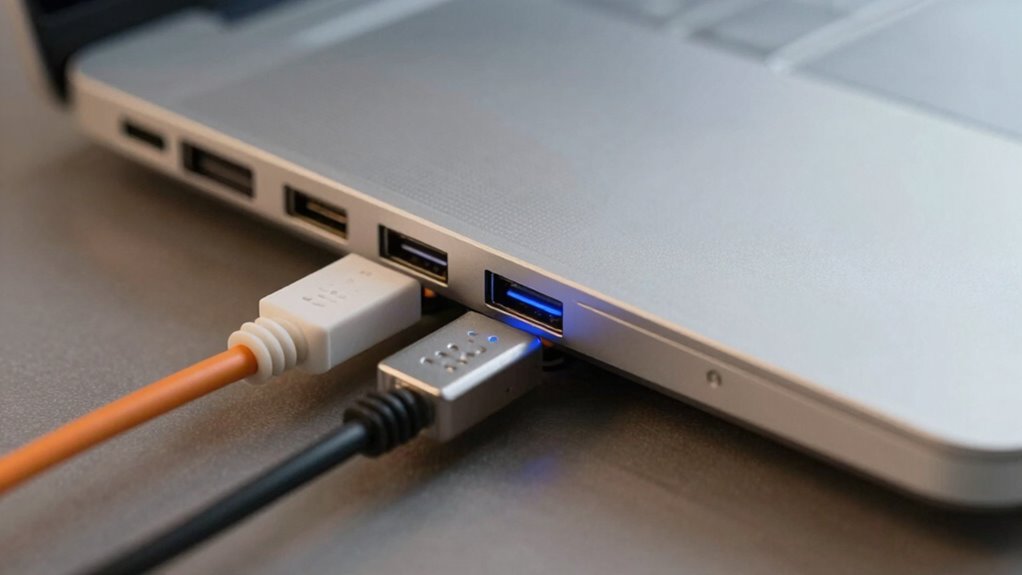
USB bandwidth affects how fast data moves between your devices and computer. Not all ports support the same speeds—older ports like USB 2.0 are slower than newer ones like USB 3.0 or USB-C. Using a high-speed device with an incompatible port limits performance, and power management features can slow data transfer. To get the best performance, verify your device matches the port’s standards. If you keep exploring, you’ll understand how to optimize your USB setup effectively.
Key Takeaways
- Different USB standards (USB 2.0, 3.0, 3.1, USB-C) have varying bandwidth capabilities affecting port performance.
- Physical port appearance may not indicate supported USB versions; compatibility is essential for optimal speeds.
- Connecting high-speed devices to older or unsupported ports limits transfer rates regardless of device capabilities.
- Power management features can reduce bandwidth during energy-saving modes, impacting data transfer speeds.
- Using ports designed for high throughput and disabling energy-saving settings optimize USB bandwidth and device performance.
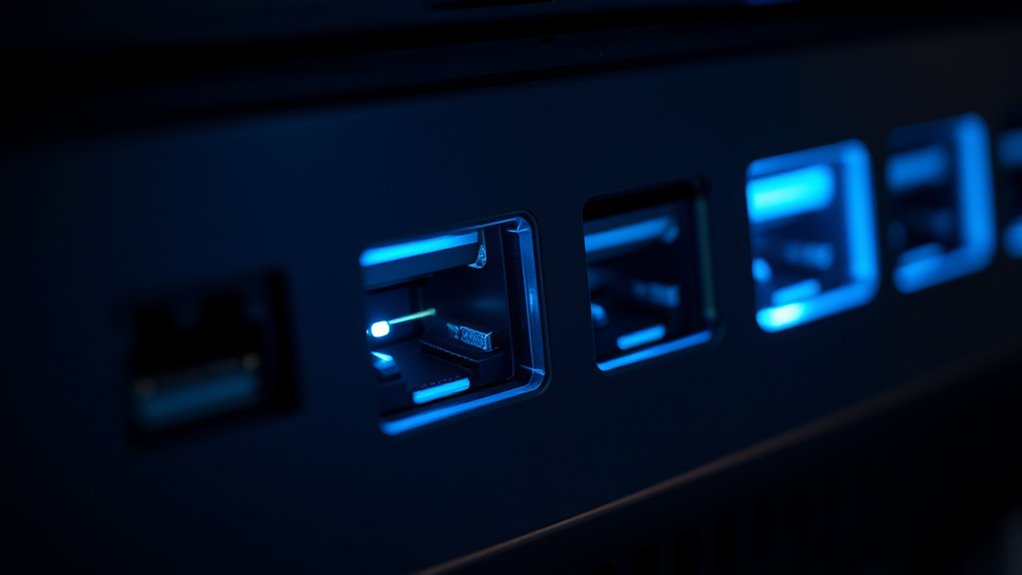
Understanding USB bandwidth is vital because it determines how quickly data moves between your devices and your computer. When you connect multiple devices or transfer large files, knowing how USB bandwidth works helps you understand why some ports perform better than others. USB ports vary in their capacity to handle data, and this difference often depends on the USB version, port compatibility, and how power management is implemented. If you notice that certain devices are slower or don’t work as expected, it’s likely due to these factors affecting overall performance.
One of the key elements influencing USB bandwidth is port compatibility. Not all USB ports are created equal—older ports like USB 2.0 have less bandwidth than newer ones like USB 3.1 or USB-C. For example, plugging a high-speed external SSD into a USB 2.0 port limits its transfer rate, making data transfer much slower than it could be on a USB 3.0 or 3.1 port. To guarantee ideal performance, always check which USB version your port supports. Sometimes, a port might physically look compatible, but it may only support an older standard, so your device won’t reach its maximum potential. Compatibility issues can also arise when connecting devices that require high power or bandwidth, underscoring the importance of matching your device’s requirements with the port’s capabilities.
Power management plays an integral role in USB bandwidth and device performance. Modern USB ports are designed to manage power efficiently, which sometimes results in limiting bandwidth to conserve energy. For instance, if a device isn’t actively in use, the port might reduce power delivery, leading to slower data transfer speeds or even disconnects. This is especially true for ports that support USB Power Delivery (PD), which dynamically adjusts power levels based on device needs. When you’re connecting devices that demand high throughput or sustained power, ensuring that power management settings are optimized can prevent performance bottlenecks. Sometimes, disabling energy-saving features or using ports with dedicated power delivery can make a significant difference in data transfer speeds. Additionally, proper port selection can help maximize both power and bandwidth, ensuring devices perform at their best.

UnionSine 500GB Ultra Slim Portable External Hard Drive HDD-USB 3.0
- Enhanced Heat Dissipation: Striped non-slip design with heat strips
- Ergonomic Design: Rounded corners for comfortable grip
- Quiet Operation: JMicron 578 noise-free solution
As an affiliate, we earn on qualifying purchases.
As an affiliate, we earn on qualifying purchases.
Frequently Asked Questions
Can I Upgrade My USB Port Bandwidth?
You can’t upgrade your USB port bandwidth directly, but you can improve performance by ensuring cable compatibility and port compatibility. Using newer cables and devices designed for higher speeds, like USB 3.0 or USB 3.1, helps maximize bandwidth. Additionally, if your current port is USB 2.0, upgrading your hardware or adding a USB hub with faster ports can boost overall data transfer rates.
How Does Cable Quality Affect USB Bandwidth?
Cable quality directly affects your USB bandwidth by influencing signal durability and interference. A high-quality cable with better shielding reduces signal interference, ensuring data transfers stay fast and stable. Poor-quality cables may have weaker durability and less shielding, leading to degraded performance or slower speeds. To maximize bandwidth, invest in cables made with durable materials and good shielding, especially if you’re using high-speed USB devices.
Do All USB Devices Require Maximum Bandwidth?
Not all USB devices need maximum bandwidth; some are like gentle streamers, using only a trickle of data. You might encounter power management and compatibility issues if your device demands more bandwidth, causing slowdowns or disconnects. Check if your port supports the device’s needs, and guarantee drivers are up to date. Remember, using the right port can make a world of difference, preventing bottlenecks and keeping everything running smoothly.
Can Multiple Devices Share a Single USB Port’s Bandwidth?
Yes, multiple devices can share a single USB port’s bandwidth through hub sharing, but it often leads to bandwidth throttling. When you connect several devices to one port via a hub, they compete for limited bandwidth, which can slow down data transfer speeds. To avoid this, use a powered hub or connect devices to separate ports, ensuring each gets the necessary bandwidth for excellent performance.
How Do I Check My Device’s USB Bandwidth Capabilities?
Checking your device’s USB bandwidth capabilities is like opening a window to see its limits. You can do this by visiting your device manager or system info, where it shows details on port compatibility. Look for settings related to power management, which can affect bandwidth. Updating your drivers or using manufacturer tools also helps make sure your ports work efficiently, matching your device’s capabilities seamlessly.

Amazon Basics USB 3.1 USB-C to USB-A Female Adapter Cable Converter, 5Gbps High-Speed, USB-IF Certified, Fast Transfer, Portable, for Laptops, Tablets, Phones (iPhone 16/15), Black
- USB-IF Certified: Connects USB-C to USB-A devices
- Includes 15W Adapter: 5.5-inch USB-C to USB-A cable
- Fast Charging & Data Transfer: Supports 15W charging and 5Gbps transfer
As an affiliate, we earn on qualifying purchases.
As an affiliate, we earn on qualifying purchases.
Conclusion
Understanding USB bandwidth is like revealing the secret to lightning-fast connections—without it, your devices can feel like they’re stuck in the Stone Age. By knowing why some ports work better than others, you can avoid the frustration of slow data transfers and device incompatibilities. So next time you plug in, remember: choosing the right port isn’t just a detail, it’s the key to unlocking your device’s true power. Don’t settle for less—maximize your USB experience today!

Treedix USB Cable Tester 2.4" Screen for eMarker PD3.0/3.1 Resistor | USB Tester USB C Cable Tester Compatible with Lightning, Type-C, Micro-B 2.0/3.0, and Mini-B Cables, TBT 3/4/5
- USB Cable Performance Testing: Check continuity, charging, data transfer, resistance
- Type-C eMarker Chip Reading: Read performance data from Type-C eMarker chips
- High-Definition Color Display: 2.4-inch screen for real-time cable status
As an affiliate, we earn on qualifying purchases.
As an affiliate, we earn on qualifying purchases.
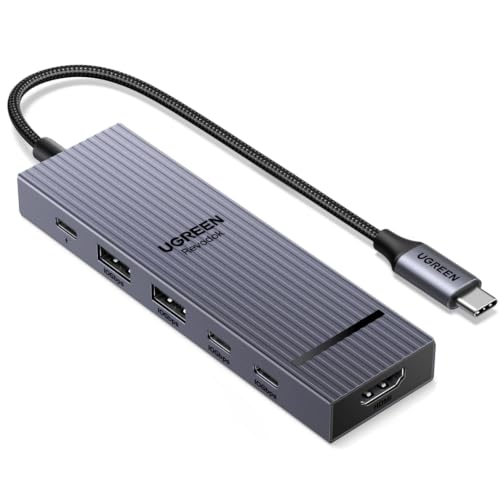
UGREEN Revodok Pro USB-C Hub 6 in 1 10Gbps 4K 60Hz HDMI
- Number of Ports: 6-in-1 USB-C Hub
- Data Transfer Speed: 10Gbps USB-C and USB-A ports
- Video Output: 4K 60Hz HDMI
As an affiliate, we earn on qualifying purchases.
As an affiliate, we earn on qualifying purchases.





![Stepping Inside The Design: How VR Is Advancing USACE Projects [Image 5 Of 7]](https://vrgearguide.com/wp-content/uploads/2026/08/stepping-inside-the-design-how-vr-is-advancing-usace-projects-image-5-of-7-featured-260x140.jpg)