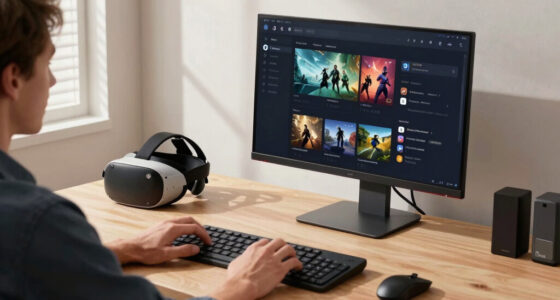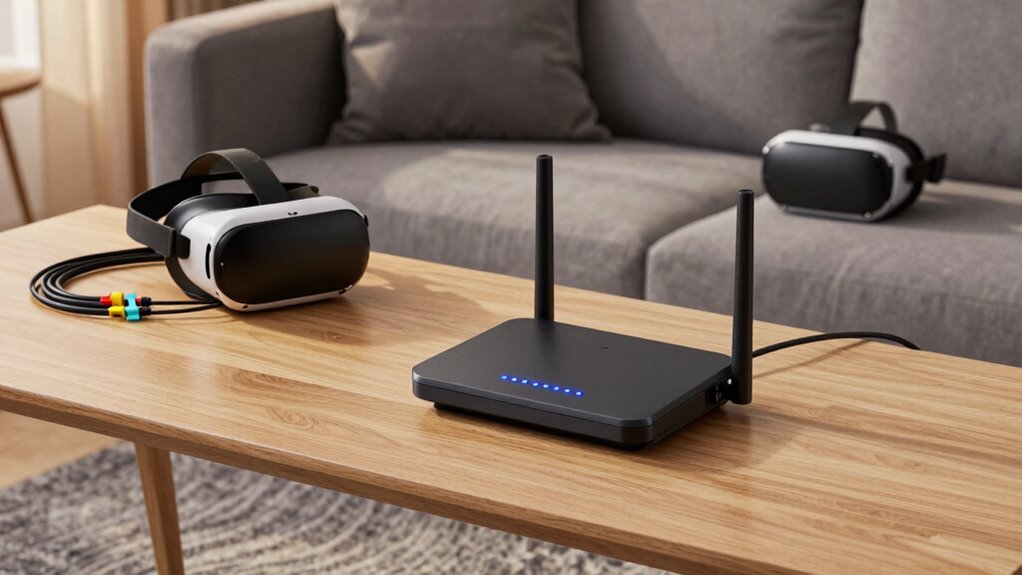
To set up a dedicated VR router network without being a network nerd, start by updating your router’s firmware from the manufacturer’s website to improve security and performance. Next, create a separate Wi-Fi network or SSID for your VR headset, using a strong password to keep it secure. Position your router centrally and connect the VR device to the 5 GHz band for faster, less congested speeds. Keep things simple—you’ll find that small adjustments can make a big difference as you go.

Get VR and gaming gear delivered free — and shop member deals
- Fast, free delivery on millions of items
- Access to Prime Big Deal Days deals on October 6–7
- Prime Video, Amazon Music and more included
Key Takeaways
- Use your router’s admin panel to create a new, separate Wi-Fi network (SSID) specifically for VR devices.
- Position your router centrally in an open space to ensure strong, stable signals for the VR network.
- Connect your VR headset to the 5 GHz band for faster speeds and less congestion.
- Set a strong, unique password for the VR network to keep it secure and private.
- Regularly update your router’s firmware and monitor device connections to maintain optimal performance.
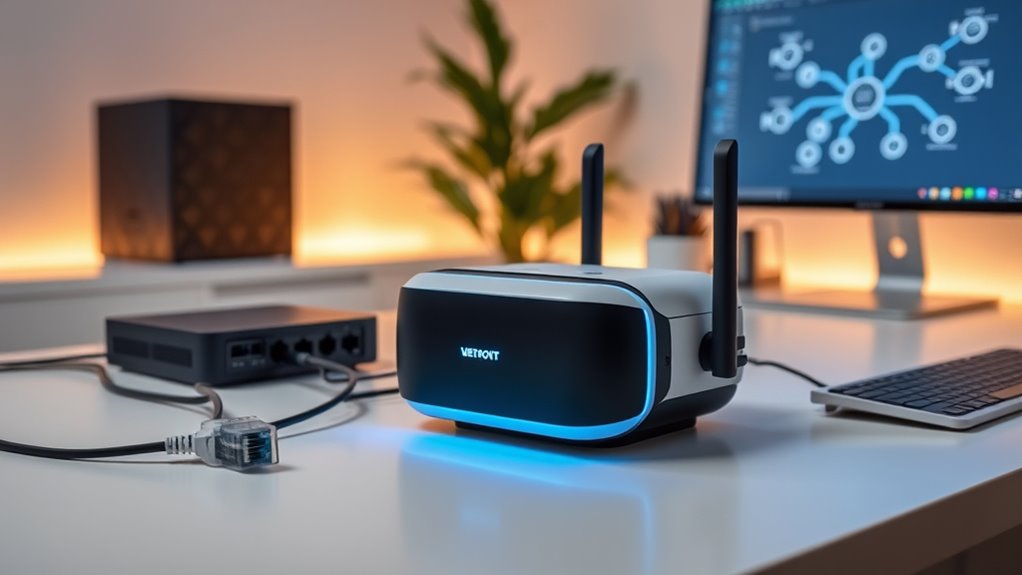
Setting up a VR router network can considerably enhance your virtual reality experience by providing faster, more stable connections. When you’re immersed in a VR game or app, lag or disconnections can ruin the experience. Having a dedicated network ensures your headset gets the best possible bandwidth with minimal interference. You don’t need to be a tech expert to do this — just follow some simple steps to optimize your setup.
First, ensure your router’s firmware is up to date. Router firmware acts like the operating system for your device, controlling how it handles connections and security. Updating it regularly can improve performance and fix any bugs that might cause lag. Check your router manufacturer’s website for instructions on how to update firmware—most models have a straightforward process through their admin panel. This step not only boosts speed but also helps maintain wireless security, protecting your network from unauthorized access. A secure network prevents intruders from hijacking your bandwidth or accessing your VR data.
Next, set up a dedicated VR network by creating a separate Wi-Fi network or SSID. Many modern routers allow you to create multiple networks, so you don’t have to share your main household Wi-Fi. This reduces network congestion, especially if other devices like smartphones, tablets, or smart home gadgets are connected. When you assign a unique network name and password for your VR setup, you keep your VR traffic isolated, which minimizes lag and interference. Use a strong, complex password to bolster wireless security. This keeps your VR sessions private and prevents unauthorized users from connecting.
Position your router in a central, open location to maximize signal strength. Avoid placing it behind walls or near electronic devices that cause interference, such as microwaves or cordless phones. The clearer the signal, the more stable your VR connection will be, reducing latency and buffering issues. If your router supports dual-band Wi-Fi, connect your VR headset to the 5 GHz band instead of 2.4 GHz. The 5 GHz band offers faster speeds and less congestion, making it ideal for high-bandwidth activities like VR gaming. Additionally, wireless interference from other electronic devices can impact your connection quality, so minimizing nearby electronic noise can further improve performance.
Finally, test your setup by running your VR software and checking for smooth performance. If you notice lag, consider reducing the number of devices connected to your network or upgrading your router to a model that supports higher speeds and better management features. Remember, keeping your router firmware updated and maintaining wireless security are ongoing tasks that ensure your dedicated VR network stays reliable and fast. With just a little effort, you’ll enjoy a seamless, immersive virtual reality experience without needing to become a network expert.
VR router dedicated network setup
As an affiliate, we earn on qualifying purchases.
As an affiliate, we earn on qualifying purchases.
Frequently Asked Questions
Can I Use a Standard Router for VR Gaming?
Yes, you can use a standard router for VR gaming, but check its compatibility with your devices first. Confirm it offers strong network security features to protect your connection and minimize lag. Look for routers with dual-band or Wi-Fi 6 support, as these improve stability and speed. While it doesn’t have to be a high-end model, investing in a reliable router helps prevent interruptions and enhances your VR experience.
How Do I Prioritize VR Traffic on My Network?
You can prioritize VR traffic easily by enabling Quality of Service (QoS) settings on your router. Don’t worry if your router seems complex—most modern routers have a simple QoS setup. This manages network congestion and bandwidth, giving VR gaming data priority. Just access your router’s admin panel, find QoS options, and assign higher priority to your VR device’s IP address or MAC address. This guarantees smooth, lag-free VR experiences.
Is a Wired Connection Better Than Wi-Fi for VR?
A wired connection is better than Wi-Fi for VR because it offers lower wireless latency, ensuring smoother gameplay. You won’t experience lag or interruptions that can ruin immersion. Make sure your router is compatible with high-speed connections and supports features like MU-MIMO for better performance. While Wi-Fi is convenient, a wired setup provides a more stable and responsive experience, which is essential for immersive VR.
How Many Devices Can Connect to a Dedicated VR Network?
You can typically connect around 10 to 20 devices to a dedicated VR network, depending on your router’s bandwidth limits and device compatibility. Keep in mind, more devices mean more bandwidth usage, which can impact VR performance. To guarantee smooth gameplay, monitor your network’s bandwidth and prioritize devices. Upgrading your router or using Quality of Service (QoS) settings can help manage multiple connections efficiently.
Do I Need Special Equipment to Set up a VR Router?
You don’t need special equipment to set up a VR router network, but guarantee your router supports strong network security features and up-to-date firmware. Look for routers with advanced security options, like WPA3, and regularly update the firmware to patch vulnerabilities. This helps protect your VR sessions from interference and unauthorized access, making your setup more reliable and secure without requiring you to be a network nerd.
As an affiliate, we earn on qualifying purchases.
Conclusion
Now that you’ve set up your dedicated VR router network, you’re ready to enjoy seamless virtual experiences. Did you know that gamers using optimized networks experience 30% fewer lag issues? That means more immersive gameplay and less frustration. You don’t need to be a tech expert to achieve this—just follow these simple steps. With your new setup, you’ll enjoy smoother, more reliable VR sessions, making every virtual adventure more exciting and immersive.
As an affiliate, we earn on qualifying purchases.
secure Wi-Fi network for VR headset
As an affiliate, we earn on qualifying purchases.
As an affiliate, we earn on qualifying purchases.
Fall Picks
fall essentials
As an affiliate, we earn on qualifying purchases.