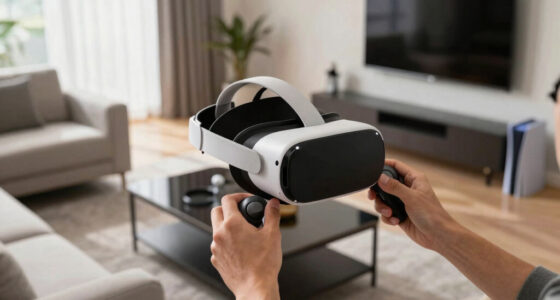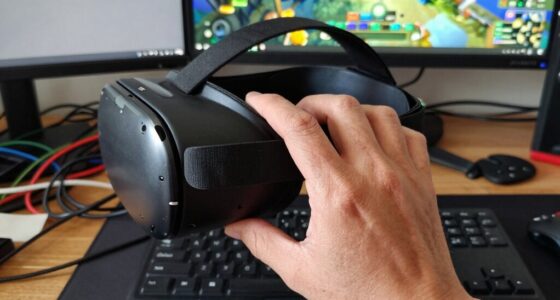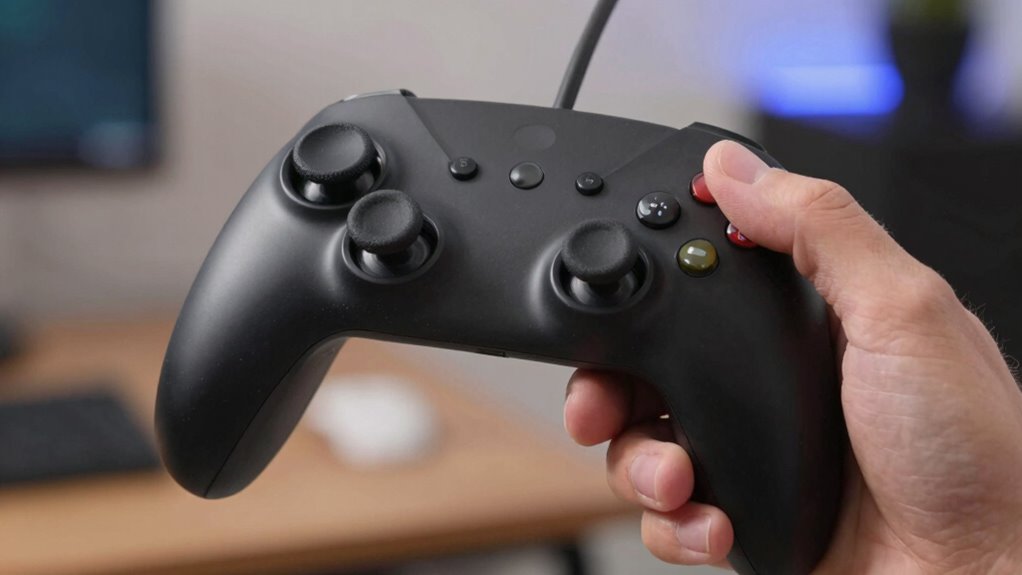

Controller drift in VR happens when your system’s tracking becomes inaccurate due to hardware or interference issues. Common causes include miscalibration, low batteries, obstacles blocking sensors, or wireless interference from Wi-Fi and other devices. To fix it, try recalibrating your controller, replacing batteries, cleaning sensors, or reducing signal interference. Staying proactive helps maintain smooth gameplay. If drift persists, there’s more you can do to keep your setup running perfectly.
Key Takeaways
- Controller drift often results from sensor misalignment, interference, or hardware wear, causing inaccurate tracking.
- Regularly calibrate your controllers and sensors to maintain precise tracking and prevent drift.
- Keep sensors unobstructed and away from reflective surfaces or electronic interference sources.
- Ensure controllers are charged and firmware is up-to-date to avoid signal issues and inaccuracies.
- Clean sensors and contacts regularly, and restart or re-pair devices if drift persists.

Globular Cluster CGP2 Controller Grips Compatible with PSVR2 Controller -Release Your Hands-Enjoy VR Gaming More.
[Comfortable foam pads] Crafted from memory foam and soft PU, it provides a softer, more comfortable feel.
As an affiliate, we earn on qualifying purchases.
As an affiliate, we earn on qualifying purchases.
Common Signs of Controller Drift

One of the clearest signs of controller drift is when your VR movements don’t match your physical actions. For example, you might turn your head or move your arm, but the virtual environment lags behind or moves incorrectly. You may notice your character drifting or pointing in the wrong direction, even when you’re still. Sometimes, your controller may register inputs without any actual movement, causing unexpected actions in-game. This mismatch can be frustrating and disrupt your immersion. If you find yourself constantly correcting or readjusting your position, it’s a strong indication of drift. Recognizing these signs early helps you troubleshoot before the issue worsens, ensuring a smoother and more enjoyable VR experience. Additionally, understanding the role of sensor calibration can be crucial in resolving drift issues effectively. Properly calibrating sensors can often restore accurate tracking and reduce drift problems, especially when combined with software updates or hardware adjustments. Regular maintenance and checking for hardware compatibility can also help prevent persistent drift issues. A proper setup and positioning of sensors are also important factors in maintaining accurate tracking.

Camera Lens Cleaning kit,Camera Accessories,Camera Sensor and Lens Cleaning kit,Lens Pen
Camera Lens Cleaning Kit (14 pieces), including, air blower, lens pen, cleaning brush, lint-free cloth, lens pen, storage…
As an affiliate, we earn on qualifying purchases.
As an affiliate, we earn on qualifying purchases.
How Sensor Calibration Affects Accuracy
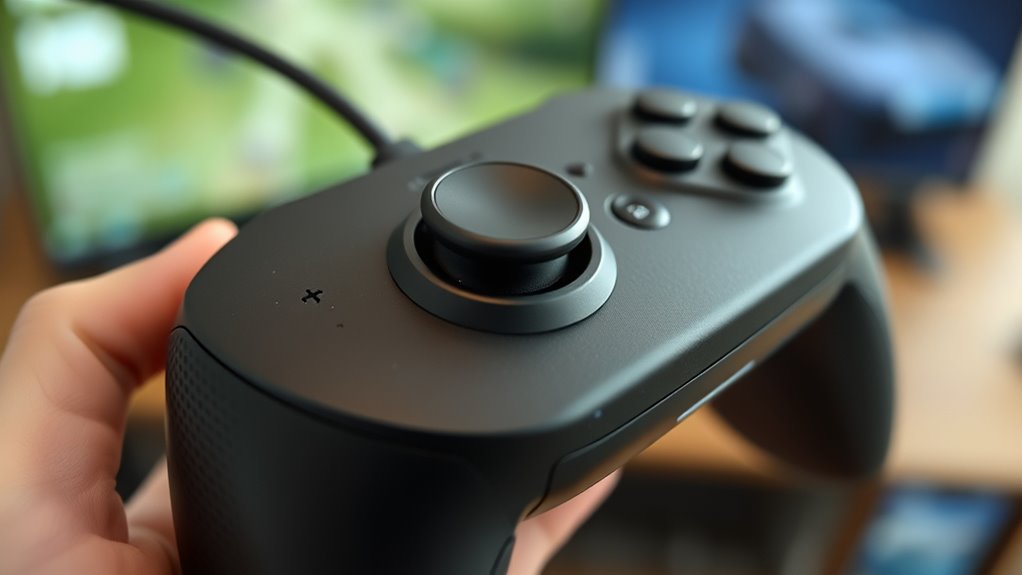
Have you ever wondered why your VR controller occasionally feels off even when you’re holding it correctly? It’s often linked to sensor calibration. Your VR system relies on sensors to track your controller’s position accurately. Over time, these sensors can drift from their calibrated state due to temperature changes, movement, or handling. When calibration isn’t accurate, the system can misinterpret your controller’s position, causing drift or errors. Regularly recalibrating your sensors helps confirm they’re aligned correctly, maintaining precision. Most VR systems offer simple calibration steps, like resetting the controller’s position or recalibrating the tracking sensors. By keeping these sensors properly calibrated, you improve tracking accuracy, reduce drift, and enjoy a more immersive VR experience. Proper calibration is essential for consistent, responsive controller tracking. Additionally, understanding sensor calibration and its impact on overall system performance can help you identify when adjustments are necessary. Some systems even include automatic calibration features to simplify this process and ensure ongoing accuracy. Regular maintenance of these calibration processes can also prevent controller drift from becoming a persistent issue, ensuring smooth gameplay and precise interactions. Furthermore, ensuring proper sensor positioning can enhance tracking stability and reduce calibration errors. Being aware of environmental factors like lighting and interference can also contribute to better tracking reliability.

For Meta Quest 2/3/3S Controller Accessories Rechargeable Battery Pack with Charger, 4 Pack 1.5V 2400mAh Long-Lasting Battery with Charging Storage Box for Oculus Quest 2/3/3S Controller Accessories
【Ultra-High Capacity & Constant 1.5V Output】: As rechargeable battery pack for oculus quest 2/3/3S controllers, high capacity of…
As an affiliate, we earn on qualifying purchases.
As an affiliate, we earn on qualifying purchases.
The Role of Wireless Interference

Ever notice your VR controller behaving strangely when you’re near certain devices or walls? Wireless interference could be the culprit. It disrupts the signals between your headset and controllers, causing drift or lag. Common sources include:
Wireless interference can cause VR controllers to drift or lag unexpectedly.
- Wi-Fi routers operating on the same frequency, which can overwhelm Bluetooth signals.
- Bluetooth devices like keyboards or speakers competing for bandwidth.
- Electronic gadgets such as microwaves or cordless phones emitting interference.
- Free Floating environments where the absence of physical boundaries can make it harder to control signal interference effectively.
– Additionally, understanding the wireless spectrum helps in diagnosing and mitigating interference issues.
This chaos weakens the communication, making your controllers less responsive or causing tracking issues. To reduce interference, try moving your router away, turning off unused Bluetooth devices, or changing your VR setup’s placement. Minimizing wireless clutter helps ensure smoother tracking and a more immersive experience.

Wireless Full Body Tracking Kit, BNO085 IMU Motion Trackers, Rechargeable Wearable VR Motion Sensors for PC VR Applications and Motion Tracking Setup(2 BNO085 trackers)
BNO085 IMU Sensor: Built with a BNO085 motion sensor to support responsive body movement tracking for compatible VR…
As an affiliate, we earn on qualifying purchases.
As an affiliate, we earn on qualifying purchases.
Impact of Battery Levels on Performance

When your controller’s battery drains, it can cause drift and affect tracking accuracy. Low power levels often lead to inconsistent performance, making precise movements difficult. Charging your device restores its performance, ensuring your VR experience stays smooth and responsive. Additionally, maintaining a healthy battery level can help prevent performance issues during extended use. Regularly monitoring your battery status and using battery management tools can further enhance your device’s reliability. Proper battery lifespan management can also extend the overall usability of your controllers. Being aware of battery recycling options can contribute to more sustainable device maintenance. Monitoring battery health can help identify potential issues early, preventing unexpected disruptions during gameplay.
Battery Drain Causes Drift
As your VR controller’s battery level drops, you might notice it starts to drift or become less responsive. Low battery power can cause internal components to malfunction, leading to tracking issues. Here’s what’s happening:
- Power fluctuations disrupt the sensor signals, causing inaccuracies in movement.
- The Bluetooth or wireless connection weakens, resulting in delayed or missed inputs.
- The internal circuits struggle to maintain calibration, leading to persistent drift.
- Using Rechargeable Batteries can help maintain consistent power levels and improve performance.
- Maintaining proper battery management ensures your controller operates at optimal performance levels.
- Regularly monitoring battery levels can prevent unexpected performance drops during use.
- Proper battery maintenance can extend the lifespan of your controller’s power source and ensure consistent operation.
- A stable power supply is essential for accurate tracking and overall VR experience quality.
When the battery is nearly empty, the controller’s electronics can’t operate at full capacity. This causes inconsistent tracking and responsiveness, making your experience frustrating. Keeping the battery charged helps ensure stable signals and accurate tracking, reducing drift caused by low power.
Low Power Effects
Low battery levels can markedly impair your VR controller’s performance by reducing responsiveness and tracking accuracy. When the battery is low, your controller may respond sluggishly to your movements or register inputs inconsistently. You might notice delayed reactions or jittery tracking, which can lead to drift or misalignment during gameplay. As the power diminishes, internal components struggle to operate at peak levels, causing fluctuations in sensor readings and signal stability. This decline can make it harder for the system to accurately interpret your hand movements, resulting in noticeable drift or lag. To guarantee smooth performance, keep your batteries charged and replace them promptly when they signal low power. Regularly monitoring battery levels prevents performance dips and maintains precise tracking during your VR sessions.
Charging Restores Accuracy
Keeping your VR controller charged is key to maintaining its tracking accuracy. When the battery dips below ideal levels, you might notice increased drift or inconsistent responses. Fully charging your controller helps guarantee it functions as intended. Regularly monitoring and managing your power supply can prevent issues caused by battery health and ensure peak performance. Here’s what happens when you charge your device:
- Battery levels rise, stabilizing internal sensors and circuitry.
- Signal transmission becomes clearer and more reliable.
- Tracking accuracy improves, reducing drift and lag.
- Proper power management supports consistent device performance over time.
Physical Obstructions and Their Effects
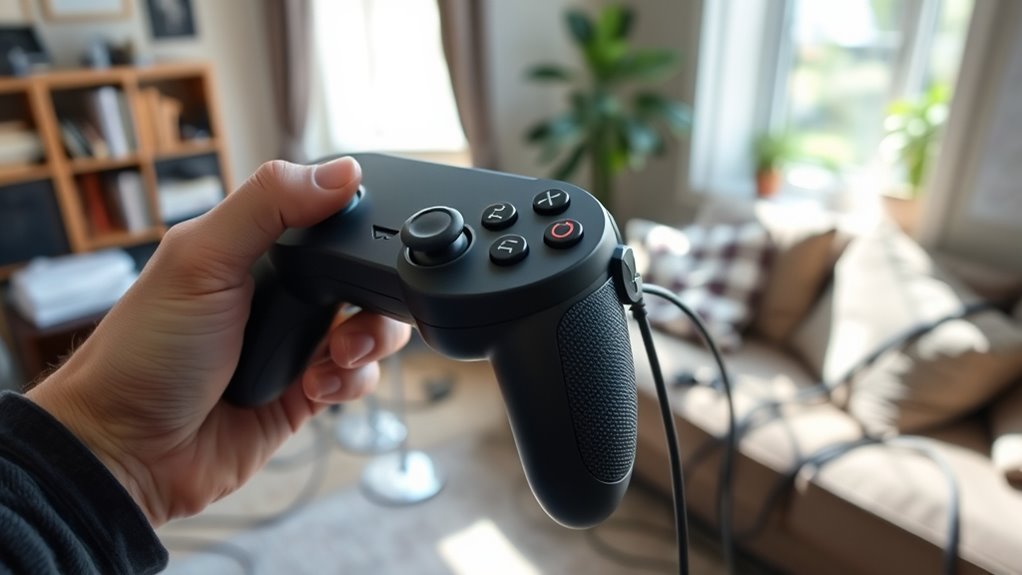
Physical obstructions can disrupt your VR experience by interfering with the signal between your controller and headset. Objects like walls or furniture may cause signal interference or blockages that lead to drift issues. Keeping a clear line of sight and minimizing obstacles can help maintain accurate controller tracking.
Signal Interference Sources
Signal interference from physical obstructions can markedly disrupt VR controller tracking, leading to drift or loss of accuracy. When signals struggle to pass freely, your controllers may behave unpredictably. Common sources include:
- Metal objects or electronic devices nearby that reflect or absorb signals.
- Thick walls or furniture blocking direct line-of-sight between the sensors and controllers.
- Multiple wireless signals competing in the same frequency, causing interference.
These obstructions weaken or distort the communication between your controllers and sensors, resulting in tracking errors. To minimize issues, keep the play area clear of reflective or dense objects, position sensors in open areas, and reduce nearby wireless device activity. Staying aware of interference sources helps ensure smoother, more accurate tracking during your VR sessions.
Obstruction Blockage Effects
Obstructions in your play area can directly block the signals between controllers and sensors, causing tracking errors or complete loss of connection. When objects like furniture, walls, or even your own body block the line of sight, signals can’t reach the sensors effectively. This disruption makes your controllers jump, lag, or lose tracking entirely. Unlike interference from wireless signals, physical obstructions create a direct barrier that prevents proper communication. To minimize this, keep the play space clear of large objects and avoid placing yourself or others between the controllers and sensors during gameplay. Be mindful of how your movements or surrounding items could temporarily block signals, especially during active sessions. Reducing obstructions helps maintain consistent controller tracking and prevents drift caused by signal interruption.
Clear Line of Sight
When objects block the line of sight between your controllers and sensors, it can cause tracking issues or even complete loss of connection. Physical obstructions prevent the sensors from accurately detecting controller movements. To guarantee ideal tracking, keep these in mind:
- Remove or minimize furniture, bags, or cables that sit between sensors and controllers.
- Position sensors in open spots with a clear, unobstructed view of the play area.
- Avoid placing controllers behind your body or other objects during gameplay.
Firmware and Software Updates to Consider
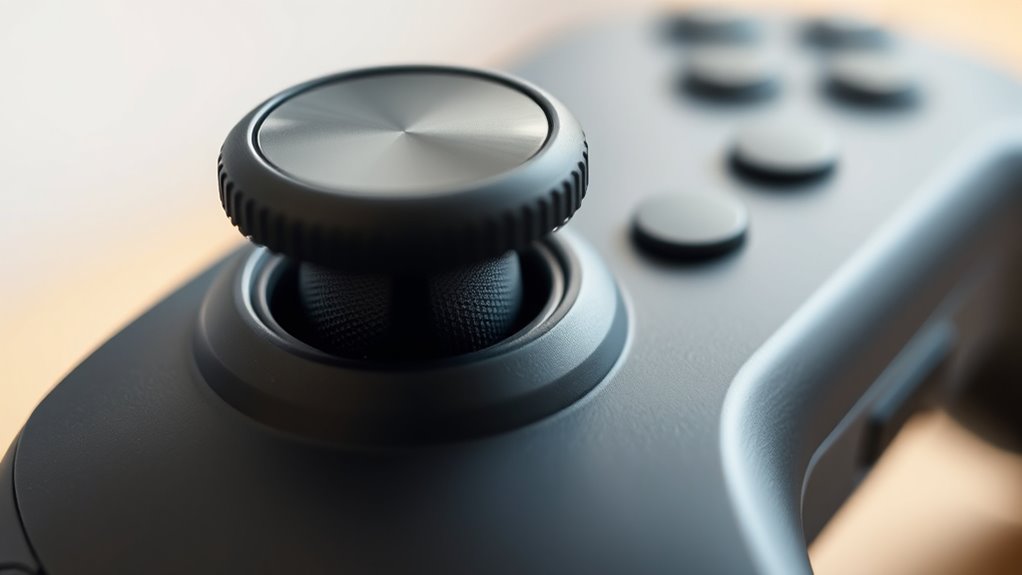
Keeping your VR controller’s firmware and software up to date is essential for maintaining accurate tracking and minimizing drift. Manufacturers often release updates that fix bugs, improve tracking algorithms, and enhance overall stability. To guarantee you’re running the latest version, regularly check the manufacturer’s app or website for updates. Installing these updates can resolve existing issues that might contribute to drift, such as calibration errors or sensor miscommunications. Don’t ignore update prompts; they’re designed to optimize your device’s performance. Additionally, keeping your system software current ensures compatibility with new features and improvements. Taking a few moments to update your firmware and software can markedly reduce drift problems, giving you a smoother, more precise virtual experience.
Checking and Adjusting Controller Settings
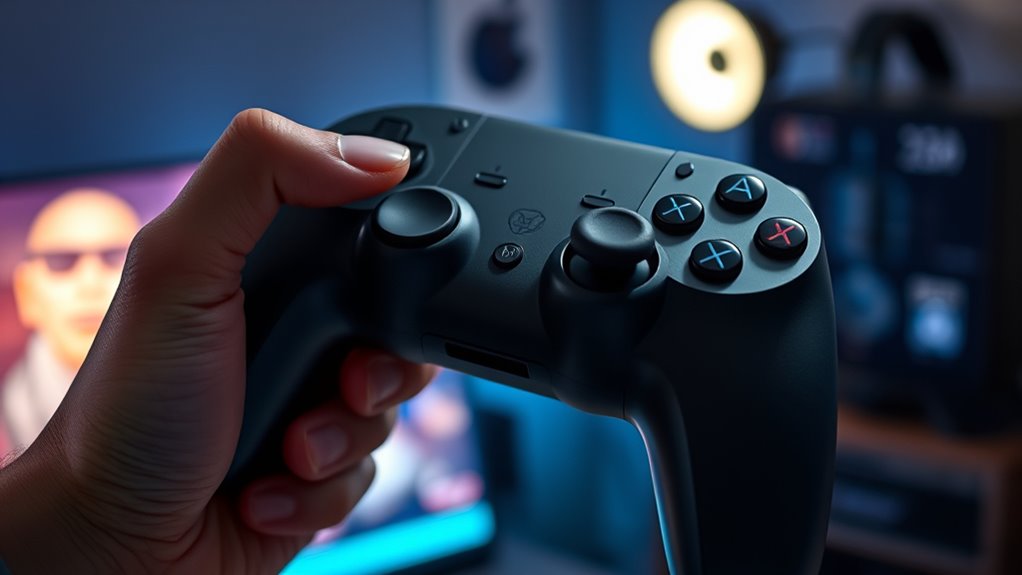
Checking and adjusting your controller settings is a vital step in minimizing drift, as improper configurations can cause inaccurate tracking. First, verify that your controller is calibrated correctly within the VR system’s settings. Second, ensure the controller’s tracking range is appropriate and not obstructed by objects or sunlight. Third, adjust the controller’s grip and position to match your usual holding style, which can improve sensor recognition. These steps help optimize tracking accuracy by aligning the system’s parameters with your setup. Regularly reviewing and fine-tuning these settings can prevent drift issues before they worsen. Remember, small adjustments can make a significant difference in maintaining precise control and a smoother VR experience.
Basic Troubleshooting Steps to Try
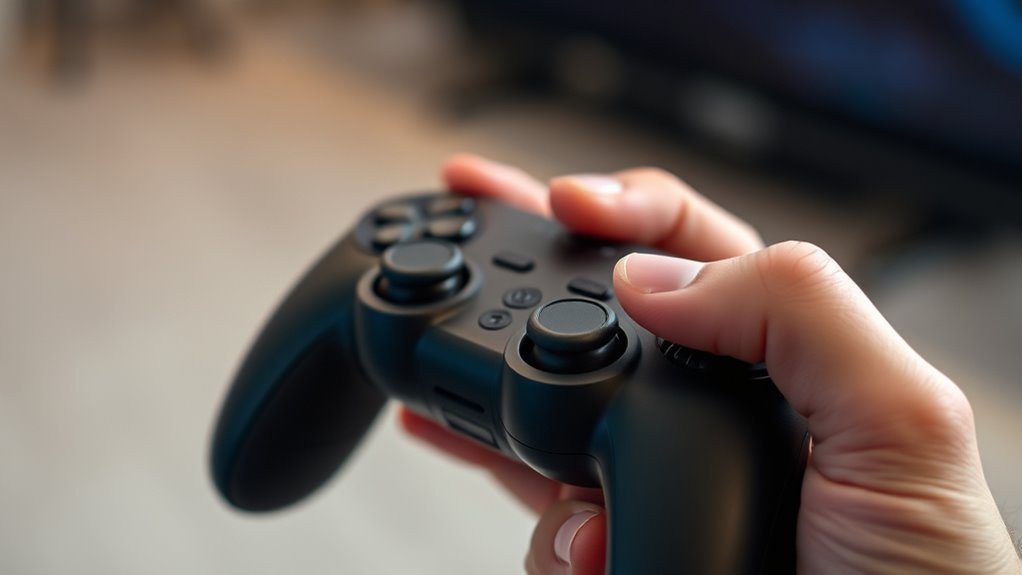
If you’re experiencing controller drift, starting with some basic troubleshooting steps can often resolve the issue quickly. First, try turning off your VR headset and controllers, then turn them back on after a few seconds. Confirm your controllers are charged or have fresh batteries. Check for any debris or dirt on the sensors or controller contacts and clean them gently with a soft cloth. Re-pair your controllers with your VR system to refresh the connection. Also, update your headset and controller firmware to the latest versions, as updates often include bug fixes. Finally, restart your VR device and any related software. These simple steps can often eliminate minor glitches causing drift without needing further intervention.
When to Seek Professional Repair

If calibration issues keep coming back despite your efforts, it’s time to contemplate professional repair. Check if your controller is still under warranty or if support options are available to avoid unnecessary costs. Knowing when to seek expert help can save you time and ensure your VR experience stays smooth.
Persistent Calibration Issues
Persistent calibration issues can become a major frustration, especially when your VR controllers consistently drift despite repeated adjustments. If you’ve tried recalibrating and cleaning the controllers without success, it’s time to contemplate professional repair. Here’s when to seek help:
- The drift persists across multiple games and applications, showing it’s not software-related.
- You’ve replaced batteries and checked for firmware updates with no improvement.
- The controller shows physical damage or signs of wear that could affect internal components.
If these conditions apply, DIY fixes won’t likely resolve the problem. Professional repair can identify hardware issues like sensor misalignment or faulty circuits, ensuring your controllers regain accurate tracking and performance.
Warranty and Support Options
When calibration efforts don’t solve controller drift, exploring warranty and support options can save you time and money. Check if your device is still under warranty; manufacturers often cover repairs for hardware issues. Contact customer support for troubleshooting guidance—sometimes, a firmware update or reset can fix the problem. If your controller is out of warranty, professional repair services or replacement parts might be necessary. Consider the table below to understand your options:
| Support Option | Eligibility Criteria | Cost |
|---|---|---|
| Manufacturer Warranty | Within warranty period | Usually free |
| Extended Support | Purchased separately | Variable |
| Third-Party Repair | Out of warranty | Typically paid |
| DIY Repair | Skilled user, parts available | Cost of parts |
| Replacement | No repair feasible | New controller |
Knowing your options helps you decide whether to seek professional repair or explore other solutions.
Preventative Measures for Future Use
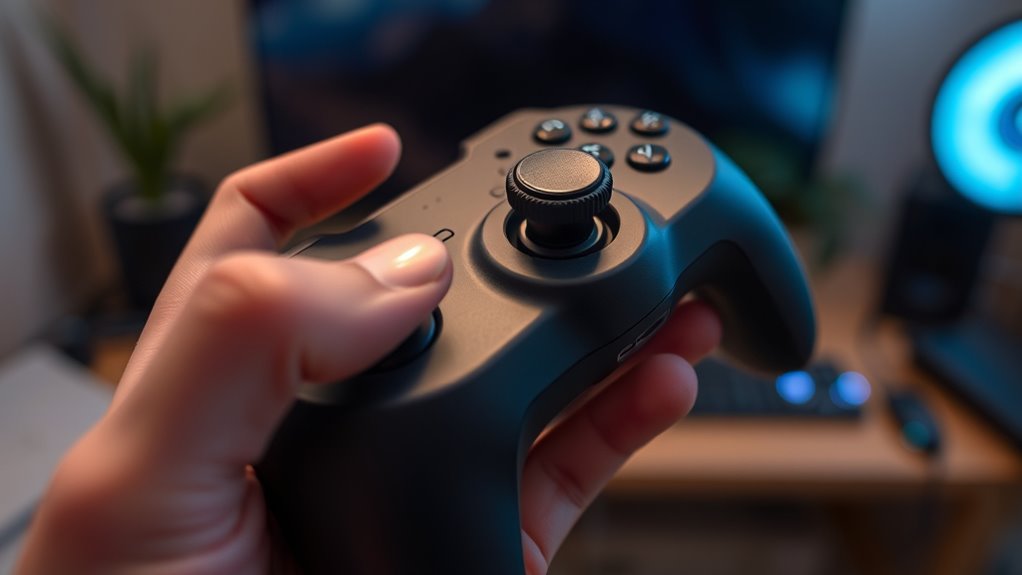
To prevent controller drift in VR systems, proactive maintenance and calibration are essential. Regularly check your controllers to ensure they’re clean and free of dust or debris, which can interfere with sensors. Next, always calibrate your controllers before each gaming session to maintain tracking accuracy. Finally, update your VR software and firmware promptly, as manufacturers often release fixes for drift issues. These steps help keep your controllers performing ideally and reduce the likelihood of drift over time. Consistent cleaning, calibration, and updates create a stable tracking environment, saving you from troubleshooting more serious problems later. Taking these preventative measures ensures a smoother, more immersive VR experience without unexpected drift disruptions.
Frequently Asked Questions
Can Controller Drift Occur During Specific VR Experiences Only?
Yes, controller drift can happen during specific VR experiences, especially those involving rapid or jerky movements, like fast-paced games or intense simulations. You might notice it more if you’re playing for extended periods or using certain controllers with worn-out sensors. To reduce drift, try recalibrating your controllers, ensuring they’re clean, or taking breaks to prevent sensor fatigue. Proper setup can help minimize drift across all experiences.
Does Temperature Affect Controller Accuracy and Drift?
Yes, temperature can affect your VR controller’s accuracy and cause drift. When it’s too cold or hot, the sensors inside the controller may not function properly, leading to tracking issues. To prevent this, keep your controllers within the recommended temperature range, avoid exposing them to extreme conditions, and store them in a cool, dry place. Proper temperature management helps maintain accurate tracking and reduces drift during your VR sessions.
How Long Does a Typical Calibration Process Take?
Think of calibration as tuning a musical instrument—you want everything to be just right. Typically, it takes about 5 to 10 minutes to calibrate your VR controller, depending on the device and method. You’ll need to follow prompts, move your controller as instructed, and confirm settings. Stay patient; a proper calibration guarantees your controller’s movements stay in harmony with your virtual world.
Are Third-Party Accessories Safe for VR Controllers?
Third-party accessories can be safe for your VR controllers if you choose reputable brands and guarantee they’re compatible with your device. Always check reviews and manufacturer guidelines before purchasing. Avoid cheap or poorly made accessories, as they could damage your controllers or affect performance. When in doubt, stick with official accessories or well-reviewed third-party options to keep your VR experience safe and enjoyable without risking hardware issues.
Can Software Glitches Cause Persistent Controller Drift?
Yes, software glitches can cause persistent controller drift. When your VR system’s software encounters bugs or conflicts, it may misinterpret controller inputs or tracking data, leading to drift that persists even after calibration. To fix this, you should update your firmware, restart your device, and verify all drivers are current. If problems continue, reinstalling software or resetting your system might resolve the issue, restoring accurate tracking.
Conclusion
Think of controller drift like a restless ghost in your VR world—if you don’t address it early, it can haunt your experience. By staying vigilant, calibrating sensors, and keeping an eye on interference, you’re the captain steering your ship through choppy waters. With a few simple steps, you can calm the storm and restore smooth sailing. Don’t let drift drift you away—take control and keep your virtual adventures on course.