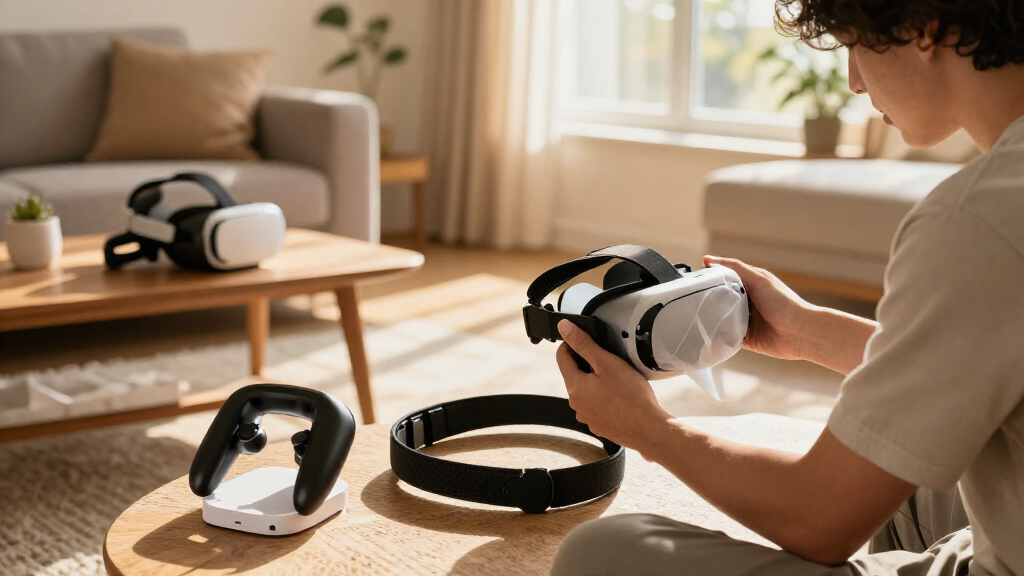

This checklist is for players setting up VR multiplayer at home, whether you’re upgrading a headset or smoothing out the shared-play setup around it. It covers the main gear slots that can shape comfort, communication, and readiness between sessions.

Play games on Amazon Luna for your next adventure, included with Prime
- A rotating selection of games, no download needed
- Play on TV, laptop or phone
- Fast, free delivery for your gear, too
The sections follow the accessory list: headset, wireless router, microphone, charging dock, prescription lens inserts, and cable pulley system. Picks are included where provided; the remaining sections offer buying guidance without naming a specific product.
Use each section to identify what matters for your setup, then check compatibility with your headset and play space before buying. Prioritize the parts that address your biggest friction point first, and treat each checklist as a way to compare options rather than a requirement to buy everything.
VR Multiplayer Headsets
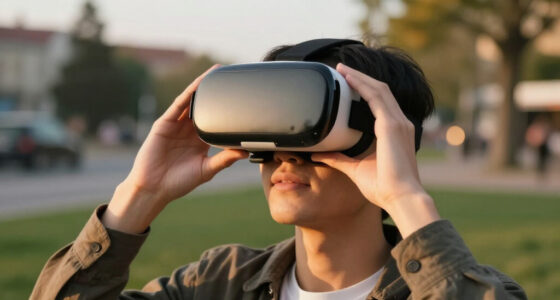
A headset is the foundation of a multiplayer setup: it determines what you wear during a session and how you experience the virtual space. The listed pick is the Pimax Crystal Super VR Headset, described as 3840×3840 per eye, ultrawide, with a 140° field of view. Those specifications make it important to confirm that the headset suits your preferred games, computer or platform, and tolerance for wearing it over longer sessions.
A common mistake is choosing by headline specifications alone. Check the actual fit on your face, how the headset balances, whether its adjustment range works for you, and whether it accommodates glasses or any accessories you already use. For multiplayer, also consider how easy it is to reach controls and keep the headset positioned while you talk or move.
Before choosing, verify platform compatibility, connection requirements, and the space needed for your play style. If possible, try the fit or review the manufacturer’s sizing and setup guidance. Make sure everyone who will share the headset can adjust it comfortably, and account for any prescription inserts or audio accessories you plan to add.
What to look for:
- Confirm compatibility with your gaming platform and intended titles.
- Check face fit, adjustment range, and headset balance.
- Consider glasses clearance or prescription insert support.
- Review connection and setup requirements for your play space.
- Make sure shared users can adjust the headset comfortably.
Pimax Crystal Super VR Headset, 3840×3840 per Eye, Ultrawide, 140° FOV, Eye-Trac

The Pimax Crystal VR headset offers ultra-sharp visuals with 3840×3840 resolution per eye, an expansive 140° field of view, and eye-tracking technology. It features high-fidelity audio, adjustable IPD, and a comfortable design suitable for extended gaming and simulation sessions.
Pros:
- Exceptional visual clarity with 3840×3840 per eye resolution
- Wide 140° field of view enhances peripheral awareness
- Advanced eye-tracking and inside-out tracking for immersive experience
- High-fidelity spatial audio with noise cancellation
Cons:
- No specific weight information provided
- Requires Windows 10 PC with compatible hardware
- Potentially high cost due to advanced features
Best for: Players prioritizing an ultrawide headset with the listed per-eye resolution and field of view.
Not ideal for: Shoppers who have not confirmed platform compatibility, fit, or setup requirements.
Bottom line: Choose the Pimax Crystal Super only after checking that its fit and connection requirements suit your setup.
Wireless Router
A wireless router can be a central part of a multiplayer setup when your headset or play environment relies on a wireless network. The listed pick is the TP-Link AX6000 Wi-Fi 6 Dual Band Router (Archer AX80). Before choosing it, map where you play and where the router will sit; the network path between them matters more than a label on the box.
A common buying mistake is assuming a new router automatically solves connection problems. Existing network equipment, walls, placement, and other devices sharing the connection can all affect how well a setup works. Check whether your headset supports the router’s wireless features and whether your internet or local network arrangement needs any additional equipment or configuration.
For a clean setup, place the router where it can serve the play area without being hidden behind furniture or enclosed. Confirm Wi-Fi compatibility with your headset and review the available setup guidance before replacing equipment. If multiple people play in different rooms, consider each intended location rather than optimizing only for the room with the router.
What to look for:
- Confirm the headset supports the router’s Wi-Fi features.
- Check whether your current modem or network equipment is compatible.
- Plan router placement relative to the VR play area.
- Consider walls, floors, and other obstacles between devices.
- Review setup options for the rooms where multiplayer sessions happen.
TP-Link AX6000 Wi-Fi 6 Dual Band Router (Archer AX80)

The TP-Link Archer AX80 is a high-performance Wi-Fi 6 router that offers dual-band speeds up to 4804 Mbps on 5 GHz and 1148 Mbps on 2.4 GHz. It features eight high-gain antennas with Beamforming, a 2.5 Gbps multi-gigabit port, and supports MU-MIMO, OFDMA, VPN, and OneMesh for expanded coverage and connectivity.
Pros:
- High-speed Wi-Fi 6 performance with up to 4804 Mbps on 5 GHz
- Strong coverage with eight high-gain antennas and Beamforming
- Supports multi-gigabit wired connections with a 2.5 Gbps port
- Compatible with Alexa and various ISPs for easy setup and control
Cons:
- Complex setup may be challenging for non-technical users
- Premium features may require additional subscription or configuration
- Large size may not be suitable for small spaces
Best for: Players who want to evaluate a Wi-Fi 6 router for their VR network setup.
Not ideal for: Anyone expecting a router swap alone to resolve every network issue.
Bottom line: The Archer AX80 is the listed router pick; confirm compatibility and placement before changing your network.
VR Headset Microphone
Clear voice chat helps a multiplayer session feel coordinated, so microphone choice deserves attention even when it is not a headline accessory. Start with the headset’s built-in audio and determine whether your teammates can hear you clearly in the games and apps you use. If not, compare compatible alternatives that fit your headset and preferred way of playing.
A common mistake is buying a microphone without checking its connection, mounting method, or effect on comfort. A mic that blocks access to controls, shifts the headset, or sits awkwardly near your face can become distracting over a long session. Think about whether you need a fixed boom, a removable option, or simply better positioning of the microphone you already have.
Check how the microphone connects and whether your headset supports its input. For shared headsets, favor an arrangement that is easy to adjust and clean between users. Consider your usual room noise and speaking distance, then test voice chat in the same environment where you play. Prioritize clear communication and comfortable placement over extra features you will not use.
What to look for:
- Verify microphone connection and headset compatibility.
- Choose a mounting style that does not interfere with fit or controls.
- Check that the mic position works for different users.
- Consider the noise level and layout of your play space.
- Test voice chat with the games or apps you actually use.
Controller Charging Dock
A charging dock keeps controllers together between sessions and can make it easier to start a multiplayer game with ready equipment. The listed pick is the VR Charging Dock for Meta Quest 3, Quest 3S, and Quest 2. Its name identifies three headset families, but confirm the exact controller and battery arrangement it supports before relying on it for your gear.
A common mistake is checking headset compatibility while overlooking controller revisions, battery types, or included charging parts. Review what the dock requires and whether your controllers use rechargeable batteries or another setup. Also consider where the dock will sit: it should be easy to reach without crowding the play area or creating a cable path where people walk.
For a shared household, think about how many controllers need a place and whether each user can return them consistently. Check the dock’s footprint and cable routing against your shelf or desk. If you use protective covers or other controller accessories, verify they do not interfere with charging contact or fit. Keep the dock outside the movement area and within convenient reach.
What to look for:
- Confirm support for your exact headset and controller versions.
- Check battery type and any required charging components.
- Consider how many controllers the dock can accommodate.
- Measure the available shelf or desk space.
- Verify covers or accessories do not interfere with charging.
VR Charging Dock for Meta Quest 3, Quest 3S, and Quest 2

This compact tabletop stand organizes and displays a Meta Quest headset, controllers, and cables, with a non-slip base to help keep equipment stable. It charges the headset through a Type-C charger; controllers are stored on the stand but cannot be charged.
Pros:
- Compatible with Meta Quest 3, Quest 3S, and Quest 2
- Organizes headset, controllers, and cables
- Space-saving design with a stable, non-slip base
- Quick snap-on assembly
Cons:
- Charges the headset only; controllers cannot be charged
- Plastic enclosure material
Best for: Quest 3, Quest 3S, and Quest 2 owners seeking a dedicated controller charging spot.
Not ideal for: Players whose controller or battery setup is not confirmed as compatible.
Bottom line: Confirm controller and battery compatibility, then place the dock somewhere convenient and clear of the play area.
VR Prescription Lens Inserts
Prescription lens inserts can help players who use corrective lenses explore a headset setup without relying on their everyday glasses inside the headset. Since no specific product is listed, begin by checking whether inserts are available for your exact headset model and prescription. Compatibility can vary, so do not assume an insert made for one headset generation fits another.
A common mistake is ordering from a rough or outdated prescription, or overlooking how the insert changes the space around your eyes. Follow the insert maker’s requirements for prescription details and confirm whether your prescription falls within its supported range. Consider how the inserts attach, whether they can be removed easily, and how they will be stored when the headset is shared.
Check the headset’s fit guidance and the insert provider’s instructions before purchasing. If more than one person uses the headset, consider whether inserts can be swapped and identified without confusion. Keep the lenses clean using the recommended method, and avoid assuming they will work with every face interface or other lens accessory. A careful fit check supports comfort and clarity during longer sessions.
What to look for:
- Match the insert to your exact headset model and generation.
- Use current prescription details and check the supported range.
- Review attachment, removal, and storage instructions.
- Check clearance with your face interface and other accessories.
- Consider how inserts will be managed if the headset is shared.
VR Cable Pulley System
A cable pulley system can route a wired headset cable overhead, helping keep it out of the way during movement. It is most relevant when your setup uses a headset cable and the ceiling or mounting points suit the installation. With no product specified, focus on the room layout, cable path, and the system’s attachment requirements before comparing options.
A common mistake is choosing a pulley arrangement without checking ceiling material, mounting locations, or the cable’s reach. A route that looks tidy from one position may tug when you turn, crouch, or move across the play area. Plan the full movement zone and make sure the cable can travel without catching on lights, fans, furniture, or other obstacles.
Check the system’s mounting instructions and whether it is designed for your cable type and headset arrangement. Consider how you will install it, adjust tension, and remove it if the room is shared or rented. Keep the headset cable’s movement path clear, and test the route gently before a full session. If your setup is wireless, this accessory may not address a current need.
What to look for:
- Confirm the pulley system supports your cable and headset arrangement.
- Check ceiling material and mounting requirements.
- Map the full play area and cable travel path.
- Look for potential snags such as lights, fans, or furniture.
- Plan installation and removal for your room.
Use a budget-first buying order: address the issue that most affects your sessions, then add accessories that solve a specific fit, network, communication, or storage need. Confirm compatibility before replacing working gear, and consider whether a setup change or better placement could solve the problem first.
You do not need every item on this checklist to enjoy multiplayer VR. Start with the essentials for your headset and play space, make one change at a time, and build toward a setup that feels comfortable and ready whenever your group wants to play.