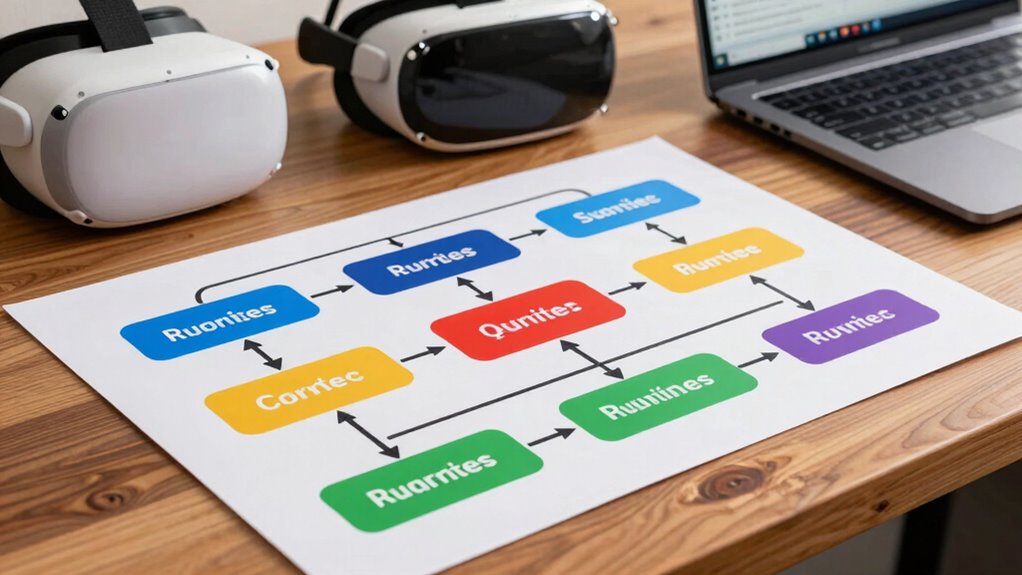
To build a simple VR troubleshooting flowchart, start by listing common problems like visual glitches, tracking issues, and discomfort. Then, identify causes and create decision points, such as checking cable connections or adjusting headset fit. Use yes/no questions to guide users through step-by-step solutions. Keep the flowchart clear and easy to follow. If you keep exploring, you’ll find more tips to make your troubleshooting even more effective.

Play games on Amazon Luna for your next adventure, included with Prime
- A rotating selection of games, no download needed
- Play on TV, laptop or phone
- Fast, free delivery for your gear, too
Key Takeaways
- Identify common VR problems and categorize them (e.g., visual glitches, tracking issues, discomfort).
- Use decision points to guide users through troubleshooting steps based on specific symptoms.
- Incorporate calibration and fit checks as initial steps before deeper troubleshooting.
- Include hardware and software checks, with clear instructions for each potential issue.
- Design the flowchart to escalate unresolved problems to technical support efficiently.
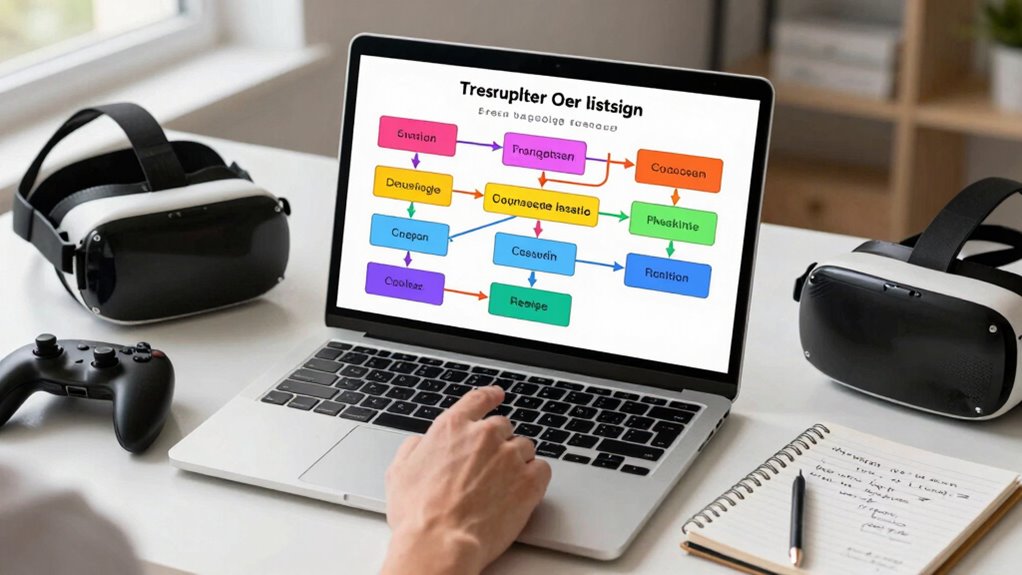
Creating a simple VR troubleshooting flowchart can streamline how you diagnose and fix common issues with virtual reality setups. When you build this flowchart, start by identifying the most frequent problems users face, such as visual glitches, tracking issues, or discomfort during gameplay. A key step is ensuring proper VR headset calibration, as inaccurate calibration can cause visual distortions, eye strain, or headaches. Your flowchart should guide users to check and adjust the headset fit, lens position, and room-scale calibration to optimize their experience. Including calibration tips helps prevent issues before they escalate, saving time and frustration. Additionally, understanding the importance of proper calibration techniques can significantly improve overall VR performance. Motion sickness prevention is another critical element to incorporate into your flowchart. If users experience nausea or dizziness, your troubleshooting steps should direct them to verify that their play area is well-lit and free of reflective surfaces that can cause visual disorientation. You can include prompts for adjusting the interpupillary distance (IPD) settings, which can significantly reduce motion sickness by aligning the display more accurately with each user’s eyes. Additionally, remind users to take regular breaks and gradually increase session lengths to help their bodies adapt to VR environments. Clear instructions for these preventive measures can reduce the likelihood of motion sickness, making the experience more enjoyable and accessible. When designing your flowchart, think about common hardware and software troubleshooting steps. For hardware issues, include checkpoints for inspecting cable connections, cleaning lenses, and updating firmware. For software problems, guide users through restarting the VR application, checking for updates, and verifying compatibility with their system. Each decision point should be straightforward: if a problem persists after one step, the flowchart should direct them to the next logical step without unnecessary delays. Use simple yes/no questions to lead users quickly toward solutions or escalate issues to technical support if needed. Additionally, familiarizing users with VR setup best practices can further reduce troubleshooting time and improve their overall experience. Understanding hardware and software components is also essential for efficient troubleshooting and maintaining a smooth VR experience. Incorporating user education about common issues and solutions can empower users to resolve minor problems independently.
Frequently Asked Questions
What Tools Are Best for Creating Flowcharts?
You should choose diagram software like Microsoft Visio, Lucidchart, or Draw.io, which offer a variety of flowchart symbols to make your troubleshooting process clear. These tools are user-friendly and allow you to easily drag and drop symbols, connect steps, and customize layouts. By using the right diagram software, you’ll streamline building your flowchart, ensuring it’s both functional and easy to understand for troubleshooting VR issues effectively.
How Do I Test the Effectiveness of My Troubleshooting Flowchart?
Sure, testing your flowchart’s effectiveness is easy—just watch your users struggle! You’ll notice how quickly they get frustrated or confused, revealing issues with troubleshooting accuracy. Gather feedback, observe their user experience, and identify where they stumble. Refine your flowchart accordingly, ensuring it guides users smoothly. Remember, a flowchart that minimizes confusion and enhances troubleshooting accuracy will make your VR experience truly immersive—and less frustrating.
Can I Customize the Flowchart for Different VR Headsets?
Yes, you can customize your flowchart for different VR headsets by including steps specific to each device’s compatibility and firmware updates. Start by identifying headset compatibility issues and firmware update requirements for each model. Then, add decision points that guide users through troubleshooting unique to each headset. Regularly update the flowchart to reflect new firmware releases and compatibility changes, ensuring it remains effective across different VR devices.
How Often Should I Update the Troubleshooting Flowchart?
You should update your troubleshooting flowchart regularly to guarantee its accuracy and effectiveness. The ideal update frequency depends on how often your VR hardware or software changes, but generally, you should review and update it at least quarterly. Regular flowchart maintenance helps you stay ahead of new issues and keeps your troubleshooting process efficient. Keep an eye on user feedback and hardware updates to determine when adjustments are needed.
What Common VR Issues Should Be Included in the Flowchart?
You should include common VR issues like headset connectivity problems, tracking errors, and display glitches in your flowchart. Connectivity issues with the VR headset are frequent and can stem from loose cables or wireless interference. Also, address controller pairing failures, software crashes, and calibration troubles. Covering these common problems helps users quickly identify and resolve issues, ensuring a smoother VR experience and reducing frustration.
Conclusion
Creating a VR troubleshooting flowchart might seem straightforward, but it’s actually a bit like unraveling a mystery—sometimes the simplest steps reveal the biggest clues. Just like the theory that simple solutions often fix complex problems, your flowchart can streamline troubleshooting and save time. Trust that breaking down issues into clear steps makes fixing VR glitches less intimidating. With patience and a logical approach, you’ll find that even the trickiest problems become manageable—proving that simplicity truly is powerful.

Meta Quest 3S 512GB | Virtual Reality — VR Headset — Gorilla Tag Bundle
- Exclusive Gorilla Tag Bundle: Includes Gorilla Space Suit and Helmet
- Bonus Shiny Rocks: Receive 2,000 shiny rocks with purchase
- Enhanced Resolution: Nearly 30% increase in display resolution
As an affiliate, we earn on qualifying purchases.
Fall Picks
fall essentials
As an affiliate, we earn on qualifying purchases.