TL;DR
VR users facing technical difficulties can follow straightforward steps to improve performance. Community advice highlights common issues and solutions, but some uncertainties remain about specific troubleshooting methods.
VR users experiencing performance issues can now follow a series of simple troubleshooting steps shared by the community on Reddit to improve their experience. These tips aim to address common problems such as lag, crashes, or connectivity issues, which have frustrated many users recently.
Multiple posts on r/OculusQuest indicate that users are encountering persistent problems with their VR headsets, including lag, crashes, and difficulty connecting to devices or apps. In response, community members have compiled a list of recommended troubleshooting steps, such as restarting devices, checking for software updates, and resetting network configurations. These suggestions are based on collective user experience rather than official support channels.
While some users report immediate improvements after applying these steps, others still face unresolved issues, leading to questions about the root causes. Experts have not yet issued formal guidance, and the effectiveness of certain methods varies depending on the specific hardware and software setups involved.
Struggling With VR? Simple Steps To Get Back On Track
Lag, crashes, and broken connections do not always mean a failed headset. Start with the least disruptive fixes, observe what changes, and escalate only when the evidence points beyond software or network settings.
Begin with the reversible fixes
Community members on r/OculusQuest repeatedly recommend the same basic sequence. Run one step at a time so you can identify what actually solved the problem.
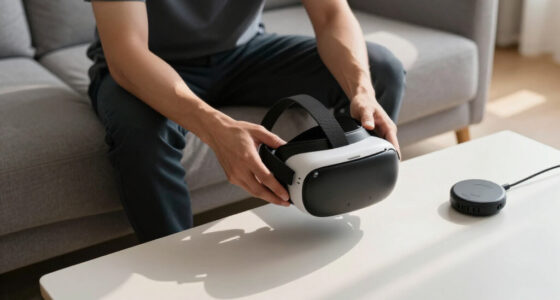
Restart the headset
Perform a full shutdown and restart rather than simply putting the headset into standby. Restart the connected PC, phone, or router when relevant.
Check every update
Confirm the headset OS, companion app, game, PC client, graphics driver, and router firmware are compatible and current.
Reset the connection
Forget and reconnect Wi-Fi, reboot network hardware, remove stale pairings, and test close to the router with minimal competing traffic.
Reinstall the problem app
Back up important data first. Reinstall only the affected application before considering broader resets or factory-level actions.
Follow the symptom, not the frustration
A useful troubleshooting trail connects the visible problem to one controlled action, a repeatable test, and a recorded outcome.
Identify
Name the exact symptom: lag, crash, failed launch, lost tracking, or broken connection.
Change one thing
Apply a single low-risk fix so the result remains attributable.
Retest the same scene
Use the same app, network, location, and workload where possible.
Record the result
Note what improved, what remained, and whether the fault returned.
“Following basic steps like restarting the headset and checking for updates can often resolve common performance issues.”
Match the first test to the failure
These indicators reflect how often each starting point appears in the supplied community guidance. They are directional priorities, not measured success rates.
Best first checks
Useful advice is not the same as a universal fix
Community troubleshooting can provide immediate relief, but different headsets, routers, PCs, software versions, and update histories produce different outcomes.
Basic resets help some users
Restarting devices, applying updates, resetting network settings, and reinstalling apps are repeatedly reported as useful first steps.
Community supportedResults differ by setup
A remedy that works on one headset or network may fail on another because the underlying cause can be software, connectivity, configuration, or hardware.
Configuration dependentNo confirmed fix timeline
The report provides no confirmed schedule for official patches or formal guidance. Users should monitor manufacturer support channels.
Awaiting guidanceKnow when DIY troubleshooting ends
The safest approach is progressive: begin with reversible actions, protect important data, and escalate when the symptom persists or suggests physical damage.
What are the most common first steps?
Restart the headset, check software and firmware updates, reset network connections, and reinstall the affected app.
Are these tips officially endorsed?
No. The supplied advice is community-driven and based on user experience rather than formal manufacturer guidance.
Will these steps fix every VR problem?
No. Some issues require a vendor patch, deeper configuration changes, account support, cable replacement, or hardware repair.
When should official support take over?
Escalate after repeatable failures, error messages that survive reinstalling, overheating, physical damage, charging faults, or persistent tracking problems.
Keep the supporting setup current
5 Best VR Headsets With Eye Tracking for 2026
See the top picks → Networking / 10 picks10 Best Wi-Fi 6 Routers for VR in 2026
See the top picks → Streaming / 8 picks8 Best USB Microphones for VR Streaming in 2026
See the top picks →Why Community-Driven Troubleshooting Matters for VR Users
This development underscores the importance of community support in troubleshooting VR problems, especially when official resources are limited or delayed. It highlights how user-shared solutions can provide immediate relief, but also reveals ongoing challenges in maintaining consistent hardware and software performance. For consumers, understanding these DIY steps can help reduce frustration and improve their VR experience while awaiting official fixes.

3D VR Headset for Kids + Android Remote – for iPhone & Android Phones
- Device Compatibility: Fits most iPhone and Android phones
- Included Content: Free VR apps and videos for beginners
- Gift Idea: Ideal for birthdays and holidays
As an affiliate, we earn on qualifying purchases.
As an affiliate, we earn on qualifying purchases.
Recent VR Performance Issues and Community Responses
Over the past few weeks, numerous VR users have reported issues such as lag, crashes, and connectivity failures, particularly with Oculus Quest devices. These problems have been documented extensively on r/OculusQuest, where community members share troubleshooting tips and experiences. The community response reflects a broader pattern of user-driven problem solving in the absence of immediate official support from manufacturers or developers.
Historically, VR hardware and software updates can introduce new bugs or compatibility issues, especially during major updates or hardware revisions. The current wave of problems appears to be part of this ongoing cycle, with users seeking rapid, practical solutions to restore their VR experiences.
“Following basic steps like restarting the headset and checking for updates can often resolve common performance issues.”
— an anonymous researcher
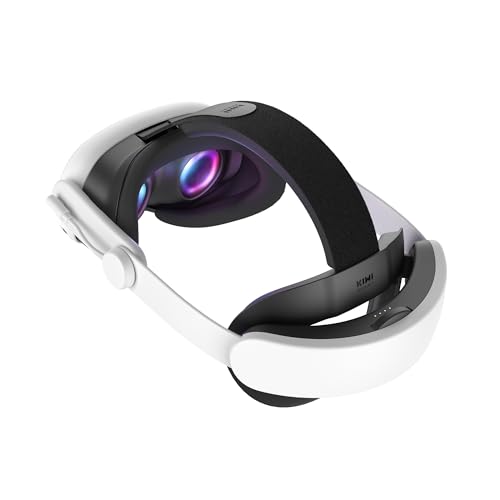
KIWI design K4 Boost Battery Head Strap for Meta Quest 3/3S
- Extended Playtime: Up to 3 hours longer gameplay
- Fast Charging: Recharge in 2.5 hours with 45W adapter
- Secure Fit: Adjustable strap for comfortable, secure fit
As an affiliate, we earn on qualifying purchases.
As an affiliate, we earn on qualifying purchases.
Unclear Effectiveness of DIY Troubleshooting Methods
While community advice provides practical solutions, it is not yet clear how effective these steps are across all devices and situations. Some users report success, but others see no improvement, and official guidance from Oculus or related companies has not been issued. The root causes of these issues remain under investigation, and further testing is needed to confirm which methods are most reliable.

Cable Matters 5Gbps Long USB 3.0 Extension Cable, 10ft, Black
- High-Performance Extension: Extend USB 3.0 and 2.0 connections
- SuperSpeed USB 3.0: Supports fast data transfer speeds
- Fast Data Transfer: Up to 5 Gbps transfer rate
As an affiliate, we earn on qualifying purchases.
As an affiliate, we earn on qualifying purchases.
Awaiting Official Support and Further Community Feedback
Users are advised to monitor official channels for updates or patches addressing these issues. Meanwhile, community members plan to continue sharing their experiences and troubleshooting tips. Oculus and other VR developers might release formal guidance or software updates in the coming weeks to address widespread problems.

WiFi 6 AX3000 Dual Band Mesh Router, Wireless Gigabit Router for Gaming & VR, Everything Mesh & AP Mode, MU-MIMO, Beamforming, OFDMA, WPA3, 160MHz & IPv6, 1024-QAM, Low Latency for Home or Office
- Wi-Fi 6 Speeds: Up to 3000Mbps for fast internet
- Mesh Network Support: Seamless whole-home Wi-Fi coverage
- Expanded Coverage: Up to 2,000 sq.ft. with multiple antennas
As an affiliate, we earn on qualifying purchases.
As an affiliate, we earn on qualifying purchases.
Key Questions
What are the most common troubleshooting steps for VR performance issues?
Restarting the headset, checking for software updates, resetting network settings, and reinstalling apps are common initial steps recommended by the community.
Are these community tips officially endorsed?
No, these are user-shared solutions based on personal experience. Official guidance from Oculus or VR manufacturers has not yet been provided.
Will these troubleshooting steps fix all VR problems?
Not necessarily. Effectiveness varies depending on the specific issue and device configuration. Some problems may require official patches or hardware repairs.
When can we expect an official fix?
There is no confirmed timeline for official updates or patches addressing these issues. Users should stay tuned to official channels for announcements.
Source: r/OculusQuest
![Lost Tracking in R Controller [Resolved]](https://vrgearguide.com/wp-content/uploads/2026/07/lost-tracking-in-r-controller-resolved-featured-560x300.jpg)