Your VR boundary might keep moving if your setup isn’t calibrated correctly, sensors aren’t placed properly, or environmental factors cause interference. Make sure your play area is clear, sensors are positioned at eye level and secured, and avoid reflective or bright surfaces. Regularly update your software and check cables for faults. Environmental lighting and obstacles can also impact tracking. Keep these tips in mind, and discover more ways to stabilize your boundary for a smoother VR experience.
Key Takeaways
- Properly calibrate and regularly recalibrate your play area to ensure accurate boundary definition.
- Position sensors at eye level, secure them firmly, and keep the environment free of obstructions.
- Minimize reflective surfaces and ensure consistent lighting to prevent infrared signal interference.
- Keep software and firmware up to date to fix bugs that may cause boundary drift.
- Avoid moving sensors during gameplay and maintain a clutter-free, well-lit environment for stable tracking.
Incorrect Play Area Setup
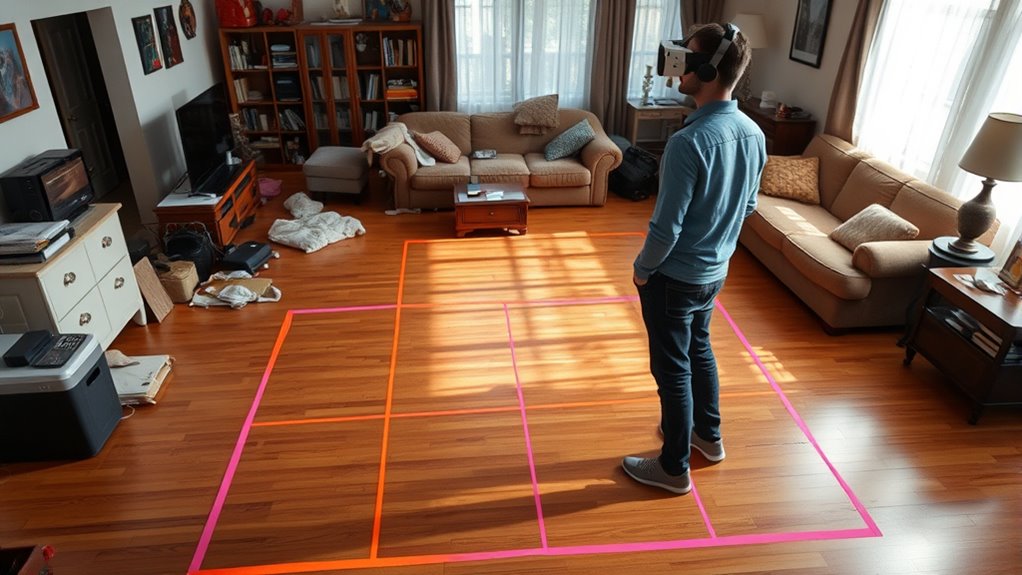
One common cause of VR boundary instability is an incorrect play area setup. If your play space isn’t properly defined or measured, the VR system can struggle to accurately track your movements. You might have placed the boundary too close to furniture, walls, or other objects, leading to frequent boundary crossings or shifts. Confirm your play area is clear of obstacles and that the space’s dimensions are accurately set in the VR system’s settings. Use the calibration tools provided by your headset to define the boundaries precisely. Make sure the sensors or tracking stations are positioned correctly and cover the entire play zone. Proper sensor placement is crucial to ensure accurate tracking and prevent boundary shifts. A well-measured and properly configured play area helps maintain a stable boundary, preventing it from shifting unexpectedly during your sessions. Additionally, regularly recalibrating your system can help maintain tracking accuracy over time. Consistent calibration routines can also prevent tracking drift and improve overall stability. Ensuring your play area is free of interference from other electronic devices can also help maintain boundary stability.
Changes in Sensor Placement or Obstructions

You need to pay attention to how you position your sensors, as their placement directly affects tracking accuracy. Moving sensors or adding obstructions can cause sudden jumps or loss of boundary stability. To keep your VR experience smooth, minimize obstructions and make sure sensors stay properly aligned. Regularly sensor calibration can also help maintain consistent tracking performance. Ensuring proper sensor placement can significantly improve your VR boundary stability and overall experience. Additionally, being aware of common pitfalls in sensor setup can help prevent issues before they occur, such as overlooking the importance of free floating sensor positioning in relation to your play area.
Sensor Positioning Matters
Since sensor placement directly influences boundary detection, even small changes in positioning can lead to significant shifts in your VR experience. Properly positioning sensors ensures accurate tracking and stable boundaries. To optimize placement:
- Keep sensors at eye level for better coverage.
- Space them evenly around your play area.
- Avoid placing sensors near reflective surfaces.
- Ensure sensors face inward and are unobstructed. Additionally, using Suprem fabric for mounting or enclosures can reduce reflections and improve sensor performance. Proper sensor calibration and regular maintenance can further enhance tracking accuracy. Incorrect placement can cause tracking errors, making boundaries feel unstable. Small shifts in sensor height, angle, or distance can disrupt the system’s ability to accurately detect your movements. Regularly check that sensors are secure and correctly aligned. Maintaining consistent placement minimizes tracking fluctuations, providing a smoother, more reliable VR experience. Proper sensor positioning is key to preventing boundary drift caused by tracking inaccuracies.
Minimize Obstructions
Obstructions and changes in sensor placement can substantially disrupt your VR boundary stability. When objects block sensors or move, your system struggles to track your movements accurately, causing the boundary to shift unexpectedly. To maintain a stable boundary, clear your play area of objects like furniture, cables, or decorations that could interfere with sensors. Always position sensors in fixed spots and avoid relocating them mid-session. Keep pathways clear, and ensure nothing obstructs the sensors’ line of sight during gameplay. Regularly check for new obstructions and remove them promptly. Consistent sensor placement and a clutter-free environment help the system accurately monitor your position, preventing boundary drift. Proper sensor calibration further enhances tracking stability and reduces boundary movement. Additionally, maintaining a clean environment and following wiring basics can prevent accidental disconnections that might affect boundary accuracy. Ensuring your sensors are correctly configured and free from interference is crucial for boundary stability and a seamless VR experience. By minimizing obstructions, you enhance tracking stability and enjoy a safer, more consistent VR experience. Regularly updating your system settings and firmware also plays a vital role in maintaining boundary accuracy over time. In addition, understanding how to troubleshoot sensor interference can help quickly resolve issues before they impact gameplay.
Software and Firmware Outdatedness
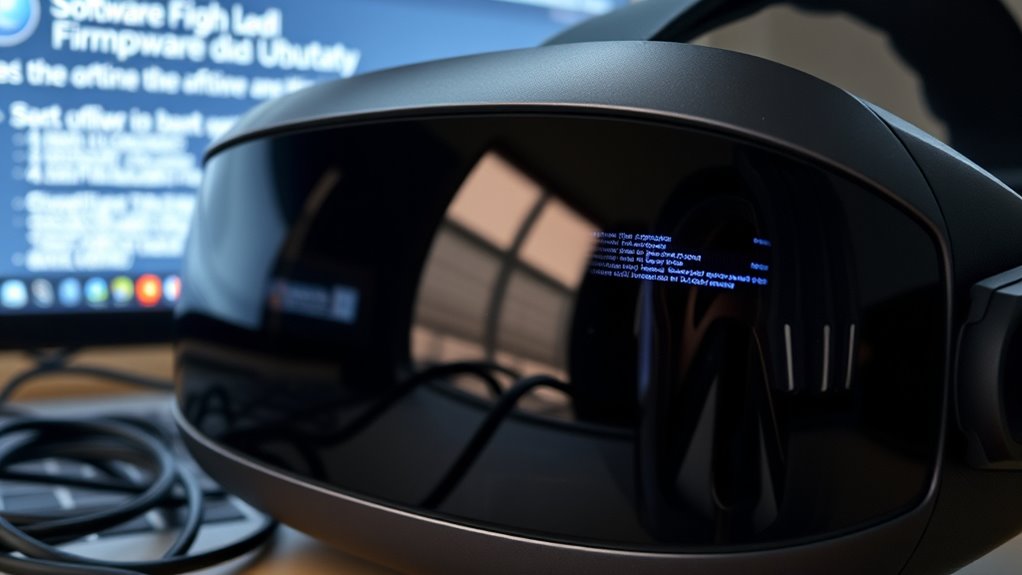
Could outdated software and firmware be silently compromising your VR boundary stability? Yes. When your headset or controllers run outdated firmware, compatibility issues and bugs can cause your boundary to shift unexpectedly. To prevent this, check your device regularly and update when prompted. Consider these key points:
- Firmware updates fix bugs that disrupt tracking accuracy.
- Software updates optimize performance and stability.
- Outdated versions may lack new features that improve boundary detection.
- Manufacturers release patches to address security vulnerabilities that could affect tracking.
- Staying informed about technological updates helps maintain optimal VR environment performance.
Additionally, outdated firmware can hinder tracking accuracy, leading to boundary inconsistencies that affect your experience. Failing to update leaves your system vulnerable to glitches. Regular updates ensure your VR environment stays accurate and reliable, providing a seamless experience. Staying current with software and firmware is the simplest way to stabilize your boundary, especially as hardware compatibility evolves over time. Properly managing device updates can prevent these issues before they impact your gameplay.
Environmental Factors Affecting Tracking
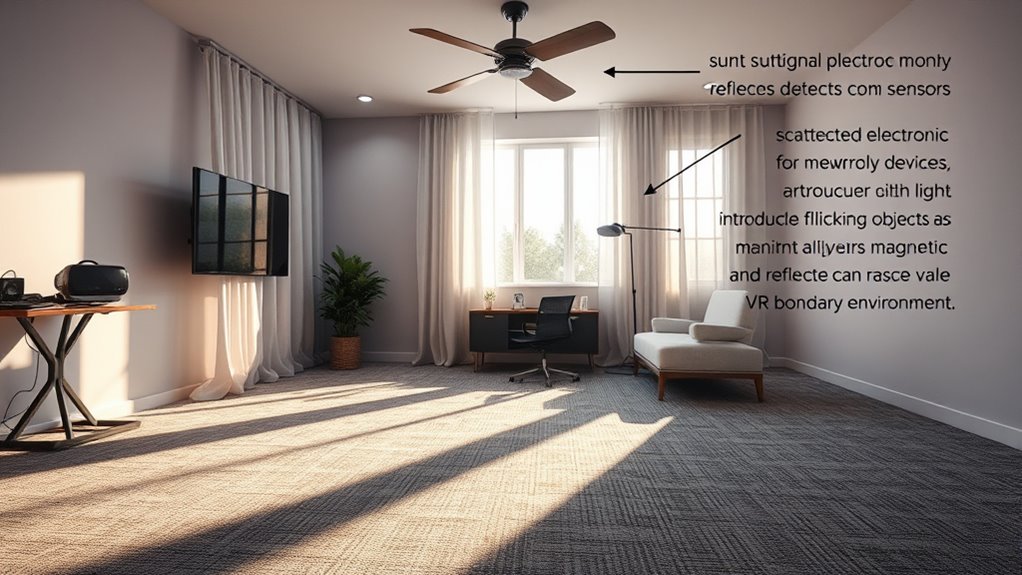
Lighting conditions can substantially impact your tracking accuracy, making it harder to stay within your boundary in dim or overly bright environments. Reflective surfaces, like mirrors or shiny floors, can interfere with sensors and cause tracking errors. To maintain stability, you should optimize your environment by controlling lighting and minimizing reflective objects. Additionally, using proper sensor placement can help improve tracking consistency and reduce boundary movement. Proper sensor placement is essential because sensor positioning directly influences the sensors’ ability to accurately detect your position and boundaries. Ensuring your sensors are positioned correctly and consistently can further enhance tracking reliability and overall performance.
Lighting Conditions Impact Tracking
Lighting conditions play a crucial role in how well your VR tracking system performs, as changes in ambient light can directly impact sensor accuracy. Bright or flickering lights can cause sensors to lose track or generate errors. To optimize tracking stability, consider these tips:
- Keep the room evenly lit without sudden brightness changes.
- Avoid direct sunlight hitting sensors or cameras.
- Use soft, diffuse lighting to prevent shadows and glare.
- Turn off or dim bright lights during gameplay to minimize interference.
Reflective Surfaces Interfere
Reflective surfaces in your environment can considerably disrupt VR tracking by bouncing infrared signals or light, causing sensors to lose calibration or misinterpret positions. Mirrors, glass, shiny floors, or metal objects reflect signals unpredictably, confusing the sensors and leading to tracking errors. These reflections can make your VR boundary shift or jump unexpectedly, as the system struggles to distinguish between real signals and reflected ones. To improve stability, remove or cover reflective surfaces near your play area. Using non-reflective mats or carpets helps minimize interference. Additionally, reposition sensors away from large mirrors or shiny objects. Keeping your environment free of reflective surfaces ensures more accurate tracking, reducing boundary movement and providing a smoother VR experience.
User Movement and Calibration Issues

User movement and calibration issues can considerably disrupt the stability of your VR boundary. If your boundary keeps shifting, it’s often due to inconsistent tracking or misaligned calibration. To fix this:
Inconsistent tracking and calibration can cause your VR boundary to shift unexpectedly.
- Always stand in a well-lit area and avoid sudden, rapid movements during setup.
- Recalibrate regularly, especially when you notice boundary shifts.
- Ensure your play area is free of obstructions and reflective surfaces that can interfere with sensors.
- Follow the manufacturer’s instructions carefully during initial calibration to get accurate measurements.
Hardware Malfunctions and Connectivity Problems

Hardware malfunctions and connectivity problems are common causes of VR boundary instability. When your sensors or tracking devices experience glitches, your boundary may shift unexpectedly. Loose cables or damaged hardware can interrupt signal transmission, causing tracking errors. Wireless connections that drop or lag lead to inaccurate positioning, making your boundary appear to move. To fix this, check all cables for damage and verify they’re securely connected. Restart your headset and base stations to reset their systems. If you’re using wireless devices, minimize interference from other electronics and keep devices within recommended ranges. Regularly update your firmware and software to fix bugs that could affect tracking. By maintaining your hardware and ensuring a stable connection, you reduce the chances of boundary drift and improve overall VR stability.
Frequently Asked Questions
Can Updating My VR Headset Improve Boundary Stability?
Updating your VR headset can definitely improve boundary stability. When developers release firmware updates, they often fix bugs and enhance tracking accuracy, which helps keep your boundary steady. Make sure to regularly check for updates and install them promptly. Additionally, updates can optimize sensor performance, reducing drift and boundary shifting, so your play area remains consistent and safe. Staying current with updates is key to a smooth VR experience.
How Do I Reset My VR Boundary Settings Properly?
To reset your VR boundary settings properly, go to your headset’s settings menu and find the boundary or play area section. Select the option to reset or recalibrate the boundary. Follow the on-screen instructions carefully, ensuring you’re in a clear, unobstructed space. Once completed, save your new settings. This process helps stabilize your boundary, preventing it from moving unexpectedly during your VR sessions.
Are There Specific Floor Calibration Tips for Better Tracking?
To improve floor calibration for better tracking, make certain your play area is level and free of obstacles. Use your VR system’s calibration feature, following on-screen instructions carefully. Keep the sensors or cameras positioned correctly, facing the play space, and avoid reflective surfaces nearby. Regularly recalibrate after moving equipment or changing lighting conditions. These steps help your system accurately detect your floor level, reducing boundary issues and enhancing your overall experience.
What Are the Best Practices for VR Sensor Placement?
You should place your VR sensors at eye level, spaced about 6 to 8 feet apart, ensuring they cover every corner of your play area without blind spots. Position them to face inward, avoiding obstructions like furniture or curtains that could block signals. Keep sensors away from reflective surfaces, and don’t forget to angle them slightly downward for ideal tracking. Proper placement transforms your space into a seamless virtual playground, making every move feel natural.
How Often Should I Check for Firmware Updates?
You should check for firmware updates at least once a month to make certain your VR system runs smoothly and securely. Regular updates fix bugs, improve performance, and add new features. Turn on your device or open the app, navigate to the settings menu, and look for firmware or software updates. Enable automatic updates if available, so you’re always up-to-date without needing to manually check frequently.
Conclusion
To keep your VR boundary steady, double-check your play area setup and make sure sensors are positioned correctly without obstructions. Imagine you’re in a game, and suddenly, your boundary shifts unexpectedly—it’s frustrating, right? By updating your software, recalibrating, and inspecting hardware connections, you can avoid this chaos. Think of it like anchoring a boat; with proper setup and maintenance, your virtual space becomes reliable, letting you enjoy immersive experiences without interruptions.