For your PCVR setup, DisplayPort is usually the best option because it offers high bandwidth, low latency, and supports high resolutions and refresh rates, making it ideal for demanding VR experiences. USB-C can be a great choice if your device supports DisplayPort alternate mode, offering a single cable solution that combines power, data, and video. HDMI is common but may not handle the highest resolutions or refresh rates as well as DisplayPort. To find the best fit, consider your hardware compatibility and performance needs.
Key Takeaways
- DisplayPort is ideal for high-resolution, high-refresh-rate VR due to its superior bandwidth and low latency.
- USB-C offers versatility with alternate mode support for combined data, power, and video, simplifying cable management.
- HDMI is widely compatible but may have bandwidth limitations, making it less optimal for demanding VR setups.
- Wireless options provide convenience but depend on hardware support and network stability, often sacrificing latency and performance.
- Choose the connection based on your hardware compatibility, performance needs, and whether you prioritize low latency or simplified setup.
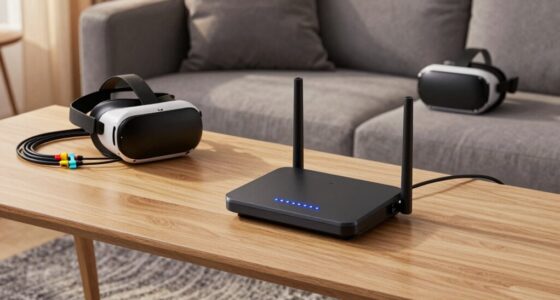
When choosing the right connection for your display needs, understanding the differences between DisplayPort, USB-C, and HDMI is vital. For your PCVR setup, this decision impacts not just image quality but also compatibility and convenience. One key factor to contemplate is wireless alternatives, which are emerging as flexible options for reducing cable clutter. While wireless connections like WiGig or specialized VR streaming solutions offer freedom of movement, they often depend on specific hardware and network stability, making compatibility considerations critical. Before opting for a wireless system, check if your VR headset and PC support these technologies, as not all devices do. If seamless performance and low latency are priorities, wired connections tend to outperform wireless options, especially in high-resolution, high-refresh-rate scenarios typical of PCVR.
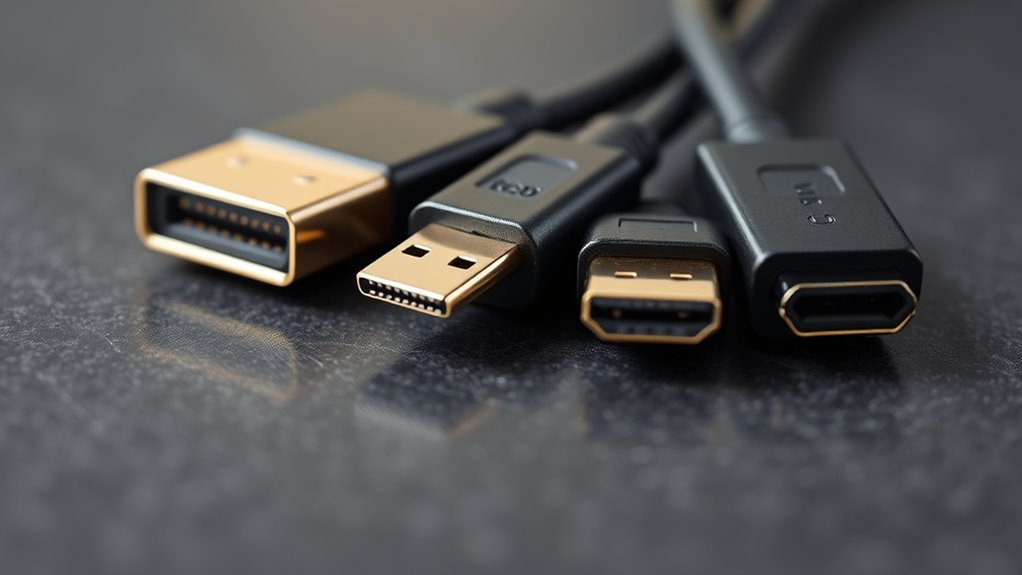
Now, when comparing DisplayPort, USB-C, and HDMI, it’s important to understand their core strengths and limitations. DisplayPort is widely regarded as the best for high-performance PC displays and VR setups due to its ability to support high resolutions and refresh rates, often exceeding 4K at 120Hz or higher. It also supports daisy chaining multiple monitors, which can be useful if you’re expanding your VR or desktop workspace. USB-C, on the other hand, offers versatility. Many modern devices incorporate USB-C ports that can carry DisplayPort signals through alternate modes, allowing you to connect VR headsets or displays using a single cable. This reduces cable clutter and simplifies setup, but compatibility considerations come into play—your device must support the necessary protocols and power delivery for ideal performance. Additionally, energy-efficient cloud servers are driving innovations that can enhance VR streaming experiences through cloud-based processing.
HDMI is the most familiar and widely used connection, especially for TVs and monitors, but newer versions like HDMI 2.1 have improved their support for high resolutions and refresh rates comparable to DisplayPort. However, HDMI ports on some devices might limit bandwidth or resolution, so verify your hardware supports the desired specifications. For VR applications, DisplayPort and USB-C often outperform HDMI because they provide higher bandwidth and lower latency. Still, HDMI remains a solid choice if your setup already has compatible ports and you’re prioritizing compatibility with a wide range of devices.
Ultimately, your choice hinges on what’s compatible with your hardware, whether you prefer wired or wireless solutions, and your performance needs. While wireless alternatives can offer convenience, they usually require specific hardware support and come with potential latency issues. Compatibility considerations are critical to ensure your PCVR experience remains smooth, whether you’re using DisplayPort, USB-C, or HDMI. Understanding these differences helps you make an informed decision, optimizing both performance and ease of setup for your VR adventures.
Frequently Asked Questions
Can I Use Multiple Displays With a Single Port Type?
Yes, you can use multiple displays with a single port type if it supports daisy chaining or multi-stream transport (MST). DisplayPort, for example, often permits you to connect multiple displays through one port, but USB-C and HDMI typically require separate ports or adapters. Always check your port compatibility and the capabilities of your graphics card to guarantee smooth multi-display setup without issues.
Which Connection Offers the Best Latency for Gaming?
When it comes to gaming latency, DisplayPort often leads the pack with its higher bandwidth capacity, ensuring smoother visuals and quicker response times. It’s like the racehorse of connections—fast and reliable. Plus, its connector durability minimizes connection issues during intense gaming sessions. You’ll experience less lag and more immersive gameplay, making DisplayPort your best choice for real-time responsiveness in PCVR and high-performance gaming.
Are There Any Compatibility Issues With Older VR Headsets?
You might encounter compatibility issues with older VR headsets, especially if your adapters don’t support the required connections. Check adapter compatibility carefully before purchasing, and verify your headset’s firmware is up to date, as firmware updates can fix bugs and improve compatibility. Sometimes, older headsets need specific adapters or drivers, so researching your device’s requirements helps prevent connection issues and ensures smooth VR experiences.
How Do Cable Lengths Affect Signal Quality?
Cable lengths can considerably impact your VR experience because longer cables increase cable attenuation, which leads to signal degradation. When the cable gets too long, you might notice reduced image quality, lag, or tracking issues. To avoid these problems, use the shortest cable possible that still reaches comfortably, and consider active or amplified cables if longer runs are necessary. Staying within ideal length limits preserves signal quality and ensures smooth VR performance.
Is There a Difference in Power Delivery Between the Port Types?
Think of your port choices like different roads leading to power. USB-C generally offers the best power delivery, supporting higher wattage for charging compatibility and fast data transfer. HDMI and DisplayPort focus more on video signals, with limited power standards. When choosing ports, consider how much power your device needs—USB-C is your best bet for efficient charging and versatile power delivery, ensuring your PCVR gear stays powered up and ready to go.
Conclusion
Choosing between DisplayPort, USB-C, and HDMI is like picking the right compass for your journey—each points you in a slightly different direction. Your PCVR setup needs the one that aligns with your goals, like a skilled navigator guiding your voyage through virtual worlds. Remember, it’s not just about connections; it’s about forging a path where clarity and performance converge, turning your digital odyssey into a seamless dance of pixels and precision.