
TL;DR

Get VR and gaming gear delivered free — and shop member deals
- Fast, free delivery on millions of items
- Access to Prime Big Deal Days deals on October 6–7
- Prime Video, Amazon Music and more included
A virtual reality headset places a screen in front of each eye and tracks your movement, letting you look around and interact inside a 3D game. Choose between standalone convenience, PC VR performance, and console compatibility by checking your games, comfort, fit, space, and total setup cost before buying.
A VR headset can turn a quiet living room into a cockpit where you lean toward a glowing instrument panel, or a dungeon where footsteps crunch just behind you. That sense of presence comes from more than a fancy screen: head movement, tracking, audio, comfort, and game design all work together.
This guide explains what makes VR headsets for immersive gaming feel convincing, how standalone, PC, and console systems differ, and what to check before you buy. You’ll also get practical ways to choose games, prepare a play space, and reduce discomfort—because a headset that feels thrilling for ten minutes but painful after half an hour is not a good fit.
Prices, game libraries, compatibility, and manufacturer recommendations change, so confirm current details for the exact headset and game you’re considering. Think of choosing VR like choosing a pair of hiking boots: powerful features matter, but fit and the route you’ll actually take matter more.
Check your three must-play games against the headset’s platform before buying.
Choose standalone for simpler local play, PC VR for compatible computer-based games, or console VR for a supported console ecosystem.
Test comfort, glasses fit, and image clarity; resolution alone does not determine how immersive a headset looks.
Clear obstacles even when the headset offers boundary warnings, and match seated, standing, or room-scale play to your space.
Start with short sessions and comfort settings, especially in games with smooth artificial movement.
What makes a VR headset feel like you’re inside the game?
A VR headset feels immersive when it responds smoothly to your head and hand movements, keeps the image stable, and gives you clear sound and comfortable control. A virtual reality headset places a screen in front of each eye, creating separate views that help your brain read depth; tracking then updates the scene as you look around. The effect depends on how reliably those parts agree with one another: when the image follows your movement naturally, your brain can treat the virtual scene as a place to explore rather than a picture strapped to your face.
For example, in a rhythm game, you see notes coming toward you, turn your head to follow them, and swing tracked controllers to meet the beat. Low-lag movement helps the scene feel connected to your body, while spatial audio can make a sound seem to come from your left or right. If tracking slips or the game stutters, the visual response no longer matches what your body expects. That mismatch can break presence and, for some players, contribute to discomfort. It is why stable performance may matter more in play than a display specification that looks impressive on paper.
Image quality also depends on lens design, resolution, refresh rate, field of view, and fit. Resolution describes how many pixels the displays can show, but the lenses determine how those pixels appear to your eyes. If the headset sits too high, low, or far from your face, the sharpest area may not line up with your vision, making the picture seem blurry despite a high resolution. Fit also affects how much of the view feels clear and natural. Adjust the headset until the image is crisp without creating painful pressure, and try a short session before judging comfort.
Refresh rate and field of view involve their own tradeoffs. A faster refresh can make motion appear smoother, but the headset and game must be able to sustain it; demanding settings that cause uneven performance can undermine that benefit. A wider field of view can feel more enveloping, though the experience still depends on the lenses, fit, and title. Controllers add another layer: you can aim, grab, reload, or point, making actions feel more direct than selecting everything from a menu. Some systems also offer hand or eye tracking, but those features change play only when a game supports them. Check the games you want rather than assuming every headset feature works everywhere.
As an affiliate, we earn on qualifying purchases.
Which headset type fits the way you want to play?
VR headsets for immersive gaming fall into three main practical choices: standalone, PC VR, and console VR. Standalone systems run games on the headset itself; PC VR uses a capable gaming computer; console VR is made for a particular console ecosystem. The distinction affects more than image quality: it changes setup time, the games available, how much hardware you need, and whether play depends on a cable or network. Your best match depends on the games you want and the setup you’ll enjoy using, not a universal “best” label.
| Type | What it offers | Tradeoff | Good fit if you… |
|---|---|---|---|
| Standalone | Local play without a computer cable | Onboard hardware limits some visual complexity | Want quick setup and wireless freedom |
| PC VR | Access to compatible computer-based VR games and graphics | Needs a suitable PC and more setup | Already own a gaming PC or want PC titles |
| Console VR | Experience built around a supported console | Games and compatibility depend on that platform | Prefer a console setup and its library |
Standalone hardware puts the processor and battery in the headset, so you can pick it up and play without first preparing another device. That convenience can make short sessions more appealing, especially if the headset is shared or stored away between uses. The tradeoff is that compact onboard hardware has less room for processing power than a gaming PC, so some games may use simpler visuals or different versions of a title. If you already have a powerful gaming computer and care about demanding PC VR titles, a PC-connected option may make more sense. It can access compatible PC games and potentially deliver more detailed visuals, but you need a suitable PC and may have to manage a cable or configure wireless streaming.
Console VR can be a straightforward choice if you already own the supported console and want to play titles designed for its ecosystem. Its convenience depends on that specific platform, though: compatibility is not automatic across console generations or headset models. Mobile phone VR is a different, older category: it uses a phone for the display and processing and generally falls short of modern dedicated gaming headsets. Before you buy any system, check the exact title in its store and confirm platform compatibility. Game libraries do not automatically carry across devices, even when headsets look similar, so a cheaper headset can become a poor-value choice if it cannot play the games you want.
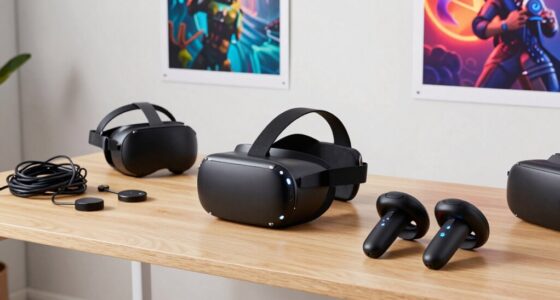
standalone VR headset for immersive gaming
As an affiliate, we earn on qualifying purchases.
As an affiliate, we earn on qualifying purchases.
How can you choose a headset without paying for features you won’t use?
You can choose a VR headset more confidently by checking your games, hardware, comfort, play space, and total cost in that order. Each check removes a different kind of risk: a game list prevents a compatibility mismatch, a hardware check reveals hidden setup costs, and a fit test helps avoid buying a device you do not want to wear. The quickest mistake is buying around one exciting number—such as resolution—before confirming that your favorite game runs on the platform. Use this short checklist before you spend.
- Pick three games you genuinely want to play, then confirm their platform and headset support. This is a practical way to test whether a library matches your habits, not just whether it looks large.
- Decide where processing happens. Standalone play runs on the headset; PC VR requires a capable computer, even if some systems stream wirelessly. If you do not already own a suitable PC, its cost can outweigh an apparent headset bargain.
- Check fit and comfort. Look at weight balance, facial padding, ventilation, glasses guidance, and whether you can adjust the headset easily. Poor balance can make a headset feel heavy even when its overall weight seems reasonable.
- Match the play mode to your room. Seated play needs less open space than standing or room-scale movement. A game that requires frequent reaching or turning may be frustrating in a space that only works for seated play.
- Compare the full setup cost. Include any required computer, accessories, games, prescription inserts, or comfort upgrades. A system’s real cost is the setup you need to enjoy it, not just the headset price.
Say you want a racing game, already own a gaming PC, and plan to play seated. You may care more about stable PC compatibility and a comfortable fit than room-scale tracking. Another player who wants to swing virtual lightsabers in a small apartment may value easy standalone setup and a clear standing area. These examples show why features have value only in context: room-scale tracking adds little to a seated routine, while a PC-focused game library is no benefit if you do not have the computer to run it.
These tradeoffs are real: wireless PC streaming can reduce cable tangles but depends on a suitable network, while wired PC play avoids that wireless link but leaves a cable to manage. Neither option removes the PC requirement, and a network problem can interrupt the convenience of wireless play. Product prices and game catalogs change, so check current manufacturer and platform listings rather than relying on old comparisons. Buy for your routine, not a feature you may never touch.
As an affiliate, we earn on qualifying purchases.
How do comfort, fit, and play space affect a gaming session?
Comfort and clear floor space decide whether you enjoy a headset after the novelty wears off. Weight balance, facial pressure, heat, glasses clearance, and strap adjustment all matter during a long session. These factors interact: a front-heavy headset can press harder on your face, while tightening the strap to stop it slipping may add pressure instead of correcting the balance. A headset that feels fine while standing still can start to pinch when you look up, turn quickly, or wear it for an hour.
Before playing, remove coffee tables, loose cables, pets, and anything fragile from the area where you will move. For instance, a player practicing a boxing game might step backward while watching an opponent and bump a chair they cannot see. A boundary system can warn you near an edge, but it cannot move the chair or guarantee safety; it may not account for an obstacle inside the play area or something that moves into it. Clear the play area first. Leave enough space to reach and turn without striking furniture, and keep other people out of the movement area while the headset blocks your view.
Many titles offer seated, standing, or room-scale modes, but support varies by game. A calm exploration game might work comfortably in a chair, while a game built around dodging and reaching could feel awkward seated. The mode affects more than safety: if you have to hold back natural movements to avoid a wall or stay in a chair, the game can feel less immersive. Check the title’s comfort and movement options before buying, and start in a mode that matches your actual room rather than assuming you can rearrange the space every time.
If you wear glasses, check the specific headset’s fit instructions, frame limits, spacer options, or prescription lens inserts. A spacer may provide extra room, but it can also change how close your eyes sit to the lenses and may affect the view, so follow the headset’s guidance. Avoid letting your glasses press against the headset lenses, since that can risk scratching them as well as making the fit uncomfortable. Take breaks, keep the face padding clean, and adjust the strap rather than tightening it until it hurts. Good fit is not a luxury feature; it helps keep the image clear and the session pleasant.
As an affiliate, we earn on qualifying purchases.
How can you make VR feel smoother and more comfortable?
You can make VR more comfortable by starting with short sessions, using the game’s comfort settings, and choosing movement that suits your body. Some players feel discomfort when a game moves them smoothly through a virtual world while their body stays still. The visual motion suggests movement, but the body does not feel the same movement, and that mismatch can be unsettling for some people. Experiences vary, so a setting that works for your friend may not work for you.
Try teleport movement or snap turning if a game offers them, then increase session length gradually if you feel well. These options reduce continuous visual motion, though they can make movement feel less seamless than smoothly walking or turning in the game. For example, begin with a short seated puzzle game before moving to a fast-paced title with constant artificial motion. Stop if you feel unwell, take off the headset, and give yourself time to recover. Do not try to push through discomfort.
Stable performance matters too. PC VR depends on the computer and game settings, while standalone headsets balance image quality against their built-in processing power. A sharp image that stutters can feel worse than a slightly simpler image that responds smoothly because the scene no longer keeps pace with your movement. Lowering demanding graphics settings may therefore improve the experience more than chasing maximum detail. If you are using wireless PC VR, your network can affect the experience; wireless does not mean the computer disappears from the setup. It adds a connection to manage, which can be worthwhile for freedom of movement but may introduce problems if the network is unsuitable.
Audio and interaction can add presence without demanding extra space. Spatial sound helps you locate a door creaking behind you, and controller haptics can make a virtual tool feel more responsive. Eye tracking, hand tracking, and foveated rendering—where systems concentrate graphics detail around where you look—depend on headset and game support. They can add useful interaction or help direct processing, but they do not automatically fix poor fit, unstable performance, or a game that does not use them. Treat them as useful extras, not guaranteed improvements in every title.
What should parents and first-time players check before they start?
First-time players should check age guidance, game content, fit, movement options, and room safety before starting. Headset makers and local rating systems set guidance that can vary, so read the current recommendation for the specific device and title. Age guidance matters not only for content: a headset that does not fit a child properly can be uncomfortable and may make it harder to see clearly. For children, a headset that fits poorly or a game with unsuitable content can turn an exciting gift into a frustrating one.
Set up a supervised first session in a clear area, choose a gentle game, and show the player how to pause or remove the headset. A parent might begin with a seated experience and stay nearby while a child learns how the controllers work. This keeps early movement simple and gives the new player a chance to learn the controls before trying a more active game. Use parental controls and age ratings where available, and check online features before allowing multiplayer or communication. Those features can change who a player interacts with, so review them rather than treating a headset as an offline toy by default.
Internet needs also differ. Initial setup, downloads, updates, and online functions may need a connection, while offline play depends on the particular headset and game. A headset that works offline for one title may still need internet for setup or updates, so check this before taking it on a trip, especially if you expect to play away from home. Also confirm whether one headset supports the title you plan to buy; no single system plays every VR game.
For a first session, keep expectations simple: adjust the fit, confirm the view is clear, learn the controls, and stop for a break. A five-minute test can reveal pressure points or motion discomfort before anyone spends an evening in the headset. It also gives a beginner time to learn how the headset responds without juggling a difficult game and unfamiliar equipment. That small rehearsal is much more useful than discovering a bad fit halfway through a birthday party.
Frequently Asked Questions
Do you need a gaming PC for VR?
No. Standalone headsets run games locally, so they do not need a gaming PC for those titles. PC VR games do require a compatible computer, and wireless streaming still relies on that PC and a suitable network.
Can you play VR games while seated?
Many games support seated play, but the options depend on the title. A puzzle or exploration game may work well in a chair, while a game built around dodging or reaching may feel restricted; check its comfort and movement settings first.
How much room do you need for a VR headset?
Seated play needs relatively little clear space, while standing and room-scale games need more room to move safely. Clear nearby furniture and cables before playing, and follow the headset and game’s current play-area guidance.
Can you wear glasses in a VR headset?
It depends on the headset and your frame size. Check the manufacturer’s fit guidance for spacers or prescription lens inserts, and do not let your glasses press against the headset lenses.
Can one VR headset play every VR game?
No. Games are often tied to a platform or store, and PC compatibility, console support, and purchase policies differ. Confirm that the specific game works with your headset before you buy it.
Does VR cause motion sickness?
Some players feel discomfort, particularly in games with smooth artificial movement. Teleport movement, comfort settings, gradual sessions, and breaks may help, but comfort varies from person to person; stop playing if you feel unwell.
Conclusion
Choose a headset around the games you’ll play, the space you have, and how it feels on your face—not around one headline specification. Check compatibility, try the fit, and make your first session short enough to end while the fun still feels fresh.
The best setup is the one that disappears from your mind, leaving only the game: a cockpit hum, a distant footstep, and the instinct to turn and look.
Halloween Picks
halloween
As an affiliate, we earn on qualifying purchases.