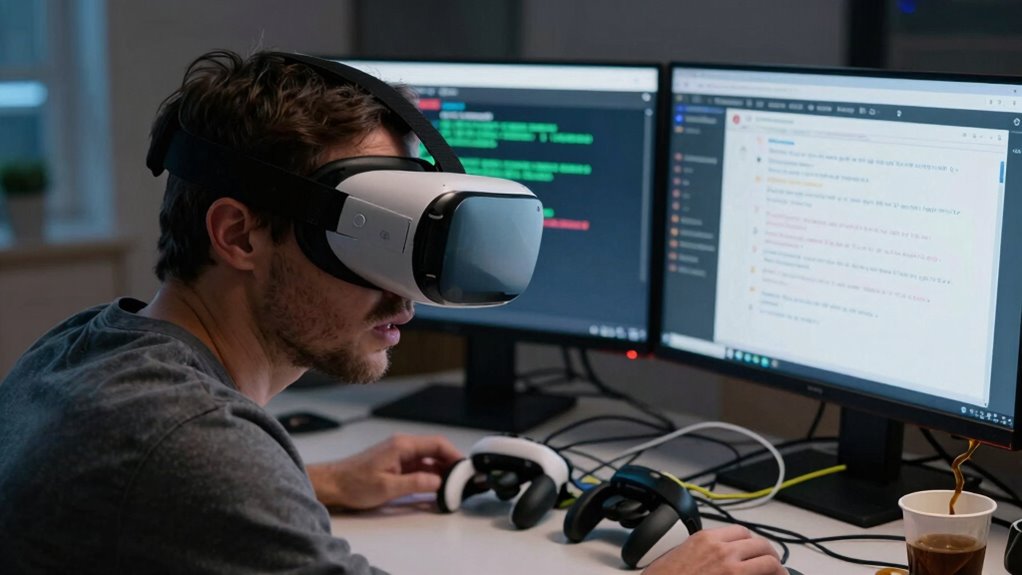
When VR goes wrong, your support requests are more useful if you describe the problem clearly, including when it started and what you were doing. Share details about symptoms like flickering or tracking loss, and take screenshots or videos of the issue. Include your device model, software versions, and any recent updates. Providing organized, specific information helps support teams diagnose faster. Keep your report polite and thorough—you’ll find ways to make your next steps even easier as you keep exploring.

Play games on Amazon Luna for your next adventure, included with Prime
- A rotating selection of games, no download needed
- Play on TV, laptop or phone
- Fast, free delivery for your gear, too
Key Takeaways
- Provide detailed descriptions of the issue, including symptoms, timing, and specific features affected.
- Include visual evidence like screenshots or videos demonstrating the problem in real-time.
- Share hardware details, software versions, recent updates, and relevant system changes.
- Organize information logically, noting setup, environment, and steps leading to the issue.
- Maintain polite, clear communication and attempt basic troubleshooting before reaching out.
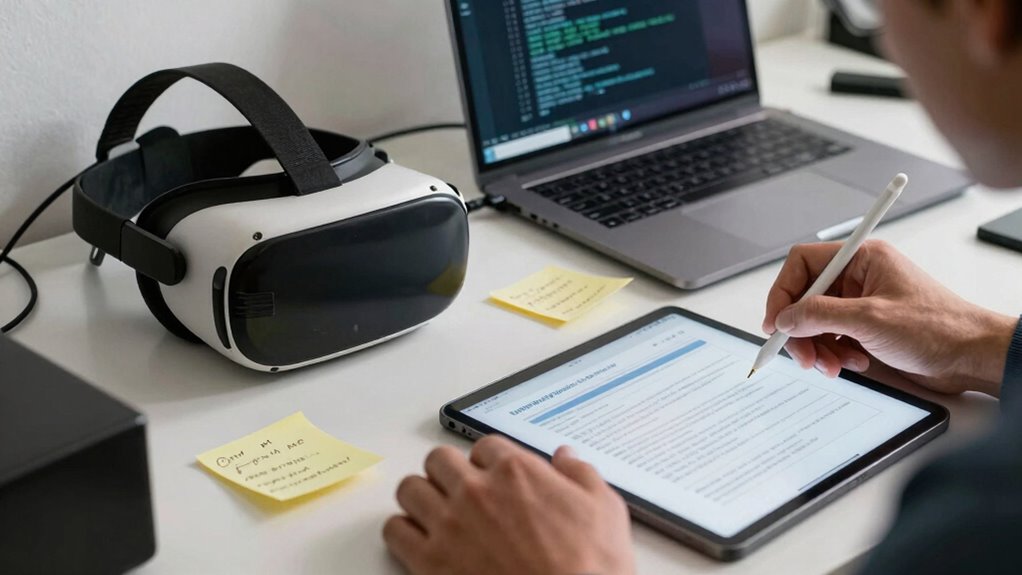
Have you ever encountered issues with your VR device that disrupt your experience? When your VR headset isn’t functioning properly, it can be frustrating and spoil your immersion. To get the help you need quickly, making support requests as useful as possible is essential. Clear communication is key, especially when it comes to VR hardware troubleshooting. Instead of vague descriptions like “my VR isn’t working,” provide specific details about the problem. Mention when the issue started, what you were doing at the time, and whether it affects the entire system or just certain features. For example, note if the display flickers, if tracking is lost, or if audio cuts out. The more precise you are, the easier it is for support teams to pinpoint the root cause and suggest effective solutions.
Providing detailed, specific information about your VR issues helps support teams diagnose and resolve problems faster.
When preparing to reach out for support, adopting user feedback best practices can streamline the process. Take note of any error messages, unusual sounds, or visual glitches, and record the steps you took before the problem occurred. If possible, include screenshots or videos showing the problem in action. These visual aids can save time and eliminate guesswork for support personnel. Additionally, keep track of your device’s setup, including the model number, software version, and any recent updates or changes. Sharing this information upfront prevents back-and-forth exchanges and accelerates troubleshooting. Being aware of hardware components involved can also make diagnosing issues more straightforward. Understanding the software environment and how it interacts with your hardware can also make troubleshooting more efficient.
It’s also helpful to follow a structured approach when describing your issue. Break down the problem into clear, logical points. For example, start with the basic setup—connectivity, calibration, or room environment—and then describe the specific malfunction. If the issue is intermittent, note when it happens, such as during certain applications or after specific updates. Being methodical reduces confusion and helps support staff replicate the problem more easily. Familiarizing yourself with common hardware troubleshooting steps can sometimes resolve issues without needing to contact support. Moreover, knowing the error messages that appear can significantly expedite diagnosis and repair.
Lastly, remember to be polite and patient when communicating with support teams. They handle numerous requests daily, and detailed, organized feedback makes their job easier. By combining precise VR hardware troubleshooting details with user feedback best practices—like providing logs, visuals, and clear descriptions—you greatly increase the chances of a quick resolution. Your proactive, organized approach not only saves time but also ensures you get back to your immersive VR experiences sooner.
Frequently Asked Questions
How Do I Prevent VR Issues Before They Happen?
To prevent VR issues before they happen, prioritize VR safety and user comfort. Regularly check your equipment for loose cables, clean lenses, and update firmware. Take breaks to avoid fatigue, and guarantee your play area is clear and well-lit. Adjust straps for a snug fit, and set up within a comfortable space. By maintaining your gear and environment, you reduce the chances of experiencing VR problems, keeping your experience smooth and enjoyable.
What Hardware Should I Upgrade for Better VR Performance?
Upgrading your GPU and CPU considerably boosts VR performance, providing smoother visuals and faster response times. Focus on enhancing VR comfort and headset ergonomics by investing in a lightweight, adjustable headset with better padding. Improved hardware minimizes lag and motion sickness, making your experience more immersive. Prioritize high-resolution displays and wider fields of view, ensuring your VR setup is optimized for comfort and clarity, so every session feels seamless and satisfying.
Can Software Updates Fix My VR Problems Automatically?
Software updates can’t fix all VR problems automatically, but they often address firmware glitches and improve compatibility checks. You should regularly update your VR software and drivers to guarantee smooth performance. While updates can resolve many issues, some hardware problems might require manual troubleshooting or hardware upgrades. Keep your system current, and check for updates frequently to reduce bugs and improve overall VR stability.
How Long Does It Usually Take to Resolve VR Support Tickets?
Support ticket resolution times vary based on the issue’s complexity and the support team’s workload, but generally, it takes anywhere from a few hours to several days. Your user experience can improve by providing clear support communication—detailed descriptions, error logs, and screenshots help speed up the process. Stay patient, follow up politely if needed, and make certain your support requests are thorough to help the team resolve your VR problems faster.
Are There Any Troubleshooting Steps for Common VR Headset Errors?
Troubleshooting tech troubles quickly begins with checking your VR headset calibration and troubleshooting headset connectivity. First, make sure your sensors and controllers are properly calibrated, then verify cables and wireless connections are secure. Restart your device, update software, and re-pair devices if needed. These simple steps often resolve common VR headset errors, preventing prolonged problems and improving your virtual reality experience. Regularly maintaining these basics keeps your VR running smoothly.
Conclusion
By crafting clear, detailed support requests, you’ll help tech teams resolve VR issues faster—saving you time and frustration. Did you know that 60% of troubleshooting delays stem from unclear or incomplete reports? Imagine cutting that wait time in half just by describing your problem more precisely. When you communicate effectively, you not only speed up fixes but also get back to fully immersive experiences sooner. So next time VR acts up, be specific—your headset will thank you.
Evergreen bestsellers Picks
bestsellers
As an affiliate, we earn on qualifying purchases.