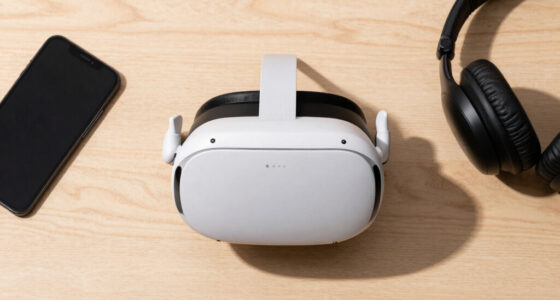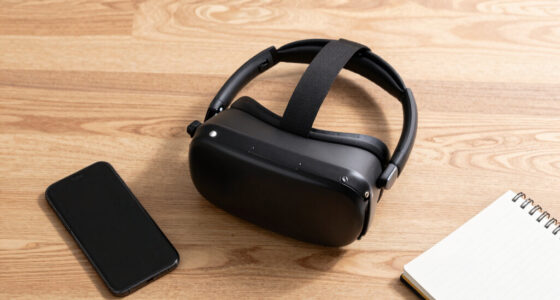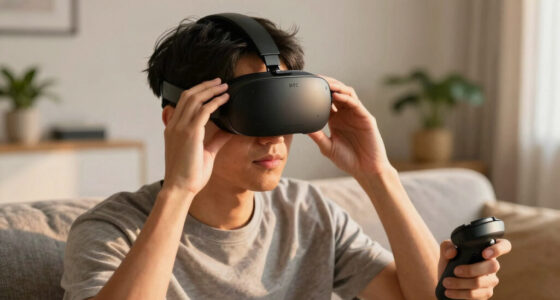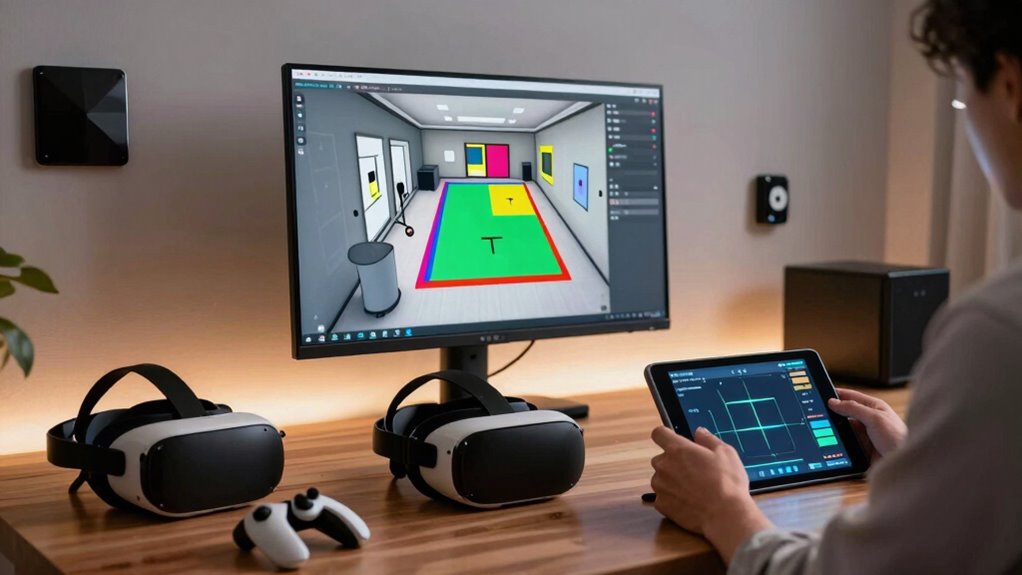
Start by checking your VR headset’s calibration in each room, ensuring sensors are aligned and follow setup routines. Assess sensor or base station placement, making sure they’re unobstructed, face each other, and are at recommended heights. Scan for wireless interference from Wi-Fi, Bluetooth, or mirrors, and clear any clutter or reflective objects. Update firmware regularly and reset the system if needed. For detailed steps, exploring further can help you pinpoint and fix tracking issues more effectively.

Play games on Amazon Luna for your next adventure, included with Prime
- A rotating selection of games, no download needed
- Play on TV, laptop or phone
- Fast, free delivery for your gear, too
Key Takeaways
- Check sensor and base station placement for unobstructed views and proper height in each room.
- Recalibrate the VR headset using built-in routines to ensure accurate tracking.
- Identify and eliminate wireless interference sources like Wi-Fi, Bluetooth, or microwaves in each room.
- Remove clutter, reflective surfaces, and metal objects that could obstruct sensors or cause tracking errors.
- Update firmware and software regularly, and reset the setup if tracking issues persist in specific rooms.
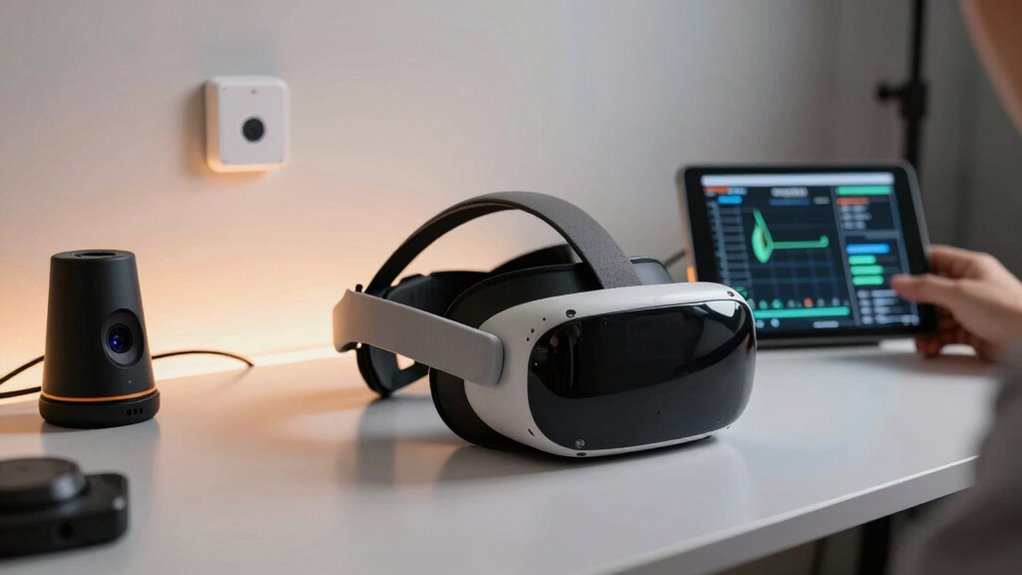
If you’re experiencing inconsistent or lost VR tracking, pinpointing the problem can feel intimidating. The first step is to methodically go through each room where you use your VR headset. Start by checking your VR headset calibration—sometimes, recalibrating your device can resolve tracking issues. Many headsets have a built-in setup process or calibration routine that guarantees sensors are aligned correctly. Make sure your sensors or base stations are positioned properly, unobstructed, and at the recommended height, facing each other. Proper calibration helps your VR system accurately interpret your movements and minimizes tracking errors.
Start by recalibrating your VR headset and ensuring sensors are properly positioned and unobstructed for optimal tracking.
Next, examine the environment for potential wireless interference. Wireless interference analysis is vital because signals from other devices can disrupt your VR tracking. Devices like Wi-Fi routers, cordless phones, Bluetooth speakers, and even microwave ovens operate on similar frequencies, which can cause signal interference. Turn off or relocate these devices away from your VR sensors and headset to see if tracking improves. If you’re using wireless VR headsets, guarantee your wireless signals are strong and stable, because weak or fluctuating connections can cause tracking loss or jitter. Consider using a Wi-Fi analyzer app to identify sources of interference and optimize your network setup. Additionally, signal stability can directly impact tracking consistency, so ensuring your connection remains steady is crucial. Regularly updating your device firmware can also help address known issues related to tracking stability.
Move into evaluating the environment itself. Clear away clutter, cables, and reflective surfaces that might interfere with sensor signals. Mirrors or glass surfaces can reflect signals and confuse sensors, leading to tracking errors. If your sensors are placed near metal objects or dense furniture, reposition them to avoid signal obstruction. Reassessing your environment for potential sources of signal reflection can further improve tracking accuracy. Testing different positions for your sensors or base stations, ensuring they have an unobstructed view of the play area with minimal interference, is also beneficial. Additionally, verifying that your environment maintains a consistent wireless signal quality can help prevent tracking interruptions. Maintaining a clean and organized play area minimizes the chance of accidental obstructions during use. Using proper sensor placement techniques can significantly enhance your tracking reliability.
Ultimately, troubleshooting VR tracking involves a combination of environment management and device calibration. Regularly update your headset firmware and software, as updates often include improvements for tracking stability. If issues persist, reset your tracking setup from scratch, following manufacturer instructions for recalibration. Sometimes, simply repositioning sensors or upgrading your wireless network can make a big difference. By systematically addressing calibration, interference, and environmental factors, you can greatly improve your VR experience, reducing frustrations and allowing you to enjoy immersive virtual worlds seamlessly.
Frequently Asked Questions
Can Software Updates Fix Tracking Issues?
Yes, software updates can fix tracking issues by improving hardware compatibility and refining how the system interprets user movement. Developers often release updates to address bugs, optimize performance, and enhance tracking accuracy. Make certain your VR headset and sensors are up-to-date, as outdated software might cause tracking problems. Regularly installing updates helps guarantee your equipment works smoothly, providing a better experience by reducing glitches caused by software or hardware incompatibilities.
How Do I Reset My VR Sensors?
Imagine resetting your VR sensors feels like tuning a musical instrument, bringing everything into harmony. To do this, start with proper sensor placement, ensuring they’re positioned at ideal angles and distances. Then, use calibration techniques like recalibrating each sensor and redoing the room setup. This process clears out any misalignments, restoring accurate tracking. A quick reset can make your virtual environment feel seamless again, like a perfectly played symphony.
Are Certain Room Materials Worse for Tracking?
Certain room materials can worsen tracking because they cause tracking interference. For example, mirrors, reflective surfaces, and metal objects reflect or block signals, disrupting sensor accuracy. Thick curtains, carpets, or clutter can also interfere with sensor line-of-sight or cause signal bounce. To improve tracking, clear a space free of reflective or metallic materials, and guarantee sensors have an unobstructed view of your play area.
How Often Should I Recalibrate My VR System?
You should recalibrate your VR system about once a month to guarantee ideal tracking. Did you know that regular calibration can extend sensor longevity by preventing misalignments? Calibration frequency keeps your sensors accurate and responsive, especially if you move your setup often. Consistent recalibration helps avoid drift and tracking issues, so your VR experience stays smooth and immersive. Make it part of your routine for the best performance.
Can Multiple Users Cause Tracking Interference?
Yes, multiple users can cause tracking interference, especially if they’re in close proximity or interact with the same VR space. This can disrupt tracking accuracy because sensors and cameras might get confused by multiple movements and user interactions. To maintain peak performance, guarantee users keep a safe distance, and consider switching to individual tracking setups or using dedicated sensors for each user. This helps preserve smooth, accurate VR experiences.
Conclusion
By methodically checking each room, you’re unraveling the mystery of your VR tracking issues, much like a detective piecing together clues. Remember, patience is your most valuable tool, and every troubleshooting step brings you closer to seamless immersion. With persistence, you’ll transform tangled signals into crystal-clear virtual adventures—turning obstacles into opportunities. So, keep probing, keep adjusting, and soon enough, your VR experience will be as smooth as a well-scripted story, ready to unfold without interruption.
Fall Picks
fall essentials
As an affiliate, we earn on qualifying purchases.