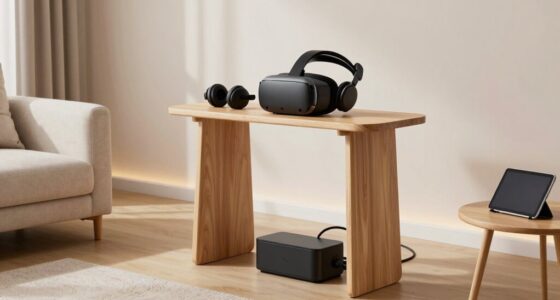
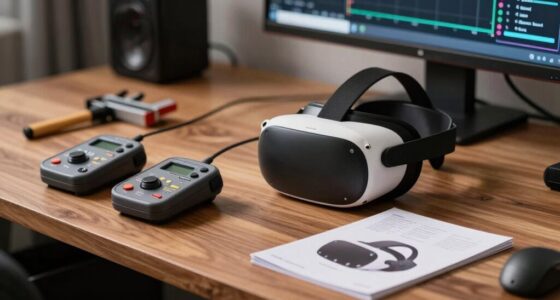
Before adjusting any VR settings, focus on safety and proper setup. Clear your play area of obstacles, furniture, and cords to prevent accidents. Adjust your headset to fit comfortably, ensuring it’s snug but not tight. Follow the user manual and safety guidelines for your device. Update your firmware and software regularly, and calibrate your equipment for clear visuals and smooth tracking. Setting up boundaries helps avoid collisions. Keep your space safe—if you keep exploring, you’ll learn how to optimize your experience even more.
Key Takeaways
- Prepare a safe, obstacle-free play area with clear boundaries and sufficient space before setting up your device.
- Adjust the headset straps for a comfortable, snug fit, and ensure proper lens positioning for clear visuals.
- Calibrate your VR equipment in a well-lit environment, standing still to accurately set boundaries and tracking.
- Update your device’s firmware and software to ensure optimal performance and safety features are current.
- Review safety guidelines, establish usage protocols, and inform others to prevent accidents and injuries during VR sessions.
Ensure Your Play Area Is Safe and Clear

Before diving into your VR experience, make sure your play area is safe and clear. Remove any objects, furniture, or cords that could trip you up or cause injury. Check for sharp edges or fragile items that might break if accidentally bumped. Ensure there’s enough space to move freely without hitting walls or furniture. Consider the height of nearby objects to prevent head bumps or falls. If you’re in a shared space, inform others to stay clear and avoid unexpected interruptions. Good lighting helps you stay aware of your surroundings, but avoid glare that could interfere with the headset’s sensors. Taking these precautions keeps you safe and allows you to fully enjoy your VR experience without worries or accidents. Additionally, creating a designated play area with protective padding can help minimize injury if a fall occurs. Paying attention to your surroundings and having a clear space is essential for a safe and immersive VR experience. Incorporating awareness of digital distractions can also enhance your focus and safety during VR sessions. To further promote safety, understanding spatial awareness can help you navigate your environment more confidently and avoid accidents. Being familiar with safe movement practices can also reduce the risk of injury during active VR gameplay.
Adjust Your Headset for Comfort and Fit

To stay comfortable during your VR sessions, make sure your headset’s strap is snug but not too tight. Adjust the lens spacing so the images are clear and sharp for your eyes. Take a moment to test the fit and comfort, making tweaks until it feels just right. If you plan to use the headset outdoors or in varied environments, consider natural pools that blend seamlessly with the landscape for a more immersive experience. Additionally, ensuring proper air circulation around the headset can help prevent overheating and discomfort during extended use. Proper headset maintenance can also prolong its lifespan and ensure consistent comfort. Incorporating ergonomic adjustments can further enhance your overall VR experience and reduce fatigue during long sessions.
Proper Strap Positioning
Ensuring your VR headset fits comfortably starts with properly adjusting the straps. First, loosen all straps so the headset can comfortably sit on your head. Place the headset over your eyes, then tighten the top strap first, ensuring it sits snug but not too tight. Next, adjust the side straps evenly, so the headset feels balanced without pinching your temples or causing pressure points. The fit should be secure enough to keep the display steady during movement but not so tight that it causes discomfort or restricts blood flow. Check that the headset feels centered and stable, with equal pressure on all contact points. Proper strap positioning prevents fatigue and distractions, so you can enjoy VR for longer sessions without discomfort. Additionally, a secure fit helps maintain proper fit and safety, reducing the risk of accidental slips or adjustments during use. Remember that adjusting your headset regularly can help maintain comfort during extended use. Incorporating proper strap adjustment techniques can further enhance your overall VR experience and comfort. It’s also beneficial to periodically check the headset alignment to ensure optimal comfort and performance. Regular adjustments can also prevent discomfort caused by improper strap tension, which can lead to headaches or skin irritation.
Adjust Lens Spacing
Adjusting the lens spacing on your VR headset is essential for a clear and comfortable experience. Proper lens alignment guarantees you see a sharp image without eye strain or headaches. Most headsets have an adjustable slider or dial to change the distance between the lenses. To find the best setting, put on the headset and look through the lenses. Adjust until the image is sharp and your eyes feel relaxed. If your headset has a lens spacing indicator, use it as a guide. Remember, everyone’s face is different, so take your time to find the perfect fit. Here’s a quick visual guide:
| Lens Spacing | Effect |
|---|---|
| Too Narrow | Blurred edges, eye strain |
| Just Right | Clear image, comfortable viewing |
| Too Wide | Double images, discomfort |
Additionally, proper European cloud innovation can enhance your overall VR experience by ensuring your hardware and software environments are sustainable and secure. You can also consider precision measurements to fine-tune your headset’s fit for optimal clarity. Regularly checking and adjusting your lens spacing can help prevent visual fatigue during extended VR sessions. Incorporating air quality considerations into your setup can further improve comfort and reduce eye irritation during long gaming or work sessions. Maintaining optimal lighting conditions in your play area can also contribute to a more comfortable and immersive VR experience.
Test Comfort Level
Once you’ve set the lens spacing for a sharp image, it’s important to verify that the headset fits comfortably on your head. Put it on and adjust the straps so the device sits snug but not tight. You shouldn’t feel pressure on your face or forehead, and the headset should stay in place during movement. Check that the weight feels balanced and doesn’t cause discomfort over time. If the headset shifts or feels too tight, loosen or tighten the straps accordingly. Make sure your eyes are properly aligned with the lenses without excessive pressure. A comfortable fit reduces fatigue and enhances your experience. Take a moment to move your head around and ensure the headset remains secure and comfortable throughout. Additionally, proper fit helps prevent strain and ensures the best visual clarity. Remember, an ergonomic headset setup contributes to a more enjoyable and less fatiguing VR session. Properly adjusting the straps can also improve the overall visual clarity, making your VR experience more immersive. To optimize your experience, consider ergonomic design features that promote comfort during extended use.
Read the User Manual and Safety Guidelines

Before diving into your virtual reality experience, consulting the user manual and safety guidelines thoroughly is essential. These documents provide vital information about your device’s features, proper setup, and safety precautions. Reading them helps you understand how to operate your VR headset correctly, avoiding potential damage or malfunction. Safety guidelines highlight important precautions, like taking breaks to prevent eye strain or avoiding use in cluttered spaces to prevent injuries. Knowing these details guarantees a smoother, safer experience. Don’t skip this step—it’s your first line of defense against accidents or technical issues. Familiarizing yourself with the manual and safety tips sets a solid foundation, so you can enjoy VR confidently and responsibly. Taking this time upfront saves you frustration later.
Update Firmware and Software for Optimal Performance

Keeping your VR headset’s firmware and software up to date is essential for guaranteeing smooth performance and access to the latest features. Updates often fix bugs, improve stability, and enhance compatibility with new apps. To keep things running smoothly:
- Check the manufacturer’s app or website regularly for updates.
- Connect your headset to Wi-Fi and ensure it’s charged.
- Download and install available firmware updates promptly.
- Update your VR software on your PC or console as recommended.
Calibrate Your VR Equipment Properly

Proper calibration guarantees your VR headset delivers accurate tracking and comfortable gameplay. To do this, find the calibration option in your device’s settings and follow the on-screen instructions. Make sure your play area is well-lit and free of obstacles to guarantee the sensors can accurately detect your movements. Stand in the center of your play space and hold still as the system captures your initial position. Adjust the headset’s fit so it’s snug but comfortable, ensuring sensors can clearly read your movements. Repeat calibration if you notice tracking issues or if you’ve moved the sensors or headset considerably. Proper calibration helps prevent motion sickness and guarantees your experience is smooth, precise, and immersive from the start.
Set Up Boundaries and Safety Zones

Before you start playing, it’s important to choose a safe area where you won’t bump into anything. Clearly define your boundaries so you know exactly where you can move freely. Using visual markers can help you stay within your safe zone and prevent accidents.
Choose Safe Play Areas
To guarantee a safe VR experience, you need to carefully choose and set up a designated play area. First, identify a space with enough room to move freely without obstacles. Second, clear the area of furniture, cords, and fragile objects that could cause injury or damage. Third, ensure good lighting so you can see your surroundings clearly when needed. Fourth, mark the boundaries with physical or visual cues, like tape or furniture, to stay aware of your limits. These steps help create a secure environment where you can enjoy VR without risk. Remember, a well-chosen play area minimizes accidents and maximizes fun, so take your time to set it up properly before diving into your virtual adventures.
Define Clear Boundaries
Setting up clear boundaries is essential to keep you safe during VR sessions. You need to define your play area to prevent accidents and injuries. Establish physical limits you won’t cross, ensuring you stay within a safe zone. Use space boundaries to signal when you’re approaching the edge of your safe zone.
| Boundary Type | Purpose | Example |
|---|---|---|
| Physical | Prevents contact with objects or walls | Marking the floor with tape |
| Virtual | Limits in-game movement | Setting boundary walls in VR software |
| Personal | Ensures personal safety | Removing obstacles around your play area |
Use Visual Markers
Using visual markers helps you clearly define your boundaries and safety zones in VR. These markers act as visual cues that remind you of your limits, preventing accidents. To set them up effectively:
- Place boundary tapes or decals around your play area’s perimeter.
- Use virtual boundary lines within your VR system’s settings.
- Incorporate colored mats or rugs to mark safe zones.
- Attach visual cues to nearby furniture or walls for quick reference.
These markers keep your movements within safe areas, reducing the risk of collisions or injuries. They also help you stay aware of your space, especially during more active VR experiences. By establishing clear visual boundaries, you create a safer, more comfortable virtual environment. This simple step ensures your VR sessions remain fun and injury-free.
Frequently Asked Questions
Can I Use VR With Glasses or Prescription Lenses?
Yes, you can use VR with glasses or prescription lenses. Most VR headsets are designed with enough space to comfortably fit glasses, but check the headset’s specifications first. If your glasses are bulky, consider using thinner lenses or contact lenses to avoid discomfort. Make sure to adjust the straps properly for a snug fit, and if needed, look for headsets with adjustable or removable face padding for extra comfort.
How Do I Troubleshoot Common VR Headset Connectivity Issues?
Think of your VR headset as a bridge connecting two islands; if it’s not working, the connection’s broken. First, check all cables and verify they’re securely plugged in. Restart your device and update firmware if available. Keep your headset and PC close to each other to avoid interference. If problems persist, reset the connection or consult the troubleshooting guide. A solid connection keeps your VR journey smooth and immersive.
Is It Safe to Use VR While Pregnant?
Using VR while pregnant isn’t recommended because it can cause dizziness, nausea, or headaches that might affect you and your baby. Your balance and coordination may also be impacted, increasing the risk of falls. It’s best to consult your healthcare provider before trying VR during pregnancy. Prioritize your safety and comfort, and avoid immersive experiences until you’re fully cleared by your doctor.
What Should I Do if I Experience VR Motion Sickness?
If you experience VR motion sickness, stop immediately, breathe deeply, and remove the headset. Take a break, sit down, and focus on a fixed point in the real world to help your balance. Drink water, relax your eyes, and avoid quick movements. If symptoms persist, reduce your VR session length, lower the intensity, or adjust the settings for comfort. Always listen to your body and prioritize your well-being.
How Long Can I Comfortably Wear a VR Headset in One Session?
You can comfortably wear a VR headset for about 30 to 60 minutes at a time. Listen to your body; if you start feeling dizzy, sweaty, or uncomfortable, take a break. It’s best to gradually increase your session length as you get used to the experience. Make sure to stay hydrated, take regular breaks, and adjust the headset for comfort to maximize your enjoyment and safety.
Conclusion
Before diving into VR, make sure your space is safe and your equipment is properly set up. Did you know that 60% of VR accidents happen because users skip safety checks? Taking a few minutes to calibrate your gear and set boundaries can prevent injuries and enhance your experience. Remember, a safe and comfortable setup isn’t just smart — it’s essential for enjoying VR adventures without worries. Stay safe and have fun exploring!