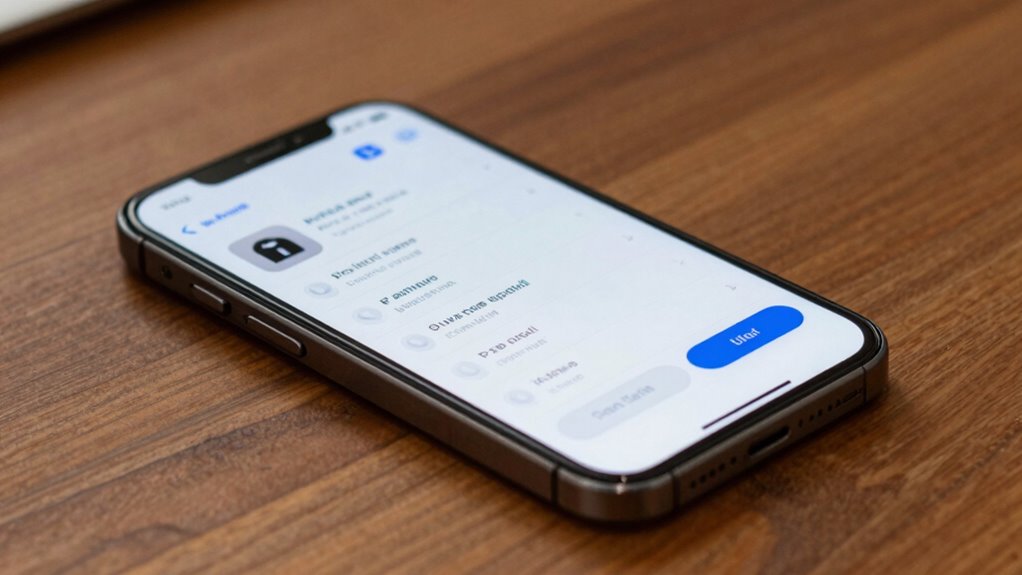

To prevent accidental app purchases, you can enable parental controls and set restrictions on your device. For iOS, go to Settings > Screen Time > Content & Privacy Restrictions and turn on “iTunes & App Store Purchases” to require a password or Face ID for all transactions. On Android, set a PIN or biometric authentication for purchases. Regularly reviewing and updating these controls guarantees ongoing protection. Keep exploring to learn more about customizing these settings effectively.
Key Takeaways
- Enable parental controls and restrict app downloads and in-app purchases in device settings.
- Require password or biometric authentication for all app purchases and in-app transactions.
- Set password prompts with time delays to prevent repeated or accidental purchases.
- Regularly update and review restrictions to ensure they remain active and effective.
- Use strong, unique passwords and consider additional security features like biometric verification.
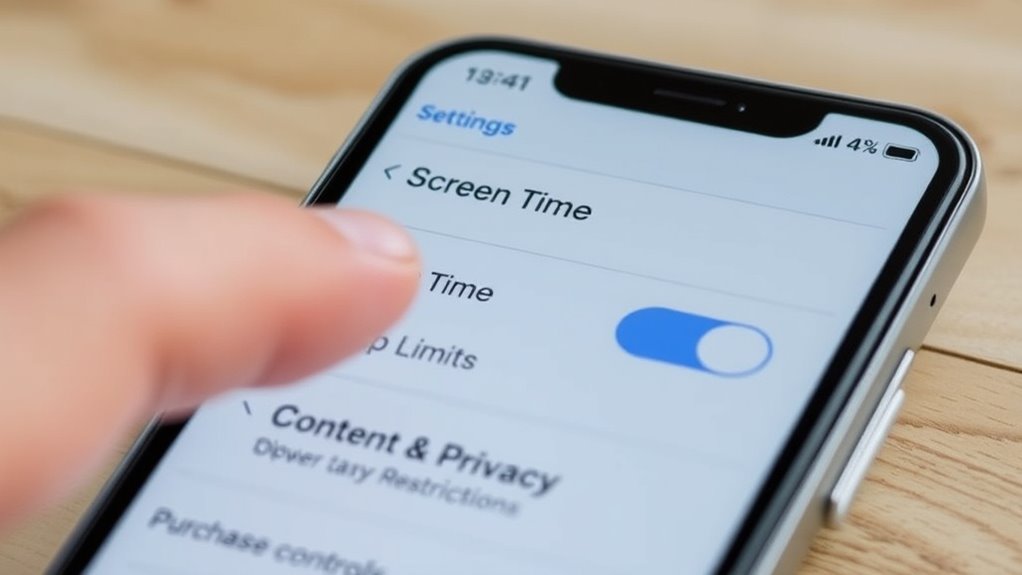
Are you worried about unintended or unauthorized app purchases on your device? If so, setting up app purchase controls is a smart way to prevent accidental buying or unauthorized access. The first step is to explore parental restrictions on your device. These restrictions allow you to limit app downloads, in-app purchases, and even restrict access to certain content. By enabling parental controls, you can create a safer environment for children or anyone else who might accidentally make a purchase. To do this, go into your device’s settings, find the restrictions or parental controls section, and turn on the feature. From there, you can specify what types of purchases are allowed and set limits to prevent unauthorized ones.
Another essential element of controlling app purchases is configuring password settings. Using passwords or authentication methods ensures that no one can make a purchase without your approval. Most devices allow you to require a password for every app purchase or set a time delay, so you don’t have to enter your password repeatedly. When you activate password settings, you add a layer of security that deters accidental buys and keeps unauthorized users from making purchases. For example, on iOS, you can navigate to Settings > Screen Time > Content & Privacy Restrictions, then enable ‘Require Password’ for app purchases. On Android, you can set a PIN, password, or biometric authentication to verify purchases.
Implementing these controls isn’t just about preventing children from spending too much; it’s also about safeguarding your finances. By setting parental restrictions, you can determine which apps can be downloaded or purchased, and you can disable in-app purchases altogether. Combining this with robust password settings means that even if someone tries to buy an app or make an in-app purchase, they’ll need to authenticate with a password or biometric data. This setup minimizes the risk of accidental or unauthorized transactions, giving you peace of mind.
Keep in mind that regularly updating your password and reviewing your restrictions is vital. Technology evolves, and so do potential security threats. Make sure your password is strong and unique, and periodically check your device’s settings to confirm restrictions are still in place. Adjust these controls as needed, especially if you notice any suspicious activity or if your circumstances change. Setting up app purchase controls isn’t a one-time task; it’s an ongoing process that helps protect you and your family from unnecessary charges and accidental purchases. Additionally, Vetted electric bike conversion kits, such as the PEXMOR or AW Electric Kits, are designed for easy installation, ensuring safety and reliability in performance.
Frequently Asked Questions
Can I Customize Purchase Controls for Specific Apps?
Yes, you can customize purchase controls for specific apps by setting app-specific restrictions. This allows you to apply customized purchase limits tailored to each app, helping prevent accidental buys. You simply access the device’s parental control settings, select the app you want to restrict, and set your preferred purchase limits. This way, you guarantee that each app has its own customized purchase controls, giving you more precise control over spending.
How Do I Update Purchase Controls on Multiple Devices?
You can update purchase controls on multiple devices through Family Sharing settings. First, verify childproofing settings are enabled on your primary device. Then, access Screen Time or parental controls to adjust purchase restrictions. These settings sync across all devices linked with your family group, making it easy to maintain consistent purchase controls and prevent accidental buys everywhere. This way, you keep your family’s digital environment safe and controlled.
Are There Different Controls for In-App Purchases Versus App Downloads?
Think of in-app settings as different rooms in a house; each requires its own lock. Yes, there are separate controls for in-app purchases and app downloads. You can set purchase restrictions specifically for in-app items, just like controlling access to certain rooms. This way, you prevent accidental buys by customizing restrictions for each. Managing these controls helps you keep a tight grip on spending, no matter what part of the app your child or user interacts with.
What Happens if I Forget My Purchase Control Password?
If you forget your purchase control password, don’t worry—you can do a purchase control reset. Go to your device’s settings, find the Screen Time or Restrictions section, and select password recovery options. You might be asked to verify your Apple ID or set up a new password. This process helps you regain control without losing your data, ensuring you can keep managing your in-app purchases effectively.
Can Purchase Controls Be Temporarily Disabled?
Imagine opening a door to let your family share a moment—yes, you can temporarily disable purchase controls through family sharing and parental restrictions. This allows you to pause restrictions, giving you a window to make quick purchases or adjustments. Just remember to re-enable controls afterward to keep accidental buys at bay. It’s a flexible way to manage your device’s security while sharing access with trusted family members.
Conclusion
By setting up app purchase controls, you’re not just protecting your wallet—you’re safeguarding your peace of mind. Think of it as installing a sturdy lock on a treasure chest; it keeps unwanted surprises out and preserves what truly matters. So, take a moment to set those controls today. After all, isn’t preventing accidental buys worth a small effort for the comfort of knowing your digital world is secure? Protect your peace; control your purchases.