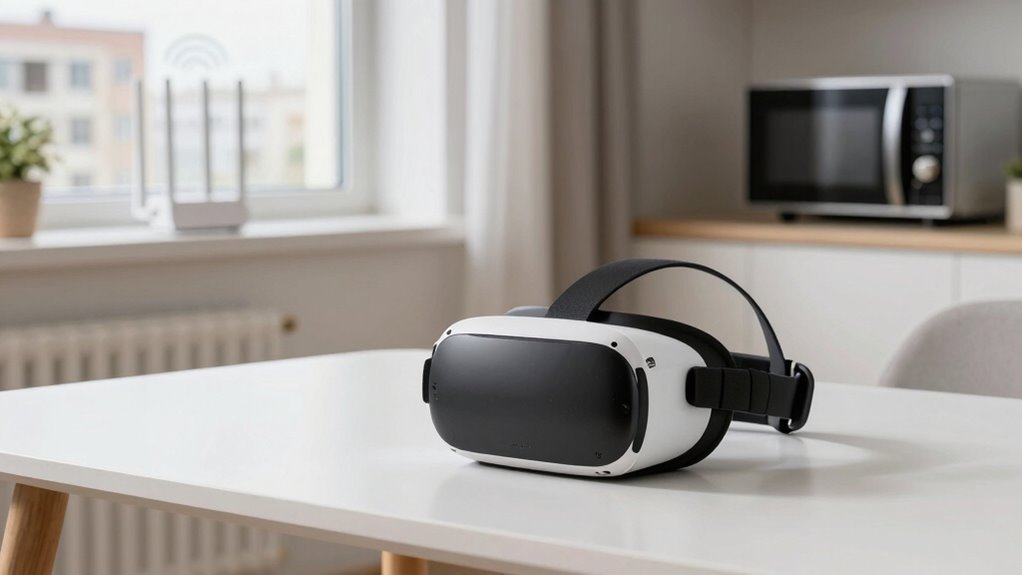
To avoid Wi-Fi interference in VR, position your router centrally and elevate it on a high shelf away from metal objects and electronics like microwaves or cordless phones. Switch to the less crowded 5GHz band and choose a stable channel. Keep household devices that cause interference, like baby monitors, away from your setup, and consider wired connections for critical components. For even better performance, explore signal boosters or extenders—continue to explore for more tips.
Key Takeaways
- Switch to the 5GHz Wi-Fi band to reduce interference from neighboring networks and household devices.
- Position your router centrally and elevate it to minimize physical obstacles and signal absorption.
- Keep household electronics like microwaves, cordless phones, and Bluetooth devices away from your VR setup during use.
- Use wired Ethernet connections for VR hardware to avoid Wi-Fi interference and lower latency.
- Change your Wi-Fi channel to a less crowded frequency using router settings or network analyzer apps.
Identify Common Sources of Wi-Fi Disruption

Wi-Fi interference can substantially affect your VR experience, and understanding its common sources is the first step to avoiding disruptions. Many household devices and environmental factors can interfere with your Wi-Fi signal. Neighboring Wi-Fi networks often operate on overlapping channels, causing congestion and reduced speeds. Microwave ovens emit signals that can disrupt Wi-Fi frequencies when in use. Bluetooth devices, cordless phones, and baby monitors also share similar frequencies, competing for bandwidth. Thick walls, metal objects, and large furniture can physically block or weaken signals, increasing interference. Even your own devices, like smart TVs or streaming gadgets, can contribute to network congestion. Recognizing interference sources helps you take targeted steps to minimize interference and ensure a smoother, more reliable VR experience.
Optimize Your Router Placement for Better Signal
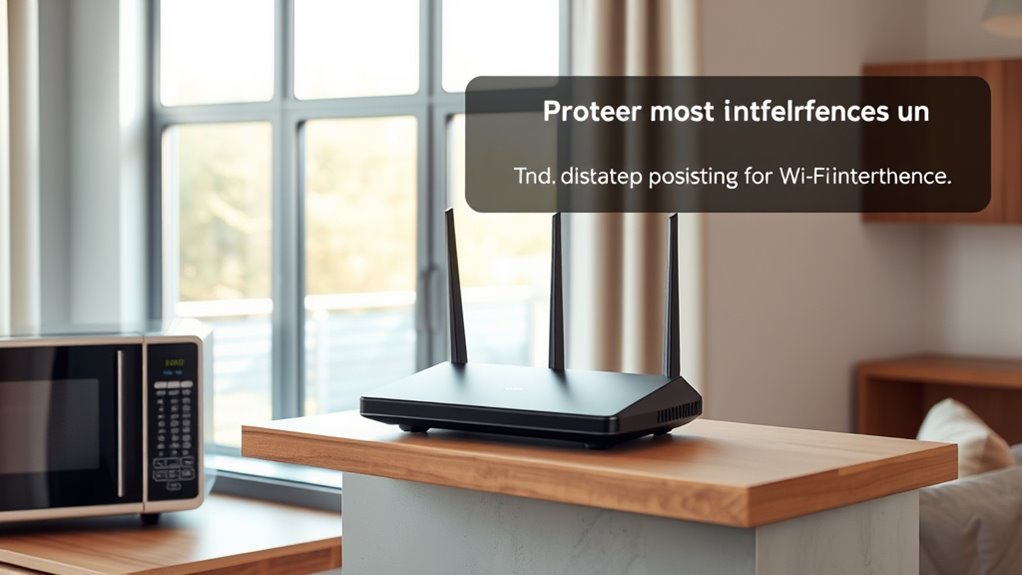
To improve your VR experience, focus on placing your router in an ideal location. Position it centrally in your home to ensure even coverage. Keep it elevated, like on a shelf or high table, to reduce interference from furniture and walls. Avoid placing it near metal objects, microwaves, or thick walls, which can block signals. Clear the area around your router to prevent signal absorption or reflection. Use this table to visualize optimal placement:
| Location | Elevation | Nearby Obstructions |
|---|---|---|
| Central Room | On a shelf or high surface | Metal furniture, microwaves |
| Open Space | Elevated on a stand | Thick walls, mirrors |
| Away from Electronics | At least 3 feet from other devices | Large metal objects |
| Elevated & Clear | On a high, open shelf | Electronics, appliances |
Additionally, consider router placement as a key factor in minimizing Wi‑Fi interference for a smoother VR experience. Proper router positioning can significantly enhance signal strength and stability, reducing lag and disconnections. Ensuring your router has a dedicated connection without interference from other electronics can also improve overall performance. Being aware of potential sources of Wi-Fi interference around your home can help you make smarter adjustments to maintain a strong, reliable signal.
Switch to a Less Congested Wi-Fi Channel
Since many devices in your home share the same wireless channels, switching to a less congested one can considerably improve your VR experience. Use your router’s management interface or a Wi-Fi analyzer app to scan nearby networks and identify which channels are least crowded. Most routers allow you to change channels manually; select one with fewer networks to reduce interference. The 2.4 GHz band often has more congestion due to many devices using it, so if your router supports it, switch to a less crowded channel within this band. Alternatively, move your VR setup closer to the router after changing the channel to maximize signal strength. Regularly checking for congestion helps maintain a stable, fast connection, minimizing lag and disconnections during your VR sessions.
Use a 5GHz Wi-Fi Network for Reduced Interference
Because the 5GHz band is less crowded than the 2.4GHz band, switching your VR device to a 5GHz Wi-Fi network can considerably reduce interference. This frequency offers more channels and less congestion, which leads to a stronger, more stable connection. To take advantage of this, verify your router supports 5GHz and that your VR device connects to the 5GHz network instead of the 2.4GHz. Keep in mind that 5GHz signals have a shorter range and may be more affected by physical barriers. Position your router closer to your play area if possible, and avoid obstructions like thick walls. Using a 5GHz network can help minimize interference from other devices, resulting in smoother VR experiences with fewer lag issues. Incorporating local automation features such as dedicated Wi-Fi bands can further optimize your network environment for a seamless VR experience.
Minimize Electronic Interference From Household Devices
To diminish electronic interference from household devices, start by keeping them as far away from your VR setup as possible. Using shielded cables can also help prevent signals from crossing. Additionally, scheduling device use during VR sessions ensures other electronics don’t disrupt your connection. Incorporating Free Floating techniques, such as positioning your devices to avoid clutter, can further reduce potential interference. Being aware of local traditions and common household practices can also inform your setup choices to optimize performance. Paying attention to electromagnetic compatibility guidelines ensures your devices operate smoothly without causing or experiencing interference. Recognizing electromagnetic interference sources within your environment can help you identify and mitigate potential disruptions proactively. Understanding heat distribution and how electronic signals interact with various materials can also contribute to a more interference-free experience.
Keep Devices Away
Have you ever noticed your VR experience lagging or cutting out unexpectedly? One simple way to improve your connection is to keep household devices away from your VR setup. Electronics like cordless phones, Bluetooth speakers, and baby monitors emit signals that can interfere with your Wi-Fi. When these devices are close, they can cause signal congestion, leading to lag or disconnections. To avoid this, place your VR equipment and router in a central, open space, away from clutter and electronics. Keep microwaves, wireless cameras, and other high-interference devices at a distance as well. This minimizes the chances of signal disruption. Additionally, understanding electromagnetic interference can help you better identify and mitigate potential sources of signal disruption. Being aware of interference sources and their impact can further improve your VR experience. Maintaining physical separation between your VR gear and potential interference sources, such as Wi-Fi channels, can significantly enhance connection stability and enjoyment. Regularly updating your router firmware can also help reduce interference issues and improve overall Wi-Fi performance. Moreover, using dual-band Wi-Fi networks can help separate your VR traffic from other household devices, reducing congestion.
Use Shielded Cables
Using shielded cables can substantially reduce electronic interference from household devices that often disrupt your Wi-Fi signals. These cables contain an internal shielding layer that blocks electromagnetic noise, preventing interference from appliances like microwaves, cordless phones, or power strips. When you connect your VR headset, router, or other devices with shielded cables, you minimize the chances of signal degradation caused by external electrical noise. This ensures a more stable and reliable Wi-Fi connection, resulting in smoother VR experiences. Make sure to choose high-quality shielded Ethernet or HDMI cables and avoid running these cables parallel to power cords, which can introduce additional interference. Using shielded cables is a simple yet effective step to enhance your VR setup’s overall performance.
Schedule Device Use
Electromagnetic interference from household devices can disrupt your Wi-Fi signal during VR sessions. To minimize this, scheduling device use is key. By timing when you operate potentially disruptive gadgets, you reduce interference risks. For example, consider:
- Running microwaves during non-VR hours
- Turning off cordless phones when gaming
- Avoiding large appliances like washing machines during play
- Scheduling high-bandwidth downloads outside VR sessions
Planning device use helps guarantee your Wi-Fi remains stable and fast. You don’t need to turn everything off permanently—just be strategic about timing. This simple step can considerably improve your VR experience by reducing interference caused by household electronics. Additionally, understanding the role of electromagnetic interference can help you better identify and mitigate sources of disruption. Being aware of artistic influences may also inspire you to optimize your environment for better connectivity. Maintaining device organization and minimizing the number of active electronics in your network area can further enhance signal stability. Keeping a device use schedule that aligns with your VR sessions for smoother, more reliable connectivity ensures a better overall experience. Implementing these strategies can also promote electromagnetic compatibility, reducing the likelihood of electronic conflicts in your setup.
Implement Wired Connections for Critical Devices
Connecting your critical devices with Ethernet cables can considerably reduce Wi-Fi interference. Prioritizing these connections ensures a stable and consistent VR experience. By minimizing wireless dependence, you’ll improve overall performance and reduce lag. Additionally, using high-quality energy-efficient network hardware can further enhance stability and reduce potential disruptions. Incorporating wired connections for essential devices helps prevent common sources of interference, such as microwave ovens or neighboring Wi-Fi networks, from affecting your VR setup.
Use Ethernet Cables
A reliable wired connection can substantially reduce Wi-Fi interference during your VR sessions. Using Ethernet cables guarantees a stable, high-speed link directly to your router, minimizing lag and disconnects that disrupt gameplay. To get the best results, consider these tips:
- Opt for high-quality Ethernet cables like Cat6 or Cat7 for faster speeds.
- Run cables along walls or ceilings to avoid tripping hazards and keep them out of sight.
- Use cable clips or conduits to secure cables neatly and prevent damage.
- Connect critical devices, like your VR headset or PC, directly to the router for maximum stability.
Implementing wired connections helps you enjoy smoother VR experiences without worrying about interference or signal drops. It’s a simple, effective step to improve your overall VR setup.
Prioritize Device Connections
To minimize Wi-Fi interference during your VR sessions, focus on wiring your critical devices directly to the router. By prioritizing these connections, you reduce the load on your wireless network and guarantee a more stable signal. Connect your VR headset, computer, or streaming device with Ethernet cables whenever possible. This not only eliminates potential interference but also offers faster, more reliable data transfer. If you have multiple devices, assign priority to those essential for your VR experience, disconnecting or limiting less important gadgets from Wi-Fi. Using wired connections for key components minimizes latency and buffering issues, creating a smoother VR session. Making these adjustments helps maintain a consistent, high-quality connection, free from interruptions caused by interference from neighboring signals or household electronics. Additionally, understanding your home network setup can help identify sources of interference and optimize your connection quality.
Minimize Wireless Dependence
Implementing wired connections for your critical devices substantially reduces wireless dependence, which is essential for a stable VR experience. Wired setups eliminate interference from neighbors, microwaves, and other wireless devices, ensuring smoother performance. To optimize your setup, consider these options:
- Use Ethernet cables for your VR headset and PC
- Connect sensors directly via wired connections
- Install a network switch to manage multiple wired devices
- Use powerline adapters if running Ethernet cables isn’t feasible
Wiring your devices minimizes latency and packet loss, providing a more reliable connection. It also prevents signal drops and reduces the need to troubleshoot wireless issues during gameplay. By prioritizing wired links for your most important hardware, you create a stable foundation for immersive and frustration-free VR sessions.
Enhance Your VR Setup With Signal Boosters and Extenders
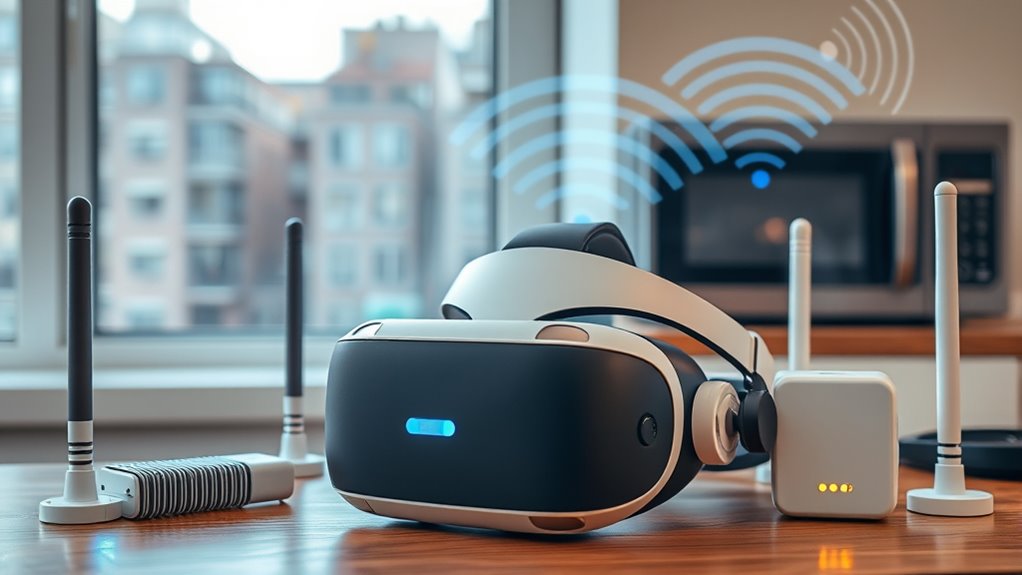
Enhancing your VR setup with signal boosters and extenders can substantially reduce Wi-Fi interference and improve connection stability. These devices extend your Wi-Fi signal’s reach, ensuring a stronger, more consistent connection in your play area. Place extenders strategically to eliminate dead zones and minimize obstacles that cause signal degradation. Choose a high-quality booster compatible with your router and check that it supports the necessary bandwidth for VR streaming. By boosting your Wi-Fi signal, you’ll experience fewer drops, less lag, and smoother gameplay. This setup is especially beneficial if your router is far from your play zone or if multiple devices are competing for bandwidth. Investing in signal boosters and extenders creates a more reliable environment for immersive VR experiences.
Frequently Asked Questions
How Can I Identify if My Neighbors Are Causing Wi-Fi Interference?
You can identify if your neighbors are causing Wi-Fi interference by checking your connection during different times of the day. If your Wi-Fi slows down or drops frequently when your neighbors are likely online, interference might be the culprit. Use a Wi-Fi analyzer app to scan for crowded channels or signal interference nearby. If you notice sudden drops or congestion during peak hours, it’s a strong sign your neighbors’ devices are affecting your network.
What Are the Best Practices for Maintaining Router Firmware Updates?
You should regularly check your router’s admin panel for firmware updates. Enable automatic updates if available, or manually download the latest firmware from your manufacturer’s website. Before updating, back up your settings to prevent data loss. Keep your router’s firmware current to improve performance, security, and compatibility with VR devices. Staying up-to-date guarantees you minimize interference issues and enjoy a smoother VR experience.
Can Changing My VR Headset’s Wifi Settings Improve Connection Stability?
Yes, changing your VR headset’s Wi-Fi settings can improve connection stability. You should set your headset to connect to a 5GHz band, which offers faster speeds and less interference than 2.4GHz. Also, prioritize your device in your router’s settings, reduce interference by minimizing obstacles, and position your router closer to your VR space. These adjustments can create a more stable, lag-free VR experience.
How Do Physical Barriers in My Home Affect Wi-Fi Signal Strength?
Imagine you’re a medieval knight, and your home’s walls are like fortress walls blocking your Wi-Fi signal. Physical barriers such as thick walls, furniture, and appliances weaken your Wi-Fi, causing slower speeds or dropped connections. To improve, move your router to a central, open spot away from metal objects and appliances. Clear line-of-sight to your VR device helps maintain a strong, stable connection, so you can enjoy immersive experiences without interruption.
Are There Specific Household Appliances That Consistently Disrupt Wi-Fi Signals?
Yes, household appliances like microwaves, cordless phones, and baby monitors often interfere with Wi-Fi signals. Microwaves emit signals on similar frequencies, so using your microwave while gaming can cause lag. Cordless phones and baby monitors also operate on the same bands, creating interference. To minimize disruptions, keep these devices away from your router and avoid using them during VR sessions. This helps ensure a smoother, more reliable connection.
Conclusion
Don’t let Wi-Fi interference ruin your VR experience. By identifying common sources, optimizing your setup, and exploring options like 5GHz networks or extenders, you can enjoy smooth, immersive gameplay. Some might think these fixes are complicated or costly, but many are simple and affordable. With just a few adjustments, you’ll notice a big difference—so don’t settle for frustrating lag. Take action now, and release the full potential of your VR adventures.