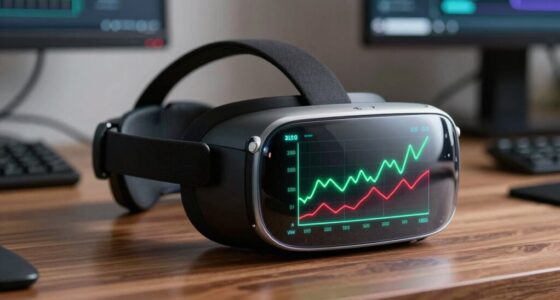
To build a reliable PCVR routine, start by checking your hardware and ensuring your PC meets or exceeds system specs. Keep your software updated, and restart your PC and VR hardware before each session. Verify your wireless setup for interference and confirm your sensors are positioned correctly. Clear your play space and mark boundaries for safety. Regularly calibrate controllers and sensors, and disable unnecessary background apps. If you want to refine your process further, there’s more to contemplate.

Play games on Amazon Luna for your next adventure, included with Prime
- A rotating selection of games, no download needed
- Play on TV, laptop or phone
- Fast, free delivery for your gear, too
Key Takeaways
- Restart your PC and VR hardware to clear temporary issues before each session.
- Ensure all firmware and software are updated to the latest versions for stability.
- Verify that your PC meets or exceeds VR system specifications for smooth performance.
- Perform calibration of sensors and controllers to ensure accurate tracking.
- Close unnecessary background applications to optimize bandwidth and system resources.
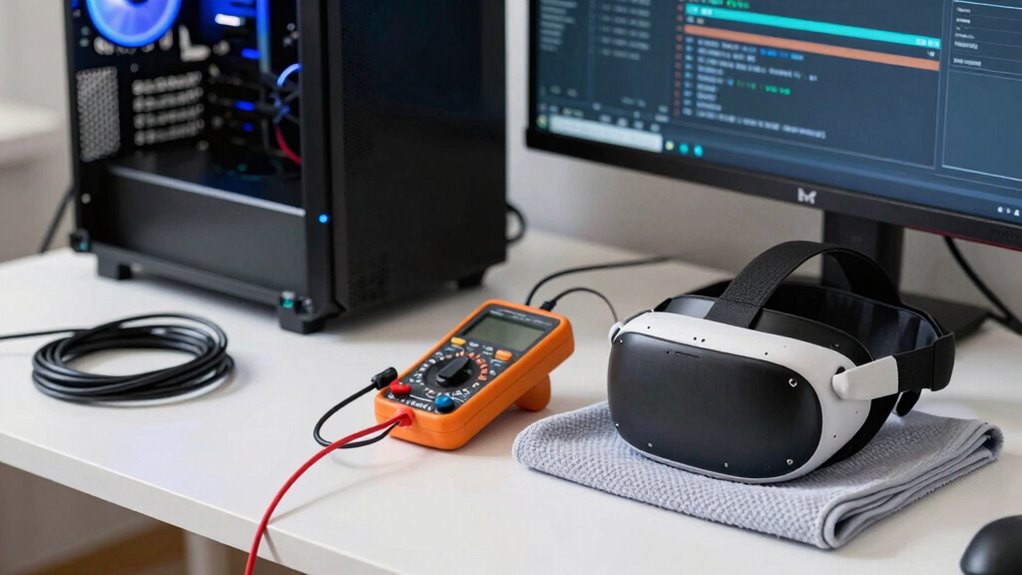
Building a dependable PCVR routine is essential for a smooth and immersive experience, especially when unexpected glitches can ruin your session. To achieve this, start by ensuring your wireless connectivity is solid. A strong Wi-Fi connection minimizes lag, latency, and disconnections that can break immersion. Use a dedicated 5GHz network if possible, as it offers faster speeds and less interference compared to 2.4GHz networks. Keep your router close to your play area, and avoid other devices that might hog bandwidth during your VR sessions. If your setup supports it, consider using a wired connection for your PC to eliminate any potential network hiccups entirely.
Next, focus on hardware calibration. Proper calibration is essential for accuracy and comfort. Spend time setting up your sensors or base stations in the right positions—ideally, at different angles and heights, avoiding obstructions. Make sure your play area is well-lit but free of reflective surfaces that can confuse sensors. Regularly calibrate your controllers and sensors, especially if you move them around or if you notice tracking issues. Updating firmware and software for your VR hardware also plays an important role. Manufacturers often release updates that improve stability and fix bugs, so check regularly and keep everything current. Additionally, wireless setup is a crucial aspect to maintain a reliable connection and avoid interference during gameplay. Ensuring your hardware configuration meets the recommended specifications can prevent many common issues, such as frame drops or tracking failures. Maintaining a clean and organized environment further supports consistent tracking and reduces potential interference from clutter. Creating a dedicated play space makes a noticeable difference. Clear the area of clutter, move furniture out of the way, and mark boundaries to prevent accidental collisions. This reduces the risk of hardware interference and helps your sensors maintain a dependable connection with your headset. You should also double-check that your PC meets or exceeds the recommended specifications for your VR system. Running VR games on underpowered hardware can cause unexpected glitches, frame drops, and tracking failures. Upgrading your graphics card, RAM, or processor can provide a smoother, more consistent experience. Additionally, paying attention to ambient lighting conditions can help sensors perform optimally and avoid tracking errors. It is also beneficial to periodically check for interference sources in your environment that could impact wireless signals or sensor tracking. Before you start your session, restart your PC and VR hardware. This simple step clears temporary issues and refreshes connections. Make sure your VR software is up to date, and verify all settings are optimized for performance. Disable unnecessary background applications that could interfere with VR performance or bandwidth. When you’re ready to play, put on your headset and check for proper tracking and comfort. If you encounter persistent issues, revisit your calibration process or check your wireless setup. A consistent routine that emphasizes good wireless connectivity, regular hardware calibration, and a clutter-free, well-maintained environment will help you enjoy a more dependable, immersive PCVR experience every time.
As an affiliate, we earn on qualifying purchases.
Frequently Asked Questions
What Are the Best Cables for PCVR Setups?
For your PCVR setup, choose high-quality USB-C or DisplayPort cables with robust connectors to guarantee reliability. Opt for cables that support your headset’s specifications, focusing on connector compatibility and data transfer speeds. Good cable management keeps your setup tidy, preventing accidental disconnections. Look for braided or reinforced cables to improve durability, and consider extension cables if needed to maintain flexibility without sacrificing performance.
How Often Should I Update My VR Drivers?
You should update your VR drivers whenever you notice issues or when VR software releases updates. Coincidentally, staying current helps guarantee hardware compatibility and smooth performance. Regular updates fix bugs, improve stability, and enhance features, so check for new drivers at least once a month. This routine keeps your PCVR experience reliable, preventing crashes and lag, and ensures your hardware and software work seamlessly together for maximum immersion.
Can Custom BIOS Settings Improve VR Performance?
Custom BIOS settings can improve your VR performance if you prioritize overclocking stability and BIOS customization. Tweaking settings like RAM timings, CPU voltage, and clock speeds can boost performance, but only if done carefully. Always test for stability after each change to avoid crashes or overheating. Proper BIOS customization allows you to optimize your system for smooth VR experiences, ensuring minimal latency and better graphics quality during gameplay.
What Are Common VR Headset Calibration Errors?
You might think calibration errors are minor, but they can ruin your VR experience. Common issues include misaligned tracking, headset tilt, or inconsistent sensor readings. To troubleshoot calibration, double-check headset alignment and guarantee sensors are unobstructed. Re-calibrating your sensors and adjusting the fit often fixes these problems. Don’t overlook proper calibration troubleshooting; it’s essential for smooth, immersive VR gameplay and helps prevent frustrating misalignments during your sessions.
How Do I Reduce Latency in PCVR Experiences?
To reduce latency in your PCVR experiences, guarantee your system is optimized for low latency. Turn off or adjust motion smoothing settings, as it can add input delay. Keep your graphics drivers up to date, and reduce background processes to improve performance. Use a high-quality USB and HDMI cable, and connect your headset directly to the PC’s USB port. These steps help minimize latency and provide smoother, more responsive VR gameplay.
wireless VR sensor base stations
As an affiliate, we earn on qualifying purchases.
As an affiliate, we earn on qualifying purchases.
Conclusion
By following these steps, you can create a more reliable PCVR routine that enhances your gaming experience. Remember, consistent maintenance and proper setup are key to avoiding technical hiccups. Some believe that a well-prepared system naturally leads to smoother gameplay, but it’s worth testing this theory yourself. With patience and attention to detail, you’ll find that reliability improves over time. Ultimately, investing in your setup pays off, making every VR session more immersive and enjoyable.
As an affiliate, we earn on qualifying purchases.
As an affiliate, we earn on qualifying purchases.
Halloween Picks
halloween
As an affiliate, we earn on qualifying purchases.