
TL;DR

Play games on Amazon Luna for your next adventure, included with Prime
- A rotating selection of games, no download needed
- Play on TV, laptop or phone
- Fast, free delivery for your gear, too
Connecting AR glasses to the Steam Deck can be done via wired or wireless methods. Wireless streaming offers freedom, but wired connections ensure low latency. Proper setup and updates are key for a smooth experience.
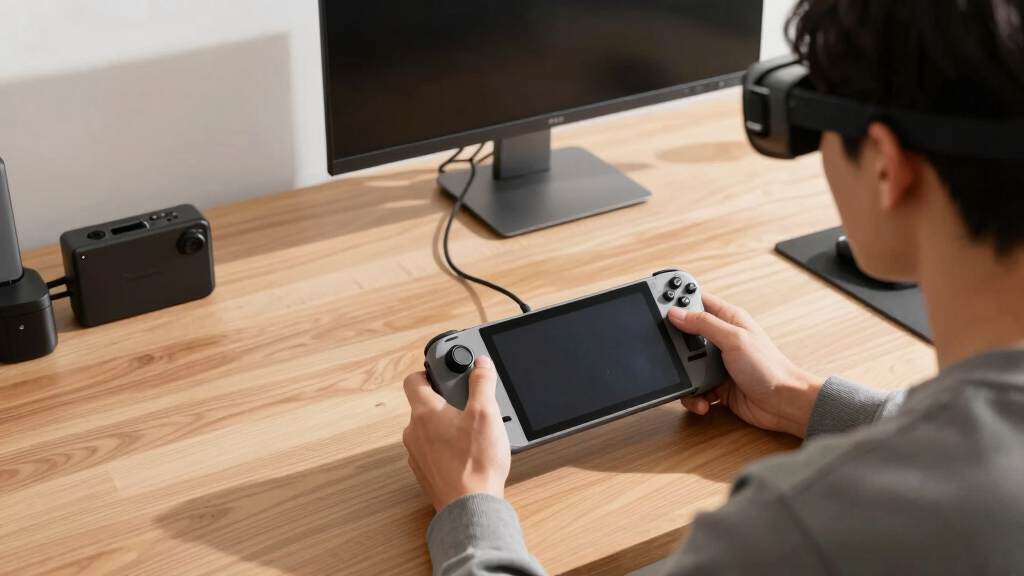
Imagine strapping on a sleek pair of AR glasses and suddenly having a massive virtual screen floating in front of you—right from your Steam Deck. No more tethered monitors or bulky setups. This guide will walk you through every step to make that a reality.
Whether you’re aiming for a seamless wireless experience or a quick wired connection, you’ll learn the tricks, tips, and software needed to get your AR glasses working perfectly with your Steam Deck. Ready to elevate your gaming? Let’s dive in.
How to Connect AR Glasses to the Steam Deck
TL;DR: Wired USB-C or HDMI connections deliver the lowest latency for fast games. Wireless streaming gives you freedom, but it depends heavily on Wi-Fi quality, app setup, and device compatibility.
Think of the Steam Deck as the source and the AR glasses as a floating display. Your job is to match the right signal path, update both devices, then tune resolution, refresh rate, and network load until the experience feels smooth.
Compatibility first, connection method second, tuning always.
Check whether your glasses support USB-C DisplayPort Alt Mode, HDMI input, Wi-Fi streaming, or a companion app before buying adapters or changing SteamOS settings.
Direct video paths are the cleanest option for competitive or fast-paced play.
Wireless works best on a stable 5GHz or Wi-Fi 6 network with low traffic.
Look for DisplayPort Alt Mode support in the glasses’ specs.
Wireless freedom can add delay, stutter, or compression artifacts.
Match refresh rate and game frame rate when your glasses allow it.
SteamOS, firmware, drivers, and companion apps all affect reliability.
Make Sure Both Devices Speak the Same Display Language
AR glasses vary widely. Some behave like a simple external monitor, while others rely on companion apps, drivers, or wireless streaming tools.
USB-C DisplayPort Alt Mode
The cleanest wired path. It carries video through USB-C and is ideal for low-latency gaming when your glasses support it.
- Confirm Alt Mode in the manual.
- Use a certified USB-C video cable.
- Test external display detection in SteamOS.
HDMI Through Dock or Hub
Useful when glasses require HDMI input. The adapter chain matters, because low-quality hubs can cause flicker or failed handshakes.
- Use a powered dock if needed.
- Check resolution and refresh limits.
- Avoid damaged or passive-only adapters.
Wi-Fi Apps and Companion Tools
Apps such as Virtual Desktop or Moonlight can stream the Deck’s output, but the network becomes part of the display pipeline.
- Prefer 5GHz or Wi-Fi 6.
- Keep router traffic low.
- Tune bitrate, frame rate, and resolution.
Wired or Wireless? Choose Based on What You Play
Use wired for precision, stability, and minimum lag. Use wireless when comfort and movement matter more than absolute responsiveness.
| Feature | Wired Connection | Wireless Streaming | Best Pick |
|---|---|---|---|
| Latency | ✓Very low and consistent because the display signal travels directly over cable. | ~Can vary with congestion, router distance, bitrate, and interference. | Wired for action, racing, rhythm, and competitive games. |
| Setup | ✓Simple if the cable, adapter, and display mode are supported. | ~Requires apps, pairing, network tuning, and sometimes desktop mode. | Wired for fastest first success. |
| Mobility | ✗Movement is limited by cable length and adapter placement. | ✓No display cable, more relaxed positioning, better couch setup. | Wireless for comfort and casual play. |
| Reliability | ✓Less prone to signal interruptions once a good cable path is established. | ~Depends on Wi-Fi quality, router load, and app stability. | Wired for long sessions. |
| Image Quality | ✓Usually cleaner, with fewer compression artifacts and steadier refresh behavior. | ~May show compression, blur, or dropped frames at aggressive settings. | Wired for sharp text and UI-heavy games. |
Connect, Detect, Configure, Then Test Under Real Gameplay
A working connection is only the midpoint. The final quality comes from display settings, driver support, and practical testing.
Identify Inputs
Check whether your glasses use USB-C, HDMI, Wi-Fi streaming, or a required companion app.
Connect Hardware
Plug directly into USB-C or route HDMI through a compatible dock, hub, or adapter.
Update Software
Update SteamOS, AR glasses firmware, drivers, and streaming apps before troubleshooting deeper.
Set Display
Adjust resolution, refresh rate, orientation, scaling, and mirrored or extended display behavior.
Pair Wireless
Install Virtual Desktop, Moonlight, or the glasses’ app, then pair on a stable network.
Play Test
Launch a real game and tune bitrate, frame rate, and resolution around actual responsiveness.
Smooth Gaming Comes From Reducing the Weakest Link
For wired setups, the cable path is the weak link. For wireless setups, the network is the weak link. Tune accordingly.
Setup Quality Impact
These relative scores show which setup factors most often affect clarity, latency, and stability when AR glasses are used as a Steam Deck display.
Swap the Cable First
Cheap, passive, or damaged cables can cause dropouts even when the devices themselves are compatible.
Lower Bitrate
Reduce bitrate or resolution, move closer to the router, and keep the network free of heavy traffic.
Check Alt Mode
USB-C charging support does not guarantee USB-C video support. Confirm DisplayPort Alt Mode.
Match Refresh
Align the glasses’ refresh rate with the game frame rate when possible to reduce blur and stutter.
From Device Specs to Comfortable Gameplay
Every stable AR setup follows the same chain: verify the connection, protect signal quality, tune the display, then test in-game.
Specs
USB-C, HDMI, Wi-Fi, drivers, and firmware support.
Signal
Certified cable, dock, adapter, or streaming app.
Transport
Direct wired path or low-traffic 5GHz network.
Tuning
Resolution, refresh rate, orientation, and bitrate.
Gameplay
Low lag, sharp visuals, stable motion, less strain.
Common Questions Before You Plug In
The safest answer is always model-specific: check the glasses’ display protocol and the Steam Deck’s current software support.
Can I connect any AR glasses to the Steam Deck?
No. Compatibility depends on USB-C video support, HDMI support, wireless streaming support, and available drivers or companion apps.
What is the easiest method?
A direct wired connection is usually easiest when the glasses support USB-C DisplayPort Alt Mode. Wireless can be simple too, but it adds app and network setup.
Do I need special software?
Sometimes. Basic display glasses may work like a monitor, while wireless or advanced AR models often need apps, firmware tools, or drivers.
Will performance drop?
It can. Higher resolutions, wireless compression, background apps, and unstable networks can all reduce smoothness or responsiveness.
Use Wired
Choose USB-C DisplayPort Alt Mode or a reliable HDMI adapter path for the lowest-latency experience.
Use Wireless
Choose streaming when you want fewer cables and can control Wi-Fi quality, bitrate, and distance.
Update Often
SteamOS updates, glasses firmware, and app updates often fix detection, stability, and display bugs.
Key Takeaways
- Check your AR glasses’ connection support—USB-C with DisplayPort Alt Mode or Wi-Fi are the best options.
- Wired connections offer lower latency, perfect for fast-paced gaming, while wireless gives freedom but can introduce lag.
- Keep firmware and software updated on both devices to prevent compatibility issues.
- Use quality cables and reliable Wi-Fi networks to ensure smooth visuals and minimal lag.
- Adjust display and system settings to optimize performance and reduce latency during gameplay.
As an affiliate, we earn on qualifying purchases.
Is Your AR Glasses Compatible with the Steam Deck? Here’s How to Check
The first step is confirming that your AR glasses can talk to the Steam Deck. Think of it like making sure two friends share the same language. If your glasses support common connection protocols like USB-C with DisplayPort Alt Mode or Wi-Fi 6, they’re more likely to work seamlessly. Compatibility matters because it influences latency, image quality, and overall stability—factors that directly impact your gaming experience.
For example, if your AR glasses support DisplayPort Alt Mode over USB-C, they can transmit high-resolution visuals with minimal delay, essential for fast-paced gaming. Wireless options like Wi-Fi 6 can offer freedom of movement, but they also introduce potential lag and interference, which might cause stuttering or delayed responses. Knowing these tradeoffs helps you choose the best setup for your needs. Always check your device specs and user manuals to verify support before attempting to connect.
USB-C to HDMI adapter for AR glasses
As an affiliate, we earn on qualifying purchases.
As an affiliate, we earn on qualifying purchases.
Wired or Wireless? Choosing the Best Connection Method for Your Setup
| Feature | Wired Connection | Wireless Streaming |
|---|---|---|
| Latency | Very low, ideal for fast-paced games. Wired connections transmit data directly, reducing lag, which is crucial for precision and responsiveness in gaming scenarios. | Higher, can vary depending on network quality. Wireless streaming depends on Wi-Fi stability; any interference or congestion can cause delays, affecting gameplay fluidity and responsiveness. |
| Setup Complexity | Simple with right cables. Just connect your AR glasses via a compatible USB-C or HDMI cable, often requiring minimal configuration. | Requires additional apps and network configuration. You need to install streaming apps like Virtual Desktop or Moonlight, and ensure your Wi-Fi is optimized, which can be more involved but offers greater freedom. |
| Mobility | Limited by cables. Wired setups restrict movement, which can be cumbersome during active play or when adjusting your setup. | High, no wires. Wireless streaming allows you to move freely, making your gaming experience more immersive and natural, especially in larger spaces. |
| Reliability | Very stable. Wired connections are less prone to interference, ensuring consistent visuals and minimal lag, vital for competitive or fast-paced gaming. | Dependent on Wi-Fi quality. Unstable networks can cause flickering, lag, or disconnections, which can ruin the experience or cause frustration. |
Understanding these differences helps you weigh the tradeoffs: if you prioritize responsiveness and minimal lag, a wired connection is best. If freedom of movement and convenience matter more, then wireless streaming, despite potential latency issues, is the way to go.
As an affiliate, we earn on qualifying purchases.
Step-by-Step Setup: How to Connect Your AR Glasses to the Steam Deck
- Identify your AR glasses’ connection options—USB-C, HDMI, or Wi-Fi. Knowing your device’s capabilities helps determine the best approach and avoid compatibility issues.
- For wired setup, plug your glasses into the Steam Deck using a compatible USB-C or HDMI adapter. Ensure your cables support DisplayPort Alt Mode if needed, as this ensures high-quality video transmission with minimal latency—crucial for a smooth gaming experience.
- Power on your AR glasses. If they require drivers, install them on the Steam Deck. You might need to switch to desktop mode to handle driver installation, which can improve compatibility and performance.
- Adjust display settings: Set resolution, refresh rate, and orientation for optimal clarity. Higher refresh rates reduce motion blur, but may demand more from your hardware, so balance quality and performance based on your setup.
- If going wireless, install apps like Virtual Desktop or Moonlight on the Steam Deck and your glasses. Follow the app’s instructions to pair devices over Wi-Fi. These apps essentially stream your Steam Deck’s display to your glasses, so a stable, high-speed Wi-Fi network is essential for a smooth experience.
- Test the connection by launching a game or app. Observe for latency, image quality, and responsiveness. Tweak settings such as resolution, bitrate, and frame rate within the streaming app to optimize performance and reduce lag.
As an affiliate, we earn on qualifying purchases.
How to Optimize Your AR Experience for Smooth Gaming
Connection quality directly impacts your immersion and responsiveness. For wired setups, use high-quality, certified cables—cheap or damaged cables can introduce lag, flickering, or signal dropouts, which break immersion and frustrate gameplay. For wireless, ensure your Wi-Fi network is fast, stable, and dedicated to streaming—preferably a 5GHz network with minimal traffic. This reduces interference and latency, providing a smoother visual experience.
Adjust your display settings: Lower the resolution slightly if you notice lag or stuttering, which can free up bandwidth and processing power, resulting in smoother gameplay. Close background apps that consume bandwidth or processing resources, as they compete with your streaming app for system resources, causing lag or dropped frames.
Real-world tip: If your AR glasses support adjustable refresh rates, set them to match your game’s frame rate. This synchronization minimizes motion blur and stutter, creating a more natural and comfortable visual experience—especially important during fast-paced action scenes or extended gaming sessions.
Troubleshooting Common Connection Issues
If your AR glasses aren’t connecting, start by checking cables and Wi-Fi signal strength. Use high-quality, certified cables and ensure your Wi-Fi network is operating at optimal speeds. Restart both devices to clear temporary glitches. Make sure all firmware and software are up to date, as outdated firmware can cause compatibility problems or bugs that hinder connection.
For wireless, ensure your network isn’t congested—move closer to your router or switch to a less crowded channel if needed. For wired, test with different cables or ports to rule out hardware issues. Sometimes, interference from other devices or faulty cables can cause unstable connections.
Pro tip: Use the Steam Deck’s desktop mode to manually scan for connected devices or troubleshoot driver issues. This mode provides deeper control and diagnostic tools, helping you identify and resolve stubborn problems. Remember, a simple reboot can often fix temporary glitches, so don’t hesitate to restart your devices when troubleshooting.
Frequently Asked Questions
Can I connect any AR glasses to the Steam Deck?
Not all AR glasses are compatible. Support depends on connection protocols like USB-C or Wi-Fi, and whether they have compatible drivers. Check your glasses’ specs before trying to connect.What’s the easiest way to connect AR glasses to the Steam Deck?
Wireless streaming using apps like Virtual Desktop or Moonlight is usually the simplest. Wired connections with USB-C or HDMI are more reliable but less flexible.Do I need special software or drivers?
Yes, some AR glasses require specific drivers or companion apps to work with the Steam Deck. Make sure to install these and keep them updated for smooth operation.Will connecting AR glasses slow down my gaming performance?
It can if your network or hardware isn’t optimized. Using wired connections and closing background apps helps maintain smooth gameplay.Can I use AR glasses for VR gaming on the Steam Deck?
Most AR glasses are designed for augmented reality, not full virtual reality. Some can offer VR-like experiences, but they aren’t a substitute for dedicated VR headsets.Conclusion
Your AR glasses can transform your Steam Deck into a floating virtual monitor—if you connect them right. Focus on compatibility, choose the connection method that suits your gaming style, and fine-tune your settings for the best experience.
Imagine gaming on a giant, vibrant screen in your living room—or even outdoors—without the clutter. That’s the magic of connecting AR glasses to your Steam Deck. Now, go build your ultimate portable AR setup.
Fall Picks
fall essentials
As an affiliate, we earn on qualifying purchases.