
To balance CPU and GPU for smooth VR, focus on matching their performance levels, since bottlenecks cause lag and reduce immersion. Your CPU handles game logic and input, while the GPU renders visuals; if one is markedly weaker, it hampers overall experience. Use tools to monitor usage and identify bottlenecks, then upgrade the component causing the slowdown. Keep in mind; understanding how to optimize both will help you realize the full potential of your VR setup.

Play games on Amazon Luna for your next adventure, included with Prime
- A rotating selection of games, no download needed
- Play on TV, laptop or phone
- Fast, free delivery for your gear, too
Key Takeaways
- Prioritize balanced upgrades to prevent bottlenecks that cause lag or stuttering in VR.
- Use diagnostic tools to monitor CPU and GPU utilization for targeted improvements.
- Ensure hardware compatibility to optimize component synergy and avoid performance limitations.
- Focus on upgrading the component—CPU or GPU—that is the current bottleneck.
- Achieve smooth VR performance by harmonizing hardware capabilities through careful system tuning.

When it comes to optimizing your VR experience, understanding how to balance your CPU and GPU is essential, yet often misunderstood. Many users focus solely on upgrading their graphics card, assuming it will automatically improve VR performance. However, hardware compatibility and performance bottlenecks play critical roles in creating a smooth, immersive experience. Your system’s overall performance depends on how well your CPU and GPU work together, and neglecting this balance can lead to subpar results, even with high-end hardware.
First, you need to recognize that both the CPU and GPU have distinct roles. The CPU handles game logic, tracking, and input processing, while the GPU renders the visual output. If one component is significantly weaker than the other, it creates a performance bottleneck. For example, a powerful GPU paired with a slow CPU can cause frame drops and latency, because the CPU cannot keep up with the GPU’s rendering demands. Conversely, a fast CPU with a weak GPU may struggle to display detailed graphics smoothly. The key is ensuring both components are balanced to prevent either from limiting your VR experience.
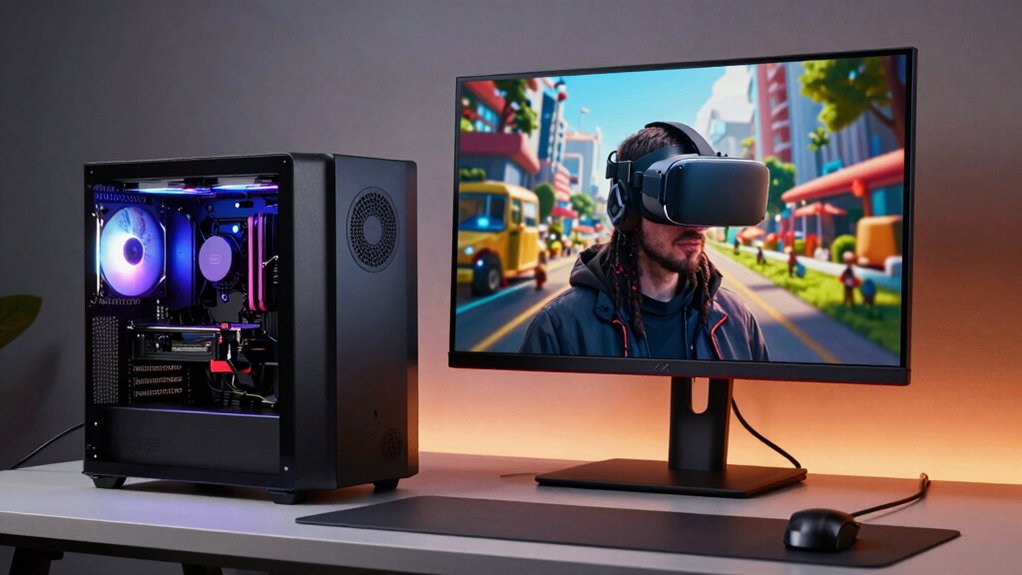
Balancing CPU and GPU ensures smooth VR performance without bottlenecks or lag.
Hardware compatibility is a crucial factor. Not all CPUs and GPUs work optimally together, especially if they’re from different generations or brands. Compatibility issues can restrict performance, even if both pieces of hardware are technically powerful. Before upgrading, you should check your motherboard’s specifications and compatibility lists to verify that your chosen CPU and GPU will perform well together. This proactive approach helps avoid bottlenecks and ensures your system is fully optimized for VR. Additionally, understanding hardware compatibility can help you make smarter upgrade choices and avoid mismatched components.
Identifying performance bottlenecks is vital. If you notice lag, judder, or stuttering, it’s a sign that your system isn’t balanced. Use diagnostic tools to monitor CPU and GPU utilization while running VR applications. If your GPU is running at near 100% while your CPU is underutilized, your GPU may be the limiting factor. If the CPU hits 100% and the GPU remains underutilized, then the CPU is the bottleneck. Once you identify the bottleneck, you can target your upgrades more effectively, investing in the component that will yield the greatest performance gains for your specific setup. Additionally, understanding the performance bottleneck in your system allows for more targeted and efficient upgrades.
Achieving the right CPU and GPU balance isn’t just about raw power; it’s about ensuring your hardware works in harmony. Proper hardware compatibility and understanding performance bottlenecks allow you to fine-tune your system, so your VR experience is smooth, immersive, and free from frustrating hiccups. By paying attention to these details, you set yourself up for maximum performance and a truly superior virtual reality experience.
As an affiliate, we earn on qualifying purchases.
Frequently Asked Questions
How Does CPU and GPU Balance Affect VR Motion Sickness?
If your CPU and GPU aren’t balanced in VR, hardware bottlenecks can occur, causing lag or stuttering that leads to motion sickness. When one component struggles, thermal throttling might kick in, reducing performance further. This mismatch creates inconsistent visuals, disrupting your sense of immersion. To prevent this, verify both CPU and GPU are well-matched, so your system runs smoothly, minimizing motion sickness and enhancing your VR experience.
What Are the Best CPU and GPU Combinations for VR?
You should aim for a high-end CPU like an Intel i7 or AMD Ryzen 7 paired with a powerful GPU such as an NVIDIA RTX 3080 or AMD RX 6800 XT. Guarantee hardware compatibility with your VR headset and prioritize software optimization to maximize performance. This combination helps deliver smooth, immersive experiences, reducing motion sickness and lag, and allowing your VR setup to run efficiently across demanding applications.
How to Optimize CPU and GPU Usage for Different VR Applications?
To optimize CPU and GPU usage across various VR applications, identify hardware bottlenecks by monitoring performance metrics. Use software optimization techniques like adjusting graphics settings, lowering resolution, or enabling asynchronous reprojection to balance load. Prioritize CPU tasks for physics and AI, while letting the GPU handle rendering. Regularly update drivers and software, and tailor settings for each application to guarantee smooth, immersive experiences without overloading your hardware.
Does Higher CPU or GPU Impact VR Latency More?
Higher GPU impact on VR latency is like a lightning strike—fast and noticeable. When your GPU struggles, rendering efficiency drops, causing visual delays and lag. While CPU bottlenecks can also cause latency issues, they often affect frame preparation rather than display. Ultimately, a powerful GPU minimizes hardware bottlenecks, ensuring smooth, immersive VR experiences with minimal latency, but both components need balance for peak performance.
How Can Users Monitor Real-Time CPU and GPU Performance in VR?
You can monitor real-time CPU and GPU performance in VR using tools like MSI Afterburner or SteamVR’s performance overlay. These tools display hardware compatibility metrics, including frame rates, temperatures, and usage percentages. Make certain your cooling solutions are effective to prevent overheating, which can cause performance drops. Regularly checking these metrics helps you optimize your setup for smooth VR experiences, balancing your CPU and GPU effectively.
As an affiliate, we earn on qualifying purchases.
Conclusion
Think of your VR setup like a busy kitchen—your CPU is the head chef coordinating everything, while the GPU is the sous-chef bringing dishes to life. When both work in harmony, your experience is seamless. Remember, if one is overwhelmed, the whole meal suffers. So, balance your CPU and GPU like a well-trained team, ensuring your VR adventures stay smooth and immersive—because in this tech kitchen, teamwork makes the virtual dream work.
As an affiliate, we earn on qualifying purchases.
VR system bottleneck diagnostic tools
As an affiliate, we earn on qualifying purchases.
As an affiliate, we earn on qualifying purchases.
Fall Picks
fall essentials
As an affiliate, we earn on qualifying purchases.