
To build a home network that supports VR reliably, prioritize a dedicated, high-speed Wi-Fi setup with a mesh system to eliminate dead zones. Position your router away from interference sources like microwaves and cordless phones, and switch to the 5 GHz band to reduce interference. Use Quality of Service (QoS) settings to prioritize VR traffic, and consider upgrading your internet plan for more bandwidth. Managing environmental factors and updating firmware regularly will help maintain stability—continue exploring to optimize your VR experience.

Get VR and gaming gear delivered free — and shop member deals
- Fast, free delivery on millions of items
- Access to Prime Big Deal Days deals on October 6–7
- Prime Video, Amazon Music and more included
Key Takeaways
- Design a dedicated, high-capacity Wi-Fi network with a mesh system to ensure stable coverage and eliminate dead zones.
- Prioritize VR traffic using Quality of Service (QoS) settings to minimize lag and ensure smooth performance.
- Minimize wireless interference by positioning routers away from electronics and switching to 5 GHz bands.
- Use high-speed internet plans and equipment capable of handling large data transfers required for VR.
- Regularly update firmware and optimize environmental factors to maintain consistent, immersive VR experiences.
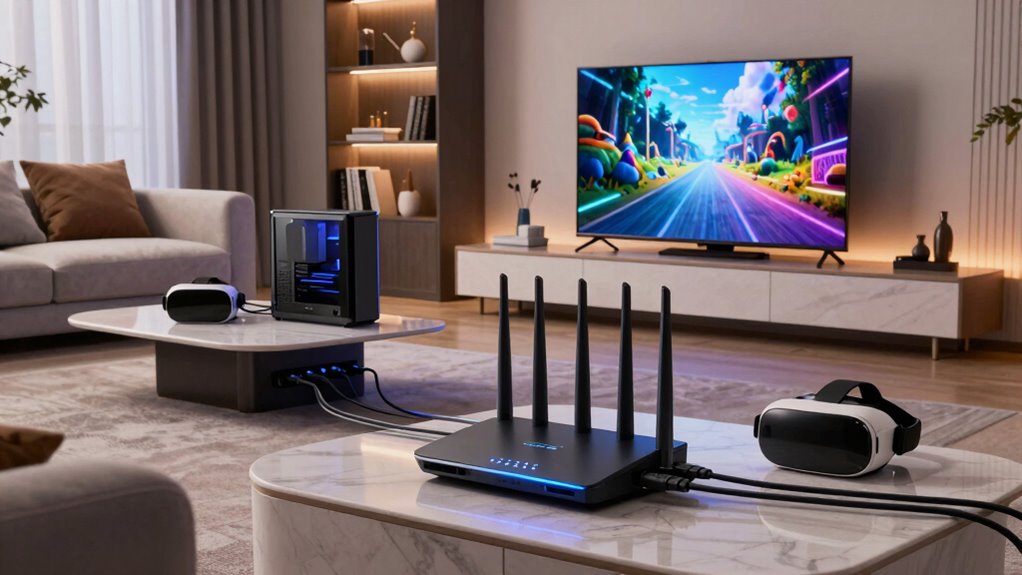
Are you ready to enhance your virtual reality experience at home? Building a home network specifically designed for VR isn’t just about having fast internet; it’s about creating a seamless, immersive environment where your VR headset can perform at its best. To do that, you need to understand how wireless interference and bandwidth allocation play essential roles. Wireless interference—caused by other devices, thick walls, or overlapping signals—can cause lag, disconnections, or degraded visuals, ruining your VR sessions. To prevent this, you should position your router strategically, away from microwaves, cordless phones, or other electronics that can emit signals on similar frequencies. Switching to a 5 GHz Wi-Fi band can notably reduce interference because it’s less crowded and more stable than 2.4 GHz, providing a cleaner signal for your VR setup.
Position your router away from electronics and use 5 GHz Wi-Fi for a more stable, interference-free VR experience.
Bandwidth allocation is equally important. VR content demands a substantial amount of data transfer to deliver high-resolution visuals and low latency. If your network is sharing bandwidth with multiple devices—smartphones, streaming devices, or household appliances—you risk bottlenecks that cause buffering or lag in your VR experience. To avoid this, prioritize your VR device within your network settings or consider setting up a dedicated network for gaming and VR. Quality of Service (QoS) settings on your router can help assign higher priority to VR traffic, ensuring your headset gets the bandwidth it needs when it needs it. Upgrading to a higher-capacity internet plan can also make a difference, especially if you frequently host multiplayer VR sessions or stream content.
Additionally, investing in a mesh Wi-Fi system can help eliminate dead zones and ensure consistent coverage throughout your home. Mesh networks distribute your internet connection evenly, reducing the chances of wireless interference and dead spots that could compromise your VR experience. Implementing wireless interference mitigation techniques can help maintain a stable connection even in complex home environments. Regularly updating your router’s firmware and choosing equipment optimized for high data throughput can further improve your network’s performance. For example, selecting equipment that supports high-capacity data transfer ensures your network can handle the demands of VR streaming and gaming without hiccups. Understanding and managing interference sources in your environment can significantly boost your connection stability. Additionally, being aware of potential sources of environmental interference, such as Bluetooth devices or neighboring Wi-Fi networks, can help you fine-tune your setup for optimal performance.
In the end, building a home network around VR requires thoughtful planning and a bit of investment, but it’s well worth it. By minimizing wireless interference and optimizing bandwidth allocation, you’ll create a smooth, immersive experience that lets you enjoy virtual worlds without fighting your network. Your VR sessions will feel more natural, responsive, and engaging—bringing your digital adventures to life like never before.
mesh Wi-Fi router for gaming and VR
As an affiliate, we earn on qualifying purchases.
As an affiliate, we earn on qualifying purchases.
Frequently Asked Questions
How Much Bandwidth Is Required for Seamless VR Experiences?
For seamless VR experiences, you need at least 25 Mbps of bandwidth per user to guarantee smooth gameplay and minimal lag. Focus on bandwidth optimization by prioritizing VR traffic and reducing background usage. Implement network redundancy with wired connections or dual routers to prevent interruptions. This setup helps maintain consistent performance, minimizing latency and buffering, so your VR sessions stay immersive and hassle-free, even during intense multiplayer or high-resolution experiences.
Can Existing Routers Support Multiple VR Headsets Simultaneously?
Most existing routers can support multiple VR headsets, but network congestion might cause issues during heavy use. Check your router’s device compatibility and guarantee it offers sufficient bandwidth and quality of service (QoS) features to prioritize VR traffic. If you experience lag or disconnections, consider upgrading to a mesh or Wi-Fi 6 router, which handles multiple devices better and reduces network congestion, ensuring smoother VR experiences for everyone.
What Security Measures Are Recommended for a VR Home Network?
Think of your VR home network as a fortress; secure it with virtual firewalls to block unauthorized access and guarantee only trusted devices connect. Use data encryption to protect sensitive information from prying eyes. Regularly update your router firmware and change default passwords. These steps keep your immersive experiences safe, letting you explore virtual worlds without worry, knowing your digital gates are guarded fiercely and your data stays private.
How Do I Prioritize VR Traffic Over Other Devices?
To prioritize VR traffic, start by implementing network segmentation, creating a dedicated VLAN or subnet for your VR devices. This isolates VR traffic from other devices, reducing congestion. Then, use Quality of Service (QoS) settings on your router to assign higher priority to VR traffic, ensuring smooth and lag-free experiences. Regularly monitor and adjust these settings to maintain the best performance as your network usage evolves.
What Are the Best Wired Options for VR Connectivity?
For the best wired VR connectivity, use Ethernet cables like Cat6 or Cat6a, which offer high speeds and reduced wireless interference. These options improve network reliability and scalability, ensuring your VR experience stays smooth even as your setup grows. Wired connections minimize latency and avoid interference from other wireless devices, providing a stable environment perfect for immersive VR gaming. Always opt for quality cables and a capable router for peak performance.
high-speed Wi-Fi 6 router with QoS
As an affiliate, we earn on qualifying purchases.
As an affiliate, we earn on qualifying purchases.
Conclusion
So, if you set up your home network right, you could turn your living room into a virtual universe where you’re the ruler of galaxies or the star of your own epic adventure. Forget lag and disconnects—your VR experience will be smoother than silk, faster than lightning, and more immersive than ever. With the right network, you’re not just playing; you’re stepping into a whole new universe where reality is just a suggestion.
As an affiliate, we earn on qualifying purchases.
Wi-Fi 6 mesh system for large home
As an affiliate, we earn on qualifying purchases.
As an affiliate, we earn on qualifying purchases.
Fall Picks
fall essentials
As an affiliate, we earn on qualifying purchases.