To choose VR comfort settings if you’re sensitive, start by calibrating your headset carefully and ensuring sensors are clean and properly positioned. Adjust visual options like field of view and motion limitation, such as teleportation, to reduce disorientation. Use high refresh rates and smoother visuals for stability. Take frequent breaks and gradually increase your exposure to avoid discomfort. Tweaking these settings can make a big difference—exploring further will help you find what works best for you.
Key Takeaways
- Adjust visual settings like field of view and motion blur to reduce disorientation and visual strain.
- Use comfort options such as teleportation, seated mode, or reduced motion to minimize movement-induced discomfort.
- Ensure proper hardware calibration and maintain a snug, comfortable headset fit for stable tracking.
- Start with shorter sessions and gradually increase exposure to build tolerance over time.
- Incorporate calming audio, adequate lighting, and regular breaks to prevent overstimulation and enhance comfort.
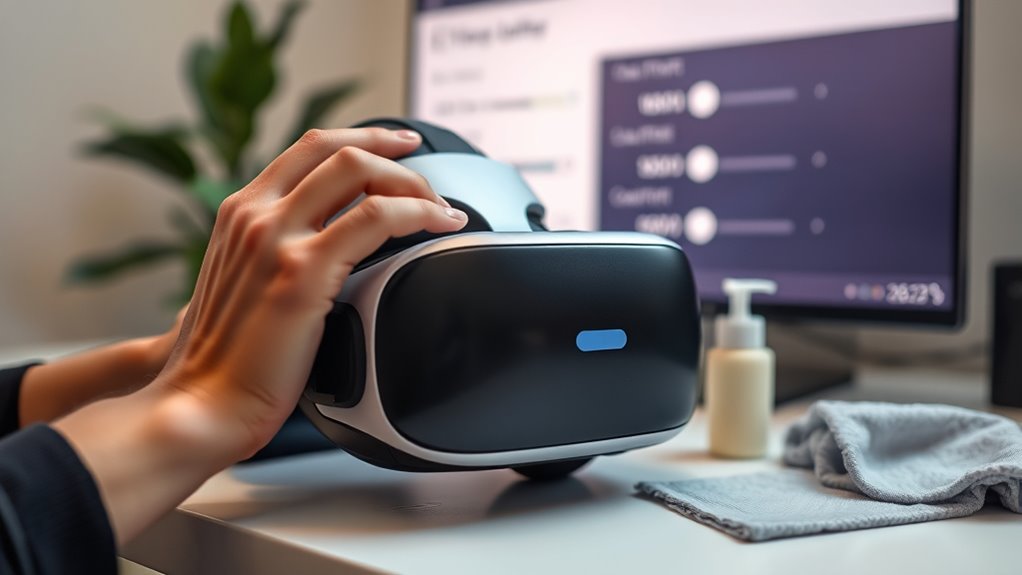
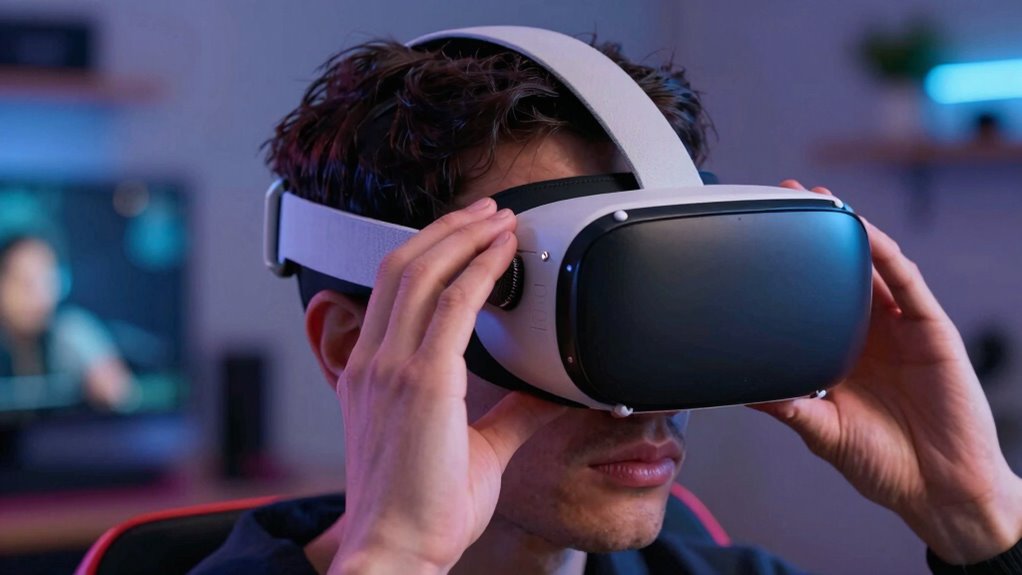
When diving into virtual reality, selecting the right comfort settings is vital to make certain an enjoyable experience. If you’re prone to motion sickness, adjusting your VR setup becomes even more important. Motion sickness often occurs when your brain receives conflicting signals—your eyes see movement, but your body doesn’t feel it. To minimize this, start by tweaking your hardware calibration. Proper calibration ensures that your headset’s tracking is precise, which reduces lag and jitter that can trigger discomfort. Make sure your sensors are clean, positioned correctly, and that the headset fits snugly but comfortably. An improperly calibrated system can cause visual inconsistencies, increasing the likelihood of motion sickness. Take time to follow your device’s calibration instructions carefully, as even minor misalignments can have a big impact on comfort levels.
Proper hardware calibration is essential for comfortable VR experiences and reducing motion sickness risks.
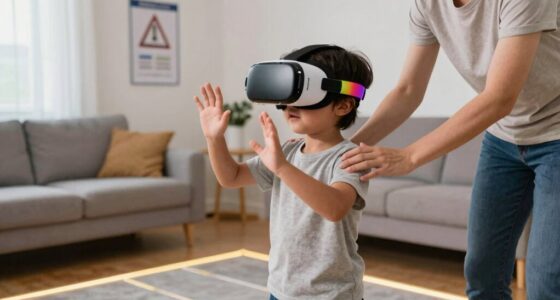
Once your hardware is calibrated correctly, focus on the visual and movement settings. Many VR systems offer comfort options like reduced motion or teleportation movement instead of smooth walking. These options greatly lessen the disorientation that can lead to motion sickness by limiting the visual flow of movement that doesn’t match your physical sensations. If you’re sensitive, start with seated or stationary experiences and gradually progress to more active gameplay as your tolerance improves. Don’t forget to adjust the field of view if your system allows it—narrowing the view can help lessen the sensation of motion and reduce nausea.
Sound settings also play a role in comfort. Using ambient sounds or calming music can help distract your brain from senses that trigger discomfort. Lighting and graphics settings matter too; lower your graphics quality if your headset allows it, because high frame rates and smooth visuals are key to avoiding motion sickness. The smoother your experience, the less likely you are to become dizzy or nauseous. Regularly taking breaks is essential; don’t push through discomfort. Instead, listen to your body and give yourself time to acclimate to VR environments.
Additionally, understanding how high refresh rates influence visual stability can help you select optimal settings—higher refresh rates produce smoother motion, reducing the likelihood of nausea. Ultimately, finding the right comfort settings involves a mix of hardware calibration, visual adjustments, movement options, and personal pacing. Each step reduces the chances of motion sickness and makes VR more accessible for sensitive players. Remember, patience is key—your comfort improves as you learn what settings work best for you. By paying attention to calibration and customizing your experience, you can enjoy VR without the unpleasant side effects that often discourage new users.
Frequently Asked Questions
Can Adjusting Comfort Settings Affect Game Performance?
Adjusting comfort settings can definitely affect your game performance. By enhancing visual stability through features like motion smoothing or reducing latency, you help your brain process visuals more easily, which keeps you focused. User customization allows you to tailor these settings to your comfort level, minimizing discomfort and distraction. When your VR experience feels stable and comfortable, you’re more likely to stay engaged and perform better in the game.
How Often Should I Update My VR Comfort Settings?
Think of your VR comfort settings as a ship’s compass, guiding you through smooth sailing. You should update them whenever you notice increased motion sickness, discomfort, or after new ergonomic design features are released. Regular tweaks ensure your experience remains enjoyable and reduces fatigue. Keep an eye on your symptoms, and don’t hesitate to modify settings to stay comfortable. Staying proactive helps you navigate VR worlds with ease.
Do Comfort Settings Work Across Different VR Headsets?
Comfort settings don’t automatically transfer across different VR headsets because of varying headset compatibility. You need to customize comfort options for each device individually, as each headset may have unique features and controls. To guarantee a comfortable experience, explore comfort customization options specific to each headset and adjust settings accordingly. This way, you optimize your VR experience regardless of the device you’re using, reducing discomfort and enhancing immersion.
Are There Recommended Settings for Motion Sickness Prevention?
Yes, there are recommended settings to prevent motion sickness. You should customize your comfort settings to reduce motion sickness triggers, like adjusting field of view or turning on static comfort options. Start with lower movement speeds and enable vignette or comfort mode. Experiment with these adjustments until you find a tailored setup that minimizes discomfort, ensuring a smoother and more enjoyable VR experience.
Can Custom Comfort Settings Be Saved for Future Use?
Absolutely, you can save custom comfort settings for future use. Many VR systems let you create custom profiles, so you don’t have to tweak settings every time. Just make sure to set up your preferences carefully, then use setting backups to save them securely. This way, you can quickly switch to your ideal comfort options, making your VR experience smoother and more enjoyable each time you play.
Conclusion
As you fine-tune your VR comfort settings, imagine slipping into a cozy, well-fitted pair of shoes that let you explore new worlds with ease. Each adjustment becomes a step toward smoother, more enjoyable adventures. When your headset feels just right, you can fully immerse yourself in vibrant landscapes and thrilling moments without discomfort. Embrace these settings like a trusted companion, and let your VR journey be as comfortable and exhilarating as a gentle breeze on a perfect day.