
TL;DR

Play games on Amazon Luna for your next adventure, included with Prime
- A rotating selection of games, no download needed
- Play on TV, laptop or phone
- Fast, free delivery for your gear, too
In iOS 27, Apple Intelligence can create an iPhone Shortcut from a plain-language description, including automations with multiple steps. The feature requires a supported device; users can still choose the traditional Editor mode, and created shortcuts can be edited and assigned to Siri, the Action Button, or the Home and Lock screens.
Apple’s iOS 27 Shortcuts app can use Apple Intelligence to turn a plain-language description into an automation, according to a CNET guide. Instead of adding each action manually, a user can describe a task—such as texting an estimated arrival time when leaving work—and have the app assemble a shortcut, provided the device supports Apple Intelligence.
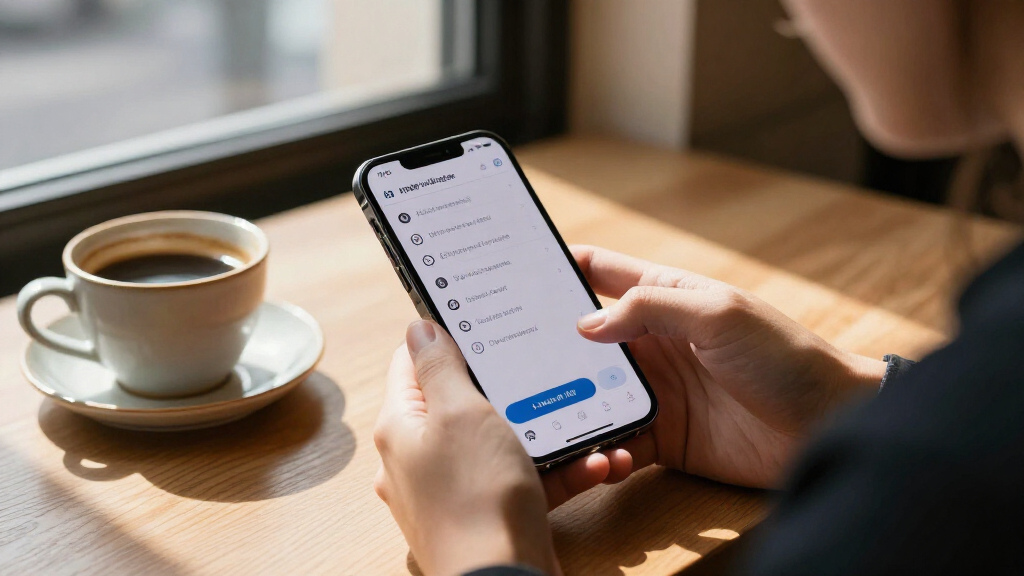
To try the feature, open the Shortcuts app and tap the plus button at the bottom of the screen. The app presents suggested automations, then lets users describe what they want to happen. Apple Intelligence selects and links actions based on the instruction. CNET says the feature can handle multistep tasks, not just a single action.
One example in the guide is a shortcut that turns on Background Sounds at bedtime and switches them off after an hour. Another suggested use is sending a partner a text with an estimated arrival time when leaving work. These are examples of possible automations, not claims that every request will produce the same result on every device.
Shortcuts remain available for manual editing after creation. Users can long-press a shortcut to edit or rename it. Tapping its name provides an option to add it to the Home screen as a bookmark. Shortcuts can also be assigned to the Action Button or Lock Screen, or run by asking Siri to use the shortcut’s name, CNET reports.
iOS 27 · SHORTCUTS GUIDE
Describe a Shortcut. Let Apple Intelligence Build It.
Turn a plain-language request into a multi-step iPhone automation. Start with a supported device, review what the app creates, then choose how to run it.
The idea
“What do you want your Shortcut to do?”
Describe the task in the Shortcuts app. Apple Intelligence selects and links actions to assemble a starting point you can inspect and edit.
01 / Build a request
From idea to automation
The new entry point reduces the setup work of connecting actions by hand. A specific request gives the app a clearer task to assemble.
Example · At bedtime
Sounds on, then off
Ask for a shortcut that starts Background Sounds at bedtime and turns them off after an hour.
Example · Leaving work
Send an arrival estimate
Describe a shortcut that texts your partner an estimated arrival time when you leave work.
Useful detail
Say what should happen
Include the action and, when relevant, the trigger or timing. Then check the generated steps against your intent.
02 / Practical workflow
Try it, inspect it, put it to work
Launch Shortcuts on a compatible device.
Tap the plus button and enter the automation you want.
Inspect the actions and conditions; edit or rename as needed.
Use the app, Siri, Action Button, or a screen control.
03 / Compatibility
Apple Intelligence sets the device bar
CNET reports these hardware requirements for Describe a Shortcut. Other devices can still use Shortcuts in Editor mode.
iPhone
iPhone 15 Pro or later
Apple Intelligence hardware support is required for the natural-language creation feature.
iPad & Mac
Apple silicon M1 or later
Devices outside the listed categories can continue building shortcuts manually with the Editor.
Examples show possible automations; they do not guarantee every request will work the same way. Availability may depend on device and configuration, and CNET does not report error rates. Verify actions and triggers, especially before a shortcut sends a message or changes device settings.
04 / Keep your workflow
Generated shortcuts stay editable
Describe a task for a quick start, then decide how much to customize. The traditional editor remains available for people who prefer hands-on setup.
Edit
Long-press a shortcut
Open its options to edit or rename it. Review the actions to confirm they match the request.
Launch
Choose a convenient route
Run it in Shortcuts, ask Siri by name, assign the Action Button, or add a Home or Lock Screen control where available.
Traditional option
Switch to Editor mode
Go to Settings → Apps → Shortcuts and select Editor as the default workflow.
“You can create a shortcut simply by describing what you want it to do in natural language.”
— CNET
“The Describe a Shortcut feature requires Apple Intelligence.”
— CNET
Quick answers
What to know before you begin
A short checklist for creating, checking, and launching a shortcut in iOS 27.
How do I describe a Shortcut?
Open Shortcuts, tap the plus button, and describe the automation in plain language. Apple Intelligence uses that instruction to select and link actions.
Which devices support it?
CNET says iPhone 15 Pro or later, or an iPad or Mac with Apple silicon M1 or later. Other devices can use Editor mode.
Can I edit the result?
Yes. Long-press the shortcut to edit or rename it. Review its steps and test the automation before relying on it.
How can I run it?
Use the Shortcuts app, Siri, the Action Button, or a Home or Lock Screen control, depending on your setup.
Fewer Steps to Build iPhone Automations
The change lowers the effort needed to create a personal automation. Shortcuts can connect actions and conditions across tasks, but setting them up manually has often required users to understand the app’s editor and configure each part themselves. A natural-language entry point could make those tools more approachable for people who know what they want their phone to do but do not know how to assemble the steps.
That matters because a shortcut can be used repeatedly and launched in several ways, including through Siri or the Action Button. A successful automation may save users from repeating routine steps. But the guide describes a simpler creation method, not proof that every generated shortcut will be correct or that it will work without review. The ability to edit the result keeps the existing controls relevant.
Products Worth Considering

Apple iPad Air 11-inch (M2), 512GB, Wi-Fi, Space Gray

Apple iPad Air (4th Generation, 10.9-inch, Wi-Fi, 256GB) – Space Gray

Apple iPad Air (2025) 13‑inch Wi‑Fi 256 GB – Space Gray (M3 chip)
As an affiliate, we earn on qualifying purchases.
Manual Shortcuts Remain Available
Apple’s Shortcuts app is used to automate tasks on iPhone, iPad and Mac. Its traditional Editor mode lets users construct a shortcut by selecting and arranging actions, and specify when an automation should run. CNET describes that process as less user-friendly for some people because it involves configuring the function and its activation conditions by hand.
The natural-language option does not replace that workflow. According to CNET, users who prefer the older approach can open Settings, then Apps, then Shortcuts, and select Editor as the default. This gives users a choice between describing an automation and building it through the app’s editor.
The feature’s reach is limited by Apple Intelligence hardware requirements. CNET says iPhone 15 Pro or later is required on iPhone, while iPad and Mac need Apple silicon, specified as M1 or later. Devices outside those categories can still use Shortcuts, but the guide says they are limited to Editor mode.
“What do you want your Shortcut to do?”
— Shortcuts app prompt described by CNET
Device Support and Results Vary
The guide identifies supported device categories but does not list every compatible model or specify whether availability differs by region, language, or software configuration. It also does not explain how the app responds when a request is ambiguous, which actions it may not be able to assemble, or whether users receive a detailed explanation of each generated step.
The examples illustrate intended uses, but they do not establish that every natural-language instruction will produce a working automation on the first attempt. Users should check the shortcut and its conditions after creation, particularly when it sends messages or changes device settings. CNET’s account does not report independent testing results or error rates for the feature.
Try a Request on Supported Hardware
On a compatible device, users can start in the Shortcuts app, tap the plus button, and enter a clear description of the task they want automated. After Apple Intelligence builds the shortcut, they can inspect or revise it, then decide how to run it: from the app, by asking Siri, through the Action Button, or from a Home or Lock Screen control where available.
People who do not want the natural-language workflow can switch the app to Editor mode in Settings. The next practical step is to test the chosen automation and adjust it if its actions or trigger do not match the intended routine. The guide provides no separate rollout date or further announced milestone beyond describing the feature in iOS 27.
Source: CNET
Key Questions
How do I describe a Shortcut in iOS 27?
Open the Shortcuts app, tap the plus button, and describe the automation in plain language. Apple Intelligence uses the instruction to select and link actions.
Which devices support Describe a Shortcut?
CNET says the feature requires an iPhone 15 Pro or later, or an iPad or Mac with Apple silicon M1 or later. Other devices can still use the Shortcuts app in Editor mode.
Can I edit a shortcut after Apple Intelligence creates it?
Yes. Long-press the shortcut in the app to find options to edit or rename it. Reviewing its actions can help confirm it matches the request.
Can I keep using the traditional Shortcuts editor?
Yes. Go to Settings, Apps, Shortcuts and select Editor to use the traditional workflow by default.
How can I run a shortcut after creating it?
Shortcuts can be launched in the app or assigned to options such as Siri, the Action Button, or a Home or Lock Screen control, depending on the setup.
Source: CNET