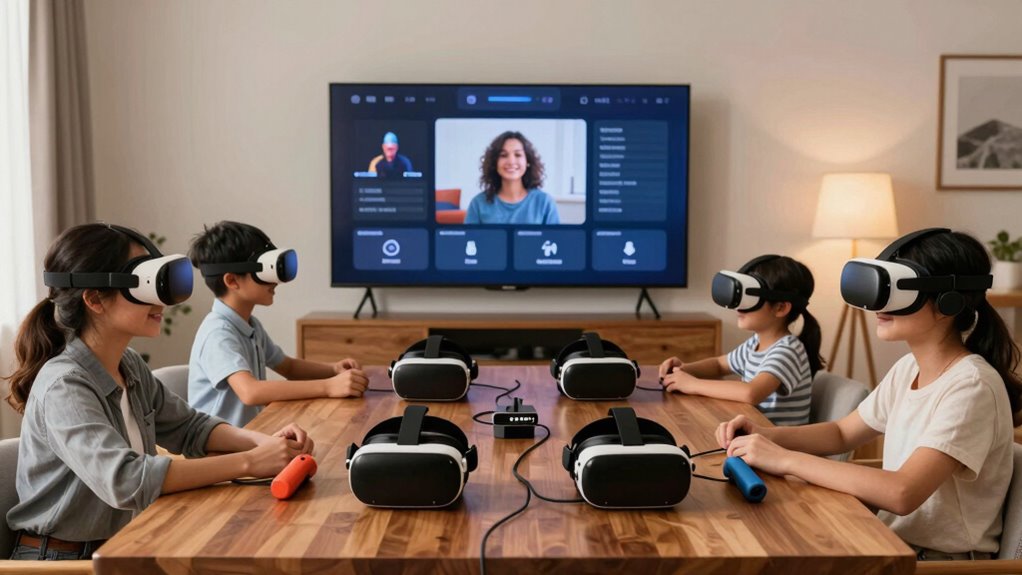

To set up multiple users on one VR device, start by creating individual profiles for each person, giving them clear names or icons. Customize settings like language and app access for each profile, and set parental controls if needed. Switch profiles smoothly before each session to avoid confusion and protect privacy. Keep profiles organized and permissions updated. If you want a simple, effective way to manage multiple users, this guide has more tips to help you succeed.
Key Takeaways
- Create individual user profiles with unique names or icons for easy identification.
- Enable profile-specific settings and preferences to ensure personalized experiences.
- Use content restrictions and parental controls to prevent access to inappropriate content for each user.
- Switch profiles before starting a session to avoid data mix-up and ensure privacy.
- Regularly review and update permissions and restrictions to maintain a smooth, organized multi-user environment.
Understanding the User Management Features of Your VR Platform
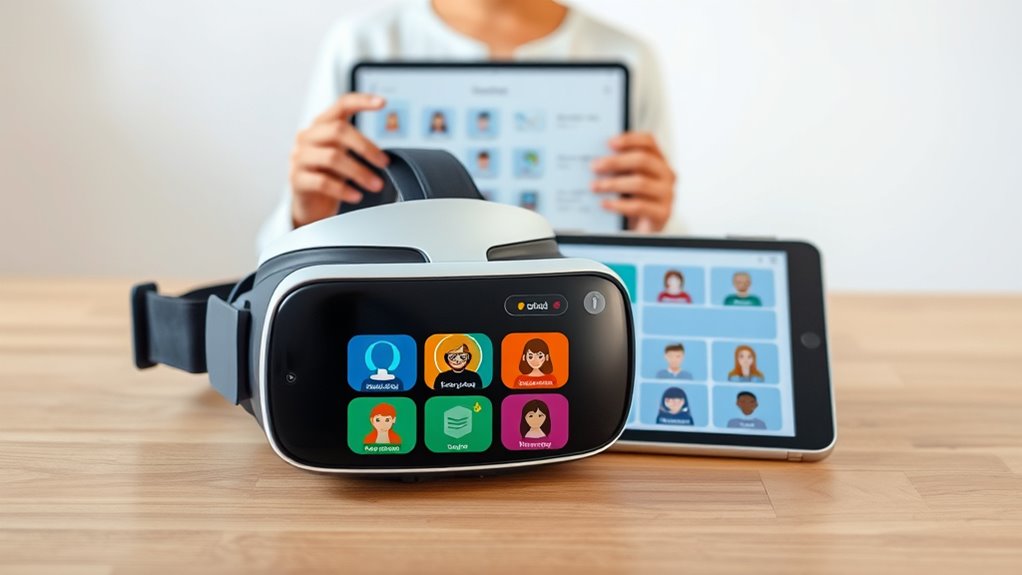
To effectively set up multiple users on your VR device, you need to understand the user management features available on your platform. These features allow you to create, manage, and switch between user profiles easily. Most VR systems offer options to add new users directly through the settings menu, often under a “Users” or “Profiles” section. You can typically customize permissions, save individual preferences, and control access to certain content for each user. Some platforms also allow parental controls or restricted profiles for younger users. Familiarize yourself with these tools so you can set up the environment that best suits your household. Understanding the user management features ensures a smoother experience, saving you time and preventing confusion when switching users. Additionally, knowing how these features integrate with smart home systems can enhance your overall household management. Being aware of profile customization options helps tailor each user’s experience to suit their needs, making the VR environment more user-friendly and secure. It is also beneficial to review any privacy settings to ensure each user’s data remains protected. Moreover, exploring security features can further safeguard personal information and prevent unauthorized access.
Creating Separate User Profiles for Each Individual
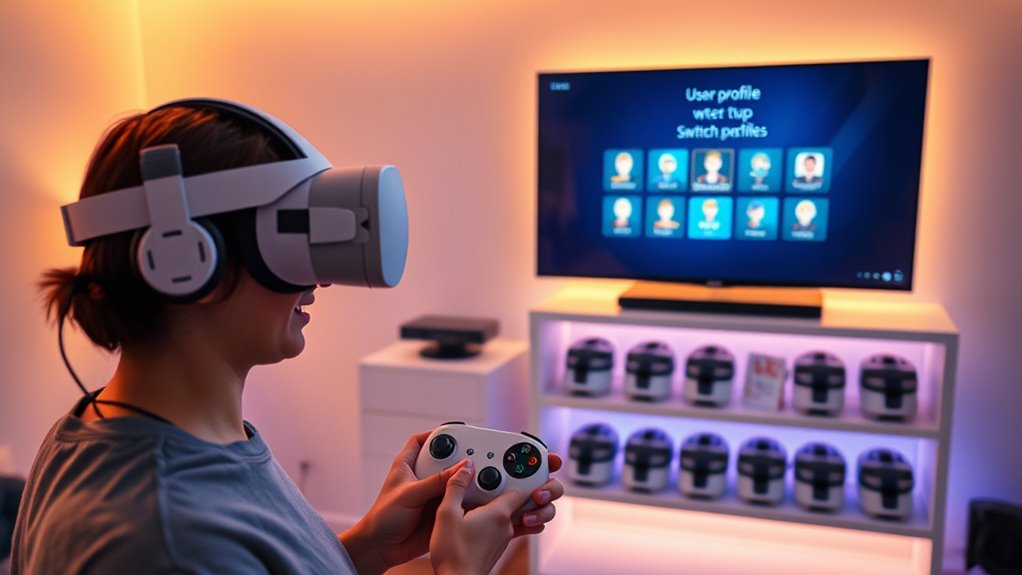
Creating separate user profiles for each individual guarantees everyone can enjoy a personalized VR experience without interfering with others’ settings. Start by browsing to your device’s user management menu, where you can add new profiles. Each user should have their own profile, complete with customized preferences, saved games, and app settings. This prevents mix-ups and keeps everyone’s data separate. When setting up a profile, assign a clear name or icon to easily identify it later. Encourage users to switch profiles before starting their session to avoid accidental data sharing. Creating individual profiles ensures a smoother experience, reduces confusion, and maintains privacy. Additionally, managing user profiles effectively can be compared to electric dirt bike horsepower, where understanding individual performance needs helps optimize the overall experience. To further enhance user management, consider exploring options for profile customization to tailor the experience even more precisely to each user’s preferences. Recognizing and adjusting to personalized settings can help ensure everyone gets the most out of their VR sessions without chaos. Implementing secure login methods can also help protect user data and improve overall security.
Setting Up Parent or Administrator Accounts for Control and Oversight
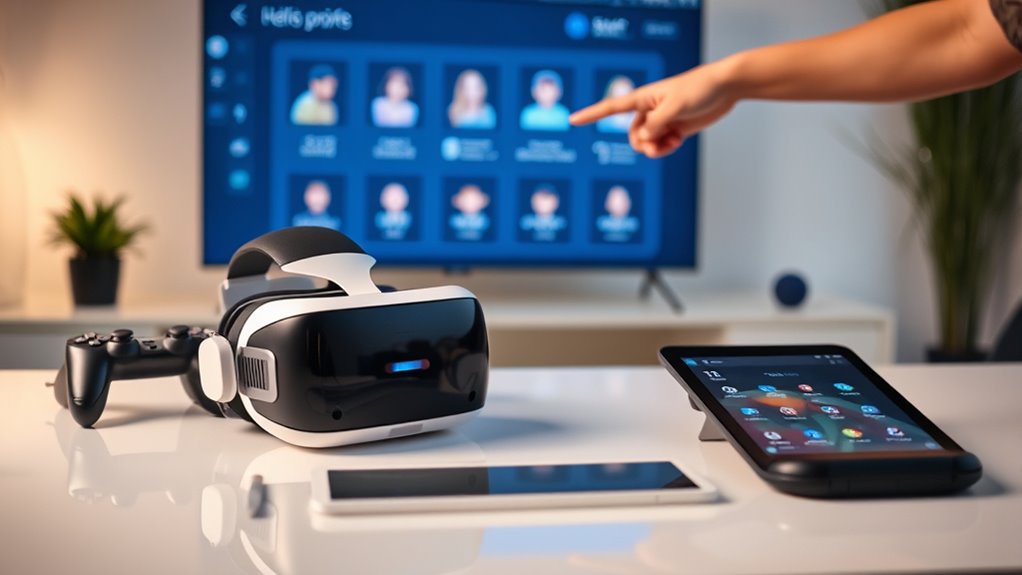
Setting up parent or administrator accounts is essential for maintaining control over the VR device’s usage and ensuring safety. These accounts give you the authority to manage settings, restrict content, and monitor activity. By establishing an admin account, you prevent accidental changes or unauthorized access by regular users. It also helps in setting boundaries for kids or less tech-savvy users. To make this easier, consider the following overview:
| Account Type | Permissions | Ideal For |
|---|---|---|
| Parent/Admin | Full control, settings, restrictions | Guardians, device managers |
| User | Limited access, personalized settings | Children, casual users |
| Guest | Temporary access, limited features | Visitors, brief users |
Having a clear hierarchy helps keep your VR environment safe and organized. Additionally, understanding the importance of content restrictions can help prevent exposure to inappropriate material and ensure a safer experience for all users. Implementing user management tools can further streamline this process and adapt controls as needed, especially considering the need for secure and sustainable solutions in modern environments. Incorporating user authentication methods can also enhance security and ensure proper access levels are maintained. Properly configuring access controls is crucial for balancing ease of use with safety and security.
Customizing User Settings for a Personalized Experience
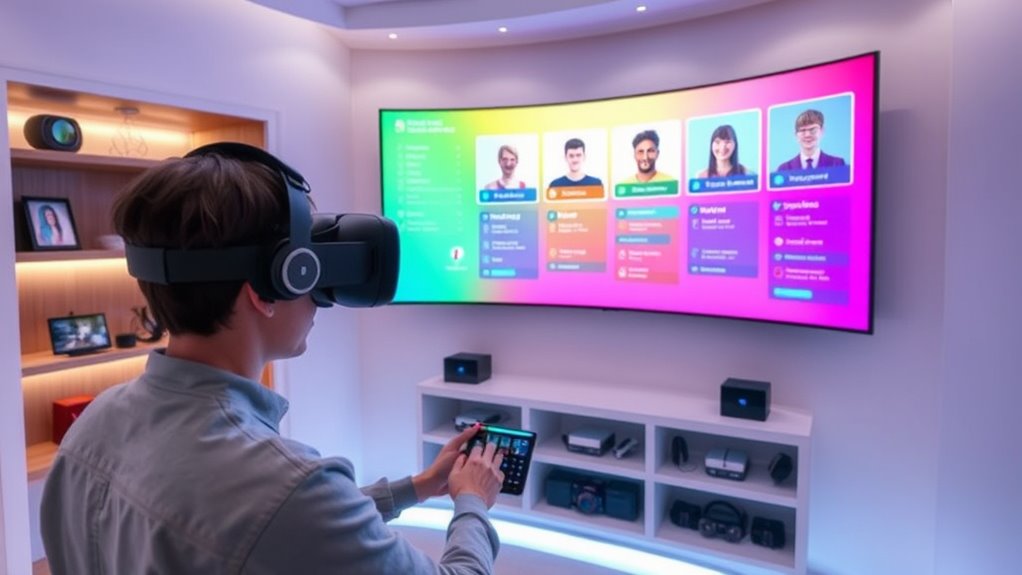
Once you’ve established user accounts, customizing each user’s settings allows for a truly personalized VR experience. Start by adjusting display preferences, such as brightness and resolution, to match individual comfort levels. Customize control schemes so each user can navigate intuitively. Set individual avatar appearances and environmental preferences to reflect personal style. Fine-tune audio settings, including volume and sound profiles, for ideal immersion. Many VR devices also enable you to save preferred language options and notification settings. Additionally, proper device calibration ensures each user’s experience is optimized for comfort and performance. Regularly updating firmware and software can also help maintain optimal device performance, preventing issues that could interfere with personalization. Being aware of network connectivity can further enhance the experience by reducing lag and improving stability during use. Ensuring that the device’s software settings are configured correctly can also streamline each user’s setup process. Taking the time to customize user profiles ensures that each individual can enjoy their VR experience without unnecessary adjustments. By tailoring these elements, each user can jump straight into their preferred environment without reconfiguring settings every time. This not only enhances comfort but also makes switching between profiles seamless, ensuring everyone gets a smooth, personalized experience without interference.
Managing App and Game Access Across Profiles
Managing app and game access across profiles helps guarantee everyone has the right level of control. You can set profile-specific app settings, manage play permissions, and restrict content as needed. This approach is similar to implementing Free Floating elements in backyard design, where flexibility and customization ensure a harmonious environment. Properly managing these settings can also help prevent accidental purchases or access to inappropriate content, much like selecting the best woods for farmhouse tables to ensure durability and longevity. Additionally, understanding the plant properties of herbal remedies can aid in crafting effective health solutions for users with different needs. Incorporating vetted security measures, such as password protections and parental controls, further enhances safety. This way, each user’s experience stays personalized and secure, much like the benefits of somatic therapy that promote tailored emotional healing.
Profile-specific App Settings
To guarantee each user has a tailored experience, you can customize app and game settings based on profiles. Many VR platforms allow you to set individual preferences, like control schemes, display options, and accessibility features, for each user. This way, when someone switches profiles, their preferred settings automatically load, assuring a seamless experience. You can also restrict certain apps or games for specific profiles, preventing accidental launches or inappropriate content. Adjusting these settings helps keep each user’s environment consistent and personalized without affecting others. It’s a simple way to maintain order and ensure everyone enjoys their VR experience exactly how they like it. Properly managing profile-specific app settings minimizes disruptions and enhances user satisfaction.
Managing Play Permissions
Managing who can access specific apps and games guarantees each user’s experience remains appropriate and secure. To do this, you’ll want to set permissions that control app and game access for each profile. Most VR platforms allow you to assign app permissions individually, so you can restrict younger users from mature content or prevent accidental launching of certain apps. Start by accessing the device’s user management settings, then select the profile you want to modify. From there, adjust app permissions or access controls as needed. Regularly review these permissions to ensure they align with each user’s age and comfort level. This proactive management helps prevent unwanted content from appearing and keeps the VR experience safe and enjoyable for everyone.
Custom Content Restrictions
After setting individual app permissions, you can take further control by applying custom content restrictions across profiles. This helps prevent users from accessing age-inappropriate or unwanted content, keeping everyone safe and comfortable. Most VR systems allow you to specify which apps or games are accessible for each profile. You can block mature or certain genres, ensuring kids or sensitive users only see suitable options. To do this, navigate to the content restrictions or parental controls section in your device settings. Set preferences for each user, tailoring access based on age or maturity level. Regularly review and update these restrictions to account for new content or changing needs. Custom content restrictions offer peace of mind and help maintain a controlled, enjoyable VR experience for everyone.
Switching Between Users Smoothly During Sessions
Switching between users during a VR session can sometimes disrupt the experience if not done smoothly. To facilitate seamless transitions, prepare the device by setting quick switch options and familiarizing all users with the process. Use the VR system’s quick-switch feature to minimize downtime, and communicate clearly when switching. This avoids confusion and keeps everyone immersed. Here’s a quick reference:
| Step | Action |
|---|---|
| 1 | Save your session progress |
| 2 | Exit current user profile |
| 3 | Select next user profile |
| 4 | Confirm switch |
| 5 | Resume session |
Following these steps, you’ll keep the flow steady and prevent disruptions during shared VR sessions.
Maintaining Privacy and Data Security for Multiple Users

To keep each user’s data private, you need to manage user profiles carefully and set clear access permissions. Implementing data encryption helps safeguard sensitive information from unauthorized access. By combining these strategies, you ensure a secure and private experience for everyone using the VR device.
User Profile Management
Managing user profiles on a shared VR device requires careful attention to privacy and data security. You want each user’s experience to stay private while preventing unauthorized access. To achieve this, consider these key steps:
- Set up individual profiles with unique login credentials to restrict access.
- Enable profile-specific settings to customize and protect personal data.
- Regularly review and update permissions to ensure privacy remains intact.
Data Encryption Techniques
Implementing robust data encryption techniques is essential for safeguarding each user’s private information on a shared VR device. Encryption ensures that sensitive data, such as personal preferences, saved settings, and login credentials, remain unreadable to unauthorized individuals. Use strong algorithms like AES (Advanced Encryption Standard) to protect stored data and TLS (Transport Layer Security) for data in transit. Regularly update encryption keys and firmware to prevent vulnerabilities. Consider encrypting data at multiple levels—application, device, and network—to add layers of security. By doing so, you reduce the risk of data breaches and unauthorized access. Remember, encryption isn’t just a one-time setup; it requires ongoing management to adapt to emerging threats and maintain user privacy across all profiles.
Access Permission Controls
Since multiple users will access the same VR device, establishing clear access permission controls is essential to protect each person’s privacy and data security. You need to set boundaries to prevent unwanted access to personal content or settings. To do this effectively:
- Create individual user profiles with unique login credentials, ensuring each user’s data stays separate.
- Enable parental or admin controls to restrict access to certain apps, settings, or content.
- Regularly review and update permissions to adapt to changing needs and prevent unauthorized access.
Troubleshooting Common User Management Issues
When setting up multiple users on a single VR device, issues can sometimes arise that prevent smooth switching or proper account access. Common problems include login errors, where the device doesn’t recognize user credentials, or profiles failing to load correctly. To fix login issues, double-check user credentials and ensure accounts are properly linked. If profiles don’t load, restart the device or update its software to resolve compatibility problems. Sometimes, user data may corrupt, requiring you to reset or recreate profiles. Also, verify that permissions are correctly set for each account, preventing access restrictions. If switching between users is slow or unresponsive, close background apps or clear cache to improve performance. Regularly updating your device’s firmware can help prevent many of these issues from recurring.
Best Practices for Organizing and Maintaining Multiple Profiles
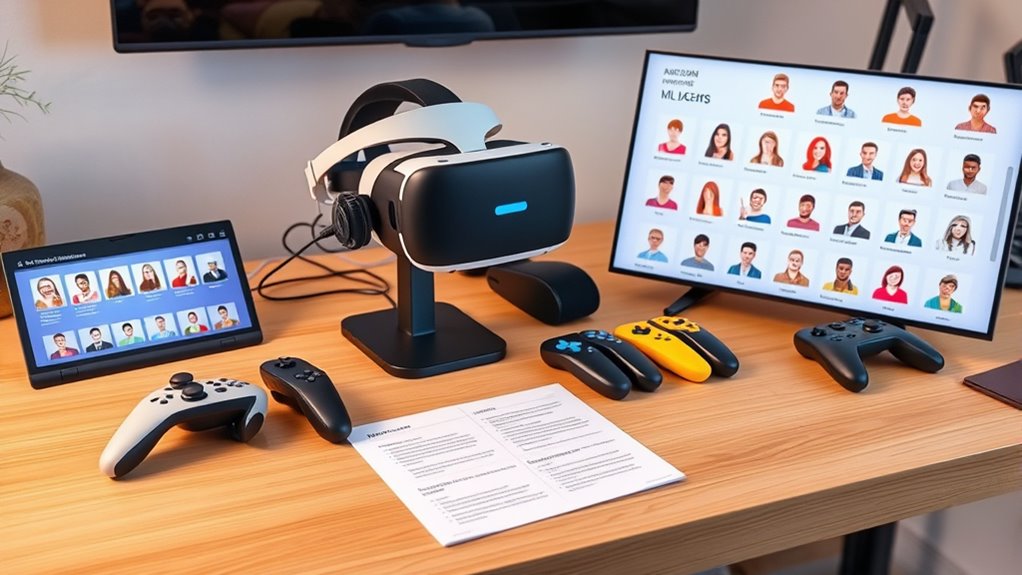
To keep multiple profiles organized and easily accessible on your VR device, it is essential to establish clear naming conventions and categorization methods. This prevents confusion and saves time when switching between users. Consider these best practices:
Organize VR profiles with clear names and categories to save time and reduce confusion.
- Use distinct, descriptive names for each profile that reflect the user’s identity or purpose.
- Create folders or categories for different user groups, such as kids, adults, or guests.
- Regularly review and update profiles to remove inactive ones and keep information current.
Frequently Asked Questions
Can Multiple Users Share a Single VR Headset Simultaneously?
No, multiple users can’t share a single VR headset simultaneously for active use. Each person needs their own headset or device to guarantee a smooth experience. However, you can set up multiple profiles or accounts on some VR platforms, allowing different users to switch easily between sessions. Just remember, for actual simultaneous use, each user must have their own dedicated VR hardware.
How Do I Reset a User Profile if It Encounters Errors?
Imagine your VR headset as a sleek cockpit, ready for action. To reset a user profile with errors, navigate to the device’s settings menu, select ‘User Management,’ and find the problematic profile. Tap ‘Reset’ or ‘Delete,’ then confirm. This clears any glitches, like wiping fog from a windshield, giving you a fresh start. Reconfigure the profile if needed, and you’re back in control, ready for an immersive experience.
Are There Parental Controls Available for Restricting Content Access?
Yes, most VR devices offer parental controls to restrict content access. You can usually find these settings in the device’s menu under privacy or security options. Simply enable the controls, set a PIN, and choose the content restrictions appropriate for your child’s age. This way, you maintain control over what they can access, ensuring a safer and more suitable VR experience without chaos.
Can User Profiles Be Transferred Between Different VR Devices?
Think of user profiles like leaves floating downstream; some might reach different devices. Generally, transferring profiles isn’t straightforward. Most VR systems don’t support direct transfer between devices, so you’ll need to manually set up profiles on each one. However, some platforms like Oculus allow account syncing via the cloud, making it easier to replicate your settings. Check your device’s specific instructions for the best method.
How Does the System Handle Software Updates Across Multiple Profiles?
The system manages software updates by applying them uniformly across all profiles on the device. When an update is available, it automatically downloads and installs, guaranteeing everyone has the latest features and security patches. You don’t need to update each profile separately. This seamless process keeps all users synchronized, minimizes disruptions, and ensures that everyone enjoys a consistent, up-to-date VR experience without any chaos.
Conclusion
By mastering these user management tips, you’ll turn your VR device into a perfectly organized hub, avoiding chaos like a skilled conductor guiding an orchestra. With clear profiles and smooth switching, everyone gets their personalized experience without stepping on each other’s virtual toes. Keep privacy tight and troubleshoot confidently. Before you know it, managing multiple users will feel as effortless as a breeze—making your VR world a seamless, fun-filled wonderland for all!