If your VR audio sounds muffled, start by checking your headset’s volume settings and making sure both hardware and app volumes are turned up and not muted. Inspect your audio cables and connections, ensuring they’re secure and undamaged. Verify that your device’s audio output is correctly set and free of enhancements that could muffle sound. Testing different apps and sources can help pinpoint whether the issue is hardware or software. If muffling persists, other fixes await — look further to improve your experience.
Key Takeaways
- Verify headset volume settings and ensure hardware and app volumes are turned up and not muted.
- Check that all cables and connectors are securely plugged in and free of damage or debris.
- Confirm the correct audio output device is selected in device and app settings.
- Test audio with different apps, sources, or devices to identify if muffling is app-specific or hardware-related.
- Inspect environmental factors like wireless interference, obstructions, or electromagnetic devices that may disrupt audio clarity.
Check Your Headset’s Volume Settings
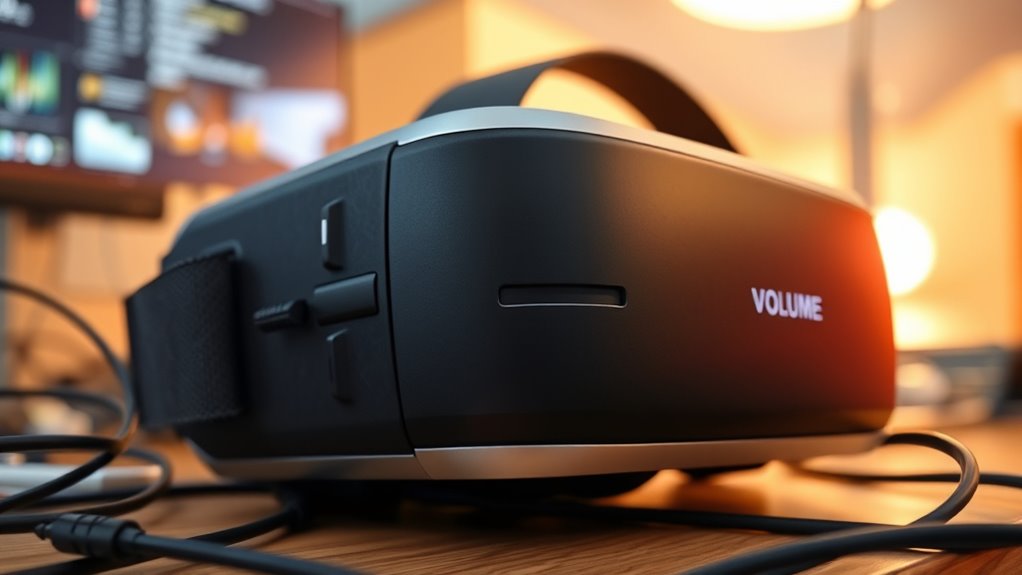
If your VR audio sounds muffled, the first step is to check your headset’s volume settings. Sometimes, the volume might be turned down or set too low, causing the sound to seem distant or unclear. Put on your headset and locate the volume controls, which are usually on the side or bottom of the device. Increase the volume gradually to see if the audio improves. Additionally, verify if there’s a separate volume setting within the VR software or app you’re using. Sometimes, the in-app volume can be muted or set lower than the headset’s physical controls. Ensuring both hardware and software volume levels are properly adjusted often resolves muffled sound issues quickly. Checking your audio output settings can also help identify if the problem originates from the device or software configuration. Also, firmware updates for your headset might improve audio performance and fix bugs related to sound quality. Regularly updating your headset firmware ensures compatibility with new features and bug fixes that can enhance overall audio clarity. Moreover, inspecting the audio cables and connections can prevent audio degradation caused by loose or damaged wires. Additionally, verifying the audio driver settings on your connected device can help ensure clear sound transmission.
Inspect the Audio Connection and Cables

Start by checking that your cables are securely connected and not loose. Inspect the connectors for any signs of damage or wear that could affect audio quality. If issues persist, try testing different ports to see if the problem is with the connection. Additionally, ensure that your device’s air purifier filters are clean and functioning properly, as poor air quality can sometimes impact audio performance. A cleaning schedule for your filters can help maintain optimal function. Regular maintenance, including filter replacement, is essential for keeping your devices operating smoothly. Remember that paint sprayer maintenance, such as cleaning filters and checking hoses, can also influence overall device operation and should be regularly inspected. Being aware of manipulation tactics used in digital environments can help you better troubleshoot and avoid unnecessary frustration.
Check Cable Tightness
Ensuring your cables are securely connected is essential for clear VR audio. Loose connections can cause muffling or audio dropouts. Check that all cables are snugly plugged into their ports. Gently wiggle each cable to see if it stays firmly in place; loose cables often lead to poor sound quality. Visualize your setup:
| Cable Type | Connection Status |
|---|---|
| Headset cable | Fully inserted, no wiggle |
| Audio jack | Firmly plugged in |
| Power cable | Tight, no slack |
| USB connection | Secure and stable |
Make sure none of these connections feel loose or unstable. proper cable management can also prevent accidental disconnections and improve overall setup reliability. Additionally, inspecting your audio settings can help identify if software configurations are affecting your sound quality. Tightening cables ensures your VR experience delivers crisp, muffled-free audio.
Inspect Connector Damage
Even when cables feel securely plugged in, damage to connectors can still cause muffled audio. Over time, connectors can bend, crack, or wear out, disrupting the signal flow. Inspect the connectors closely for any visible signs of damage, such as bent pins, corrosion, or debris. Connector damage can weaken the connection, leading to poor sound quality. Dirty or corroded contacts can also weaken the connection, leading to poor sound quality. Gently clean the connectors with a soft cloth or isopropyl alcohol if you notice any dirt or corrosion. connector durability can influence how well the connection holds up over time, so examining this aspect can help prevent future problems. Additionally, ensuring the proper connection is secure and fully inserted can help maintain optimal audio quality. Damaged connectors often require replacing to restore clear, crisp audio in your VR headset. Regularly checking for connector wear is essential to prevent future muffling issues and maintain consistent sound performance. Remember that signal integrity depends heavily on connector condition, making thorough inspection vital. Ensuring connectors are intact is a vital step toward resolving muffled sound issues.
Test Different Ports
If your VR audio still sounds muffled, testing different ports on your headset or device can help identify the source of the problem. Switch your audio cable to various ports, such as from a headphone jack to a USB or HDMI port. This helps determine if a port is faulty or causing the issue. Some ports may have dirt or damage affecting sound quality, so try cleaning or changing them. Here’s a quick guide:
| Port Type | Location | Symptoms of Issue |
|---|---|---|
| 3.5mm Jack | Headset or device port | Muffled sound, crackling |
| USB-A | Back of PC or console | No sound, low volume |
| HDMI | Video/Audio output | Distorted sound, no audio |
| Optical Out | Digital audio output | Static noise, muffling |
| USB-C | Modern headsets | Intermittent sound or muffling |
Testing different ports pinpoints whether hardware or connection problems cause muffled audio. Regular maintenance of audio connections can prevent issues like muffling and improve overall sound quality. Ensuring your connections are secure and clean can also help maintain optimal audio performance.
Verify Audio Output Settings on Your Device

To fix muffled VR audio, start by checking your device’s output settings. Make certain the correct audio device is selected, whether it’s your headset, speakers, or headphones. Sometimes, the system defaults to a different output, causing sound issues. You should also verify that any audio enhancements or equalizer settings are disabled, as they can distort sound quality. Ensuring the air quality in your environment is good can also help improve overall sound clarity, especially if poor air quality affects your concentration or hearing. Additionally, audio calibration can enhance sound fidelity and should be checked if available. Proper environmental conditions can influence audio perception, so maintaining good air quality might help with clarity. Here are key things to check:
- Select the proper audio output device, like your VR headset or headphones
- Adjust volume levels to ensure they’re high enough
- Disable any audio effects or enhancements that might muffle sound
Test Different Audio Sources and Apps

To identify if the muffled sound is tied to a specific app or source, try testing different audio apps and sources. Switch between various device outputs and compare the audio quality to see if the problem persists across options. This approach helps pinpoint whether the issue is with the app, source, or your device setup.
Try Multiple Apps
Since different apps and audio sources can process sound differently, testing multiple options helps identify which ones provide the clearest and most immersive VR audio. Some apps may have better spatial audio support or optimize sound settings for your headset. By switching between apps, you can determine if the muffling issue persists across all sources or is specific to one. This process helps isolate the problem and guides you toward the best audio experience. Imagine trying a music app that delivers crisp, vibrant sound, or a game with precise directional cues. You might also test a video streaming app with immersive surround sound. Experimenting with various sources can reveal whether the issue lies with the app or your headset’s settings. Exploring audio processing differences can further improve your VR sound quality by understanding how each app handles spatial and surround sound features.
Switch Audio Sources
Trying different audio sources and apps allows you to pinpoint whether the muffling issue is linked to a specific app or your headset’s overall performance. Switch between streaming platforms, local media players, or in-game audio to see if the muffling persists across all sources. If you notice the sound only muffled in one app, the problem likely lies within that app’s settings or compatibility. However, if all sources sound muffled, focus on your headset’s audio hardware or connections. Testing various apps helps narrow down the root cause and determines whether the issue is software-related or hardware-related. Keep track of which sources produce clear sound and which don’t for an easier diagnosis. This step is essential before moving on to more technical checks.
Compare Device Outputs
Testing different device outputs is essential to identify whether the muffling issue is caused by a specific app, media source, or your headset’s hardware. By switching between various audio sources and applications, you can pinpoint where the problem originates. For example, you might test a streaming service, a local media player, or a VR app to compare their audio quality. Imagine hearing:
- Crisp, clear dialogue from a video game, then switching to a muted, echoey podcast.
- An immersive VR experience with rich spatial sound, followed by muffled music playback.
- Audio from your headset’s built-in app versus an external media player.
This process helps you isolate whether the issue is with the hardware, a particular app, or the media content itself, guiding you toward an effective fix. Content quality is crucial to ensure your audio experience isn’t compromised by low-quality media files.
Examine Environmental Factors and Interference
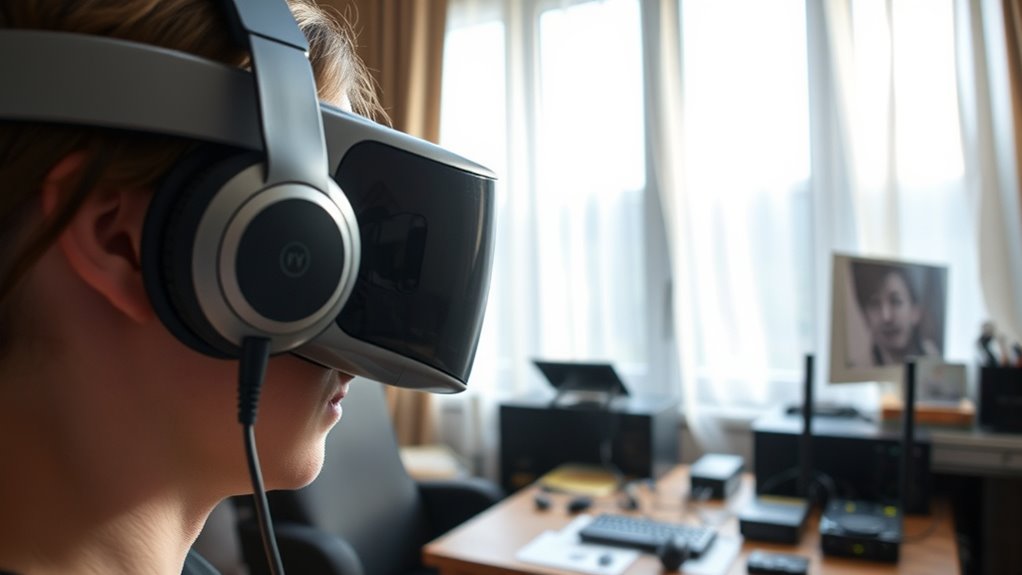
Environmental factors and interference can substantially impact the clarity and quality of VR audio, often making sounds seem muffled or distorted. Wireless signals, such as Wi-Fi or Bluetooth, can cause interference if they operate on overlapping frequencies, disrupting audio streaming. Physical obstructions like walls, furniture, or even metallic objects can weaken signals between your headset and controllers or transmitters. High ambient noise levels or reflective surfaces may also pick up unwanted sounds or cause echoes, reducing audio clarity. Additionally, electromagnetic interference from devices like microwaves or cordless phones can interfere with wireless signals. To improve audio quality, try reducing the number of electronic devices nearby, move closer to your transmitter, or eliminate physical obstructions. These steps can help minimize interference and restore clearer VR sound.
Ensure Firmware and Software Are Up to Date
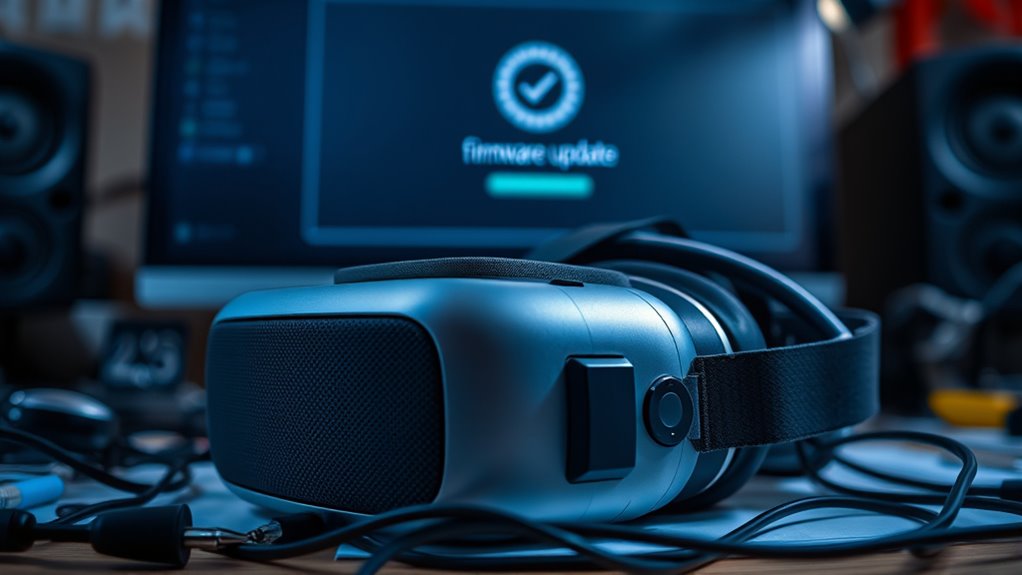
Keeping your VR headset’s firmware and software up to date is essential for peak audio performance. Updates often fix bugs, improve compatibility, and enhance sound quality. To guarantee everything runs smoothly, regularly check for updates through your device’s settings or companion app. Outdated firmware can cause audio issues, like muffled sound or loss of clarity.
Regularly update your VR firmware to ensure clear, immersive audio and optimal performance.
- Imagine your headset as a high-performance engine that needs regular tuning to run smoothly.
- Think of software updates as upgrades that release new sound features or fix existing glitches.
- Visualize notifications prompting you to install the latest version, helping your audio stay crisp and immersive.
Frequently Asked Questions
Can Background Noise Affect VR Audio Clarity?
Yes, background noise can affect VR audio clarity. When there’s a lot of ambient sound, it can mask or drown out important audio cues, making it harder to hear details in your virtual environment. To improve clarity, try reducing background noise in your space or use noise-canceling headphones. Adjusting the volume and settings on your VR device can also help you focus on the immersive audio rather than distractions.
How Does Room Acoustics Influence VR Sound Quality?
Imagine you’re in a small, bare room with hard walls. Room acoustics substantially influence VR sound quality by causing echoes and reverberations that muddle audio clarity. If the space has reflective surfaces or irregular shapes, sound waves bounce unpredictably, distorting audio cues. To improve, add soft furnishings or acoustic panels, which absorb sound and reduce echoes, providing a clearer, more immersive VR experience.
Is It Normal for VR Audio to Vary Between Apps?
Yes, it’s normal for VR audio to vary between apps. Different apps use various sound design techniques, audio settings, and encoding methods, which can influence your experience. Some apps might prioritize immersive spatial audio, while others optimize for clarity or performance. To improve consistency, check each app’s audio settings, verify your headset firmware is updated, and consider adjusting your environment’s acoustics or using external audio enhancements.
Can Headphones Impact the Muffled Sound in VR?
Yes, headphones can impact the muffled sound in VR. For example, if you wear cheap or poorly fitting headphones, the audio may be compressed or blocked, reducing clarity. You might notice muffled sounds or low volume. To fix this, try switching to higher-quality headphones, ensuring they fit snugly, and check for any debris or damage that could be obstructing sound. Proper headphones make a big difference in your VR experience.
How Do I Reset My VR Headset’s Audio Settings?
To reset your VR headset’s audio settings, start by turning off your headset. Then, access the settings menu—usually through the main menu or a dedicated app. Look for the audio or sound options, and select the reset or restore defaults option. Confirm your choice, then power the headset back on. This process restores the audio settings to factory defaults, helping to fix muffled or problematic sound issues.
Conclusion
By walking through these steps, you’ll clear the fog clouding your VR experience, revealing crisp, immersive sound just like a window opening to fresh air. Think of your headset as a symphony orchestra—each part must work in harmony for the music to truly come alive. So, check your settings, connections, and updates first. With a little troubleshooting, you’ll soon be back to losing yourself in the soundscape, not muffled echoes.