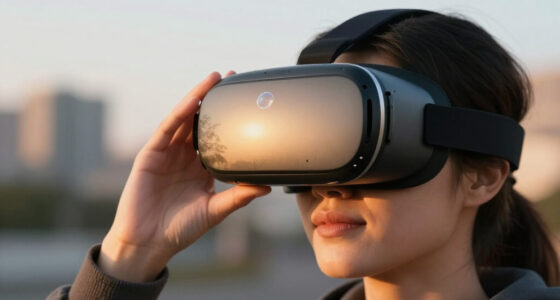
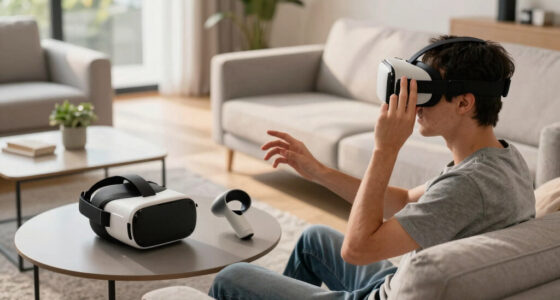
When your VR system worked yesterday, it gives you a clear starting point to identify recent changes or issues. Remembering that everything was fine helps you focus on hardware adjustments, software updates, or content changes made since then. If you investigate what changed last, you can quickly rule out potential causes and avoid unnecessary troubleshooting steps. Continuing to explore these clues will help you find the root problem faster and restore smooth VR experience.

Get VR and gaming gear delivered free — and shop member deals
- Fast, free delivery on millions of items
- Access to Prime Big Deal Days deals on October 6–7
- Prime Video, Amazon Music and more included
Key Takeaways
- It indicates recent changes or updates are likely causes of current issues.
- Establishing a baseline helps identify what has altered since last functioning.
- System restarts can resolve temporary glitches that disrupted VR operation.
- Recognizing normal behavior guides focused troubleshooting efforts.
- Comparing current performance to yesterday’s state helps isolate specific problem sources.
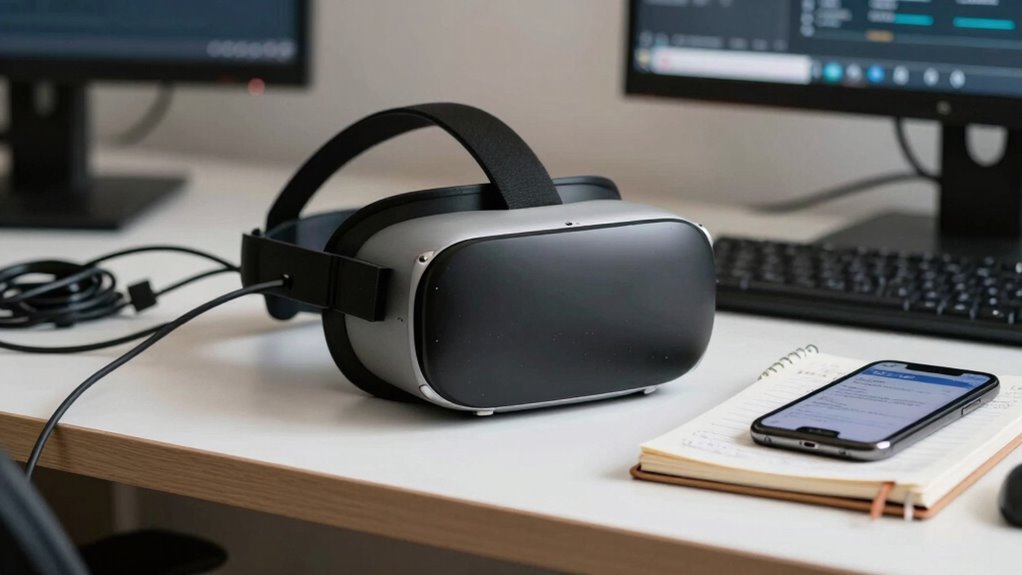
When troubleshooting virtual reality issues, remembering that “It worked yesterday” can be a critical clue. If your VR headset suddenly refuses to work or behaves erratically, recalling what changed since the last successful session can guide your troubleshooting process. Often, the root cause lies in recent hardware or software modifications. Your first step should be to perform hardware diagnostics to check for loose connections, malfunctioning sensors, or damaged cables. These hardware issues are common culprits, especially if the device was moved or bumped recently. Running a hardware diagnostic tool or simply inspecting each component helps identify physical problems that might be causing tracking errors, display glitches, or connectivity issues.
Recall recent changes and run hardware diagnostics to quickly identify VR issues.
At the same time, consider whether any software updates have been installed since the last time everything worked perfectly. Software updates can sometimes introduce compatibility issues or bugs that interfere with VR performance. If you recently updated your VR firmware or related drivers, it’s worth rolling back to a previous version or checking for patches from the manufacturer. Conversely, if no updates were made, verify that your system’s operating system and graphics drivers are current, as outdated software can cause conflicts or performance drops. Keeping your software current is essential for ideal VR functioning, but it’s equally important to verify these updates don’t introduce new problems.
Your memory of “It worked yesterday” can help narrow down the issue by ruling out persistent hardware failures or systemic software problems. If everything was functioning well before, and no hardware components appear to be damaged, then focus on recent changes—software updates, new installations, or configuration adjustments. Sometimes, a simple restart can resolve conflicts caused by updates or temporary glitches, but if not, you might need to uninstall recent software updates or reset settings to factory defaults. Additionally, reviewing recent content changes can provide insights into potential conflicts or issues. Recognizing that software conflicts are a common source of VR problems underscores the importance of methodically checking recent software activity during troubleshooting. Moreover, staying informed about hardware wear and tear can help prevent future issues by addressing physical component lifespan and maintenance. Being aware of maintenance practices can also prolong the lifespan and reliability of your VR hardware, reducing the chances of unexpected failures.
In VR troubleshooting, the key is to systematically assess both hardware diagnostics and software updates, using your knowledge of what was functioning previously. When you remember that “It worked yesterday,” it provides a baseline, making it easier to identify what’s changed and what might need fixing. This approach saves time, reduces frustration, and increases your chances of quickly restoring your immersive experience. Ultimately, paying close attention to recent alterations and maintaining a methodical troubleshooting process helps you resolve issues efficiently and get back to enjoying your virtual reality adventures.
VR headset hardware diagnostic tools
As an affiliate, we earn on qualifying purchases.
As an affiliate, we earn on qualifying purchases.
Frequently Asked Questions
Can Software Updates Cause VR Issues?
Yes, software updates can cause VR issues by disrupting software compatibility or introducing bugs. When you experience problems after an update, consider rolling back the software to a previous version. This update rollback can help determine if the new version is the culprit. Keeping track of recent changes helps you identify whether the update caused the issue, making troubleshooting more efficient and restoring your VR experience faster.
How Often Should VR Hardware Be Cleaned?
You should clean your VR hardware weekly to maintain ideal performance. While it might seem frequent, neglecting cleaning can lead to dust buildup, affecting sensors and comfort. Follow regular cleaning schedules and maintenance tips, like wiping lenses with microfiber cloths and avoiding harsh chemicals. Consistency guarantees your VR experience stays smooth, and issues are minimized. Remember, a clean headset not only prolongs its lifespan but also enhances immersion and comfort during every session.
Do Network Problems Affect VR Performance?
Yes, network problems can affect VR performance. Wireless interference from other devices and firmware glitches in your VR system or router can cause lag, disconnects, or poor tracking. When troubleshooting, consider whether your network is stable and free from interference. If issues persist, restarting your router or updating firmware might resolve these problems, helping your VR experience run smoothly again.
What Are Common Signs of Hardware Failure?
You might think hardware failures are obvious, but subtle signs like flickering screens or unexplained crashes often slip by. Ironically, ignoring these signs can lead to bigger issues. Run hardware diagnostics regularly to catch problems early, as components have a limited lifespan. When you notice performance drops or strange noises, it’s a clear sign your hardware is failing, and timely action prevents costly repairs or replacements.
Can User Settings Cause VR Connectivity Problems?
Yes, user settings can cause VR connectivity problems. When you customize device configuration or tweak user settings, you might unintentionally introduce conflicts or misalignments. For example, adjusting graphics or network preferences can disrupt communication between your headset and PC. If it worked yesterday, check recent changes to your user customization, as these could be the cause of connectivity issues today. Restoring default settings often helps resolve such problems quickly.
As an affiliate, we earn on qualifying purchases.
Conclusion
Remember, “It worked yesterday” isn’t just a frustrating phrase — it’s a crucial clue. For instance, if your VR headset suddenly stops working after a software update, knowing it worked before helps you pinpoint the issue. Maybe a simple rollback or reinstall fixes the problem. So, always keep track of what changed and when. That tiny detail can save you hours of troubleshooting and get you back to immersive worlds faster.
As an affiliate, we earn on qualifying purchases.
As an affiliate, we earn on qualifying purchases.
Fall Picks
fall essentials
As an affiliate, we earn on qualifying purchases.