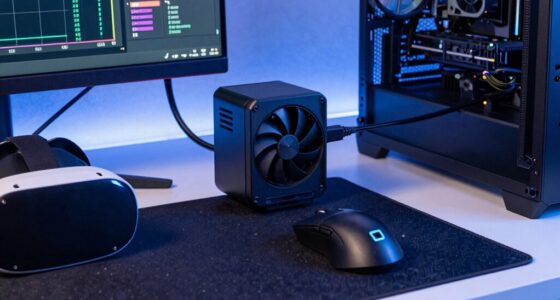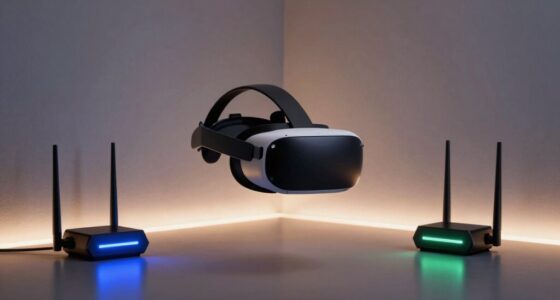

To improve your wireless PCVR stability at home, keep your headset away from electronic devices causing interference, and switch your Wi-Fi to a less congested 5GHz band. Use a wired Ethernet connection for your PC and position signal boosters halfway between your router and play area for better coverage. Regularly check your network performance, update drivers, and close unnecessary applications. For more tips on creating a smoother VR experience, explore the full setup guide.

Play games on Amazon Luna for your next adventure, included with Prime
- A rotating selection of games, no download needed
- Play on TV, laptop or phone
- Fast, free delivery for your gear, too
Key Takeaways
- Use a 5GHz Wi-Fi network and select less congested channels to reduce interference.
- Position signal boosters strategically between the router and VR play area for better coverage.
- Minimize electronic interference by keeping the headset away from devices like microwaves and Bluetooth gadgets.
- Connect the PC directly via Ethernet and prioritize VR traffic in router settings for increased stability.
- Regularly update network drivers and close background applications consuming bandwidth or processing power.
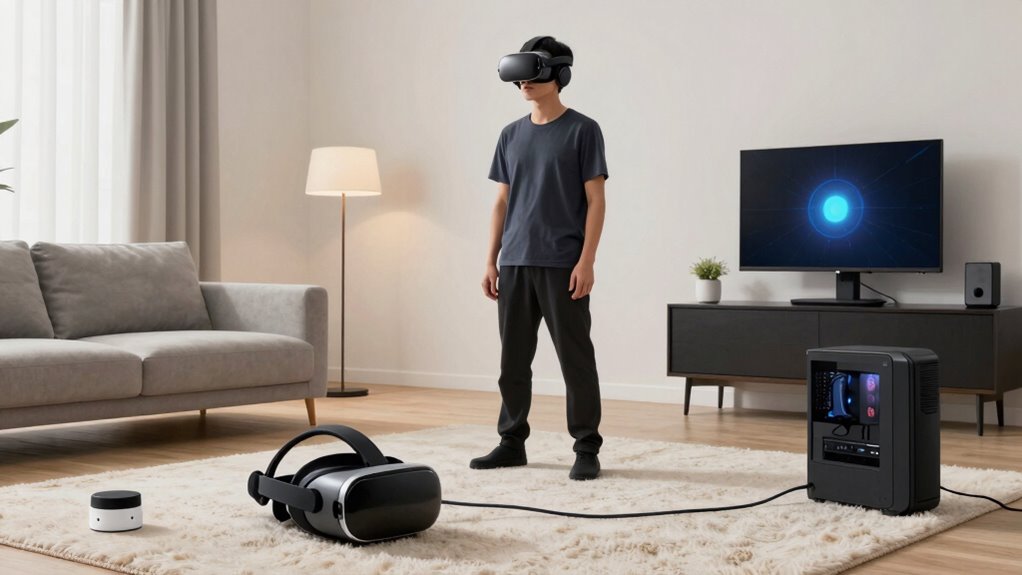
Ever wondered why your wireless PCVR experience sometimes feels shaky or laggy? The answer often lies in wireless interference. Your home is filled with devices—Wi-Fi routers, Bluetooth gadgets, microwave ovens—that all compete for the same airwaves. This congestion can cause signal drops or delays, making your VR sessions less smooth. To combat this, you should identify and minimize sources of interference. Keep your VR headset away from other electronics that emit strong signals. Consider switching your Wi-Fi router to a less congested channel or upgrading to a 5GHz network, which tends to be less crowded and offers faster, more reliable connections. Using wired Ethernet for your PC can also reduce network strain, freeing up wireless bandwidth for your VR headset.
Another effective way to improve stability is by employing signal boosters. These devices amplify your wireless signal, extending its reach and reducing dead zones in your home. A good quality signal booster can make a significant difference, especially if your VR play area is far from your Wi-Fi router or if obstacles like walls and furniture weaken the signal. Look for boosters that support the same frequency bands as your router and are compatible with your VR system. Proper placement of these boosters is essential; position them halfway between your router and your play area, ensuring they have a clear line of sight whenever possible. This setup helps create a stronger, more consistent connection, reducing lag and preventing disconnections during gameplay. Additionally, ensuring your wireless network is configured properly can optimize overall stability and performance. Regularly checking your network’s performance with tools like speed tests can help you spot issues before they affect your gaming.
Beyond hardware tweaks, verify your system is optimized for VR use. Keep your PC’s drivers up to date, especially your network adapters and graphics card. Close unnecessary background applications that might be hogging bandwidth or processing power. If you’re using Wi-Fi, connect your PC directly to the router via Ethernet if possible—it offers a more stable connection than wireless. If Ethernet isn’t an option, prioritize your VR traffic in your router settings to give it precedence over other network activity. Understanding wireless interference and how it impacts your connection can help you better troubleshoot and optimize your setup. Recognizing the importance of signal stability and its impact on VR can motivate you to make these adjustments more diligently. Also, considering the use of interference mitigation techniques can further enhance connection quality.
Ultimately, making your wireless PCVR more stable involves a combination of reducing interference, boosting your signal, and optimizing your hardware setup. By taking these steps, you’ll enjoy a smoother, more immersive experience, free from the frustration of lag and disconnections. Your virtual worlds will feel more real and responsive, transforming your home gaming into a truly seamless adventure.
Products Worth Considering

LG UltraGear 32GX850A-B 32-inch 4K UHD Glossy OLED Gaming Monitor
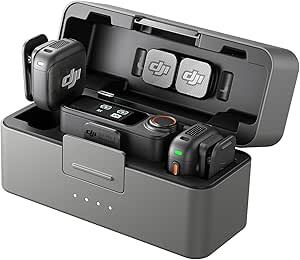
DJI Mic 3 Wireless Microphone Kit (2 Transmitters, 1 Receiver, Charging Case)

LG UltraGear 34GX90SA-W 34-inch WQHD Curved OLED Gaming Monitor
As an affiliate, we earn on qualifying purchases.
Frequently Asked Questions
Can Changing My Wi-Fi Band Improve VR Stability?
Yes, changing your Wi-Fi band can improve VR stability. Switching to the 5GHz band often reduces network congestion, providing a faster, more stable connection. Also, make certain your router is placed centrally and elevated to minimize interference and maximize signal strength. These adjustments help create a more reliable connection, reducing lag and disconnections, so your wireless PCVR experience feels smoother and more immersive.
What Are the Best Antennas for Reducing Interference?
To reduce interference, choose antennas with high gain and directional focus, like Yagi or panel antennas. Proper antenna placement is vital—you should position them high and facing your VR area for maximum signal strength. Signal amplifiers can also boost your connection, especially in larger spaces. Combine these strategies with minimizing obstacles and electronic interference around your setup to guarantee a more stable and immersive wireless PCVR experience.
How Does Room Size Affect Wireless PCVR Performance?
A spacious room can be a blessing, but it also means you need to be mindful of room layout and signal obstacles. Larger spaces may weaken your wireless signal, especially if walls or furniture block it. Keep your play area clear of thick obstacles and position your router centrally. By optimizing your room setup, you’ll enjoy more stable wireless PCVR performance, even in bigger spaces, making your experience smoother and more immersive.
Is It Better to Use a Wired or Wireless Connection for Stability?
A wired connection generally offers more stability than wireless, especially in environments with network congestion or signal interference. When you use a wired setup, you eliminate issues caused by interference from other devices or Wi-Fi congestion that can cause lag or disconnections. If you prioritize consistent performance and minimal latency, a wired connection is the better choice. Wireless can work well too, but it’s more vulnerable to disruptions from these factors.
Do Specific VR Headsets Have Better Wireless Connections?
Some VR headsets, like the Oculus Quest 2 and HTC Vive Focus Plus, tend to have better wireless connections because they offer lower wireless latency and stronger signals. You’ll experience fewer issues with signal interference and lag if you choose a headset with reliable Wi-Fi capabilities. To improve stability, make sure your headset supports 5GHz Wi-Fi and keep your wireless environment clear of potential interference sources.
Conclusion
So, after all that wiring and tweaking, you might find yourself craving the good old days of tangled cables—at least they kept your headset grounded. Ironically, chasing perfect wireless stability can turn your sleek setup into a high-tech maze. But hey, if you manage to stabilize it, you’ll enjoy the freedom… until the next wireless hiccup, reminding you that even the best tech can be a little unpredictable. Happy gaming, wired or not!