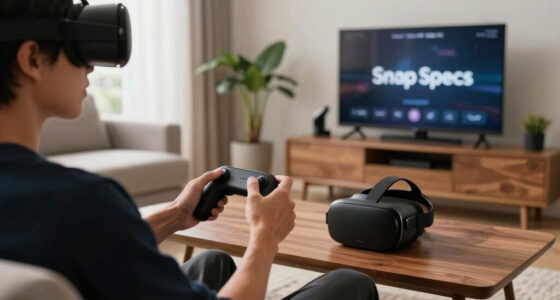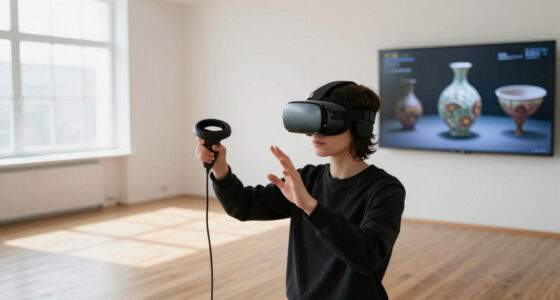
If your voice sounds far away in VR chat, check your audio spatialization settings—improper calibration or headset misalignment can cause your voice to seem disconnected. Make sure your microphone is positioned correctly—too close or too far can affect clarity—and ensure head tracking is accurate. Adjust your software and hardware settings for clean, centered sound. Comprehending these factors can help you fix the issue and get a more natural voice experience.
Key Takeaways
- Incorrect audio spatialization settings can make your voice seem distant or disconnected from your avatar.
- Microphone placement too far from your mouth reduces clarity and creates a perception of being far away.
- Inaccurate head tracking or misaligned headset positioning can cause audio to appear out of sync or distant.
- Low microphone gain or poor hardware setup diminishes voice volume, contributing to a far-away sound.
- Environmental noise or background interference can interfere with voice clarity, making you sound less close.
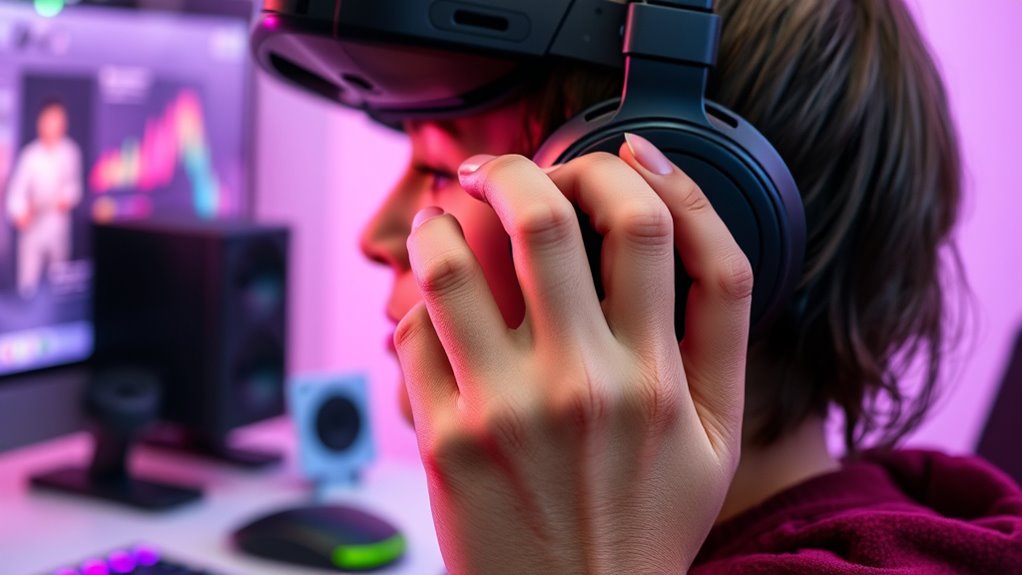
Ever wondered why your voice sounds distant or muffled in VR voice chat? One common reason relates to how audio spatialization is handled within the virtual environment. Audio spatialization is what creates the sense of depth and directionality in your voice, making it seem like it’s coming from your virtual position rather than just a flat sound. If this system isn’t calibrated correctly, your voice might seem to come from far away or sound disconnected from your actual location. When audio spatialization isn’t properly configured, it can cause your voice to appear distant even when you’re speaking loudly and clearly. This effect is often compounded by microphone proximity, which plays a vital role in how your voice is captured and transmitted. If your microphone is too far from your mouth, it picks up less of your voice, making your sound seem quieter or more distant to others. Conversely, if it’s too close, it can cause distortion or unwanted noise. Finding the right microphone proximity is key to ensuring your voice sounds natural and centered in the virtual space.
Many VR setups automatically adjust audio spatialization based on your head movements and position, but sometimes these settings don’t work perfectly. For example, if your headset’s tracking isn’t accurate or if you’ve moved the microphone away from your mouth without adjusting settings, your voice can become misaligned with your avatar’s position. This misalignment makes it feel like your voice isn’t coming from your character or position in the virtual world, which enhances that distant or muffled sensation. It’s essential to check your microphone placement regularly—keeping it close to your mouth but not touching it—and to make sure your VR software’s audio spatialization settings are correctly calibrated. Many systems offer manual adjustments for this; tweaking these can greatly improve how your voice is perceived by others. Being aware of audio calibration and how it impacts your experience can help you make better adjustments and improve sound clarity.
Sometimes, the issue isn’t just hardware but also software settings. In some cases, the microphone gain might be too low, or the audio output settings could be misconfigured, reducing your voice’s clarity and volume. Also, background noise or interference can affect how well your microphone captures your voice, making it seem less direct or more distant. Making certain of a quiet environment, using quality microphones, and updating your VR and audio drivers can help mitigate these issues. Ultimately, understanding the interplay between audio spatialization and microphone proximity empowers you to make the necessary adjustments. With proper calibration, your voice will sound more natural, centered, and less like it’s coming from far away, creating a more immersive and engaging VR experience.

Adjustable Gain Electret Microphone Amp, 3.5mm Input Sound Preamplifier ME1, Built in Bias, Output 3.5mm Interface, 0-20db Gain, DC5-12V Power Supply
【Sound Amplification】 The microphone amplifier's 3.5mm input jack features built-in bias voltage for connecting various microphones.
As an affiliate, we earn on qualifying purchases.
As an affiliate, we earn on qualifying purchases.
Frequently Asked Questions
Can Microphone Positioning Affect How Close I Sound in VR Chat?
Yes, your microphone placement can influence how close you sound in VR chat. If you position your mic too far or too low, you may experience the proximity effect, making your voice sound distant or muffled. To sound closer, keep the mic near your mouth and slightly off to the side. Proper placement guarantees your voice is clear and natural, reducing the distance effect in voice chat.
Does the Distance From the Microphone Impact Voice Volume?
Ever wonder if moving closer to your microphone boosts your voice volume? Yes, it does—distance directly impacts how loud you sound in VR chat. When you’re closer, your voice’s spatial audio feels more natural, and voice modulation makes you sound more realistic. Conversely, if you’re far away, your voice sounds quieter and more distant. Keep the microphone near your mouth to enhance clarity and guarantee your voice feels close and immersive.
How Does VR Headset Audio Settings Influence Voice Chat Clarity?
Your VR headset audio settings greatly influence voice chat clarity through voice calibration and audio mixing. Proper voice calibration guarantees your microphone picks up your voice accurately, reducing background noise and echo. Adjusting audio mixing balances game sounds and voice chat, making your voice clearer and easier to hear. When you fine-tune these settings, you’ll experience more natural, crisp conversations, preventing your voice from sounding distant or muffled during VR chats.
Are There Software Updates to Improve Voice Proximity in VR?
Yes, software updates can enhance voice proximity in VR. Developers often add voice amplification features and refine proximity sensors to improve chat clarity. Updating your VR software guarantees you’re using the latest improvements, which can make voices sound more natural and nearby. Check your device’s app or firmware settings regularly for updates, enabling better voice proximity effects and reducing the distant sound issue in your VR voice chat experience.
Can Background Noise Reduction Affect How I Sound to Others?
Background noise reduction can definitely affect how you sound to others. When you use audio filters, they help minimize ambient sounds, making your voice clearer. Proper sound calibration also plays a crucial role, ensuring your microphone picks up your voice accurately without distortion. If these settings aren’t optimized, your voice may seem distant or muffled. Adjust your audio filters and calibrate your sound to improve your voice clarity in VR chat.

HTC Vive Focus Vision with Facial Tracker — Mixed Reality and PC VR Headset + Controllers + Facial Tracker
All-In-One VR Solution: The VIVE Focus Vision offers standalone and PC VR experiences. Harness the power of virtual…
As an affiliate, we earn on qualifying purchases.
As an affiliate, we earn on qualifying purchases.
Conclusion
So, next time you feel like you’re whispering from a mountain top or shouting from across the galaxy, remember—it’s probably not your voice, just the tech playing tricks. Blame your headset, mic settings, or network lag. But hey, if you want to sound close enough to whisper sweet nothings, maybe just stick to real life. After all, who needs clarity when you can have the thrill of sounding like you’re in a different universe?

Digital Sound Level Meter Calibrator 94dB & 114dB for 1/2" and 1" inch Microphone, Professional Noise Decibel Calibration Tool Measurement Accuracy Check
SIMPLE OPERATION : With only 3 buttons: 94dB, 114dB and Power On/Off Button. Simply power on the calibrator,…
As an affiliate, we earn on qualifying purchases.
As an affiliate, we earn on qualifying purchases.
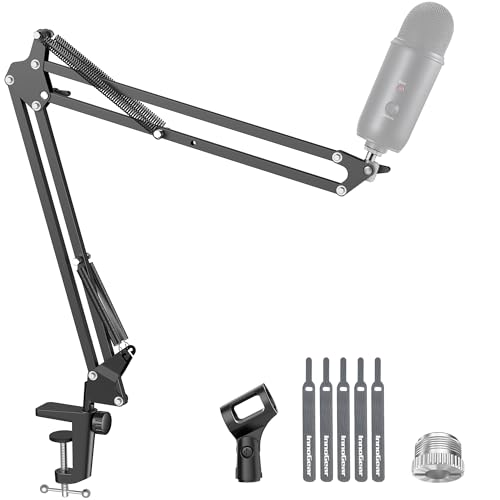
InnoGear Boom Arm Microphone Mic Stand for Blue Yeti HyperX QuadCast SoloCast Snowball Fifine Shure SM7B and Other Mic, Black
Free Position Mic Arm: This professional microphone stand is fully adjustable in all parts with 360° base rotation…
As an affiliate, we earn on qualifying purchases.
As an affiliate, we earn on qualifying purchases.