
To use a fan in VR without disrupting tracking, position it behind or beside your play area, aiming airflow toward your face or body without crossing sensor lines. Use fans with adjustable speeds to find a balance that adds immersion without causing vibrations or reflections that interfere with tracking. Keep airflow natural and stable, and regularly check your system’s performance. For more tips on perfecting your setup, there’s a few simple tricks you can try next.
Key Takeaways
- Position the fan behind or to the side, avoiding direct aim at sensors or tracking areas.
- Use fans with adjustable speeds to control airflow and prevent sensor disturbances.
- Keep airflow targeted at the face or body, not crossing sensor lines or causing reflections.
- Regularly monitor tracking performance and reposition fans if tracking issues occur.
- Ensure airflow feels natural and stable, balancing immersion with sensor stability.
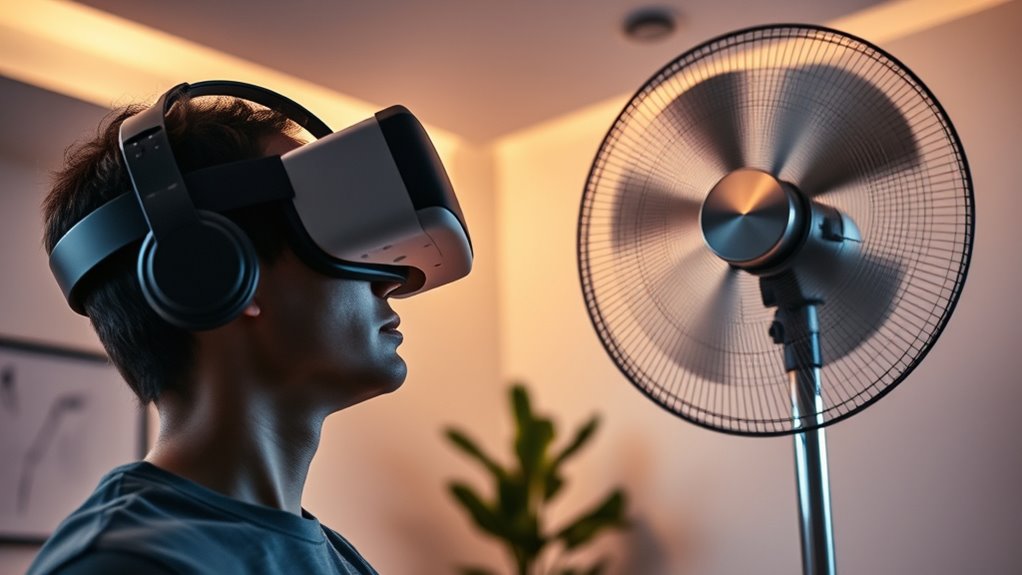
Using a fan in VR can substantially enhance your immersive experience by adding a realistic sense of airflow and movement. When you incorporate airflow simulation into your setup, it makes virtual environments feel more authentic, whether you’re feeling a gentle breeze during a walk in the woods or a gust during a high-speed race. However, to get the most out of this addition without disrupting your tracking, careful attention to fan placement is essential. Proper placement ensures that the airflow feels natural and doesn’t interfere with your VR sensors or controllers.
Enhance VR immersion with carefully placed fans that create natural airflow without disrupting tracking.
Start by positioning the fan so that it blows toward your face or body without crossing the line of sight of your tracking sensors. For most room-scale setups, this means placing the fan behind or to the side of your play area, away from the sensors’ direct view. You want the airflow to simulate natural wind rather than create a constant obstacle for your tracking system. If your sensors use infrared or optical tracking, avoid pointing the fan directly at them, as the moving air can cause reflections or disturbances that lead to tracking hiccups. Instead, aim for angles where airflow is directed toward you but doesn’t generate visual noise or trigger the sensors’ tracking algorithms.
Adjusting the fan’s intensity is equally important. Too strong, and the airflow might cause your headset or controllers to shift slightly, or worse, produce vibrations that influence sensor readings. Too weak, and you won’t notice any meaningful airflow, defeating the purpose. Test different settings to find a balance where the airflow feels natural without compromising tracking stability. Many fans come with adjustable speed controls, which allow you to fine-tune this balance. Additionally, understanding sensor placement can help optimize airflow without interfering with tracking accuracy.
While experimenting with airflow simulation, keep in mind that fan placement is a dynamic process. You may need to reposition the fan as your play area changes or as you add new sensors or accessories. Always monitor your VR tracking performance after making adjustments, ensuring that the airflow enhances your immersion rather than sabotages it. Remember, the goal is to create a convincing environment where the movement of air complements your virtual experience without causing technical issues. With thoughtful placement and careful adjustment, you can enjoy a more engaging, realistic VR experience that leverages the benefits of airflow simulation seamlessly.

STARTRC GAMES Facial Interface Cooling Fan for Meta Quest 3S Accessories, Soft PU Leather & Ice Silk Cotton Face Pad Compatible with Oculus Quest 3S, Adjustable Fan to Relieve Lens Fogging (3 Speeds)
Three speed fan adjustment: Upgraded fan with three adjustable gears compatible with Oculus Quest 3S. One-speed, suitable for…
As an affiliate, we earn on qualifying purchases.
As an affiliate, we earn on qualifying purchases.
Frequently Asked Questions
Can a Fan Interfere With VR Controller Sensors?
Yes, a fan can interfere with VR controller sensors. The airflow impact from a strong fan might cause sensor interference, leading to tracking issues. Movement of air can disrupt the sensors’ ability to accurately detect your controllers, especially if the airflow is directed at them. To prevent this, position the fan carefully and keep airflow gentle, ensuring your VR experience remains smooth and your sensors stay precise.
What Types of Fans Are Safest for VR Setups?
A gentle, bladeless fan is your safest choice for VR setups. Its smooth airflow won’t disrupt tracking or sensors. Focus on fan placement, keeping it far from controllers and sensors, and control airflow to avoid sudden gusts that could interfere. You want a fan that provides cooling without turning your virtual experience into a chaotic tornado—think quiet, adjustable, and safe for your tech.
How Close Should a Fan Be Placed to Avoid Tracking Issues?
You should place your fan about 3 to 6 feet away from your VR sensors to prevent tracking issues. Proper fan placement helps with airflow management, avoiding direct airflow into sensors or cameras. Keep the fan angled away from sensors and make sure it’s not too close, as strong airflow or vibrations can disrupt tracking. Adjust the distance as needed, testing to find the most suitable balance between comfort and reliable tracking.
Will a Fan Cause Discomfort or Distraction During Gameplay?
A fan can cause discomfort or distraction during gameplay if the airflow comfort isn’t balanced or if ambient noise becomes noticeable. To prevent this, position the fan so it gently circulates air without creating loud noise or strong gusts that might distract you. Adjust the fan’s speed and angle to maintain a comfortable airflow, ensuring your focus stays on the game rather than the breeze or noise.
Are There Specific Fan Settings Recommended for VR Environments?
You should set your fan to a moderate speed to avoid overwhelming your senses and causing discomfort. Adjust the airflow direction to guarantee it’s not blowing directly into your face or headset, which could distract you or break tracking. Test different fan speeds and directions gradually, finding a balance that enhances immersion without interfering with your VR experience. Always prioritize comfort and tracking stability for ideal gameplay.

KKCOBVR K3 Facial Interface Fan with PU Leather Face Pad Only Compatible with Quest3 Accessories, Relieve Lens Fogging and Fits Use with Quest 3 Head Strap
Built-in Defogging Fan – There are four air inlets designed to enhance air inflow, and the flow of…
As an affiliate, we earn on qualifying purchases.
As an affiliate, we earn on qualifying purchases.
Conclusion
Now that you know how to use a fan in VR without breaking tracking, you’re all set to enjoy a more immersive experience. Think of the fan as a gentle breeze, like a invigorating wind on a sunny day that enhances your adventure without disrupting your gameplay. Just follow the tips, stay mindful of your setup, and you’ll boost your VR sessions with comfort and ease. Get ready to feel the wind and plunge into your virtual world!
STARTRC GAMES Facial Interface Cooling Fan for Meta Quest 3S Accessories, Soft PU Leather & Ice Silk Cotton Face Pad Compatible with Oculus Quest 3S, Adjustable Fan to Relieve Lens Fogging (3 Speeds)
Three speed fan adjustment: Upgraded fan with three adjustable gears compatible with Oculus Quest 3S. One-speed, suitable for…
As an affiliate, we earn on qualifying purchases.
As an affiliate, we earn on qualifying purchases.

NVNV VR Fan for Oculus Quest 2,Anti-fogging Accelerated Air Flow Cooling Fan with Facial Interface,Sweat-Proof Face Cover,VR Accessories for Quest 2,for Fitness,Workout & Intense VR Games,White
Fogging Solution: Equipped with mini turbo fan and additional air vents at the top and bottom of the…
As an affiliate, we earn on qualifying purchases.
As an affiliate, we earn on qualifying purchases.