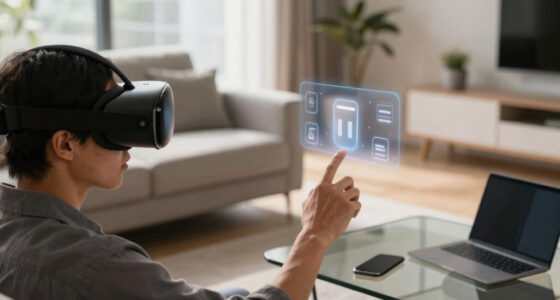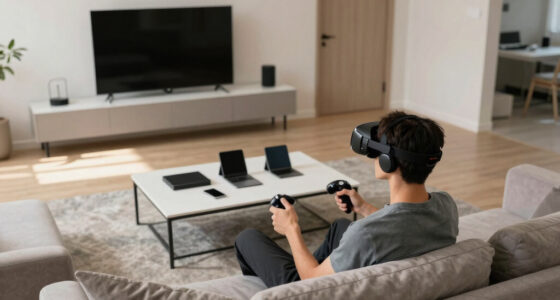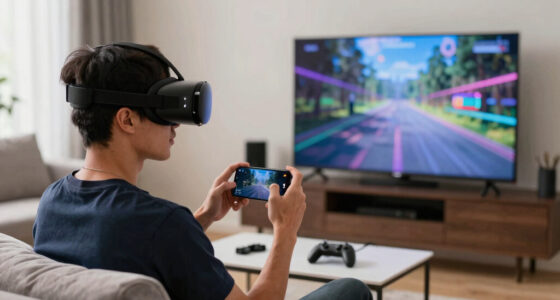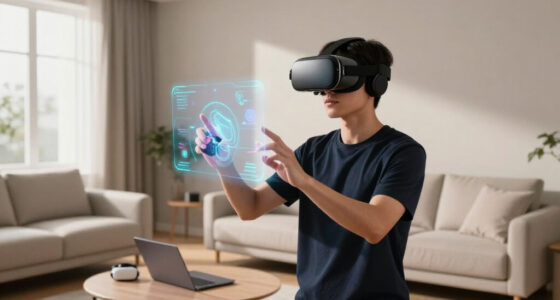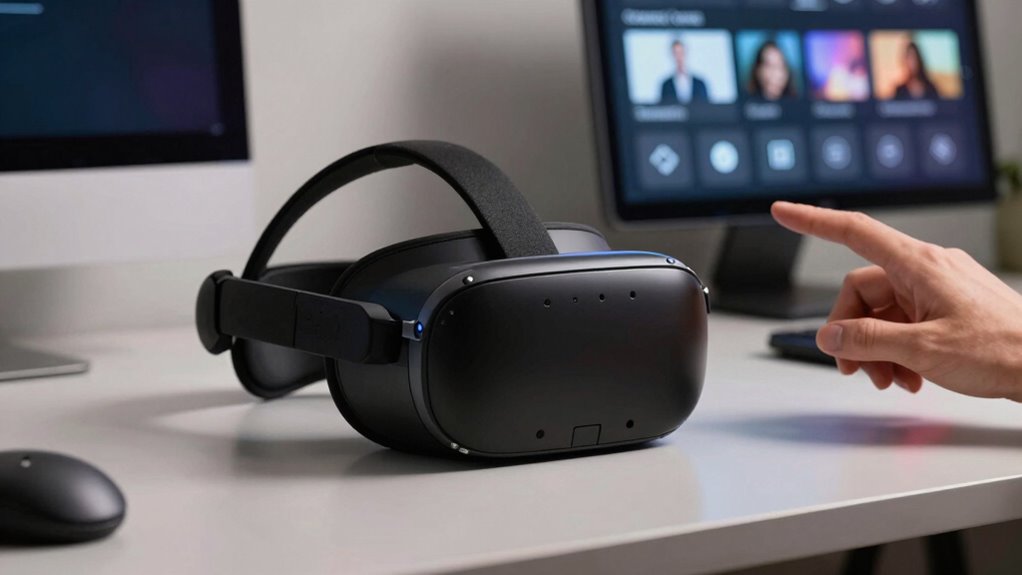

VR comfort settings help you enjoy longer sessions without discomfort. Vignettes darken the edges of your view, reducing peripheral distractions and eye strain. Snap turn allows you to rotate in steps instead of smooth movement, preventing disorientation. Adjusting your FOV can minimize visual overload, while preset modes or personal profiles tailor the experience to your needs. Exploring these options boosts comfort and immersion, and there’s more to discover if you continue exploring these features.

Get VR and gaming gear delivered free — and shop member deals
- Fast, free delivery on millions of items
- Access to Prime Big Deal Days deals on October 6–7
- Prime Video, Amazon Music and more included
Key Takeaways
- Vignettes darken peripheral vision to reduce distractions and eye strain, enhancing visual comfort during extended VR sessions.
- Snap turn provides discrete, step-by-step rotation, minimizing disorientation and motion sickness compared to smooth continuous turning.
- Adjusting field of view (FOV) balances immersion and comfort by narrowing for less peripheral overload or widening for better immersion.
- Movement settings like teleportation and reduced speed prevent motion sickness by limiting unsettling motion cues.
- Preset comfort modes and customizable profiles allow quick adaptation of settings to fit individual preferences and improve overall VR experience.
As an affiliate, we earn on qualifying purchases.
Understanding Vignettes and Their Role in Comfort
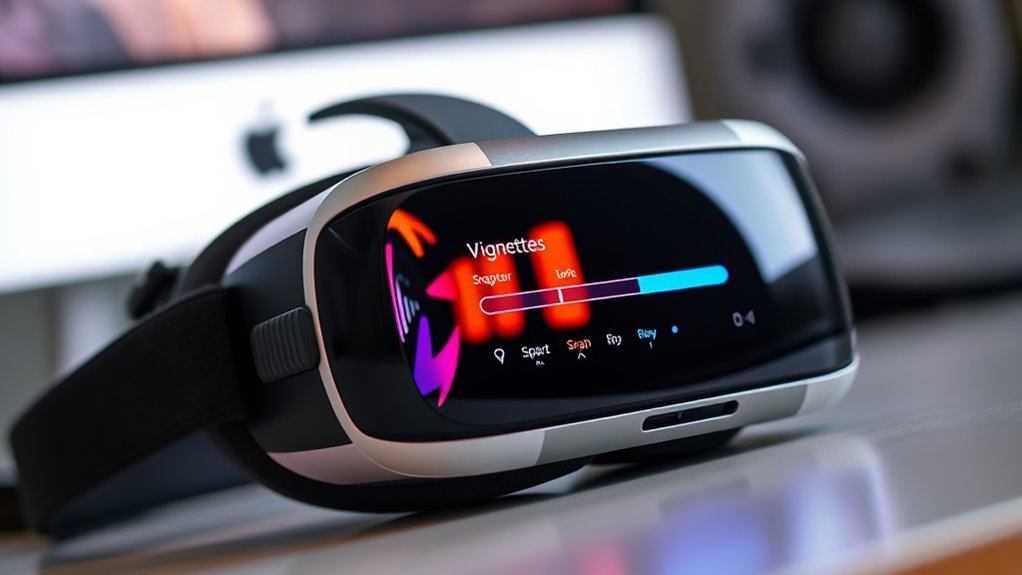
Have you ever wondered how small visual adjustments can substantially improve your VR experience? Vignettes are one such adjustment. They subtly darken the edges of your view, creating a tunnel-like effect that reduces peripheral distractions. This technique helps your eyes focus on the central scene, decreasing visual clutter and eye strain. By limiting peripheral input, vignettes also lower the chances of motion sickness caused by conflicting visual signals. You can usually toggle or adjust the intensity of vignettes within your VR settings. Keep in mind, they’re not meant to eliminate all peripheral vision, just to enhance comfort. Additionally, understanding sustainable cloud solutions can help optimize your VR setup for maximum comfort. With vignettes, you gain a more immersive, less overwhelming experience, especially during extended play sessions or fast-paced movements. It’s a simple tweak that makes a noticeable difference in your comfort level and can be complemented by proper hardware setup to further improve your VR experience.
As an affiliate, we earn on qualifying purchases.
How Snap Turn Enhances Navigation and Reduces Disorientation
Snap turn helps you navigate more smoothly by improving your spatial awareness, making it easier to understand your surroundings. It also reduces the risk of motion sickness by limiting sudden or unnatural movements. Additionally, VR comfort settings can be customized to fit your preferences, further enhancing your experience by minimizing discomfort and maximizing confidence in virtual environments. Customizable settings can be adjusted to support user comfort, allowing for a more personalized and enjoyable virtual experience. Ultimately, it creates a more comfortable VR experience by keeping you oriented and steady, which can be especially important for those sensitive to motion sickness or new to virtual reality. Moreover, understanding and utilizing contrast ratio can significantly improve visual clarity during VR sessions, making the experience more immersive and enjoyable.
Improves Spatial Awareness
When you use snap turn in virtual reality, it considerably enhances your spatial awareness by providing clear, discrete changes in your view rather than continuous, smooth rotations. This makes it easier to identify your position and surroundings without feeling overwhelmed. Because the rotation occurs in distinct steps, your brain can better process the environment and remember spatial relationships. You’re less likely to lose track of where you are or feel disoriented, especially in complex virtual spaces. Snap turn helps you maintain a sense of orientation, making navigation more intuitive. By reducing the chances of losing your bearings, it supports a more confident and immersive experience, allowing you to focus on exploring rather than adjusting to your movements.
Prevents Motion Sickness
Because continuous rotation can cause your inner ear and eyes to send conflicting signals, it often leads to motion sickness in virtual reality. Snap turn minimizes this by allowing you to rotate in small, discrete increments instead of smooth, continuous movement. This reduces disorientation, as your brain isn’t overwhelmed by conflicting cues. When you use snap turn, you maintain better control over your orientation, making navigation feel more natural and less overwhelming. It also helps prevent nausea caused by the mismatch between visual movement and inner ear balance. By limiting rapid, fluid movements, snap turn keeps your experience comfortable and stable. This setting is especially helpful for those prone to motion sickness, giving you a smoother, less nauseating VR experience.
As an affiliate, we earn on qualifying purchases.
Adjusting Movement Settings to Minimize Motion Sickness

Adjusting movement settings is a crucial step in reducing motion sickness in virtual reality. You can start by switching from smooth locomotion to teleportation, which minimizes unsettling motion by instantly moving you between points. If you prefer continuous movement, reduce the speed to make it less jarring. Enable comfort options like “Limited Movement” or “Comfort Mode,” which restrict rapid or unnatural motions. Using a “snap turn” rather than smooth turning helps prevent disorienting rotational motion. Additionally, adjusting the sensitivity of your movement controls can make navigation feel more natural and less abrupt. Experiment with these settings to find what feels best for you. Incorporating ergonomic design considerations can further enhance comfort and reduce fatigue during extended VR sessions. Understanding how user-centered design influences comfort can also guide you in customizing your VR experience for maximum ease. Small tweaks to motion sickness reduction techniques can profoundly improve comfort, helping you enjoy VR experiences without feeling nauseous or dizzy. Moreover, taking regular breaks and ensuring proper ergonomic setup can significantly contribute to a more comfortable VR experience. Being mindful of your physical comfort can make a noticeable difference in your overall enjoyment.
VR motion sickness prevention accessories
As an affiliate, we earn on qualifying purchases.
As an affiliate, we earn on qualifying purchases.
Customizing Field of View for a More Comfortable Experience
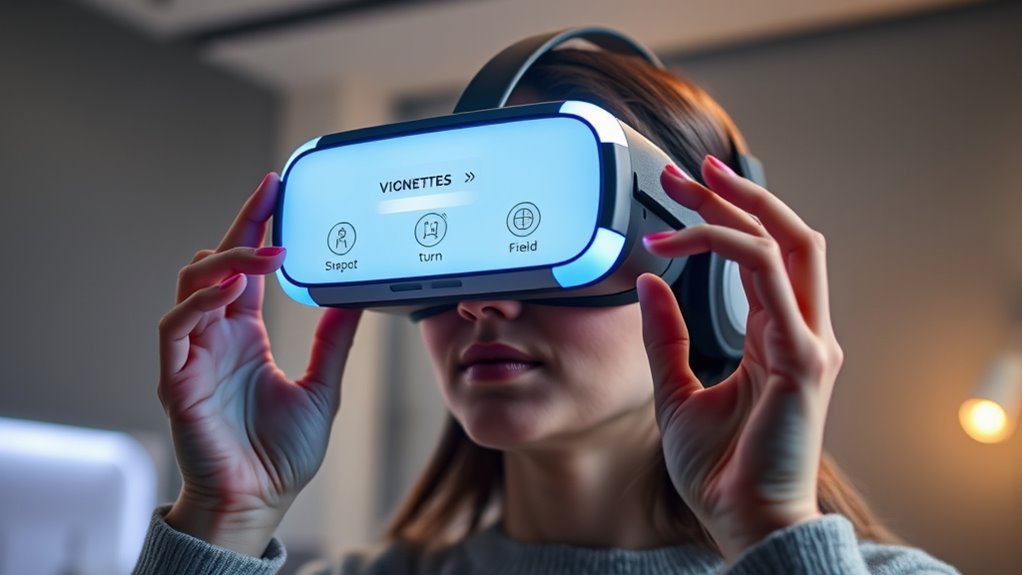
Adjusting your FOV settings can markedly improve comfort during VR sessions by reducing eye strain and peripheral overload. Finding the right balance between a wider FOV and image clarity is key to preventing discomfort. Experimenting with these settings helps customize your experience for both visual comfort and immersive quality.
Adjusting FOV Settings
Finding the right field of view (FOV) setting can considerably enhance your VR comfort by reducing motion sickness and eye strain. Adjusting FOV allows you to customize how much of your environment you see, making experiences feel more natural. Narrower FOVs can help minimize peripheral distractions, while wider FOVs increase immersion. Keep in mind that overly wide views might cause discomfort for some users, so finding a balance is key. Experiment with different settings to see what feels best for you.
- Reduce peripheral blur or distortion
- Minimize motion sickness triggers
- Balance immersion and comfort
- Adjust for specific VR experiences
- Consider your eye comfort and visual acuity
Impact on Visual Comfort
Customizing your FOV can considerably influence your visual comfort during VR sessions. A wider FOV immerses you more fully in the environment, but it can also cause eye strain or dizziness if it’s too broad for your comfort level. Conversely, narrowing the FOV reduces peripheral vision, which might lessen visual overload and help prevent fatigue. Adjusting the FOV to match your natural eye span minimizes the effort your eyes need to make to focus, reducing discomfort over long periods. It’s essential to find a balance that maintains immersion without overtaxing your visual system. Remember, everyone’s tolerance varies, so experiment with different settings to identify what feels most comfortable and least tiring during extended VR use.
Balancing FOV and Clarity
Balancing FOV and clarity is essential to creating a comfortable VR experience. A wider field of view immerses you more fully but can reduce image sharpness and cause visual strain. Conversely, narrowing the FOV improves clarity but may feel restrictive. To find the right balance, adjust your settings based on your comfort and the type of content you’re viewing. Experimenting with different FOV levels helps prevent eye fatigue and motion sickness. Keep in mind:
- Larger FOV enhances immersion but may increase peripheral distortion
- Narrower FOV improves focus and reduces visual noise
- Customizable FOV settings cater to individual comfort levels
- Ensuring proper headset fit supports optimal visual clarity
- Regular breaks help reset your eyes after adjusting FOV settings
- Understanding the visual comfort principles behind FOV adjustments can help you customize your experience more effectively
- Consulting with professional services can provide tailored recommendations for optimal VR setup and comfort
- Adjusting the field of view gradually allows your eyes to adapt more comfortably to different settings
- Paying attention to individual visual responses can guide you in fine-tuning your VR experience for maximum comfort
- Being aware of visual adaptation techniques can further enhance your comfort during extended VR sessions
Adjust thoughtfully to maximize comfort without sacrificing immersion.
Using Comfort Modes and Presets for Different Users
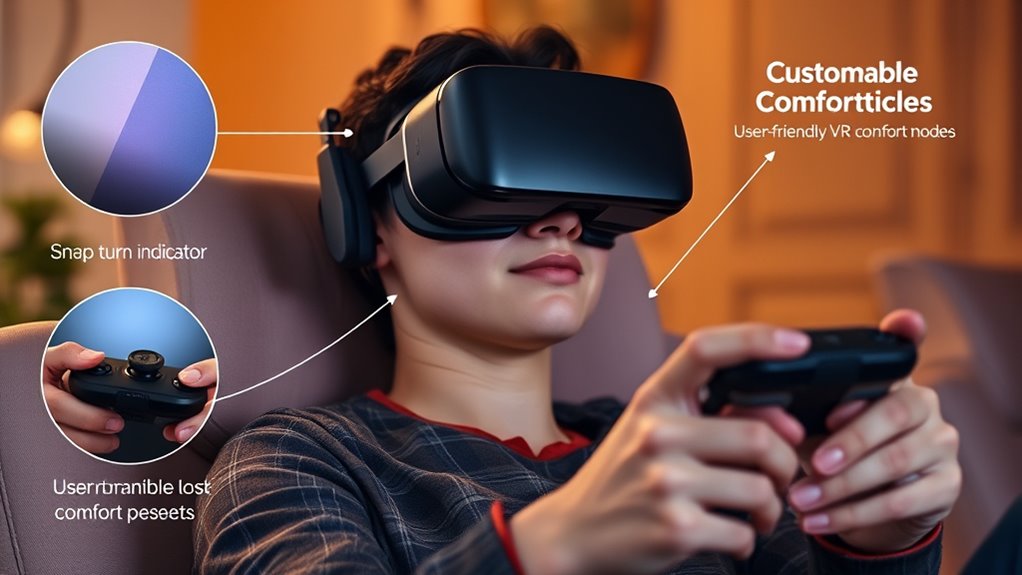
Since comfort needs vary widely among users, utilizing preset modes can simplify the process of adjusting VR settings for different individuals. These modes are designed to optimize comfort based on common preferences, such as reducing motion sickness or easing eye strain. For example, some headsets offer “Comfort” or “Casual” presets that soften motion, lower the intensity of rapid movements, or adjust the field of view. By selecting a preset suited to your activity or sensitivity level, you can quickly improve comfort without manually tweaking multiple settings. Many devices also allow you to save personalized presets, making it easier to switch between different comfort profiles for various users or types of experiences. Understanding comfort modes can help users select the most appropriate settings for their needs, ultimately enhancing the overall VR experience. This approach streamlines setup and helps guarantee a more comfortable VR experience for everyone, especially when customizing user profiles to match individual preferences. Exploring visual adjustments can further tailor the experience to specific comfort requirements, and being aware of ergonomic design features can also contribute to a more comfortable VR session.
Tips for Personalizing Your VR Environment for Maximum Comfort
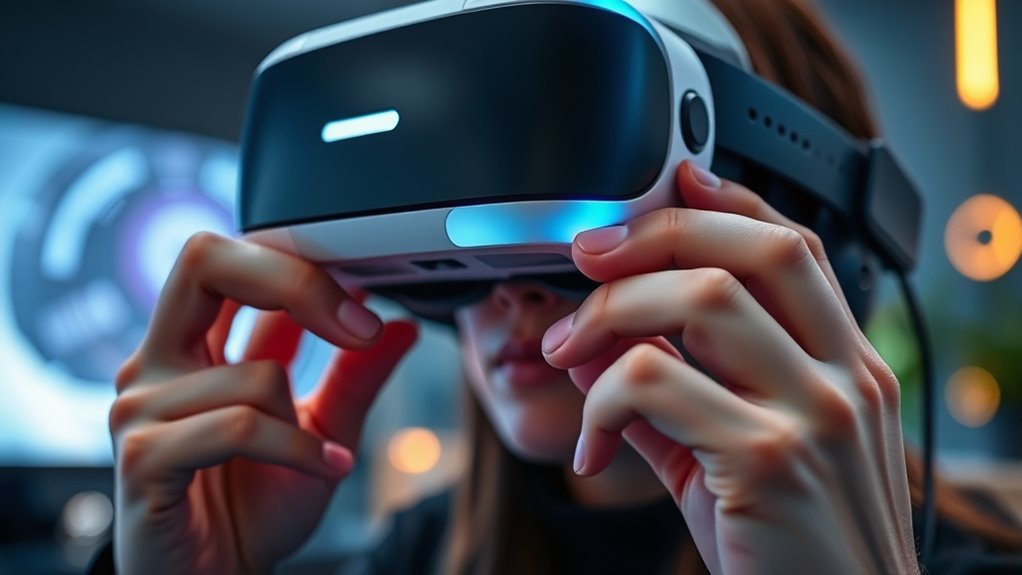
Personalizing your VR environment can considerably enhance comfort by tailoring visuals, audio, and physical setup to your preferences. Adjusting settings to match your comfort level reduces fatigue and increases immersion. Start by customizing the field of view to avoid peripheral overload. Use adjustable audio levels to prevent discomfort from loud or uneven sound. Ascertain your headset fits snugly without pressure points, and consider adding foam covers or padding. Experiment with different visual brightness and contrast to minimize eye strain. Incorporate calming background sounds or music if it helps relax you. Take regular breaks to avoid fatigue. Additionally, understanding comfort settings can help you optimize your experience for long sessions. Familiarizing yourself with the adjustable parameters allows you to fine-tune your environment more effectively. Finally, customize controller sensitivity for smoother interactions, making your experience seamless and more enjoyable. Small adjustments can make a significant difference in how comfortable and immersive your VR sessions feel.
Frequently Asked Questions
How Do Different Headset Types Affect Comfort Settings?
Different headset types markedly impact your comfort settings because each design varies in weight, fit, and display quality. Lightweight headsets feel more comfortable for extended use, while bulkier ones may need adjustments like increased padding or reduced session times. You should customize settings such as interpupillary distance (IPD) and eye relief based on your headset’s specifications to prevent discomfort, eye strain, or nausea. Always fine-tune your comfort settings for the best experience.
Can Comfort Settings Be Customized per VR Application?
Yes, you can customize comfort settings per VR application. Most headsets allow you to adjust options like snap turn, vignettes, and movement sensitivity individually for each app. You simply access the settings menu within the application or through the headset’s interface. This way, you can tailor your experience to suit different games or experiences, ensuring maximum comfort and reducing motion sickness based on your preferences.
Are There Recommended Settings for Users With Eye Strain?
Sure, because who doesn’t want their eyes to scream for mercy? For eye strain, you should lower motion sickness settings, increase vignette intensity, and enable comfort options like snap turn instead of smooth. Take frequent breaks, reduce brightness, and adjust the IPD (inter-pupillary distance) for your eyes. These tweaks help your eyes breathe easier, making your VR adventures less like a visual torture chamber.
How Often Should Comfort Settings Be Adjusted During Extended Use?
You should adjust comfort settings whenever you notice discomfort or fatigue during extended VR sessions. It’s best to fine-tune settings like vignette strength, snap turn speed, or brightness at regular intervals—every 30 minutes or so—and after any significant changes in your environment or equipment. Listening to your body helps prevent eye strain and guarantees a more comfortable experience, so don’t hesitate to make quick adjustments as needed.
Do Comfort Preferences Vary Across Age Groups?
Yes, your comfort preferences do vary across age groups. Younger users might prefer faster movements and less visual restriction, while older individuals often favor gentler settings to reduce discomfort. You should experiment with different options to find what feels best for you. Adjusting comfort settings regularly during extended use helps prevent fatigue or motion sickness, ensuring a more enjoyable experience tailored to your age and sensitivity.
Conclusion
By tweaking these comfort settings, you’re carving out a smoother, more enjoyable VR journey. Think of it as tuning a musical instrument — each adjustment brings harmony and reduces discomfort. Whether it’s adjusting vignettes, mastering snap turns, or customizing your field of view, these tweaks help you stay immersed without the unwanted side effects. Take control, personalize your experience, and turn your VR world into a sanctuary where comfort leads the way.
Halloween Picks
halloween
As an affiliate, we earn on qualifying purchases.