To stream VR to a TV without lag, start by ensuring your Wi-Fi network is fast and stable, ideally using 5GHz for minimal interference. Position your router close to your play area with minimal obstructions, and consider a dedicated Wi-Fi extender if needed. Connect your VR headset with wireless options like Oculus Air Link or SteamVR, and optimize your PC and streaming software settings for smooth performance. Keep everything updated, test thoroughly, and you’ll access a seamless VR experience with minimal delay.

Play games on Amazon Luna for your next adventure, included with Prime
- A rotating selection of games, no download needed
- Play on TV, laptop or phone
- Fast, free delivery for your gear, too
Key Takeaways
- Use a high-quality HDMI or DisplayPort cable for a wired connection to ensure minimal latency.
- If wireless, connect your VR headset via Oculus Air Link or SteamVR with a strong 5GHz Wi-Fi network.
- Position your Wi-Fi router close to the play area, minimizing obstructions and interference for stable streaming.
- Optimize your PC and streaming software settings, reducing resolution and bitrate to balance quality and lag.
- Test and calibrate motion tracking regularly to prevent lag artifacts and ensure smooth, responsive VR gameplay.

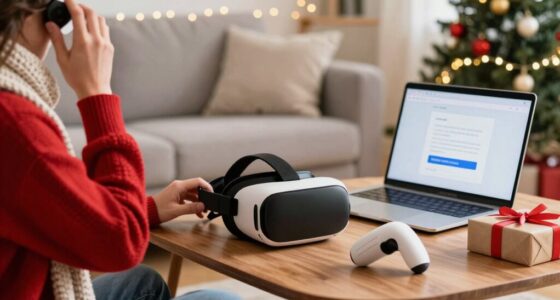
Getting your VR setup ready for streaming can seem intimidating at first, but with the right steps, it becomes straightforward. The key is guaranteeing your VR system has accurate VR motion tracking and a reliable wireless streaming setup. When you’re streaming to a TV, you want smooth visuals and minimal lag, which depends on how well your hardware and network are configured. Start by choosing a VR headset that supports precise motion tracking, so your movements translate accurately in the virtual environment. This accuracy is vital for immersive gameplay and seamless streaming, especially when viewers are watching your reactions in real-time.
Ensure your VR system has precise motion tracking for smooth, immersive streaming experiences.
Next, focus on establishing a strong wireless streaming setup. Wireless options eliminate the clutter of cables and give you freedom of movement, but they demand a solid connection to prevent lag. Use a 5GHz Wi-Fi network, which offers faster speeds and less interference compared to 2.4GHz networks. Position your Wi-Fi router close to your play area and ensure there are minimal physical obstructions. Some streamers opt for a dedicated router or a Wi-Fi extender to enhance signal strength. If your VR headset has built-in wireless streaming capabilities, enable them and test the connection beforehand. This step guarantees that your VR content reaches your TV without buffering or delay.
Pair your VR headset with your PC or streaming device properly. Many VR headsets connect via HDMI or DisplayPort, but for wireless streaming, you’ll often use software like Oculus Air Link or SteamVR’s wireless streaming. These platforms facilitate high-quality transmission with low latency. When setting up, make sure your PC meets the recommended specs, especially for processing power and graphics performance, as these directly influence VR motion tracking accuracy and streaming quality. Keep your drivers updated and optimize your system for gaming, closing unnecessary background apps to free up resources. Additionally, understanding the importance of VR motion tracking can help troubleshoot and improve your streaming experience.
Finally, configure your streaming software—such as OBS or other broadcasting tools—to capture the VR content from your headset. Position your camera or screen capture to include both the VR view and your reactions, ensuring your audience gets the full experience. Adjust the stream settings for resolution and bitrate to balance quality and performance. Testing this setup thoroughly before going live helps identify and fix lag issues. By paying attention to VR motion tracking precision and maintaining a strong wireless streaming setup, you’ll deliver smooth, immersive VR streams to your TV with minimal lag, making your virtual experiences engaging for viewers.
Oculus Air Link wireless VR headset
As an affiliate, we earn on qualifying purchases.
As an affiliate, we earn on qualifying purchases.
Frequently Asked Questions
What Are the Best VR Headsets for Lag-Free Streaming?
You should choose VR headsets with high-quality VR displays and low latency to guarantee lag-free streaming. The Oculus Quest 2 and Valve Index excel in latency reduction, providing smooth, immersive experiences. Both offer advanced tracking and minimal input delay, making them ideal for streaming without lag. Prioritize headsets with fast refresh rates and good display technology to keep latency low and enjoy seamless VR streaming to your TV.
How Do I Connect VR to Different Types of TVS?
Connecting your VR to different TVs is like fitting a key into various locks. For TVs with HDMI, plug the VR headset or its casting device into an HDMI port, ensuring you’re using a compatible display port if available. For older models, you might need an HDMI-to-DisplayPort adapter. Always connect the power adapters to keep your devices running smoothly and avoid lag, regardless of your TV type.
Can I Stream VR Content Wirelessly to My TV?
Yes, you can wirelessly stream VR content to your TV, provided your devices support wireless streaming and VR compatibility. Use a compatible streaming device like Chromecast Ultra or a smart TV with built-in casting features. Confirm your VR headset and TV are connected to the same Wi-Fi network for smooth performance. Keep in mind, a strong Wi-Fi connection minimizes lag, delivering a seamless VR experience on your TV.
What Internet Speed Is Required for Smooth VR Streaming?
For smooth VR streaming, aim for at least 25 Mbps, but don’t forget about network congestion and proper bandwidth allocation. If your connection’s too crowded or bandwidth isn’t prioritized, you might experience lag or stuttering. To keep things flowing seamlessly, guarantee your internet speed is robust and your network is optimized, giving your VR experience the smoothness it deserves without any hiccups.
How Do I Troubleshoot Latency Issues During Streaming?
To troubleshoot latency issues during streaming, first check your VR hardware’s connections and make certain firmware is up-to-date. Switch to reliable streaming protocols like RTSP or WebRTC for lower latency. Reduce network congestion by closing background apps, and position your Wi-Fi router closer to your VR setup. Also, consider using Ethernet instead of Wi-Fi for a more stable connection, which minimizes lag and improves streaming quality.
high-speed 5GHz Wi-Fi router for gaming
As an affiliate, we earn on qualifying purchases.
As an affiliate, we earn on qualifying purchases.
Conclusion
Now that you’ve set up your VR for seamless streaming, you’ve bridged the gap between immersive worlds and your living room. It’s like transforming a high-speed race into a smooth cruise—exciting yet effortless. With everything in place, you’ll enjoy stunning visuals without lag, making every moment more immersive. So, embrace the tech, enjoy the freedom, and let your virtual adventures unfold without interruption—because the best experiences happen when technology keeps pace with your imagination.
As an affiliate, we earn on qualifying purchases.
As an affiliate, we earn on qualifying purchases.
Fall Picks
fall essentials
As an affiliate, we earn on qualifying purchases.