To cut VR lag without buying new gear, start by lowering your in-game graphics settings and turning off unnecessary visual effects to free up system resources. Close background apps and optimize your OS for better performance. Use Ethernet instead of Wi-Fi for a stable connection, and regularly clear cache and temporary files. Keeping your play space organized and sensors well-lit also helps improve tracking, reducing lag further. Keep exploring for more tips to enhance your VR experience.
Key Takeaways
- Optimize in-game graphics by lowering resolution and disabling demanding visual effects like shadows and reflections.
- Tweak VR software settings to reduce render resolution and limit motion smoothing or anti-aliasing.
- Close unnecessary background programs and disable system processes to free up system resources.
- Ensure proper sensor placement and lighting to improve tracking accuracy and reduce latency.
- Regularly update graphics drivers, VR software, and firmware to enhance performance without hardware upgrades.
Adjust Your In-Game Graphics Settings
To reduce VR lag, start by adjusting your in-game graphics settings. Lowering visual quality can considerably improve performance. Reduce the resolution or switch to a less demanding graphics preset, like medium or low. Turn off or reduce advanced effects such as shadows, reflections, and anti-aliasing, since these can tax your GPU. You might also disable motion blur and other post-processing effects that add visual flair but hurt performance. Keep an eye on your frame rate and latency as you tweak these settings. A steadier, more consistent frame rate minimizes lag and enhances your VR experience. Calibrating your system and finding the optimal settings can further enhance performance. Don’t be afraid to experiment—finding the right balance between visual quality and smooth gameplay is key. This simple step can make a noticeable difference without any hardware upgrades. Additionally, monitoring your environmental considerations like lighting and space can help optimize performance, especially when considering Free Floating setups that require ample play area. Being aware of your hardware capabilities can also guide your adjustments and prevent unnecessary strain on your system. Incorporating energy-efficient cloud solutions can also support your system’s performance by offloading some processing tasks, leading to a smoother VR experience.
Close Unnecessary Background Applications
Closing unnecessary background applications can considerably reduce VR lag by freeing up system resources. When multiple programs run simultaneously, they consume CPU, RAM, and GPU power, leaving less for your VR experience. To improve performance, close apps that aren’t essential during gameplay. Additionally, managing your cleaning appliances and systems can help optimize overall device efficiency, indirectly benefiting VR performance. Consider shutting down: – Web browsers with multiple tabs open – Messaging or chat apps – File-sharing or cloud storage services – Streaming platforms running in the background – Antivirus or system update tools
Optimize Your Operating System for VR Performance
Optimizing your operating system can substantially boost VR performance by ensuring your system runs smoothly and efficiently. Start by updating your OS and drivers regularly to fix bugs and improve compatibility. Disable unnecessary startup programs that consume resources, freeing up CPU and RAM for VR tasks. Adjust power settings to prioritize performance over energy savings, which keeps your system running at full capacity. Turn off background processes and services that aren’t essential, reducing system load. Clean temporary files and defragment your hard drive if you’re using an HDD, which helps data flow more smoothly. Ensure your system’s visual effects are set for best performance, not appearance. Additionally, system optimization techniques can further enhance your VR experience by fine-tuning hardware and software settings. These tweaks help minimize lag and maximize responsiveness, providing a smoother VR experience. Regularly monitoring your system’s performance with resource management tools can also help identify and address bottlenecks before they impact your gameplay. Using performance monitoring software to track real-time system metrics allows you to make informed adjustments quickly. Maintaining a well-optimized system ensures that VR applications can run without unnecessary interruptions or delays.
Tweak Your VR Software Settings
Adjusting your VR software settings can have an immediate impact on reducing lag and enhancing performance. By fine-tuning certain options, you can create a smoother, more immersive experience without new hardware. Start by lowering the render resolution to reduce the load on your GPU. Disable any unnecessary background features like motion smoothing or advanced anti-aliasing. Adjust the refresh rate to match your headset’s capabilities, ensuring no extra strain. Turn off or limit visual effects such as shadows or reflections that aren’t essential. Additionally, reviewing ventilation considerations can help prevent overheating during extended VR sessions. Ensuring proper system cooling can further enhance performance and prevent thermal throttling. Regularly optimizing hardware settings tailored to your setup can lead to noticeable improvements. Monitoring your system performance regularly can help you identify the most effective adjustments for your setup. Optimizing these factors can help you achieve a more consistent VR experience, making each session more enjoyable and lag-free. Finally, update your VR software and drivers regularly to benefit from performance improvements.
Improve Your Wi-Fi or Wired Connection Stability

To reduce VR lag, start by optimizing your router placement to guarantee a strong, stable signal. Consider switching to a wired Ethernet connection, which provides a more reliable link than Wi-Fi. These steps can considerably improve your connection stability and enhance your VR experience. Additionally, ensuring your network security is up-to-date can prevent interruptions caused by unauthorized access. Maintaining a strong Wi-Fi signal by minimizing interference from other devices can also make a significant difference. For best results, regularly monitor your network performance to identify and address potential issues proactively. Adjusting your router settings, such as channel selection and bandwidth allocation, can further optimize connection quality. Being aware of interference sources can help you take additional steps to improve signal stability.
Optimize Router Placement
Placing your router in the right spot can greatly boost your Wi-Fi signal and reduce lag during VR sessions. A strategic location ensures a stronger, more stable connection, minimizing disruptions. Keep your router central in your home to evenly distribute the signal. Avoid placing it near walls, metal objects, or appliances that can interfere with the signal. Elevate the router on a shelf or mount it high to improve coverage. Remove any thick obstructions around the device. Keep it away from cordless phones, microwaves, and other electronics that cause interference. Regularly update your router’s firmware for peak performance. Also, understanding network interference sources can help ensure secure and efficient online transactions if you need to purchase new hardware or accessories. Being aware of signal interference sources helps you troubleshoot connectivity issues more effectively. Being mindful of environmental factors that contribute to interference can further enhance your connection stability. By optimizing placement, you’ll experience fewer disconnects and smoother VR gameplay.
Use Wired Ethernet Connection
Using a wired Ethernet connection can markedly improve your VR experience by providing a more stable and consistent internet link. Unlike Wi-Fi, wired connections eliminate interference from other devices, ensuring low latency and faster data transfer. This stability reduces lag spikes and disconnections that can ruin your immersion. To set this up, connect your VR headset or PC directly to your router using an Ethernet cable. If your device isn’t near the router, consider using a high-quality Ethernet extender or powerline adapter. Keep your cables tidy and secure to prevent accidental disconnections during gameplay. A wired connection minimizes network variability, delivering smoother streaming and reducing latency. This simple switch can markedly enhance your VR experience without the need for costly hardware upgrades.
Update Device Drivers and Firmware
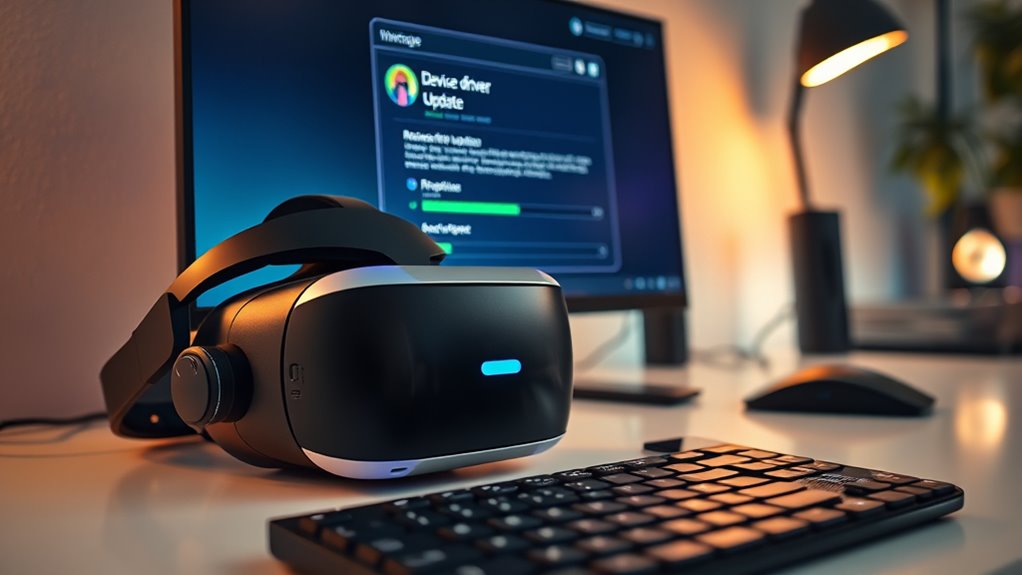
To diminish VR lag, you need to make sure your device drivers and firmware are up to date. Check for the latest driver updates for your graphics card and peripherals, as outdated drivers can cause performance issues. Also, update your VR headset’s firmware to ensure compatibility and smooth operation.
Check for Driver Updates
Are outdated drivers causing your VR lag? Updating your device drivers can markedly improve performance. Outdated drivers may cause compatibility issues, leading to lag and stuttering during VR sessions. To check for updates, visit the manufacturer’s website or use built-in update tools. Keep an eye out for the latest versions for your graphics card, motherboard, and peripherals. Regular updates fix bugs, optimize performance, and add new features. You can also enable automatic updates to stay current without manual checks. Remember, outdated firmware can also cause issues, so ensure your hardware’s firmware is up to date. Staying proactive in updating drivers helps maintain smooth VR experiences and minimizes lag. Don’t let outdated software hold back your immersive gaming sessions.
Update VR Firmware
Updating your VR device’s firmware and drivers is essential for peak performance. Manufacturers regularly release updates that fix bugs, improve stability, and enhance compatibility with new software. To do this, visit the manufacturer’s website or use their dedicated app to check for available updates. Follow the instructions carefully to install the latest firmware. Keeping your firmware current guarantees your device runs smoothly and reduces lag caused by outdated software. After updating, restart your VR headset and related hardware to apply changes properly. Regularly checking for firmware updates is a simple yet effective way to optimize your experience. Staying up-to-date minimizes performance issues, improves responsiveness, and helps you get the most out of your VR setup without needing new hardware.
Use Performance-Boosting Tools and Utilities

Using performance-boosting tools and utilities can substantially reduce VR lag by optimizing your system’s resources. These tools help free up CPU, GPU, and RAM, ensuring smoother gameplay. Start by closing unnecessary background programs that consume resources. Use system cleaners to remove junk files and temporary data. Enable game mode or similar features to prioritize VR applications. You can also adjust your system’s settings with utilities that optimize startup processes. Additionally, updating your graphics drivers regularly guarantees compatibility and performance improvements. Here are some useful tools:
- Task Manager for closing background apps
- CCleaner for cleaning junk files
- Razer Cortex for game optimization
- Driver Booster for updating drivers
- Windows Game Mode for resource prioritization
Manage and Reduce System Overheating

Overheating can substantially impact your VR experience by causing lag, crashes, and hardware throttling. When your system gets too hot, it slows down to prevent damage, which leads to noticeable lag and degraded performance. To stay cool, ensure your PC is well-ventilated, clean dust from fans and vents, and avoid gaming in hot environments. Using a cooling pad or additional fans can also help keep temperatures down. Keep an eye on temperature monitoring tools to prevent overheating before it affects your gameplay.
| Temperature Level | Effect on VR Performance |
|---|---|
| Normal | Smooth, lag-free experience |
| Elevated | Slight lag, potential crashes |
| High | Significant lag, hardware throttling |
| Critical | System shutdown to prevent damage |
Clear Cache and Temporary Files Regularly

Regularly clearing your cache and temporary files can boost your VR performance. You should delete unnecessary files, clear app caches, and use disk cleanup tools to keep your system running smoothly. Doing this prevents lag caused by clutter and frees up valuable storage space.
Delete Unnecessary Files
Clearing out unnecessary files like cache and temporary data can substantially improve your VR experience. These files accumulate over time, slowing down your system and causing lag. Regularly deleting them frees up storage space and helps your VR setup run more smoothly. To do this effectively, consider these tips:
- Use built-in system tools to clear cache for your VR headset and PC
- Delete temporary files from your system’s storage settings
- Remove old log files and error reports
- Clear browser caches if you use web-based VR apps
- Uninstall unused or outdated VR software and updates
Keeping these files in check ensures your VR system remains responsive and reduces lag, providing a more seamless experience. Regular maintenance prevents clutter from building up, maintaining peak performance without new hardware.
Clear App Cache
Have you ever noticed your VR app slowing down or lagging unexpectedly? One simple fix is to clear the app cache regularly. Cache files store temporary data to help apps load faster, but over time, they can become cluttered or corrupted, causing performance issues. To clear the cache, go to your device’s settings, find the app in question, and select the option to clear cache or temporary files. This process removes unnecessary data without deleting your personal settings or saved progress. Doing this periodically ensures your VR apps run smoothly and reduces lag. Keep in mind, clearing cache won’t delete any essential data, but it can give your app a fresh start, improving responsiveness and overall performance.
Use Disk Cleanup Tools
Using disk cleanup tools is an effective way to maintain smooth VR performance by removing unnecessary files that can slow down your system. Regularly clearing out cache and temporary files frees up storage and helps prevent lag. You can use built-in tools like Windows Disk Cleanup or third-party apps to simplify this process. Make it a habit to run these tools weekly, especially after large downloads or updates. Doing so reduces clutter that might interfere with VR applications. Additionally, clearing browser caches can improve overall system responsiveness. Remember, less clutter means your system can allocate resources more efficiently, ensuring a smoother VR experience. Keep your drive clean and your performance sharp with these simple maintenance steps.
- Delete system cache and temporary files
- Empty your browser cache regularly
- Remove unused programs and large files
- Clear app-specific cache (e.g., Steam, Oculus)
- Run disk cleanup tools periodically
Reorganize Your Play Space for Better Tracking
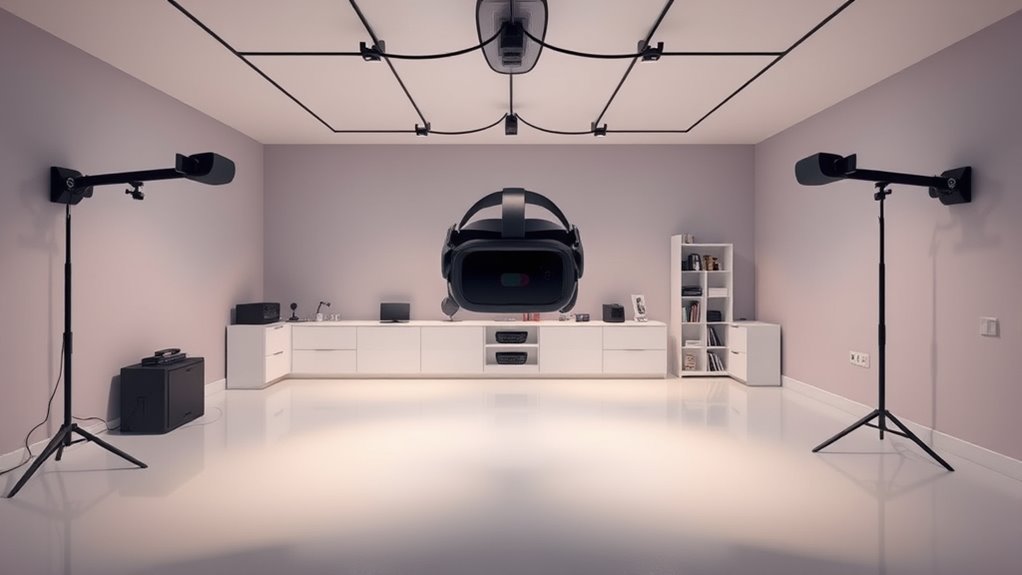
To improve your VR tracking, start by reorganizing your play space to minimize obstacles and guarantee clear sensor lines of sight. Move furniture, cables, and other objects away from the sensors’ view, ensuring they have unobstructed access to your headset and controllers. Keep the play area well-lit but avoid direct sunlight that can interfere with sensors. Clear pathways prevent accidental bumps or interference during gameplay. Position sensors at ideal heights and angles, typically eye level and facing your main play zone. Avoid placing sensors near reflective surfaces or mirrors, which can cause tracking errors. Take time to test your setup, moving around to identify blind spots or tracking issues. A clean, organized space directly translates to more accurate tracking and less lag during your VR sessions.
Frequently Asked Questions
Can Adjusting Room Lighting Reduce VR Lag?
Yes, adjusting room lighting can help reduce VR lag. Bright, uneven lighting can interfere with tracking sensors, causing delays or inaccuracies. You should make certain your room has consistent, soft lighting to minimize reflections and shadows that disrupt tracking. Avoid direct sunlight or flickering lights, as they can further hinder performance. Proper lighting setup ensures your VR system tracks movements accurately, reducing lag and enhancing your overall experience.
Does Using a Gaming VPN Improve VR Performance?
Using a gaming VPN can improve your VR performance by reducing ping and latency, which are critical for smooth gameplay. Studies show that gamers experience up to a 30% decrease in lag when using a VPN optimized for gaming. By connecting to a server closer to the game’s hosting location, you cut down lag and connection issues. Just guarantee you choose a fast, reliable VPN to avoid adding more delay.
How Does Bluetooth Interference Affect VR Lag?
Bluetooth interference can markedly increase VR lag by disrupting the communication between your headset and controllers. When other wireless devices, like Wi-Fi or nearby Bluetooth gadgets, operate on similar frequencies, they cause signal interruptions. These interruptions lead to delayed responses, making your VR experience choppy or laggy. To reduce lag, minimize Bluetooth device use nearby, keep your headset and controllers close, and guarantee your Bluetooth connections are stable and on dedicated channels.
Can Overclocking My CPU Lower VR Latency?
Overclocking your CPU can potentially lower VR latency by pushing processing power past its standard speed, enabling quicker data handling. However, don’t forget, this turbo boost may cause thermal troubles and system instability if not managed carefully. You’ll want to monitor your temperatures and stability closely while overclocking. When done right, this daring tweak can deliver a smoother, more responsive virtual reality experience, but proceed with caution.
Is There a Way to Optimize VR Software for Older PCS?
Yes, you can optimize VR software for older PCs by adjusting settings. Lower your in-game graphics, reduce resolution, and disable unnecessary background apps to free up resources. Keep your graphics drivers updated and tweak the VR application’s performance settings for smoother gameplay. Additionally, close any unused programs running in the background, and consider lowering the refresh rate if possible, to help your system run VR more efficiently.
Conclusion
Just like a master artist perfects their craft, fine-tuning your VR setup can transform your experience from shaky to seamless. By applying these simple tips, you’ll minimize lag and immerse yourself fully in your virtual world. Remember, as in any great adventure, patience and attention to detail make all the difference. So, take control, optimize your system, and enjoy smooth, lag-free VR sessions—your journey to better performance starts now.