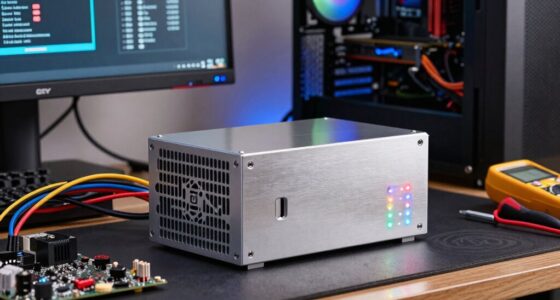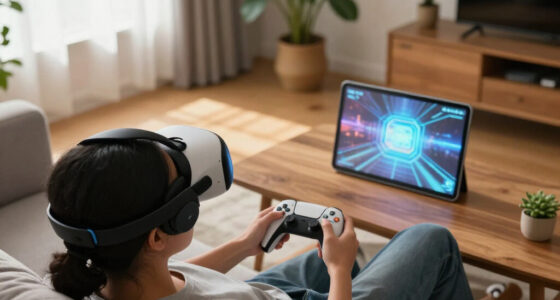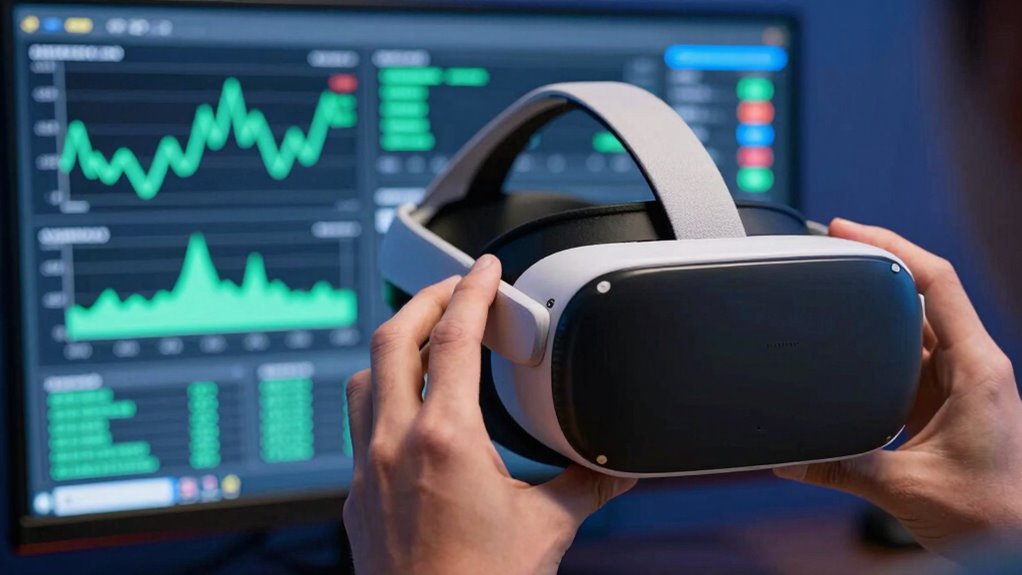

To monitor PCVR performance drops effectively, start by tracking your CPU and GPU usage with system tools like Task Manager or dedicated monitoring software. Watch for spikes or underperformance during gameplay, and note any visual glitches or stuttering. Check for overheating or background apps that could be affecting performance. Adjust graphics settings and test hardware connections if issues persist. Continuing will reveal more tips to keep your VR experience smooth and immersive.

Get VR and gaming gear delivered free — and shop member deals
- Fast, free delivery on millions of items
- Access to Prime Big Deal Days deals on October 6–7
- Prime Video, Amazon Music and more included
Key Takeaways
- Monitor GPU and CPU usage in real-time to identify resource bottlenecks during performance drops.
- Check for thermal throttling or overheating indicators that may cause hardware slowdown.
- Observe frame rate fluctuations and dropped frames in VR software or performance metrics.
- Ensure USB connections and cables are stable and functioning properly for data transfer.
- Review background processes and system load to detect unnecessary applications impacting performance.
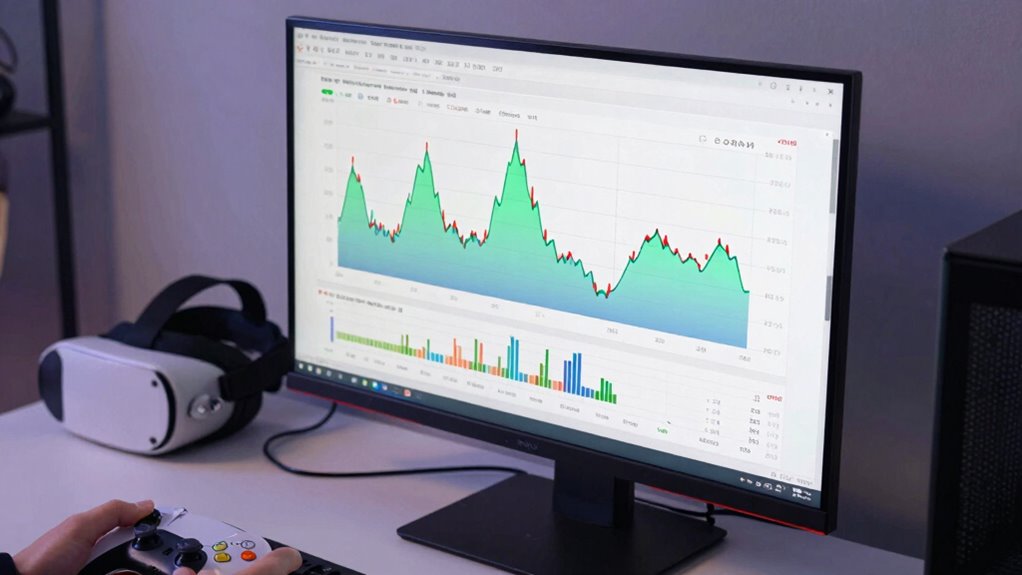
When your PCVR experience suddenly drops in performance, understanding the cause can feel overwhelming. You might notice lag, stuttering, or a sudden drop in visual quality, but pinpointing the issue requires a systematic approach. The key is to start with hardware optimization. Ensure your PC meets or exceeds the recommended specifications for your VR headset. Check your GPU and CPU usage using task managers or dedicated monitoring tools; if either is maxed out, that can cause performance drops. Sometimes, background applications hog resources, so closing unnecessary programs can free up vital processing power. Additionally, verify that your drivers, especially graphics card drivers, are up to date. Outdated drivers are a common culprit for performance issues, and manufacturers frequently release updates optimized for newer VR titles or hardware configurations.
Once you’ve optimized your hardware, shift your focus to software troubleshooting. This involves verifying your VR software and game settings. Lowering graphics quality settings within the VR game can significantly improve performance, especially if your hardware is borderline or slightly outdated. Adjust resolution scaling and disable any unnecessary visual effects that might strain your system. Also, check for updates for your VR platform, such as SteamVR or Oculus software, because outdated software can introduce bugs or inefficiencies that lead to performance drops. Restarting your VR software and your PC can sometimes resolve temporary glitches that cause lag or stuttering. Regularly monitoring your system’s hardware conditions can help you catch potential issues before they impact your VR experience. A properly configured system can also help in maintaining consistent performance during demanding VR sessions.
Optimize your VR software and game settings, update platforms, and restart systems to resolve lag and improve performance.
If performance issues persist, dive deeper into your system’s configuration. Disable any third-party overlay programs or screen recording software that might interfere with VR performance. These tools can consume CPU or GPU resources without you realizing it. Similarly, confirm that your USB ports and cables are functioning correctly, as poor connections can cause data transfer issues leading to lag. If your headset supports it, switching to a different USB port—preferably a dedicated one—may stabilize data flow. Additionally, ensuring your system maintains thermal management and avoids overheating can prevent hardware throttling during demanding VR sessions.
Finally, consider running specific diagnostics or benchmarks to identify hardware bottlenecks. If your system struggles during these tests, it might be time to upgrade certain components. In the meantime, maintaining a clean, well-ventilated system helps prevent overheating, which can throttle hardware performance during intense VR sessions. By systematically applying hardware optimization steps and troubleshooting software issues, you’ll be better equipped to read and resolve performance drops, ensuring a smooth and immersive VR experience.
VR performance monitoring software
As an affiliate, we earn on qualifying purchases.
As an affiliate, we earn on qualifying purchases.
Frequently Asked Questions
What Hardware Components Most Affect PCVR Performance Drops?
Your GPU is the biggest factor affecting PCVR performance drops because hardware bottlenecks here limit frame rate and rendering quality. The CPU also plays a vital role, especially in system optimization, as it handles tracking and game logic. RAM and storage speed matter too, but less so. To improve performance, focus on upgrading your GPU and optimizing system settings, ensuring your hardware can handle demanding VR content smoothly.
How Can Software Updates Impact VR Performance Stability?
Software updates can markedly impact your VR performance stability through improved software optimization, fixing bugs, and enhancing compatibility. Sometimes, an update might cause issues or reduce performance. In such cases, you can perform an update rollback to revert to a more stable version. Keep an eye on user feedback and developer notes, so you know when an update benefits your VR experience or causes problems needing rollback.
Are Performance Drops More Common in Certain VR Titles?
Performance drops hit certain VR titles like a tidal wave, especially those demanding intense graphics or complex physics. You might notice more issues in fast-paced games where VR comfort relies heavily on smooth controller tracking. Titles with high graphical fidelity or extensive world-building tend to strain your system more, causing frame drops and latency. Staying aware of these factors helps you anticipate and troubleshoot performance issues, ensuring a smoother, more immersive experience.
What Are the Best Tools to Monitor Real-Time VR Performance?
To monitor real-time VR performance, you should use tools like Oculus Debug Tool, SteamVR Performance Overlay, or MSI Afterburner. These tools help you identify VR optimization issues and hardware bottlenecks, giving you live data on frame rates, latency, and GPU or CPU usage. By keeping an eye on these metrics, you can troubleshoot performance drops effectively and improve your overall VR experience.
How Do Background Processes Influence VR Performance Dips?
Imagine you’re in a medieval tavern, but your system’s running like a sluggish knight—background interference causes VR performance dips. Background processes, like auto-updates or unnecessary apps, consume system resources, leading to frame drops. To prevent this, you need system optimization—close unused programs, disable auto-start items, and prioritize VR tasks. This keeps your PC focused, ensuring smooth VR gameplay and minimizing those pesky dips.
USB 3.0 extension cables for VR headset
As an affiliate, we earn on qualifying purchases.
As an affiliate, we earn on qualifying purchases.
Conclusion
So, next time your PCVR game stutters like a broken record, remember—you’re the navigator steering through a storm of data. Instead of panicking, visualize yourself as a calm captain, charting a course through choppy waters. By understanding performance drops, you turn chaos into clarity, transforming a frustrating glitch into a smooth voyage. With patience and insight, you’ll glide seamlessly, leaving the turbulence behind and embracing the immersive world ahead.
As an affiliate, we earn on qualifying purchases.
As an affiliate, we earn on qualifying purchases.
Halloween Picks
halloween
As an affiliate, we earn on qualifying purchases.