TL;DR
A VR gaming headset places a screen in front of each eye and tracks your head so the virtual scene changes as you look around. Choose between standalone, PC VR, and console options by checking game compatibility, comfort, tracking, and full setup cost; the sharpest display matters little if the headset feels uncomfortable or cannot play the games you want.
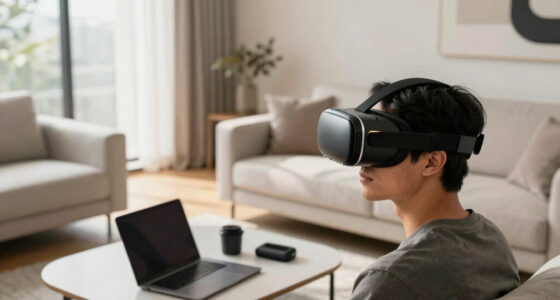
Your first VR game might have you ducking under a virtual doorway before you remember there’s a real coffee table beside you. A VR gaming headset puts a screen in front of each eye and tracks your head, so the virtual scene changes as you turn. Many headsets also track your position and use controllers to follow your hands.

Play games on Amazon Luna for your next adventure, included with Prime
- A rotating selection of games, no download needed
- Play on TV, laptop or phone
- Fast, free delivery for your gear, too
That sense of presence can make a quiet living room feel like a cockpit or a game arena. But the right headset depends on more than the display: some run games on the headset itself, some connect to a gaming PC, and others are made for a particular console. Their games and features differ, too.
This guide explains those options and shows you how to weigh game libraries, comfort, tracking, and total cost. You’ll also see how room setup and movement choices can shape your first sessions, so you can spend on a system that suits the way you actually play.
Check that your must-play games support the headset, platform, and connection method before you buy.
Compare standalone, PC VR, and console VR by the games and setup each gives you, not just the headset price.
Factor in fit, weight, glasses clearance, accessories, and any computer or console when working out the full cost.
Set a clear play area and boundary; lighting, obstacles, and room size can affect tracking.
Start with a short, stationary or teleport-movement game, and stop for a break if you feel unwell.
Choose between standalone, PC VR, and console headsets
VR gaming headsets come in three broad setups: standalone models run games on the headset, PC VR models connect to a capable gaming computer, and console VR models are designed for a specific console. Standalone is often the simplest place to start; PC VR can offer access to demanding computer games, while console options depend on their platform’s library.
A standalone headset is a bit like a game console strapped on your head. You charge it, put it on, and launch a supported game without running a cable to a computer. That makes it handy if you want to play in the living room and pack the device away afterward. Its processing and graphics capabilities are more limited than a powerful PC’s, though.
PC VR connects to a gaming computer by cable or wirelessly. This can suit someone with a capable PC who wants to play PC VR titles, but it adds computer cost and setup. Some standalone models can connect to a PC as well, so one headset may cover both uses; support depends on the model, connection method, and software.
Console VR is a platform-specific choice. Before buying, check that the games you want support that exact headset and console combination. A friend’s exciting game recommendation won’t help much if it lives in a store your system cannot access.
Here’s a useful scenario: if you want quick sessions after work and no computer beside your play space, a standalone headset may suit you. If your existing PC is powerful enough and you want PC VR games, a PC connection may be worth the extra wiring or wireless setup. Compare what each path means in practice:
| Setup | What runs the games | What to check |
|---|---|---|
| Standalone | The headset | Game store, battery life, PC connection support |
| PC VR | A gaming computer | PC capability, connection method, supported titles |
| Console VR | A compatible console | Console and headset compatibility, available games |
Products Worth Considering
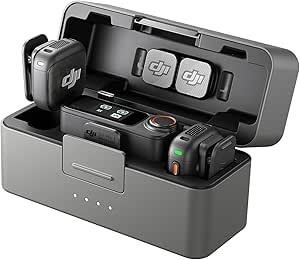
DJI Mic 3 Wireless Microphone (2 Transmitters, 1 Receiver, Charging Case)

Samsung 27-Inch Odyssey G5 QHD Gaming Monitor (G51F)

LG 27GS60QC-B Ultragear 27-inch Curved Gaming Monitor (QHD, 180Hz, 1ms, 1000R)
As an affiliate, we earn on qualifying purchases.
Check the games and full setup cost before you buy
VR gaming headsets differ most in the games and stores they support, so check your must-play titles first. Compatibility can depend on the headset, its software, and the connection method; SteamVR games do not work on every headset automatically. Also add up the full setup cost, including any computer, console, games, accessories, and prescription inserts you may need.
Start with three games you’d be excited to play. Look up each game’s supported platforms and whether it needs a PC connection, particular controllers, or other equipment. If all three point to one platform, that tells you more than a general promise of a large game catalog.
Then make a realistic budget. A headset’s price is only the beginning if you need a gaming PC, extra battery, a better-fitting strap, or prescription lens inserts. It’s a little like buying a camera: the body matters, but the lens and other pieces can change the final bill.
For example, imagine you already own a gaming PC. A headset that can connect to it may give you a path to PC VR without buying another computer, although you’ll still want to check the PC’s capabilities and the headset’s connection support. If you don’t own a capable computer, a standalone setup may cost less overall even if its graphics are more limited.
Prices, product lineups, and software support change over time. Check the manufacturer’s current compatibility information and the game listing before you pay, rather than relying on an old recommendation or a rumor about future features. Buy for the games you can play now, and treat unconfirmed leaks as unconfirmed.
A headset is only a good deal if it can play the games you want within the budget you can afford.
Look beyond resolution to find a clear, comfortable fit
A comfortable headset should feel balanced, stay securely in place, and let you see clearly through its lenses. Resolution is only one part of visual clarity: lens design, field of view, refresh rate, fit around your eyes, and the game’s own rendering all influence what you see. A high number on a box cannot tell you whether a headset will sit comfortably on your face.
Fit matters because the headset’s lenses need to line up well with your eyes. If the image looks blurry at the edges or feels hard to settle, adjust the fit before deciding the display is poor. Weight, balance, face padding, adjustability, and ventilation all shape how the device feels after a longer session.
Imagine playing a bright, fast-moving racing game. A headset that feels fine for five minutes may start to press on your cheeks or trap heat after several laps. A cushioned face pad or different strap might help, but those accessories vary by model and add to the cost.
If you wear glasses, check the manufacturer’s guidance on clearance and supported prescription options. Glasses may fit, but a tight fit can feel uncomfortable or put the lenses close enough to risk scratching. Prescription inserts are an alternative on some models; confirm availability and fit for your headset before ordering.
Features such as pancake lenses, higher-resolution displays, or eye and face tracking appear on some newer or premium devices. They are not universal, and a feature’s presence doesn’t mean your favorite game will use it. When possible, try the headset or read model-specific reviews that discuss real fit and clarity. Your face and your games are the final test.
Set up tracking and space for safer, smoother play
Most modern headsets use inside-out tracking: cameras on the headset track your position without external room sensors. The cameras need a view of the play space, and lighting, obstacles, and room size can affect tracking. Follow the headset’s setup guidance and use its boundary system to mark where you can move.
A seated game may need little more than a clear chair and enough room to move your arms. A room-scale game can ask you to stand, turn, reach, and step around virtual objects. In both cases, move real hazards out of reach. That coffee table you barely notice during a flat-screen game can become a bruising surprise when your view is full of a virtual city.
Some games use handheld controllers, while some headsets also support hand tracking. Whether you can use your hands instead depends on both the headset and the game. For instance, a menu or social app might support hand gestures, while a fast-paced game expects controller buttons and sticks.
Try this practical setup before launching a game: clear the floor, check the boundary, and keep pets or other people out of your movement area. Then make sure the cameras have the lighting they need, and start with a seated or stationary experience if you’re unsure how the headset feels.
Mixed reality adds another option: cameras and depth sensors on some devices can show your surroundings or place virtual objects in a real room. That can make a screen appear to float beside your sofa, but mixed reality is distinct from fully immersive VR and depends on the device and software. You can think of it as a window between the game world and your room, rather than a replacement for the whole room.
Make wireless play and movement work for you
Wireless VR gives you freedom to turn and move without a cable, but it depends on battery life and connection quality. If you stream PC games to a headset, your network can affect the experience as well. A wired connection avoids some wireless limitations, though it brings a cable into your play space.
Think about the room where you’ll actually play. If you have a reliable network near an open living room, wireless PC streaming could feel tidy and flexible. If your signal is weak or the router sits far away, a wired connection may be more dependable. The choice is a tradeoff, much like choosing untethered headphones for freedom while keeping a cable handy for long trips.
Battery life changes with the headset, game, settings, and battery condition. Wireless PC streaming may use more power, so check specifications and independent reviews for the specific model instead of expecting one runtime to apply to every session. A charging dock or battery pack can help, but compatibility and comfort matter.
Movement inside a game can affect how you feel, too. Some players find smooth artificial movement less comfortable than teleport movement or stationary play. Sensitivity varies; if a game makes you feel unwell, stop, take a break, and try a shorter session or a different movement setting next time.
For a first evening, choose a game with a stationary or teleport option and play a short session. That gives you time to learn the controls and see how your body responds before you try a longer game with smooth movement. Comfort sets the pace; you don’t need to push through discomfort to make the headset worthwhile.
Start with a first session that feels easy
Your first VR session goes more smoothly when you begin with a short, simple game in a clear space. Fit the headset, set the boundary, and learn the controls before chasing longer sessions. You can then adjust the experience based on what feels comfortable, rather than trying to fix the fit while dodging virtual enemies.
- Clear your play area. Move furniture and loose items away, and decide whether you’ll sit or stand.
- Fit the headset. Adjust the strap and eye position, and check that the lenses give you a clear view. If you wear glasses, follow the manufacturer’s fit guidance.
- Set the boundary. Follow the headset prompts and keep the marked space clear of people and pets.
- Pick an easy first game. Choose something stationary or with teleport movement while you learn the controls.
- Pause when you need to. If you feel unwell or uncomfortable, stop and take a break.
For example, if you’re setting up after dinner, begin with a short stationary experience before trying a room-scale action game. That gives you a chance to check the fit, controller tracking, and boundary while the stakes are low. When the setup feels right, you can try a different game or movement option.
Age guidance varies by manufacturer and platform. If a child will use the headset, check the device’s stated age recommendations and supervise play, including how they move through the room. Make sure the headset fits and that the play space is safe for them.
Use that first session to learn what you like: standing or seated play, wireless freedom or a cable, hand tracking or controllers. A headset can also offer video, social, fitness, and productivity apps, but its app catalog depends on the platform. Start with the experience you want most, then explore the extras.
Frequently Asked Questions
Do I need a gaming PC for VR?
No. Standalone headsets run supported games on the device itself. You need a gaming PC for PC VR titles, and some standalone headsets can connect to a PC for that use if the model, connection, and software support it.
Can I play SteamVR games on any headset?
No. SteamVR compatibility depends on the headset, its software, and how you connect it. Check official headset support and the specific game’s requirements before buying.
Can I wear glasses with a VR headset?
Often, but fit and clearance vary by headset. Check the manufacturer’s guidance; prescription inserts may be available for some models. Glasses that press against headset lenses can be uncomfortable or risk scratching them.
How much room do I need for VR gaming?
Seated and standing games can work in smaller areas, while room-scale games need clear space to move. Follow the headset’s setup guidance, set its boundary, and remove hazards from your play area before starting.
Can VR gaming cause motion sickness?
It can, though sensitivity varies by person and game. Smooth artificial movement may feel less comfortable than teleport movement or stationary play for some people. Try a short session, take breaks, and stop if you feel unwell.
Is a higher resolution always better?
No. Resolution is only one part of how sharp an image looks. Lens clarity, fit, refresh rate, display characteristics, and the game’s rendering quality matter too, so check model-specific reviews when comparing headsets.
How long does a VR headset battery last?
Battery life depends on the headset, game, settings, and battery condition. Wireless PC streaming can also use more power. Check manufacturer specifications and independent reviews for the exact model you’re considering.
Conclusion
Choose a VR gaming headset around the games you want, the space you have, and the setup you’ll enjoy using. A sharp display can impress on a spec sheet, but a comfortable fit, compatible library, and workable play area determine whether you’ll reach for it again.
Check current compatibility, add up the full cost, and start your first session with room to move and time to pause. Then let the virtual world fill your view while the real coffee table stays safely out of reach.