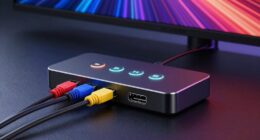
To effectively document VR gear issues for customer support, take clear, well-lit photos from multiple angles, highlighting cables, sensors, and any visible damage. Record detailed notes about your setup, including device models, firmware versions, and troubleshooting steps you’ve tried. Include error messages or warning codes, and note any hardware changes. Combining visuals with thorough descriptions helps support teams diagnose problems faster. Keep these details organized—if you keep going, you’ll learn more about creating the perfect support documentation.
Key Takeaways
- Take clear, well-lit photos from multiple angles showing all connections and hardware components.
- Highlight cables, sensors, and headset connections to clearly display setup configuration.
- Include close-ups of any physical damage or irregularities on the device.
- Capture images of error messages or screen notifications related to the issue.
- Combine photos with detailed notes on steps taken, error specifics, and hardware details for comprehensive support.
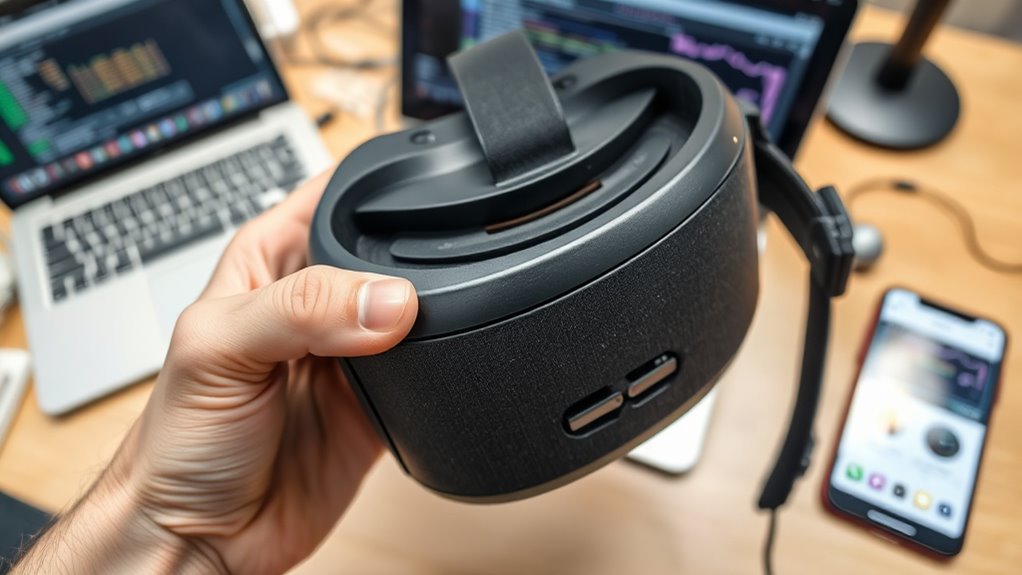
When experiencing issues with your VR gear, clear and detailed documentation can make all the difference in resolving problems quickly. Support teams rely heavily on the information you provide to diagnose and fix the issue efficiently. The first step is to understand that proper documentation helps identify whether your problem stems from device compatibility issues or a need to follow specific troubleshooting steps. If your VR headset isn’t connecting properly or experiencing performance glitches, capturing precise images and notes can save hours of back-and-forth communication.
Start by taking clear photos of your VR setup from multiple angles. Make sure the images highlight how everything is connected—cables, sensors, and the headset itself. Well-lit, focused pictures that show the physical connections help support teams verify whether your setup aligns with recommended configurations. If you’re facing device compatibility issues, these images can reveal mismatched hardware or improper connections that could be causing your problems. Also, document any visible damage or irregularities in your gear, as physical defects can often be the root cause.
Capture clear, focused images of your VR setup from multiple angles to verify connections and spot hardware issues.
Next, record detailed troubleshooting steps you’ve already taken. Write down what you’ve tried so far—like restarting the device, updating firmware, or recalibrating sensors. Mention specific error messages or warning codes that pop up during use. If you’ve checked your system requirements against the VR hardware specifications, note that too. This information helps support teams rule out common issues and determine whether your hardware is compatible with the VR software or platform you’re using. If certain steps resolved or worsened the problem, include that as well, so they understand what has or hasn’t worked.
When documenting issues, keep a record of your device details, including model numbers, firmware versions, and any recent updates. This information is essential because device compatibility can vary even among similar models. Support teams often ask for these specifics to identify known issues or compatibility conflicts. If you’ve tried troubleshooting steps from online guides or community forums, mention these as well—especially if they didn’t work or caused additional problems. This helps narrow down the cause and guides support toward more targeted solutions.
Ultimately, your goal is to create a thorough snapshot of the problem. Use photos, notes, and detailed descriptions to tell the full story of your VR issue. When you approach customer support with this level of documentation, you make their job easier and speed up the troubleshooting process. Clear visuals combined with precise information allow support teams to quickly identify whether your issue relates to device compatibility, faulty hardware, or misconfigurations, leading to faster resolution and getting you back to enjoying your VR experience.
Frequently Asked Questions
How Can I Troubleshoot VR Headset Connectivity Problems?
You can troubleshoot VR headset connectivity problems by first checking for VR software updates and installing any available ones to fix bugs. Make certain your headset and PC or console are properly connected, and try ergonomic adjustments like repositioning the headset for a better fit. Restart your device, reconnect cables, and test the connection. If issues persist, update drivers and reset your network settings to improve stability.
What Should I Include in a Support Ticket for Hardware Malfunctions?
You should include support ticket essentials like a clear description of the hardware malfunction and when it started. To improve troubleshooting documentation, add details about your device model, firmware version, and steps you’ve already taken. Including photos or videos of the issue can speed up diagnosis. Don’t worry about being overly detailed—more info helps support teams resolve your hardware problems faster and more accurately.
How Do I Safely Clean My VR Lenses Before Documenting Issues?
To safely clean your VR lenses before documenting issues, start with gentle lens cleaning. Use a microfiber cloth to remove dust and smudges, avoiding harsh chemicals. Lightly dampen the cloth with lens cleaner if needed, but never spray directly onto the lenses. Carefully remove dust particles, making sure no debris scratches the surface. Proper lens cleaning ensures clear documentation and helps customer support accurately assess the issue.
Can I Use a Smartphone to Take Quality Support Photos?
Yes, you can use a smartphone for quality support photos, acting as your eye in the digital storm. With smartphone photography, you capture clear, detailed images that shine a light on your issue. Follow support photo tips like steadying your shot, good lighting, and focusing on the problem area. These simple steps turn your phone into a powerful tool, ensuring customer support sees exactly what’s wrong and can help you faster.
What Are Common Signs of Internal Hardware Damage?
You can often spot internal hardware damage by performing a visual inspection for damage indicators like cracks, burn marks, or corrosion. Look for unusual signs such as disconnected cables or swollen components. If you notice any of these damage indicators, it’s a clear sign of internal hardware issues. Taking clear, close-up photos of these visual inspection points helps customer support diagnose and resolve the problem more efficiently.
Conclusion
Think of your photos as a lighthouse guiding support through the fog. Clear images illuminate the problem’s shadow, helping them see exactly where the storm lies. With each snapshot, you’re building a bridge over turbulent waters, turning confusion into clarity. Your detailed documentation becomes the compass that steers support straight to solutions. By capturing every detail, you’re not just reporting an issue—you’re lighting the way toward a swift, confident fix.