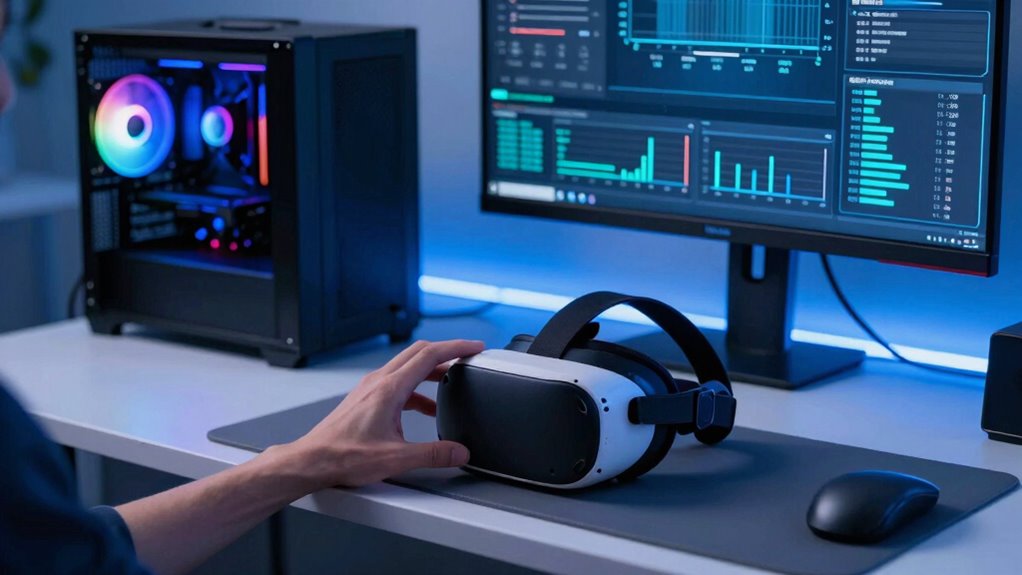

To reduce random stutter in PCVR, start by lowering graphics settings like resolution and disabling demanding effects such as motion blur. Upgrade your GPU, RAM, or CPU if needed, and keep drivers and firmware updated. Close background apps to free system resources and make certain your hardware meets VR requirements. Fine-tuning these aspects can greatly improve stability. If you want to discover more ways to enhance your VR experience, keep exploring these strategies.
Key Takeaways
- Lower graphical settings and disable demanding features like ambient occlusion to reduce system load.
- Keep GPU drivers, VR firmware, and software up to date for optimal performance.
- Close background applications and use a dedicated VR mode to free system resources.
- Upgrade hardware components such as GPU, RAM, or SSD to improve rendering and load times.
- Monitor system performance and troubleshoot bottlenecks to identify and address stuttering causes.

Random stutter in PCVR can be incredibly frustrating, disrupting your immersion and gameplay experience. When your virtual world suddenly freezes or jitters, it pulls you out of the experience and can even impact your performance. Thankfully, there are ways to reduce this annoying issue. One of the most effective strategies involves focusing on graphics optimization. By adjusting your VR settings, you can ease the load on your graphics card and CPU, helping your system run smoother. Lowering the resolution, reducing texture quality, or turning off demanding graphical features like ambient occlusion or motion blur can notably improve stability. Many VR headsets and games also offer specific performance modes—activating these can prioritize frame rates over visual fidelity, which often leads to less stuttering.
In addition to optimizing your graphics, hardware upgrades are often necessary if your system struggles to keep up with demanding VR titles. Upgrading your GPU can provide a substantial boost in rendering performance, making it easier for your PC to maintain consistent frame rates. Similarly, increasing your RAM or switching to a faster SSD can cut down on load times and reduce stuttering caused by data bottlenecks. If your CPU is outdated or underpowered, consider upgrading it, especially since VR applications rely heavily on processing power to deliver smooth experiences. Making sure your power supply can handle these upgrades is equally important, so double-check your system’s compatibility before making any changes. Ensuring your system components are compatible with cloud server solutions and other networking strategies can also help in troubleshooting performance issues.
Beyond hardware and graphics tweaks, keeping your drivers up to date is vital. Graphics card manufacturers regularly release updates that optimize performance for new games and fix bugs that could cause stutter. Regularly updating your VR headset firmware and related software can also guarantee compatibility and stability. Additionally, closing background applications can free up valuable system resources, preventing unnecessary strain on your CPU and GPU during gameplay. Running your PC in a dedicated VR mode or in a clean boot environment can make a noticeable difference if background processes are interfering with your game’s performance. Also, being aware of system bottlenecks is crucial, as these can significantly contribute to stutter and lag during VR sessions. A comprehensive hardware check can help identify potential issues before they become performance bottlenecks. Regularly checking for hardware compatibility issues and ensuring your system meets the necessary specifications can help prevent many common performance problems.
Ultimately, reducing random stutter in PCVR requires a combination of these approaches. Proper graphics optimization, timely hardware upgrades, and maintaining your system’s software health can turn jittery experiences into smooth, immersive adventures. While it might take some trial and error to find the perfect balance, investing in your hardware and fine-tuning your settings will pay off with a more seamless and enjoyable VR experience.

maxsun AMD Radeon RX 550 4GB GDDR5 ITX Computer PC Gaming Video Graphics Card GPU 128-Bit DirectX 12 PCI Express X16 3.0 DVI-D Dual Link, HDMI, DisplayPort
- Chipset: AMD Radeon RX 550 with solid capacitors
- Cooling: 9cm low-noise fan with high airflow
- Performance: Boost clock up to 1183 MHz, 4GB GDDR5
As an affiliate, we earn on qualifying purchases.
As an affiliate, we earn on qualifying purchases.
Frequently Asked Questions
Can Overclocking My GPU Improve VR Performance?
Yes, GPU overclocking can improve VR performance by boosting your GPU’s power, which helps increase VR frame rates. When you overclock your GPU carefully, it handles demanding VR applications more smoothly, reducing stutter and lag. Just remember, overclocking also raises temperatures and power consumption, so monitor your system closely. With stable overclocking, you’ll notice a smoother, more immersive VR experience overall.
Does Room Temperature Affect VR Stuttering?
Yes, room temperature can affect VR stuttering. For example, in a poorly ventilated room, higher ambient humidity and heat can cause your PC components to overheat, leading to performance drops and stutters. Proper room ventilation helps maintain a stable temperature, preventing overheating. Keeping the room cool and dry guarantees your PC runs smoothly, reducing VR stuttering caused by thermal throttling or hardware instability.
How Does Background Noise Impact VR Experience?
Background noise can profoundly impact your VR experience by causing sound interference and ambient distractions. When there’s loud or unpredictable noise nearby, your focus shifts away from the virtual environment, reducing immersion and increasing discomfort. To improve your experience, try using noise-canceling headphones or moving to a quieter space. Minimizing ambient distractions helps maintain your concentration, making your VR sessions smoother and more enjoyable.
Are There Specific VR Games More Prone to Stuttering?
Some VR games are more prone to stuttering, especially those with stunning, sophisticated VR graphics or intense, immersive motions that demand high performance. Fast-paced shooters and graphically rich adventure titles often struggle with smooth streaming, heightening the risk of stutter and motion sickness. You’ll notice these issues more in games with complex environments or rapid movements, which can disrupt your experience and cause discomfort.
Can Antivirus Software Cause VR Performance Issues?
Yes, antivirus software can cause VR performance issues due to interference. Antivirus programs often run background scanning, which can consume system resources and cause stuttering or lag during gameplay. To improve your VR experience, consider temporarily disabling real-time protection during sessions or adding your VR software folder to the antivirus exception list. This helps prevent interference and guarantees smoother performance while enjoying your virtual reality games.
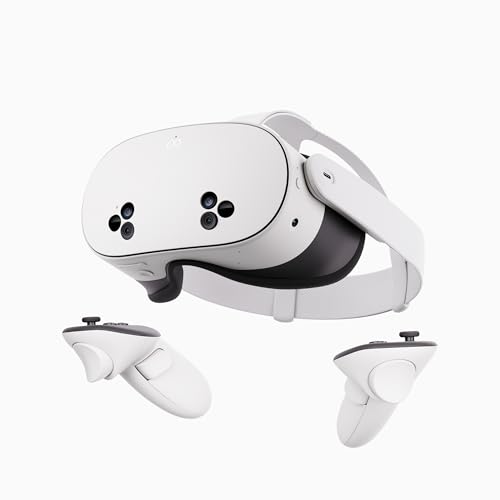
Meta Quest 3S 128GB | VR Headset — Thirty-Three Percent More Memory — Virtual Reality Without Wires — Access to 40+ Games with a 3-Month Trial of Meta Horizon+ Included (Renewed Premium)
- Wireless Freedom: Untethered VR experience
- Enhanced Graphics Power: Twice the processing speed
- Immersive Virtual Reality: Blend virtual and physical worlds
As an affiliate, we earn on qualifying purchases.
As an affiliate, we earn on qualifying purchases.
Conclusion
To keep your PCVR experience smooth, stay proactive and fine-tune your system regularly. Think of your setup like a well-oiled machine; neglecting even a small part can cause the whole system to falter. By keeping your drivers updated, adjusting settings, and monitoring performance, you’ll prevent random stutters from sneaking in. With these habits, you’ll glide through virtual worlds as seamlessly as a fish through water—making every session immersive and frustration-free.
As an affiliate, we earn on qualifying purchases.
VR graphics settings optimization
As an affiliate, we earn on qualifying purchases.
As an affiliate, we earn on qualifying purchases.